Monitoring a competitor who publishes no feed is the case every RSS guide skips. Twenty-one platforms sorted by which of three jobs they do, and the finished setup is business process automation you own outright, with no seat licence to renew.
Blaming the content is the reflex when a post underperforms, and it is usually the wrong diagnosis. A second reader decides distribution before any human sees the post, and most of what it checks is mechanical enough to automate business processes around, on five platforms at once.
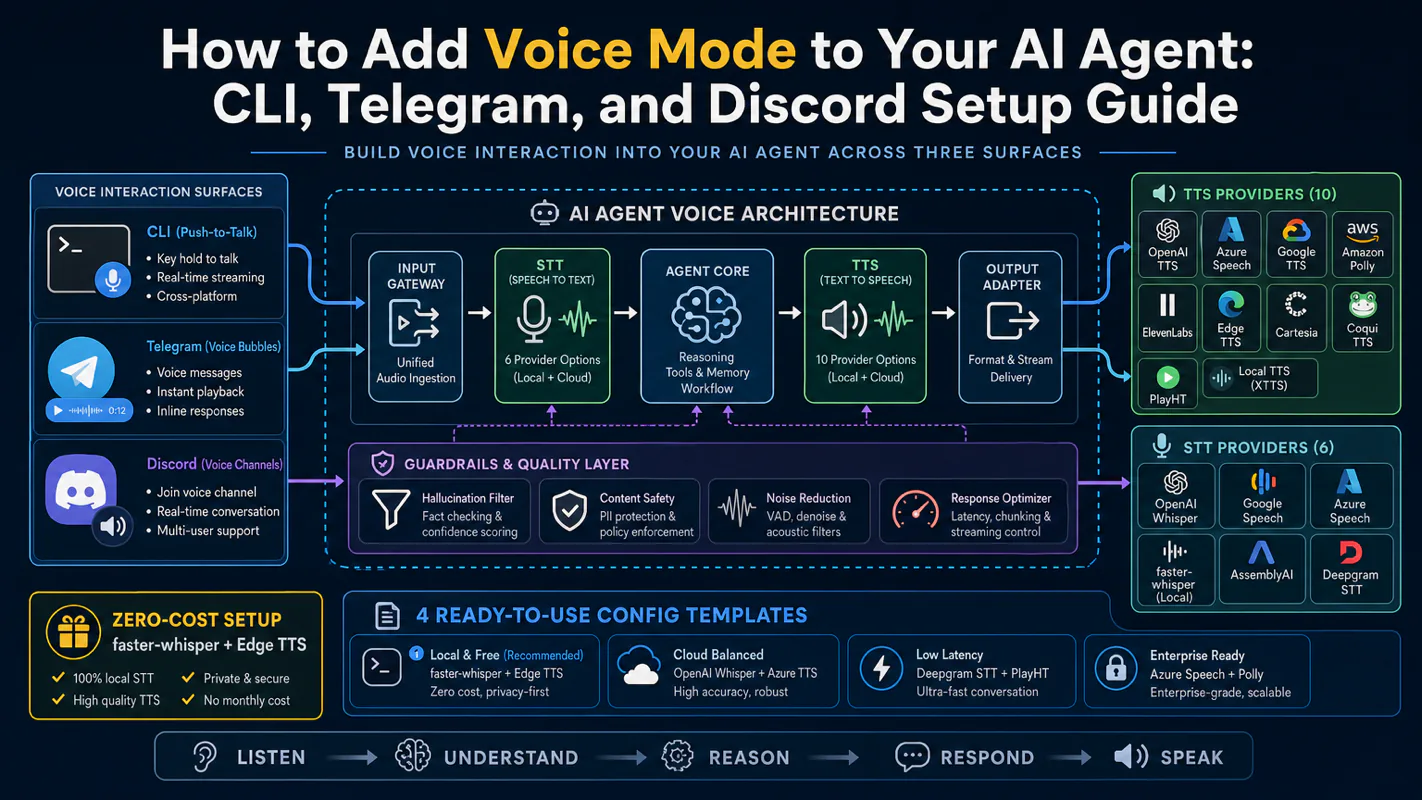
Gloves on, tape measure in hand — nobody types a query. Three voice surfaces for ai automation tools (terminal, Telegram, Discord), 10 TTS and 6 STT providers compared on cost and latency, plus a setup that costs nothing.
OpenAI Codex Best Practices: 9 Modules That Turn a Default Install Into a Production Setup
Nothing throws an error when ai automation tools run on the settings they shipped with. The cost surfaces as rework nobody traces. Nine Codex modules govern instructions, sandboxing, profiles, hooks, and context; most installs configure none of them.
Walk into a print shop and check the color profile on the shared workstation. It is whatever shipped with the driver, because changing it was somebody job on a day that never came, and the output has been slightly off ever since — not wrong enough to stop a job, just wrong enough that every proof needs a second pass. Defaults behave like this everywhere: they work, and they never work well. Codex has nine modules most installs never touch, from project instructions and sandbox policy through hooks, skills, and context management. Ai automation tools rarely fail loudly.
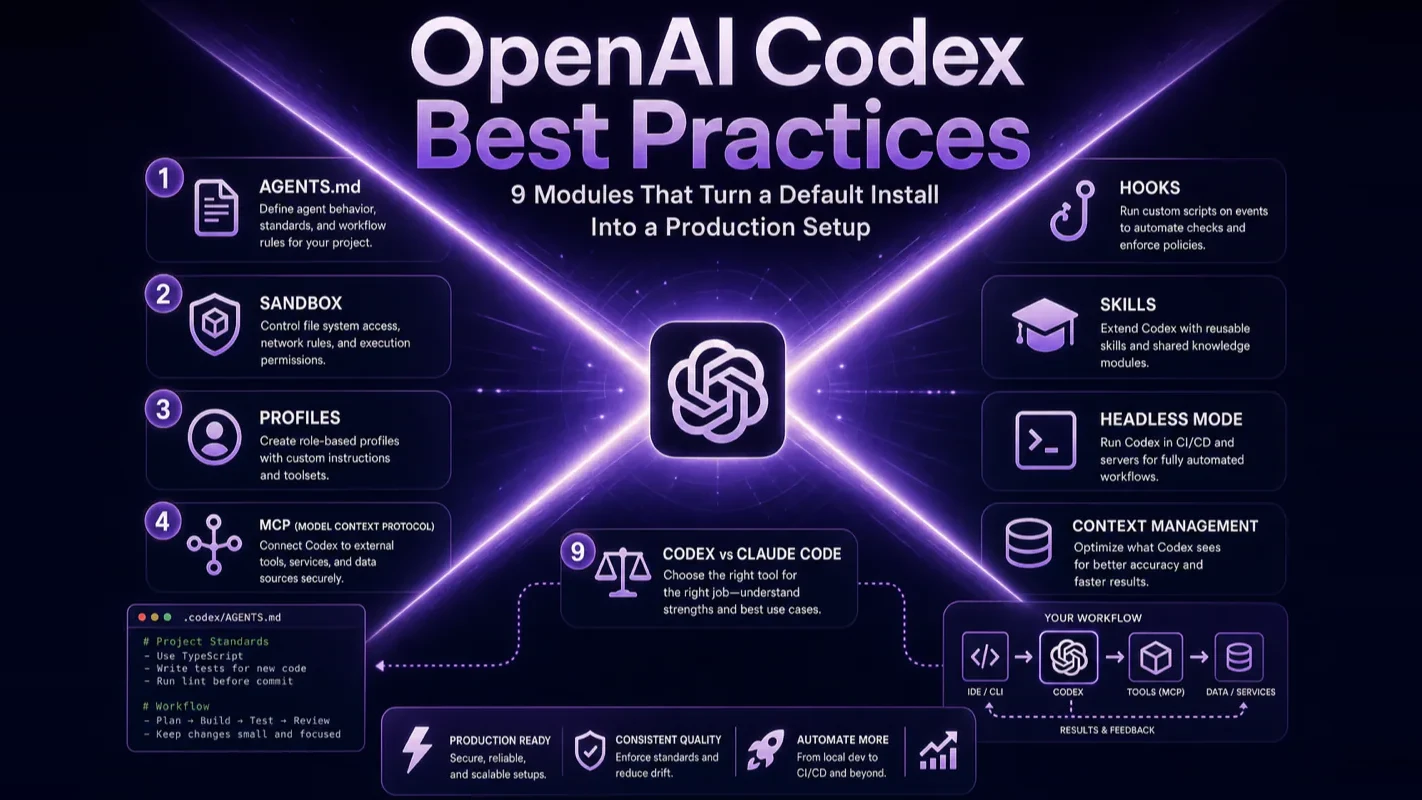
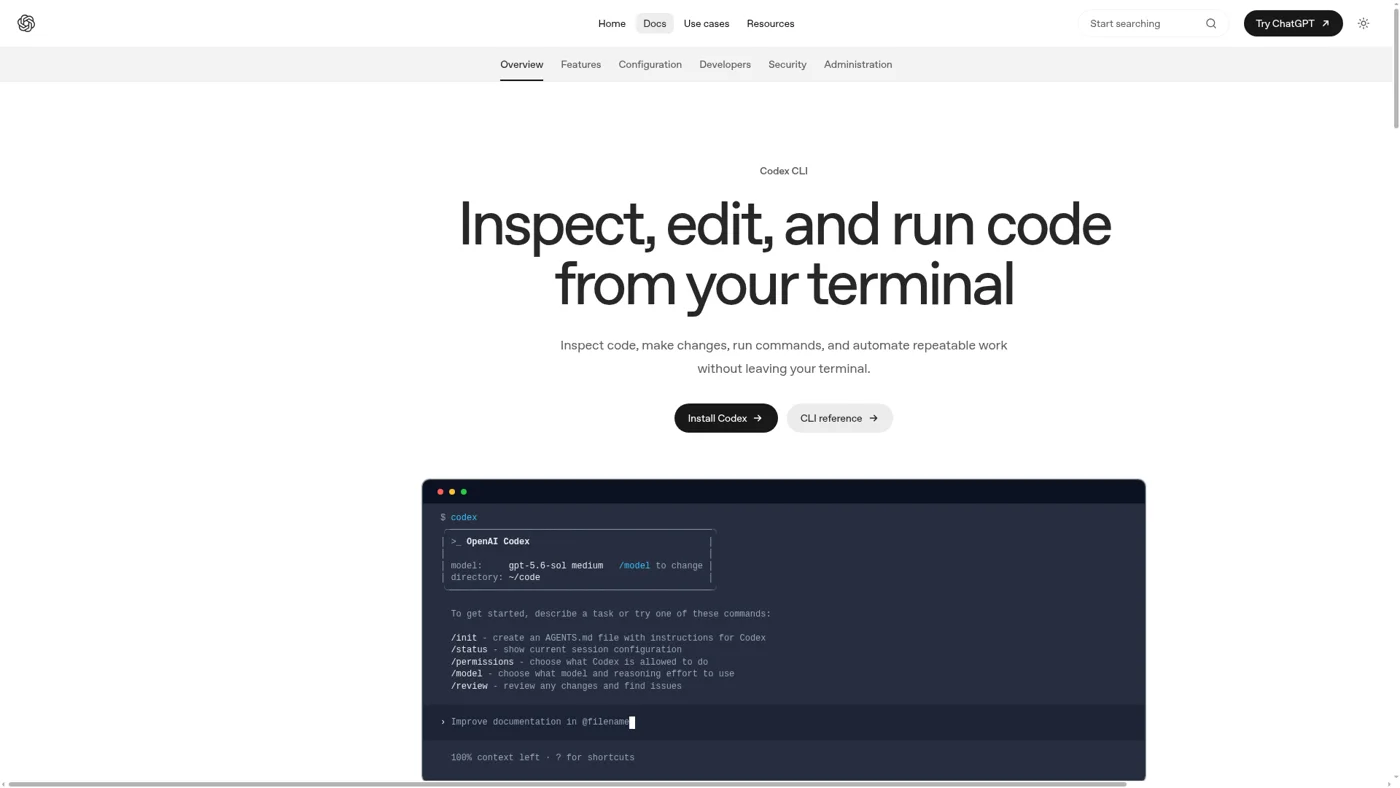
OpenAI Codex CLI is a terminal-based AI coding agent powered by GPT models. It generates, debugs, and refactors code directly from your command line. Nine modules control everything it does: AGENTS.md (project instructions), sandbox and approval (security isolation), profiles (configuration snapshots), MCP (external tool connections), hooks (automated triggers), skills (reusable workflows), headless mode (CI/CD automation), context management, and Codex vs Claude Code selection.
Most developers install Codex and start using it with default settings. They never configure these nine modules. The result: Codex ignores project conventions, the sandbox mode fights their workflow, every operation triggers an approval prompt, and finished tasks ship without verification. It works, but it never works well.
This guide breaks down each module with specific settings, decision tables, and prompt templates. Every section carries a Codex vs Claude Code callout so you can see exactly where behavior diverges. Two bonus sections close it out — the Codex-only features that have no Claude Code equivalent, and a step-by-step migration guide for anyone switching from Claude Code. If you already have basic Codex experience, you can upgrade your configuration right after reading. If you are starting fresh, read the complete Codex guide first for foundational concepts, then the CLI vs App vs Cloud comparison to pick the right entry point.
AGENTS.md: Your Project Instruction File
AGENTS.md is the instruction file Codex reads on every session start — the equivalent of CLAUDE.md for Claude Code. It tells Codex which project conventions to follow, which coding standards to enforce, and which workflows to run. On startup, Codex automatically discovers and concatenates all AGENTS.md files across your directory tree, building a complete instruction chain.
Three-layer discovery
Codex resolves instructions from global to local, similar to CSS specificity — deeper directories override shallower ones.
Layer 1: Global scope — lives in ~/.codex/. Write universal personal preferences here. If both AGENTS.override.md and AGENTS.md exist at this level, the override file wins — think of it as !important in CSS.
Layer 2: Project scope — from the Git root downward, Codex checks every directory for an AGENTS.md. src/api/AGENTS.md overrides the root-level file, so you can set API-module-specific rules without touching anything else.
Layer 3: Fallback filenames — configure project_doc_fallback_filenames in config.toml to list alternatives like CLAUDE.md or CODEX.md. If your project already has a CLAUDE.md, Codex picks it up automatically. One instruction file serves two agents.
What belongs in AGENTS.md (and what does not)
Keep it under 10 core rules. Codex supports up to 32KB (adjustable to 64KB via project_doc_max_bytes), but longer files dilute focus. Community testing confirms the same pattern — the longer the instruction file, the lower the agent's compliance rate.
Include: project name, tech stack (e.g., Next.js 15 + TypeScript + Tailwind CSS), build and test commands, coding conventions (ESM-first, single-responsibility functions, complete type declarations), and a short "never do this" section (no hardcoded secrets, no unrequested new files, no refactoring unrelated code).
Exclude: full style guides (reference a file path instead), secrets or credentials (use environment variables), and vague aspirational directives like "write elegant code." These either waste context space or don't actually tell the agent anything it can act on.
Override in practice
AGENTS.override.md beats any same-level AGENTS.md. Three scenarios where I use it daily:
Temporary global override — drop a rule into ~/.codex/AGENTS.override.md (e.g., "do not modify the /infra directory during this debugging session"), delete it when done. No version-controlled file touched.
Team subdirectory override — services/payments/AGENTS.override.md enforces stricter security rules for the payments module without affecting other teams' global settings.
Multi-agent compatibility — set project_doc_fallback_filenames so Codex reads CLAUDE.md. One instruction file, two agents, zero maintenance overhead.
For a deep dive into instruction file design (applicable to both AGENTS.md and CLAUDE.md), see our AGENTS.md practical guide.
Sandbox and Approval Policies
Codex's security model has two independent dimensions: the sandbox controls system resource access, and approval controls execution confirmation flow. You can mix and match them freely. This kernel-level sandbox is one of the biggest architectural differences between Codex and Claude Code — Claude Code has no native OS-level sandbox.
Sandbox modes
Codex enforces isolation at the OS level: Apple Seatbelt on macOS (via sandbox-exec), and bubblewrap — or legacy Landlock + seccomp — on Linux. The boundary lives in the kernel, not in the model's judgment. Even if Codex "decides" to write outside the workspace, the OS refuses the syscall.
read-only (initial default) — until you explicitly trust a working directory, Codex starts here. It can inspect files and answer questions, but every edit or command needs approval. The safest starting point for an unfamiliar repository.
workspace-write (default once trusted) — Codex reads anywhere but writes only inside your workspace (the working directory plus $TMPDIR and /tmp). Network access is off by default. Best mode for everyday development. Two nuances worth knowing: .git/ and .codex/ stay read-only even here (so git commit may still prompt), and npm install or API-calling scripts fail unless you opt into the network (covered below).
danger-full-access — full disk read/write, network wide open, no OS boundary at all. Use it for knowledge base management, cross-directory batch operations, or tasks that call external APIs. The name is a warning label: Codex can touch every file on your machine.
Approval policies
untrusted — every operation requires confirmation. Use it when reviewing untrusted external code.
on-request (default) — Codex decides which operations need confirmation. The right balance for interactive development.
never — fully automatic, no confirmations. Built for CI/CD pipelines and unattended automation.
granular (newer) — allow or auto-reject individual prompt categories (sandbox_approval, request_permissions, skill_approval, mcp_elicitations). Use it when most actions should follow normal interactive approval but one category — say, skill-script prompts — must fail closed. Configure it as approval_policy = { granular = { skill_approval = false } } in config.toml.
Decision table: which combination fits your task?
Scenario
Sandbox
Approval
Notes
Daily development
workspace-write
on-request
Safe default for interactive work
Rapid iteration
workspace-write
never
Equivalent to --full-auto flag
Knowledge base batch ops
danger-full-access
never
Maximum speed, maximum risk
Reviewing external code
workspace-write
untrusted
Every step confirmed
Two shortcut flags: --sandbox workspace-write --ask-for-approval never (the modern equivalent of the deprecated --full-auto) gives workspace-write sandbox with no approval; --yolo (alias for --dangerously-bypass-approvals-and-sandbox) equals danger-full-access with no approval.
Handling the network restriction
Default workspace-write blocks outbound network access. Three solutions, cleanest first:
Opt in with network_access — set network_access = true under [sandbox_workspace_write] in config.toml. This keeps the file-write boundary intact but allows the network, so npm install and API calls work without dropping the sandbox. This is the modern recommended fix, and the one most people miss.
[sandbox_workspace_write]
network_access = true
Wrap network calls in an MCP tool — MCP servers run outside the sandbox, so they are never network-restricted. Best when you want the network capability packaged as a reusable tool rather than opened process-wide.
Switch to danger-full-access — direct but least secure; it drops every boundary, not just the network one.
Note: --full-auto does not open the network on its own — it only affects the sandbox and approval combination for file operations. Outbound network in workspace-write is controlled solely by network_access.
I run about 70% of my sessions in workspace-write + on-request. The remaining 30% — knowledge base management, multi-repo refactors, API-dependent scripts — use danger-full-access + never. Having both profiles ready (more on profiles next) means switching takes one flag.
Profiles: Switch Configurations Instantly
Profiles are configuration snapshots — pre-set combinations of model, reasoning depth, sandbox mode, and approval policy for different task types. One flag switches every parameter at once. No more editing config.toml, running a task, then editing it back.
Five profiles I recommend
Model names below (e.g., gpt-5.5, gpt-5.4) reflect the current lineup. Update them as OpenAI releases newer models.
Define each profile under [profiles.<name>] in config.toml:
Profile
Model
Reasoning
Sandbox
Approval
Use case
default-55
gpt-5.5
high
workspace-write
on-request
Daily workhorse, deep thinking
kb-full
gpt-5.5
high
danger-full-access
never
Knowledge base management
fast-55
gpt-5.5
medium
default
default
Quick iteration, speed over depth
mini
gpt-5.4-mini
low
read-only
default
Lightweight queries, fast and cheap
ci
gpt-5.4
medium
workspace-write
never
CI/CD automation, predictable output
Switch at startup: codex --profile kb-full for full-access knowledge base mode, codex --profile mini for lightweight queries.
Task-to-profile matching
Task type
Profile
Why
Regular code changes
default-55
Deep reasoning catches edge cases
Quick lookups
mini
Lightweight model is enough, sub-second response
Cross-directory doc edits
kb-full
No approval prompts + full disk access
Major refactors
default-55 + xhigh reasoning
Maximum reasoning depth
UI rapid iteration
fast-55
Speed matters more than depth
CI/CD pipelines
ci
Stable API key path, deterministic output
Fast mode
Fast mode runs GPT-5.5 at roughly 1.5x speed for 2.5x the credit cost. Enable it in config.toml (fast_mode = true under [features]) or toggle mid-session with /fast on and /fast off.
Good for short feedback loops — tweaking styles, adjusting parameters, quick verifications. Not worth it for complex migrations or architecture design, where the speed gain is marginal but the cost doubles.
Connecting Codex to External Tools with MCP
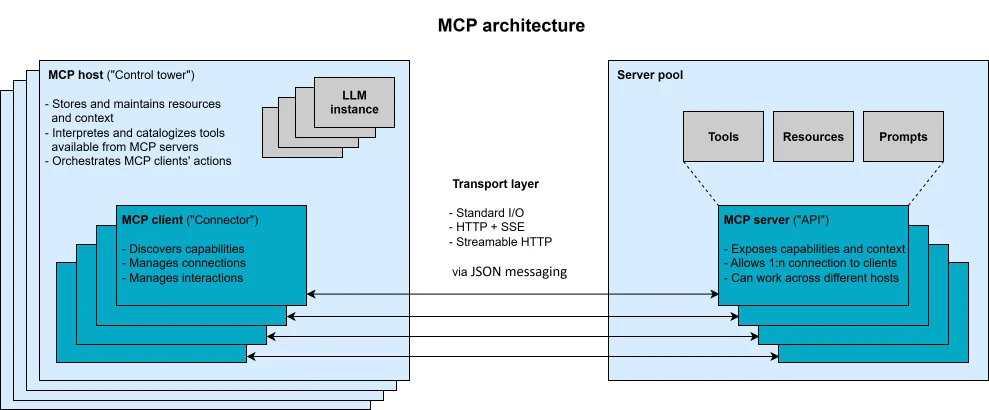
MCP (Model Context Protocol) lets Codex call external tool servers — search engines, code repositories, web scrapers, programming documentation. Without MCP, Codex can only manipulate local files and run terminal commands. With MCP, it searches the internet, reads GitHub issues, scrapes web pages, and queries up-to-date library docs.
Think of MCP as USB-C for AI tools. USB-C lets all electronics share one cable. MCP lets all AI agents share one protocol for external services. Write an MCP server once; Codex, Claude Code, and Cursor all connect.
stdio vs HTTP
stdio mode (recommended) — declare a [mcp_servers.<name>] table in config.toml with command, args, and either an inline env map or an env_vars whitelist that forwards named variables from your shell. The MCP process runs locally, communicating over stdin/stdout. Codex picks stdio transport because the command key is present.
HTTP mode — provide a url instead of a command; Codex infers streamable HTTP transport (mixing command and url is rejected). Add bearer_token_env_var for authenticated endpoints. OpenAI's official developer-docs MCP uses this mode — zero local install.
You can also register servers from the command line — codex mcp add context7 -- npx -y @upstash/context7-mcp, then codex mcp list to confirm — but editing config.toml directly is still required for tool filtering, timeouts, and per-server approval modes.
Which MCP servers to install
Based on community adoption and my own daily use, sorted by priority:
MCP server
Problem it solves
Why this one
Priority
brave-search
Search the web for current information
Strong results in English, generous free tier
Must-have
context7
Query latest API docs for programming libraries
Training data goes stale; context7 fetches current docs
Recommended
firecrawl
Scrape and structure web page content
Handles JavaScript-rendered SPAs well
Recommended
github
Operate on repositories (PRs, issues, code search)
One MCP covers all GitHub operations
Recommended
openaiDeveloperDocs
OpenAI/Codex/GPT official documentation
HTTP mode, zero install, real-time sync with official changes
Recommended
chrome-devtools
Control browser (including authenticated pages)
Only option when you need logged-in page access
As needed
Security rules for API keys
Do this: declare env_vars whitelist in config.toml (e.g., env_vars = ["BRAVE_API_KEY"]). Store actual key values in a separate env file with 600 permissions (owner-read only).
Never do this: write plaintext keys in the env section of config.toml, or export keys in your .zshrc. Both approaches leak credentials to places they should never reach.
Fixing MCP startup lag
MCP startup lag is a common pain point. The root cause is usually npx dynamic downloading — every startup triggers version resolution and download, adding 2-5 seconds. Fix it by globally installing packages to a fixed path and pointing config.toml directly at the installed binary.
Another frequent cause: a bloated or permission-broken ~/.npm/_npx cache directory. Pin the npm cache to ~/.codex/npm-cache to avoid conflicts with other Node processes on your system.
Codex as an MCP server
A capability many developers miss: Codex can run as an MCP server itself. Execute codex mcp-server to start it in stdio MCP server mode. This means Claude Code can call Codex via MCP, or you can wire Codex as a tool node in the OpenAI Agents SDK. Two agents calling each other, each contributing its strengths.
Codex vs Claude Code — MCP
Config format. Codex declares servers in config.toml ([mcp_servers.<name>], TOML). Claude Code uses JSON — .mcp.json in the project, or claude mcp add to register interactively.
Transport selection. Codex infers the transport from which key is present (command = stdio, url = HTTP) and rejects mixing them. Claude Code names the type explicitly.
Secrets. Codex forwards named variables via env_vars = ["KEY"] without storing the value, or takes an inline env map. Claude Code inlines env values in JSON or inherits the shell environment.
Codex as a server.codex mcp-server turns Codex itself into an MCP server other agents can call — Claude Code, or the OpenAI Agents SDK, can drive it as a tool. Claude Code has no "expose myself as an MCP server" command.
Sandbox interaction. Codex MCP servers run outside the OS sandbox, so they sidestep the network restriction entirely. Claude Code has no OS sandbox, so this distinction does not exist.
For a broader view of MCP configuration and security, see our MCP complete guide.
Hooks: Automated Actions at Every Stage
Hooks are scripts attached to specific points in the Codex workflow. When Codex reaches a hook point — about to call a tool, about to stop working — the hook script fires automatically.
The critical distinction from AGENTS.md: AGENTS.md is a suggestion; hooks are enforcement. Writing "never run destructive commands" in AGENTS.md works most of the time. Building a PreToolUse hook that blocks rm -rf makes it physically impossible, no matter how much the agent wants to take that shortcut.
Enabling hooks
Set hooks = true under [features] in config.toml. Then register scripts either in ~/.codex/hooks.json or inline as [hooks] tables in config.toml — both use the same event schema. (The older notify command is now deprecated in favor of lifecycle hooks; new automation should use the Stop hook.)
[features]
hooks = true
Lifecycle events
Codex fires hooks at ten points in a session. These six cover almost every practical use:
Event
When it fires
Common use
SessionStart
Session starts, resumes, or resets
Load project context
UserPromptSubmit
Before your prompt is submitted
Inject current timestamp
PreToolUse
Before any tool call
Block dangerous commands
PermissionRequest
When Codex requests permission
Custom approval logic
PostToolUse
After a tool finishes
Audit logging, auto lint
Stop
When the task completes
Send notifications, run tests
Four more exist for advanced workflows: PreCompact and PostCompact (around context compaction) and SubagentStart / SubagentStop (around delegated subagent runs). One current limitation to know: only the command handler type actually runs — prompt and agent types are parsed but skipped — and PreToolUse fires reliably for shell commands while apply_patch edits and MCP tool calls have partial coverage.
Three hooks every serious Codex user runs
UserPromptSubmit — timestamp injection. Codex has no concept of "right now." If your task involves time (e.g., "check today's logs"), Codex guesses or ignores the time reference. A UserPromptSubmit hook grabs the system clock, formats it with the timezone, and injects it into every prompt. Nearly everyone who configures Codex seriously installs this one first.
PreToolUse — dangerous command interception. Fires before Codex executes any tool. The script compares the pending command against a list of dangerous patterns (rm -rf /, mkfs, dd if=). Match triggers a rejection; no match passes through. This is the last line of defense. Even with approval set to never, PreToolUse still blocks commands you explicitly forbid.
Stop — verification + notification. Fires when Codex finishes. Two practical uses: attach a test-runner script that blocks the stop if tests fail (forcing Codex to iterate until they pass — the backbone of headless unattended mode), or send a push notification so you know the job is done.
Trust and fail-open design
Codex warns at startup when it detects new or changed hook definitions, so a tampered hook cannot run silently. Review the warning before trusting the configuration. Enterprise deployments can also push managed hooks through requirements.toml, which individual users cannot override.
Hooks follow a fail-open design — if a hook script errors out (non-zero exit code), the main Codex task continues. You can add hooks without worrying about breaking your workflow. Still, defensive programming is good practice: wrap the logic in try/except and exit 0 on non-fatal errors. Always set an explicit timeout too — the default is generous (600 seconds) and a hung hook will stall the session.
Codex vs Claude Code — Hooks
Gating. Codex hooks stay off until you set features.hooks = true. Claude Code hooks are always available, configured under hooks in settings.json.
Config location. Codex reads hooks.json or inline [hooks] TOML; Claude Code reads JSON in ~/.claude/settings.json or .claude/settings.json.
Enterprise enforcement. Codex can push managed hooks through requirements.toml (MDM/admin) that users cannot override. Claude Code has no equivalent admin-enforced hook layer.
Handler types. Codex currently runs only command handlers. Claude Code hooks are also shell commands, but its coverage over tool calls is more uniform.
The events line up.PreToolUse, PostToolUse, UserPromptSubmit, SessionStart, Stop, and the *Compact events map almost one-to-one, so hook logic ports across with minor path changes.
For a comparison of Codex hooks with Claude Code hooks, they map almost one-to-one. The concepts transfer directly.
Skills: Creating Reusable Workflows
Skills are reusable instruction modules. Mention one by name with $skill-name, browse and insert with /skills in the TUI, or let Codex auto-match on the description field. The concept mirrors Claude Code skills, but the invocation syntax and discovery model differ.
File structure
Each skill lives at ~/.codex/skills/**/SKILL.md (discovery is recursive; only files named exactly SKILL.md count, and symlinks are skipped). The file is YAML frontmatter (name, description) plus a Markdown body holding the actual instructions. Codex uses progressive disclosure: at startup it injects only each skill's name, description, and path into context, and loads the full body only when it decides to use the skill.
YAML format traps
name field — up to 100 characters, sanitized to a single line (no newlines). Keep it short, lowercase, and hyphenated so $skill-name invocation stays clean.
description field — up to 500 characters, and it must be a plain string that does not start with a bracket. Writing description: [deprecated] merged into another skill makes the YAML parser read it as an array. Wrap it in quotes: description: "(deprecated) merged into another skill". Invalid skills surface a blocking (but dismissible) startup modal in the TUI that lists each path and error — so a broken skill is visible, not silent.
What makes a good skill
Precise trigger description. The description field determines when Codex auto-activates the skill. "Help with code" is too vague. "Activate when the user asks to fix a GitHub issue, create a fix branch, and submit a PR" is specific enough. A good description reads like a conditional statement. To turn off auto-activation entirely and require an explicit $name call, set allow_implicit_invocation: false in the skill's frontmatter.
Keep SKILL.md short. If you cannot read it on a phone screen, it is too long. Skills exceeding 50 lines show measurably higher failure rates. Split into two when you hit that limit.
Single responsibility. One skill, one job. Never merge "fix issue" and "write documentation" into one skill.
Cross-agent skill sharing
Use symlinks to share one skill library across multiple AI tools. Pick a primary directory (e.g., ~/.claude/skills/), symlink ~/.agents/skills/ to it. Keep ~/.codex/skills/ as a real directory — it contains .system/ built-in skills (imagegen, openai-docs) that should not be symlinked.
Codex vs Claude Code — Skills
Invocation. Codex uses $skill-name to mention a skill and /skills to browse; Claude Code exposes skills through its Skill tool and /skill-name slash commands.
Location. Codex reads ~/.codex/skills/**/SKILL.md recursively; Claude Code reads ~/.claude/skills/<name>/SKILL.md.
Implicit control. Codex has a per-skill allow_implicit_invocation flag to force explicit-only triggering. Claude Code decides activation from the description alone.
Distribution. Codex packages skills into plugins for team distribution (and a plugin can bundle MCP config and connectors). Claude Code shares skills by copying or symlinking directories.
Both use progressive disclosure — only name, description, and path load up front — so a tight description matters equally in either tool.
Headless Mode for CI/CD Automation
codex exec is the entry point for Codex automation — CI/CD pipelines, script integrations, and multi-agent orchestration. It runs Codex without an interactive UI and returns results programmatically.
Four invocation patterns
Simple execution — codex exec --sandbox workspace-write --ask-for-approval never "task description" prints results to stdout. Good for one-off tasks.
NDJSON event stream — add --json for newline-delimited JSON events. Each line is an independent JSON object with event type, content, and timestamp. Built for script parsing.
Output to file — add -o <path> to write only the final message to a file. Process output is discarded. Ideal when you only care about the result.
Structured output — add --output-schema <schema.json> to get results conforming to a JSON Schema you define. Built for programmatic consumption.
Session resume
Codex supports session resume. Extract the session/thread ID from the JSONL event stream (filter for type: thread.started), then run codex exec resume <session_id> with a new task description. Or use codex exec resume --last to continue the most recent session in the current directory (add --all to search every session).
This matters for long tasks. If execution gets interrupted, you resume instead of restarting from scratch.
CI/CD integration
Integrating Codex in GitHub Actions follows a standard pattern: checkout code, install Codex CLI, authenticate with an API key, run codex exec.
Key CI considerations:
Authenticate via API key (codex login --with-api-key injected from pipeline secrets). OAuth requires a browser, which CI environments do not have.
Always add --sandbox workspace-write --ask-for-approval never — no human is present to confirm operations.
Add --json — pipe the event stream to a file for post-mortem debugging.
Add --ephemeral — one-shot execution without session persistence. Prevents CI environments from accumulating stale session data.
Batch automation
When running the same type of task across multiple files, loop codex exec --sandbox workspace-write --ask-for-approval never --ephemeral in a shell script. Two details to watch: redirect stdin with </dev/null (Codex reads stdin by default, which blocks without redirection), and --ephemeral keeps each invocation independent.
Context Management: The Foundation of Everything Else
Every module above converges on one constraint: the context window. GPT-5.5 defaults to 128K tokens in Codex (configurable up to 1M via model_context_window), but context quality beats context quantity every time.
The practical implication: what you load into the window determines what the agent can reason about. Overload it and the agent loses focus. Underload it and the agent guesses. Managing that balance is the single highest-leverage habit in daily Codex use.
When to /clear
/clear wipes the current context and starts fresh. Failing to clear between unrelated tasks is the single most common cause of output quality degradation. I have seen this play out across hundreds of sessions.
The previous task leaves file contents, failed attempts, and intermediate reasoning in the window. They crowd out space for the new task. Worse, Codex can be misled by "residual memories" from an unrelated task.
My rule: commit after finishing a task, then immediately /clear. If you want to continue the conversation, use session resume.
When to /compact
/compact is softer than /clear — it compresses rather than erases. After completing a batch of file edits, compact to strip finished plans and tool call details while keeping essential context.
Productive long sessions follow a cycle: read project structure, read relevant source files, execute changes, run tests, /compact, start the next batch of changes.
The two-correction signal
If you correct the same mistake twice and Codex still gets it wrong — stop. The window now holds two rounds of failed approaches plus your correction instructions. This accumulated "failure memory" makes the third attempt even less likely to succeed.
The right move: /clear, write a clearer initial prompt, start from a clean context. I have never seen a third correction succeed when the first two failed in the same window.
Ephemeral sessions
The --ephemeral flag discards session data after execution. Use it for one-off scripts, CI pipelines, and batch validations — scenarios where session resume has no value and leftover data wastes disk space.
Codex vs Claude Code — Context Management
Window size. Codex lets you set model_context_window in config.toml (GPT-5.5 defaults to 128K, configurable up to 1M). Claude Code's window is fixed by the model — no config knob.
Commands. Both ship /clear and /compact, and both auto-compact near the limit. The muscle memory transfers directly.
Ephemeral runs. Codex has an explicit --ephemeral flag to skip writing session rollout files. Claude Code has no direct equivalent; sessions persist by default.
Resume model. Codex resumes by session ID (codex exec resume <id> / --last) from disk-persisted rollouts; Claude Code resumes with claude --resume / --continue. Same idea, different plumbing.
When Should You Choose Codex Over Claude Code (and Vice Versa)?
Codex and Claude Code complement each other. They are not substitutes. Pick the right tool based on your task, or run both in the same project.
Choose Codex when
Scenario
Reason
You need OS-level sandbox isolation
macOS Seatbelt / Linux Landlock kernel protection; Claude Code lacks a native sandbox
CI/CD automation
codex exec + NDJSON + JSON Schema output natively
Cost-sensitive long sessions
ChatGPT subscription is flat-rate monthly, cheaper than per-token API billing
Custom model providers
config.toml model_providers connects any LLM endpoint
Multiple configuration presets
Profile system switches everything in one flag
Codex as an MCP server for other agents
codex mcp-server exposes Codex to Claude Code or the Agents SDK
Choose Claude Code when
Scenario
Reason
Complex cross-file architecture changes
Claude excels at long-context comprehension
Fine-grained file operations
Dedicated Read/Edit/Write tools are more precise than shell commands
Native memory across sessions
Automatic memory persists preferences between conversations
Granular hook control
PreToolUse/PostToolUse with fine-grained interception
Instruction file sharing — project_doc_fallback_filenames lets Codex read CLAUDE.md. One set of project rules, both agents comply.
MCP cross-calling — codex mcp-server exposes Codex as an MCP server. Claude Code calls Codex through MCP. The reverse works too. Each agent extends the other.
Skill sharing — ~/.agents/skills/ as a cross-tool directory, symlinked to your primary skill library. Both tools use the same skills.
Codex-Only Features: What Exists in Codex but Not Claude Code
Four capabilities have no direct Claude Code equivalent. If you are coming from Claude Code, these are the parts of Codex that feel genuinely new — not just renamed.
AGENTS.md instead of CLAUDE.md — and the override chain
Both tools read a project instruction file, but Codex's discovery model is richer. Claude Code reads CLAUDE.md (plus CLAUDE.local.md and imported files). Codex reads AGENTS.md and layers on two things Claude Code lacks:
Override files. At any directory level, AGENTS.override.md beats a sibling AGENTS.md. Drop a temporary rule into ~/.codex/AGENTS.override.md for a single debugging session, delete it when done, and never touch a version-controlled file. There is no CLAUDE.override.md.
Configurable fallback filenames. Set project_doc_fallback_filenames = ["CLAUDE.md"] in config.toml and Codex reads your existing CLAUDE.md when no AGENTS.md exists at that level. This is what lets one repository serve both agents from a single instruction file.
Codex concatenates one file per directory from the Git root down to your working directory, stopping when the combined size hits project_doc_max_bytes (32 KiB default, raise to 64 KiB when needed). AGENTS.md is also an open, cross-vendor convention that several agents read, whereas CLAUDE.md is Anthropic-specific.
`codex exec` — a first-class headless command
Codex ships a dedicated non-interactive entry point: codex exec (short form codex e). It runs without the TUI, streams progress to stderr, prints only the final message to stdout, and exits. Around it sits real automation plumbing:
codex exec --sandbox workspace-write --ask-for-approval never \
  --json --output-schema schema.json --ephemeral \
  "generate release notes from the last 20 commits"
--json emits a JSONL event stream (thread.started, turn.completed, item.*, error) built for parsing.
--output-schema <file> forces the final answer to match a JSON Schema you define.
-o <file> / --output-last-message <file> writes just the final message.
--ephemeral skips persisting session files — ideal for CI.
codex exec resume --last "..." chains a second stage onto the same session.
Claude Code can run headlessly with claude -p, but Codex's exec subcommand, structured-output schema, and resume-by-ID chaining are purpose-built for pipelines.
An OS-level sandbox
This is the single biggest architectural difference. Codex enforces a kernel-level sandbox: Apple Seatbelt on macOS, bubblewrap (or legacy Landlock + seccomp) on Linux. The isolation is real OS enforcement — write attempts outside the workspace are denied by the kernel, and network access is blocked at the syscall level unless you enable it. Claude Code has no native OS sandbox; it relies on tool-level permission prompts and allow/deny rules instead. If your threat model needs the agent to be physically unable to touch /etc or phone home, only Codex gives you that guarantee out of the box. You can even dry-run the boundary: codex sandbox macos <command> (or codex sandbox linux ...) shows how a command behaves under the active policy before you trust it.
File-system access through the shell, not dedicated tools
Claude Code exposes purpose-built Read, Edit, and Write tools plus Glob / Grep for search. Codex works differently: it reads, edits, and searches primarily by running shell commands (apply_patch, sed, rg, find) inside the sandbox. Two consequences follow. First, everything Codex does to your files is a shell command you can gate with a PreToolUse hook or an approval policy — one uniform choke point instead of several tool-specific ones. Second, Codex inherits your actual shell toolchain, so a fast rg or a custom helper script is available to the agent with no tool wrapper. The trade-off is that surgical single-file edits are sometimes cleaner through Claude Code's dedicated Edit tool. Choose based on whether you value a uniform, sandbox-gated command surface (Codex) or precise tool-level file primitives (Claude Code).
Migration Guide: Claude Code → Codex
Switching from Claude Code to Codex is mostly a translation exercise: the concepts map cleanly, but the filenames, formats, and a few defaults change. Work through these six steps and an existing Claude Code project runs under Codex in about twenty minutes.
1. Reuse your CLAUDE.md instead of rewriting it. You do not need to create AGENTS.md on day one. Add this to ~/.codex/config.toml:
project_doc_fallback_filenames = ["CLAUDE.md"]
Codex now reads your existing CLAUDE.md wherever no AGENTS.md exists. Once you want Codex-specific rules, create AGENTS.md at the repo root and keep CLAUDE.md for shared or Claude-specific guidance. Trim to under roughly 10 core rules while you are at it — Codex, like Claude Code, follows short instruction files more reliably.
2. Translate settings.json into config.toml. Claude Code configuration is JSON in ~/.claude/settings.json; Codex configuration is TOML in ~/.codex/config.toml. There is no automatic converter, but the surface you actually use is small — default model, approval policy, sandbox mode:
3. Re-register MCP servers. Every server in your Claude Code .mcp.json becomes a [mcp_servers.<name>] table. A JSON entry like {"command": "npx", "args": ["-y", "@upstash/context7-mcp"]} becomes:
Or add it from the CLI: codex mcp add context7 -- npx -y @upstash/context7-mcp. Move secrets out of the config while you migrate — reference variable names with env_vars = ["CONTEXT7_API_KEY"] rather than pasting values inline.
4. Port your hooks. The event model is nearly identical, so the logic transfers. Enable hooks first (features.hooks = true), then move each Claude Code hook into ~/.codex/hooks.json under the matching event name — PreToolUse, PostToolUse, UserPromptSubmit, SessionStart, Stop. The one gotcha: Codex currently runs only command-type handlers, so any prompt-style hook must become a script. Your rm -rf interception script works unchanged.
5. Move your skills. Copy each skill from ~/.claude/skills/<name>/SKILL.md to ~/.codex/skills/<name>/SKILL.md. The SKILL.md format is compatible (name + description frontmatter plus body). What changes is how you invoke them: Claude Code triggers skills through its Skill tool and /skill-name; in Codex you type $skill-name or browse with /skills. To share one library across both tools, keep the real directory under ~/.codex/skills/ (it holds built-in .system/ skills that must not be symlinked) and symlink the rest.
6. Recalibrate to the sandbox. This is the habit that trips up most migrants. Claude Code prompts per tool; Codex quietly does anything the current sandbox and approval combination allows, and blocks the rest at the OS level. Two practical adjustments: expect npm install and API-calling scripts to fail in the default workspace-write mode until you set network_access = true, and remember that .git/ stays read-only inside the sandbox, so git commit may prompt even when everything else runs freely.
Command cheat sheet
Task
Claude Code
Codex
Instruction file
CLAUDE.md
AGENTS.md (fallback to CLAUDE.md)
Config file
settings.json (JSON)
config.toml (TOML)
Headless run
claude -p "task"
codex exec "task"
Resume session
claude --resume
codex resume --last
Clear context
/clear
/clear
Add MCP server
claude mcp add
codex mcp add
Invoke a skill
Skill tool / /name
$name or /skills
Sandbox
none (permission prompts)
--sandbox workspace-write
Keep both installed. The migration is not a divorce — most Codex users who came from Claude Code end up running whichever tool fits the task, sharing one CLAUDE.md, one MCP set, and one skill library between them.
Ready-to-Use Prompt: Turn a Default Codex Install Into a Production Setup
What this does: Audits the nine Codex modules against production-ready, fixes the friction defaults (AGENTS.md, sandbox, approval), wires the automation modules, and sets context management plus the Codex-vs-Claude-Code routing — so defaults stop fighting your workflow. Based on: OpenAI Codex Best Practices: 9 Modules That Turn a Default Install Into a Production Setup — https://aiworkflowpro.com/codex-best-practices/ Time to run: ~5 minutes
Copy this prompt into Claude Code, ChatGPT, or any AI assistant:
ROLE: You are a Codex Production Setup Architect. Your job: take a default Codex install through the nine modules until it runs production-clean — no ignored conventions, no sandbox friction, no approval fatigue.

CONTEXT — 9-MODULE PRODUCTION SETUP METHOD:
OpenAI Codex CLI is a terminal AI coding agent, and nine modules control everything it does: (1) AGENTS.md — project instructions (Codex's CLAUDE.md); (2) sandbox and approval policies — security isolation and when to prompt; (3) profiles — instant config snapshots; (4) MCP — external tool connections; (5) hooks — automated stage triggers; (6) skills — reusable workflows; (7) headless mode — CI/CD automation; (8) context management — the foundation of everything else; (9) Codex-vs-Claude-Code selection. Most devs run defaults and get friction: Codex ignores conventions, the sandbox fights the workflow, and every operation prompts. The fix: audit each module against production-ready, replace friction defaults (write AGENTS.md, set the right sandbox and approval level), wire automation modules, and manage context first because everything else depends on it.

INPUTS (fill in before running):
- USE_CASE: [What you do with Codex — local dev / CI/CD / research]
- TEAM: [solo / team]
- CURRENT_CONFIG: [What you have configured — or "defaults only"]
- ALSO_USE_CLAUDE_CODE: [yes / no — does routing matter?]

METHOD — 4 STEPS:

Step 1 — Score the 9 Modules (0–2)
For each module, score CURRENT_CONFIG: 0 = default or absent, 1 = partially set, 2 = production-ready. Flag every 0 as a friction source — defaults are what make Codex ignore conventions, fight the sandbox, or prompt on every operation.

Step 2 — Fix the Friction Defaults
Write AGENTS.md with project conventions Codex cannot infer. Set the sandbox level to match USE_CASE (read-only for review, workspace-write for dev, full-access only when justified) and tune the approval policy so routine ops do not prompt.

Step 3 — Wire the Automation Modules
Configure profiles to switch configs instantly, MCP for external tools, hooks for stage triggers, skills for reusable workflows, and headless mode if USE_CASE includes CI/CD. Only add a module that earns its complexity.

Step 4 — Context Management and Codex-vs-Claude-Code Routing
Address context first — it is the foundation every other module depends on (keep AGENTS.md tight, scope per task). If ALSO_USE_CLAUDE_CODE is yes, state which jobs each owns (Codex for OpenAI/cloud task workflows; Claude Code for terminal-native reasoning).

RULES:
- Never leave AGENTS.md empty or boilerplate — that is why Codex ignores your conventions.
- Never run at a higher sandbox or access level than the task needs — full-access is only for justified cases.
- Never configure modules 3–7 before context management — everything else depends on it.

OUTPUT FORMAT:
Output a markdown report with:
1. 9-Module Scorecard — markdown table, columns: Module | Score (0–2) | Friction?
2. Friction-Default Fixes — AGENTS.md outline + sandbox level + approval policy
3. Automation Wiring — markdown table, columns: Module | Action | Earned?
4. Context Plan + Routing — context rules + the Codex/Claude Code job split (if applicable)
Save as @templates/codex-best-practices.md and run when installing Codex, or when the defaults start fighting the workflow.
Frequently Asked Questions
What is the recommended length for an AGENTS.md file?
Keep it under 10 core rules. Codex supports up to 32KB (adjustable to 64KB via project_doc_max_bytes), but community testing confirms that longer instruction files lead to lower agent compliance rates. Include your project name, tech stack, build/test commands, coding conventions, and a short prohibited-actions section.
When should I use /clear versus /compact in a Codex session?
/clear wipes the entire context window and starts fresh — use it between unrelated tasks to prevent residual context from degrading output quality. /compact compresses the current context without erasing it — use it mid-session after completing a batch of edits to free space while retaining essential context. A good workflow: finish a task, commit, /clear, start the next task.
Can AGENTS.md and CLAUDE.md coexist?
Yes. Configure project_doc_fallback_filenames in config.toml so Codex reads CLAUDE.md as a fallback. Both files can exist simultaneously: AGENTS.md for Codex-specific rules, CLAUDE.md for shared or Claude Code-specific rules. See our AGENTS.md guide for setup details.
How do I let Codex access the network in sandbox mode?
The cleanest fix is to opt in: set network_access = true under [sandbox_workspace_write] in config.toml, which keeps the file-write boundary but allows outbound network. Alternatively, wrap network operations in an MCP tool (MCP processes run outside the sandbox), or switch to danger-full-access (most direct, least secure). Note that --full-auto does not open the network by itself — it only changes the approval flow.
How do I share Codex configuration across multiple machines?
Do not copy config.toml wholesale — file paths differ between machines. Use a patch script to sync only model, profile, and feature toggle fields. AGENTS.md syncs well through tools like Syncthing. auth.json (credentials) should only transfer via scp point-to-point. Never sync auth.json through Git or cloud storage — token refresh on one machine invalidates tokens on others.
What if Codex gets stuck at "Working" or "MCP" during startup?
An MCP server's tools/list call is likely timing out. Run codex mcp list to identify the culprit. Common causes: npx cold start (fix by global-installing to a fixed path), npm cache directory permission issues (pin cache to ~/.codex/npm-cache), or missing Node in PATH on Linux (set PATH explicitly in the MCP startup script).
Gloves on, tape measure in hand — nobody types a query. Three voice surfaces for ai automation tools (terminal, Telegram, Discord), 10 TTS and 6 STT providers compared on cost and latency, plus a setup that costs nothing.
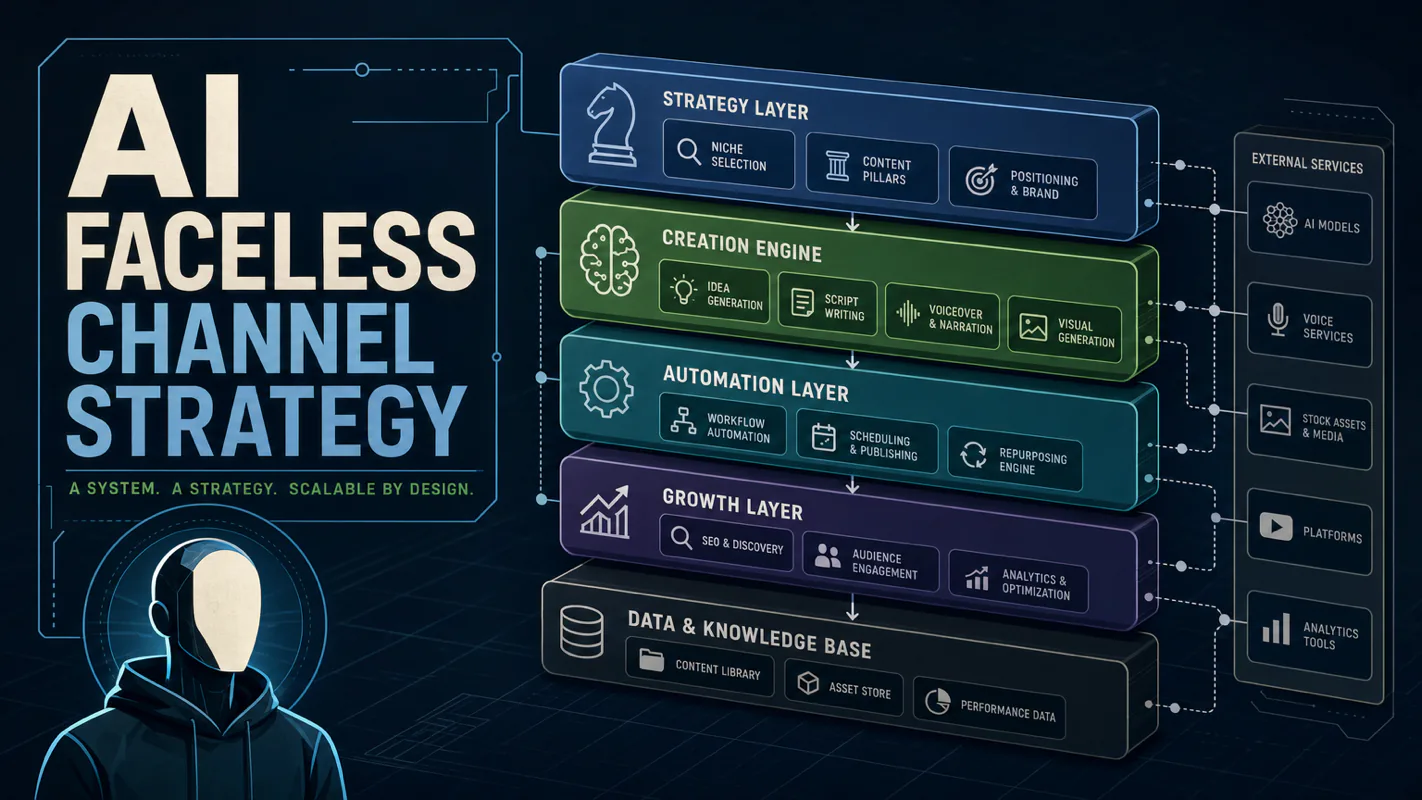
Nothing about month four is harder than month three. It is simply the month an unpaid channel starts to feel like proof of failure. Surviving it takes a cadence you can hold while earning nothing, which is a better reason to automate business processes than speed ever was.
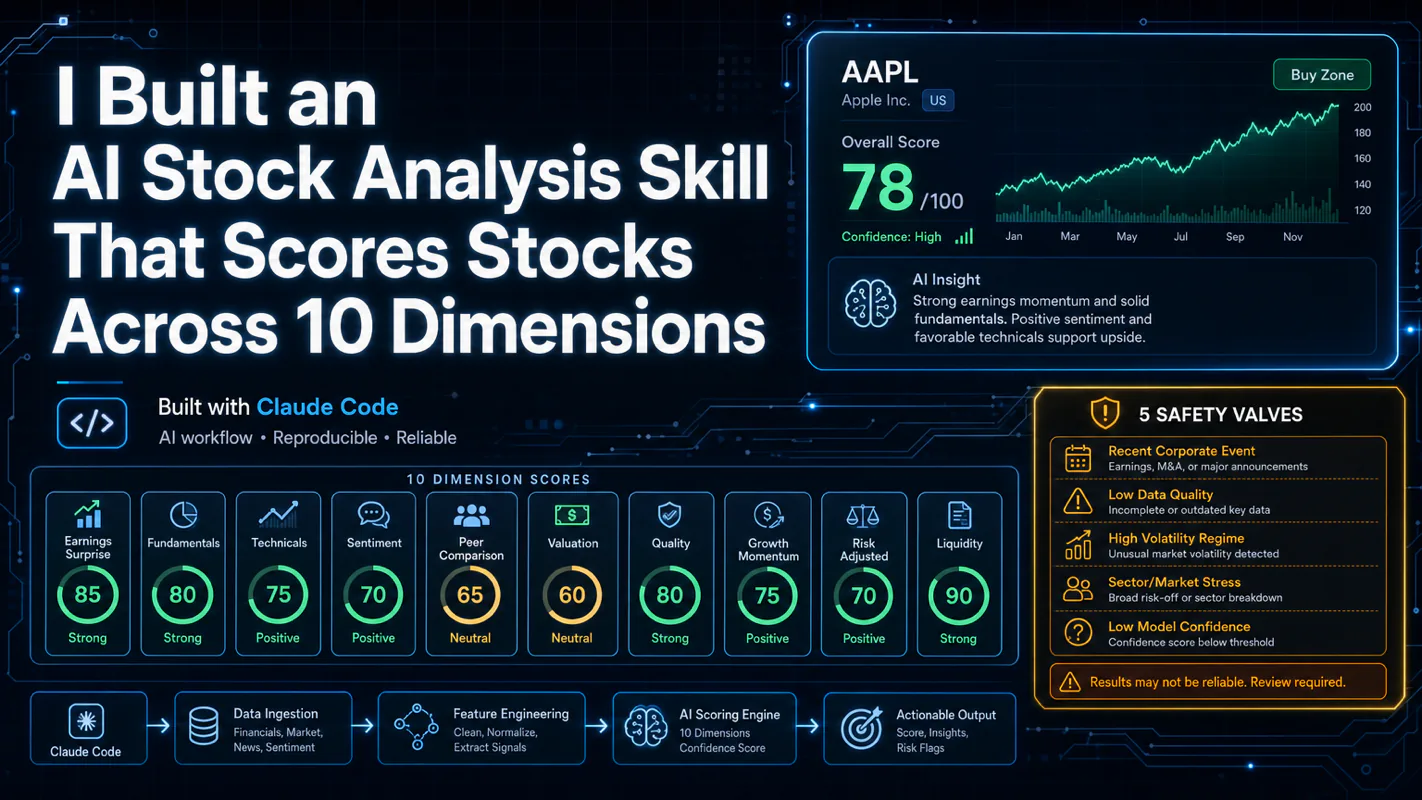
One number hides more than it shows. This Claude Code Skill scores US equities across 10 dimensions, from earnings surprise to peer comparison, with confidence scoring and 5 safety valves that flag thin data. A coding tutorial, not financial advice.
Publishing eats your week through research, SEO fields, images, and uploading — not writing. Here is the 10-step workflow automation pipeline that takes a topic to a published draft on one command, and the data contract that lets each step hand off cleanly to the next.