Monitoring a competitor who publishes no feed is the case every RSS guide skips. Twenty-one platforms sorted by which of three jobs they do, and the finished setup is business process automation you own outright, with no seat licence to renew.
Blaming the content is the reflex when a post underperforms, and it is usually the wrong diagnosis. A second reader decides distribution before any human sees the post, and most of what it checks is mechanical enough to automate business processes around, on five platforms at once.
Gloves on, tape measure in hand — nobody types a query. Three voice surfaces for ai automation tools (terminal, Telegram, Discord), 10 TTS and 6 STT providers compared on cost and latency, plus a setup that costs nothing.
How to Add Voice Mode to Your AI Agent: CLI, Telegram, and Discord Setup Guide
Gloves on, tape measure in hand — nobody types a query. Three voice surfaces for ai automation tools (terminal, Telegram, Discord), 10 TTS and 6 STT providers compared on cost and latency, plus a setup that costs nothing.
A site foreman holding a tape measure with gloves on both hands is not going to type a query into anything, which is why so much of what gets noticed on a job site never reaches the system that could act on it. Voice closes that gap in three shapes, depending on where the person already is: push-to-talk in a terminal, voice notes in Telegram for anyone on a phone, and a bot sitting in a Discord channel listening to several speakers at once. This guide sets up all three, compares 10 text-to-speech and 6 speech-to-text providers, and includes a free configuration. Among ai automation tools, the input surface decides whether anyone uses it.
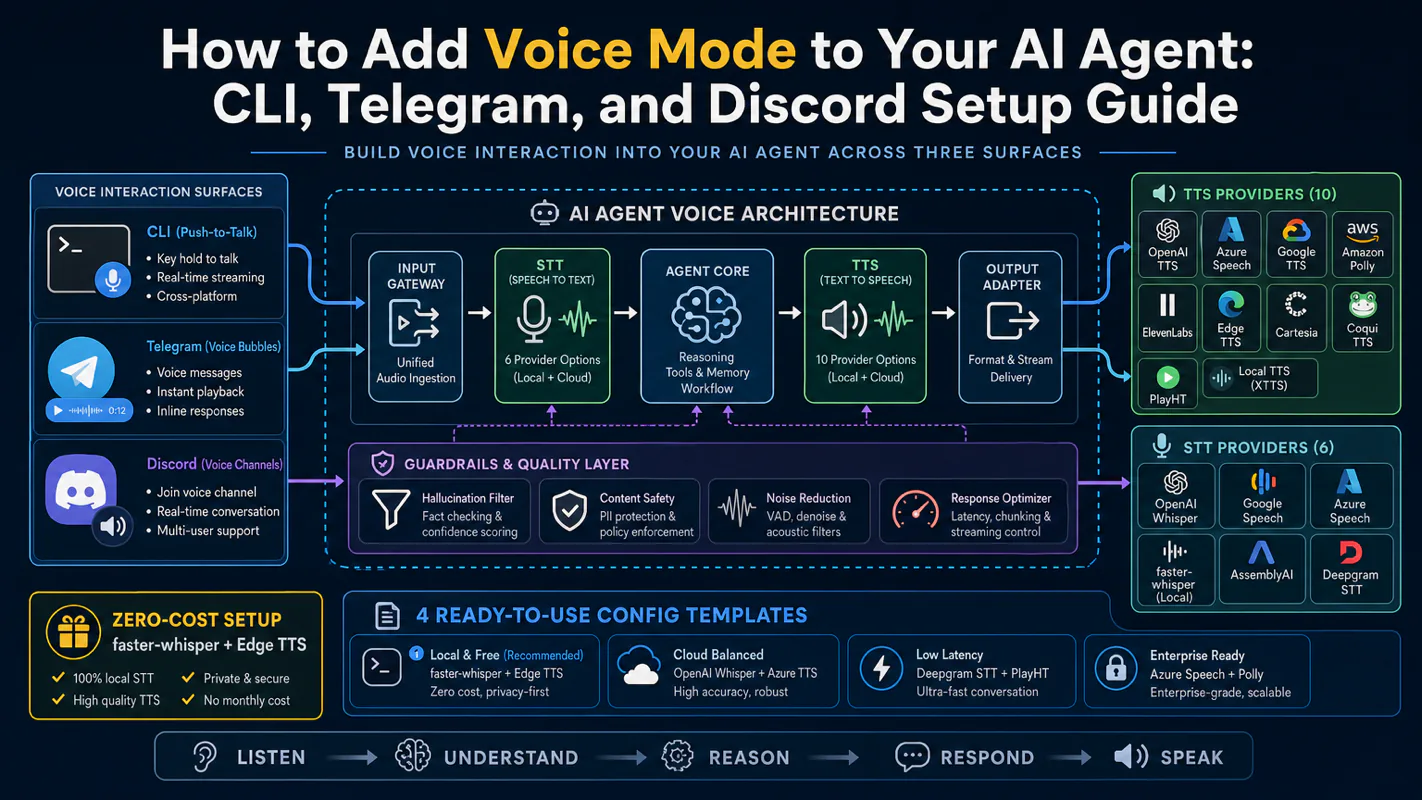
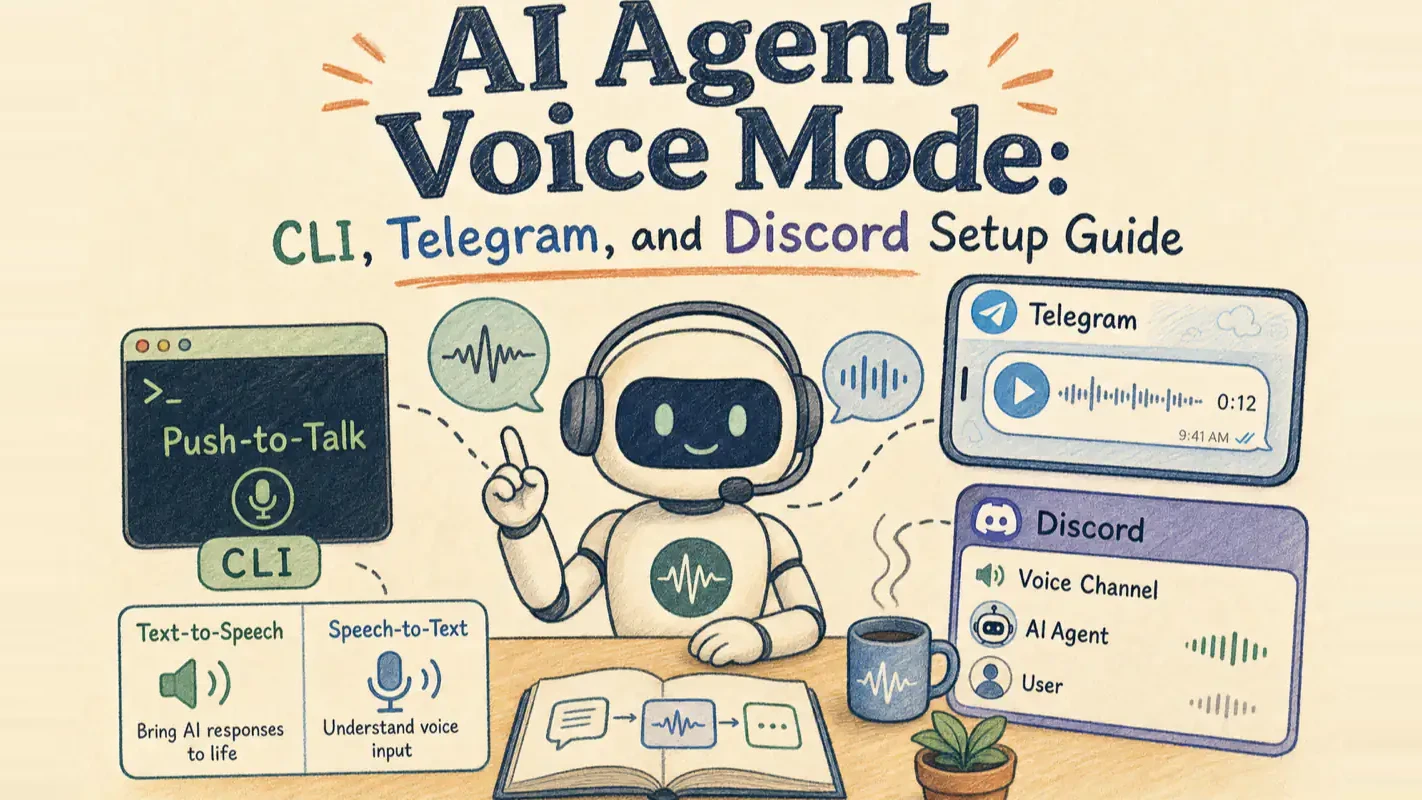
Your AI agent does not have to be text-only. Voice mode transforms it into a hands-free assistant you can talk to through your terminal, a Telegram chat, or a Discord voice channel. This guide walks through setting up all three surfaces, compares every available speech provider, and gives you ready-to-paste config templates -- including a setup that costs nothing.
What you will walk away with:
Three working voice surfaces: CLI push-to-talk, Telegram voice bubbles, Discord real-time voice channel
A clear comparison of 10 TTS and 6 STT providers with cost, quality, and latency trade-offs
A zero-cost voice setup using faster-whisper + Edge TTS (no API keys needed)
Four config.yaml templates you can drop in and start using immediately
Fixes for the most common voice mode failures, including Whisper hallucinations
Here is the one-line summary for each surface: CLI works best for hands-free debugging while coding (press Ctrl+B to record, lowest latency). Telegram fits mobile use (hold the mic button and talk, voice bubbles appear naturally). Discord voice channels suit real-time team discussions (the bot sits in the channel and listens continuously, handling multiple speakers independently).
What Do You Need Before Enabling Voice Mode?
Voice mode layers on top of the full agent pipeline. Speech is just the input and output layer -- tool calls, memory, and the skill system work identically to text mode. Make sure text mode runs correctly first.
Dependencies split into two layers:
Python packages:
# Install everything in one shot (recommended)
pipx install "hermes-agent[all]"

# Or pick what you need
pipx install "hermes-agent[voice]"       # CLI microphone + audio playback
pipx install "hermes-agent[messaging]"   # Discord + Telegram bots
Run hermes doctor after installation. Confirm that tts and discord both show green checkmarks.
How Does CLI Push-to-Talk Voice Mode Work?
CLI voice mode runs in both the classic terminal (hermes chat) and TUI (hermes --tui). Behavior is identical in both.
Startup and commands
hermes # Launch interactive CLI
Voice commands available inside the session:
/voice          Toggle voice mode on/off
/voice on       Enable voice mode
/voice off      Disable voice mode
/voice tts      Toggle TTS output
/voice status   Show current state
The recording loop
The full cycle after pressing Ctrl+B:
Press Ctrl+B -- an 880Hz beep confirms recording started
Speak -- the terminal shows a live volume meter: [bars] >
Stop speaking -- 3 seconds of continuous silence triggers auto-stop
Two 660Hz beeps confirm recording ended
Audio transcribes through Whisper and sends to the agent
If TTS is enabled, the agent's reply plays back as speech
Recording auto-restarts -- keep talking without pressing anything
The loop continues until you press Ctrl+B again or three consecutive recordings detect no voice.
The practical effect: press Ctrl+B once, then just talk. The agent answers, then waits for your next sentence. Your hands never touch the keyboard.
Silence detection tuning
The two-stage algorithm decides when you have finished speaking:
Voice confirmation -- audio RMS must exceed the threshold (default 200) for at least 0.3 seconds, tolerating brief dips between syllables
End detection -- after voice confirmation, 3.0 seconds of continuous silence triggers stop
If no voice is detected at all, recording auto-stops after 15 seconds to prevent silent hangs.
Tune these in config.yaml:
silence_threshold: Higher values reduce sensitivity. Noisy rooms need 300-400
silence_duration: Slow speakers may want 4.0 seconds
If Ctrl+B conflicts with tmux, change the binding: voice.record_key: "ctrl+space".
Streaming TTS playback
With TTS enabled, the agent's response plays sentence by sentence as it generates:
Text buffers incrementally into complete sentences (minimum 20 characters)
Markdown formatting and <think> reasoning blocks strip automatically
Each sentence synthesizes and plays in real time
You hear the first sentence within seconds of the agent starting to think, instead of waiting 30 seconds for the full text response.
When I actually use CLI voice mode
Hands-free debugging during coding. I keep a terminal open alongside my editor. When a Docker container throws a permissions error, I say "Docker container startup permissions error, debug this" and the agent runs docker logs, analyzes the output, and proposes fixes. I follow up by voice: "Read me that last error again," "Explain the root cause in simpler terms," "Give me the fix command now." My hands stay on the keyboard for code, and my voice handles the agent conversation.
Capturing half-formed ideas. Walking or pacing, I narrate rough thoughts and let the agent organize them. Voice input is faster than typing when the ideas are not yet structured enough to type efficiently.
How Do You Set Up Telegram Voice Bubbles?
Telegram voice mode is the most accessible surface for non-technical users. No terminal knowledge needed. Hold Telegram's mic button, talk, release.
voice_only produces the most natural interaction. Send voice, get voice back. Send text, get text back. The mode automatically matches your communication style.
Voice mode settings persist across gateway restarts.
Audio format requirements
Telegram voice bubbles require Opus/OGG. Different TTS providers output different native formats:
TTS Provider
Native Format
Native Opus
Needs ffmpeg
OpenAI TTS
Opus
Yes
No
ElevenLabs
Opus
Yes
No
Mistral Voxtral
Opus
Yes
No
Edge TTS
MP3
No
Yes
MiniMax TTS
MP3
No
Yes
xAI TTS
MP3
No
Yes
Google Gemini
Raw PCM
No
Yes
NeuTTS
WAV
No
Yes
KittenTTS
WAV
No
Yes
Piper
WAV
No
Yes
Without ffmpeg, audio sends as a file attachment -- playable, but shows as a rectangular player instead of a round voice bubble. Install ffmpeg (brew install ffmpeg) to avoid this.
My experience building a family voice bot
I set up a Telegram voice bot for family members who would never open a terminal. They hold the mic button, ask about schedules or reminders, and get a voice bubble back. The entire interaction never opens a keyboard. This is the surface that non-technical people actually use.
Privacy considerations
Telegram stores voice messages on its servers. The bot downloads the audio for transcription, but the original recording stays in Telegram's cloud. If voice data privacy matters to you, use local Whisper for transcription (audio processes only on your machine), but the transmission to Telegram servers is unavoidable.
Maximum privacy: local Whisper transcription + local NeuTTS synthesis. All audio processing stays on your infrastructure. Telegram as a transport channel still retains data.
How Do You Connect a Discord Voice Channel Bot?
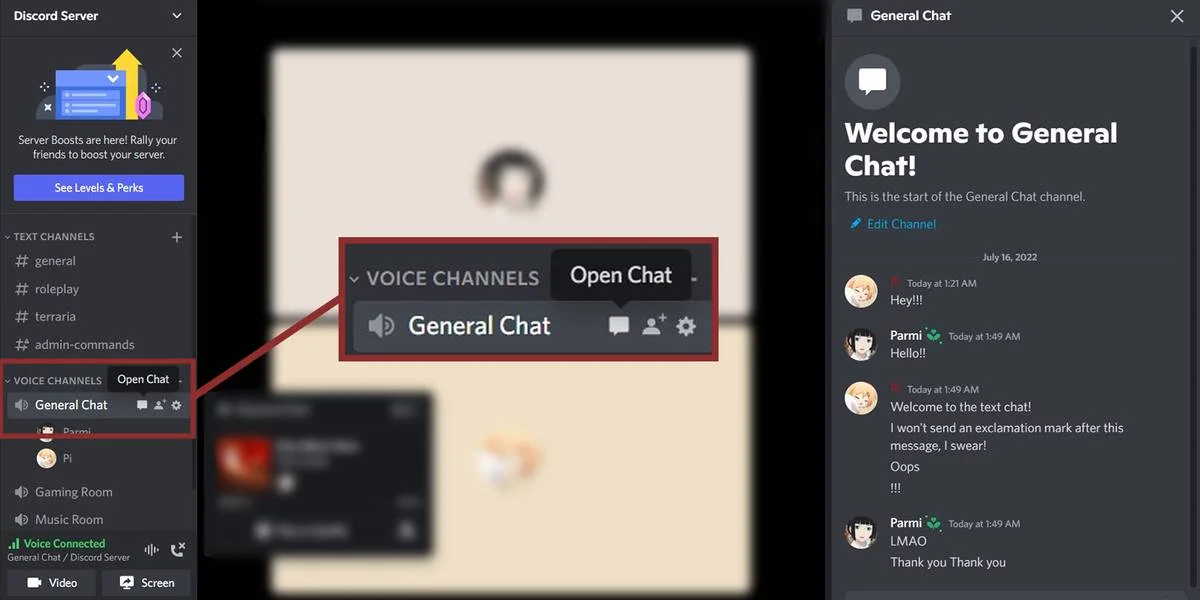
Discord voice channels deliver the most immersive voice experience. The bot joins a voice channel, listens to users speak, transcribes audio, processes through the full agent pipeline, and speaks the reply back into the channel.
Step-by-step configuration
This surface requires more setup than CLI or Telegram.
Step 1: Bot permissions
Add voice permissions in the Discord Developer Portal: Connect, Speak, Use Voice Activity. The permission integer upgrades from text-only 274878286912 to voice-capable 274881432640. Re-invite the bot to your server after updating permissions.
Step 2: Privileged Gateway Intents
Enable in the Developer Portal:
Message Content Intent (required)
Presence Intent
Server Members Intent (only needed when ALLOWED_USERS uses usernames instead of numeric IDs)
/voice join      Bot joins your current voice channel
/voice channel   Alias for /voice join
/voice leave     Bot leaves the voice channel
/voice status    Show voice mode and connected channel info
You must be in a voice channel before using /voice join. The bot joins whatever channel you are currently in.
How multi-user voice processing works
Once the bot enters a voice channel:
Independent audio streams per user (multiple speakers do not interfere)
1.5 seconds of silence (after at least 0.5 seconds of speech) triggers processing
Whisper STT transcribes the audio
Full agent pipeline processes the request (sessions, tools, memory)
TTS speaks the reply back into the voice channel
Two mechanisms protect the experience:
Text channel sync: Transcriptions appear in the text channel as [Voice] @user: what you said. The agent's reply posts as text and plays as voice simultaneously
Echo prevention: The bot pauses audio listening while playing TTS output, preventing it from hearing and re-processing its own speech
Known limitations
Voice inactivity timeout is hardcoded at 300 seconds (5 minutes). The bot leaves automatically after no activity. Keep talking or send text to reset the timer
Only users in the DISCORD_ALLOWED_USERS list can interact via voice. Other users' audio is silently ignored
Discord voice data routes through Discord infrastructure before reaching the bot
Which TTS Provider Should You Choose? (10 Options Compared)
The agent supports 10 text-to-speech providers. Four cost nothing.
Provider
Quality
Cost
API Key Required
Latency
Voices
Languages
Standout Feature
Edge TTS (default)
Good
Free
No
~1s
322
74
Zero config, Microsoft neural voices
NeuTTS
Good
Free
No
Hardware-dependent
Clonable
Multilingual
Fully local, voice cloning support
KittenTTS
Good
Free
No
Hardware-dependent
8
English-focused
25-80 MB ultra-lightweight models
Piper
Good
Free
No
Hardware-dependent
30+ language presets
44
Home Assistant maintained, CPU-only
ElevenLabs
Best
Paid
ELEVENLABS_API_KEY
~2s
Massive library
Multilingual
Most natural human voice, cloning
OpenAI TTS
Good
Paid
VOICE_TOOLS_OPENAI_KEY
~1.5s
6
Multilingual
Fast and consistent, native Opus
MiniMax
Excellent
Paid
MINIMAX_API_KEY
Medium
Multiple
Asian languages strong
Speed/volume/pitch adjustable
Mistral Voxtral
Excellent
Paid
MISTRAL_API_KEY
Low
Multiple
Multilingual
Low latency, native Opus
Google Gemini
Excellent
Free tier available
GEMINI_API_KEY
Medium
30 presets
Broad
Gemini ecosystem reuse
xAI
Excellent
Paid
XAI_API_KEY
Medium
Cloning supported
Multilingual
Voice cloning, Grok ecosystem
Per-provider input character limits
The agent auto-truncates text before TTS calls. Requests never fail due to length:
Provider
Default Limit (characters)
Edge TTS
5,000
OpenAI
4,096
xAI
15,000
MiniMax
10,000
Mistral
4,000
Google Gemini
5,000
ElevenLabs
5,000 - 40,000 (varies by model)
NeuTTS
2,000
KittenTTS
2,000
Piper
5,000
Override any limit with the max_text_length setting in each provider's config block.
The four free providers explained
Edge TTS uses Microsoft's neural voice synthesis infrastructure. 322 voices across 74 languages. Already the default -- nothing to change. Solid quality, roughly 1-second latency. The only downside is it requires an internet connection (calls Microsoft's online service).
NeuTTS is the best fully local option. Runs neural TTS models through llama.cpp-style inference with GPU and CPU acceleration. Supports voice cloning -- provide a short audio sample and transcript, and the agent speaks in your voice. Requires espeak-ng and ffmpeg.
Piper comes from the Open Home Foundation (Home Assistant maintainers). Fast local neural TTS, CPU-only, 44 languages with pretrained voices, models just 20-90 MB. Install via hermes tools, and voice models download automatically to ~/.hermes/cache/piper-voices/ on first call. Supports custom-trained .onnx models.
KittenTTS is the ultra-lightweight local alternative. The nano model is just 25 MB. Eight English voices with speed control and text cleaning (auto-expands numbers, currencies, units). Fits deployments where model size matters.
Selection guide
Zero config, zero cost -- Edge TTS. Already the default, change nothing
Fully offline, privacy-first -- NeuTTS or Piper. All processing stays local
Best voice quality -- ElevenLabs. Personal use free tier (10,000 characters/month) is often enough
Already have an OpenAI key -- OpenAI TTS. Reuse existing credentials
Grok ecosystem -- xAI. Voice cloning lets the agent speak in your voice
Adding providers not on the built-in list
For TTS engines not built in (e.g., ByteDance seed-tts-2.0, VoxCPM), use the command type -- no code required:
For engines that need Python SDKs, streaming, or OAuth refresh, register a plugin via ctx.register_tts_provider() and place it in ~/.hermes/plugins/.
Which STT Provider Should You Choose? (6 Options Compared)
Speech-to-text is the entry point for voice mode. Six providers are supported (including custom commands).
Provider
Model
Speed
Quality
Cost
API Key Required
Local (faster-whisper)
tiny (75MB)
Fastest
Basic
Free
No
Local (faster-whisper)
base (150MB)
Fast
Good (default)
Free
No
Local (faster-whisper)
small (500MB)
Medium
Better
Free
No
Local (faster-whisper)
medium (1.5GB)
Slower
Very good
Free
No
Local (faster-whisper)
large-v3 (3GB)
Slowest
Best
Free
No
Groq
whisper-large-v3-turbo
Very fast (~0.5s)
Good
Free tier
GROQ_API_KEY
Groq
whisper-large-v3
Fast (~1s)
Better
Free tier
GROQ_API_KEY
OpenAI
whisper-1
Fast (~1s)
Good
Paid
VOICE_TOOLS_OPENAI_KEY
OpenAI
current GPT transcribe model
Medium (~2s)
Best
Paid
VOICE_TOOLS_OPENAI_KEY
Mistral
voxtral-mini-latest
Fast
Good
Paid
MISTRAL_API_KEY
xAI
grok-stt
Fast
Good
Paid
XAI_API_KEY
Automatic fallback priority
STT has built-in fallback: local > groq > openai. If local faster-whisper fails, it tries Groq. If Groq fails, it tries OpenAI. If all fail, the voice message passes to the agent with a descriptive prompt (not transcribed, but not lost).
Local model selection guide
Scenario
Recommended Model
Reasoning
English daily conversation
base
150 MB, fast, quality sufficient for English
Non-English languages
small or medium
base occasionally misses punctuation in other languages
Maximum accuracy
large-v3
3 GB, best quality across 99 languages
Low-spec hardware
tiny
75 MB, trades some quality for speed
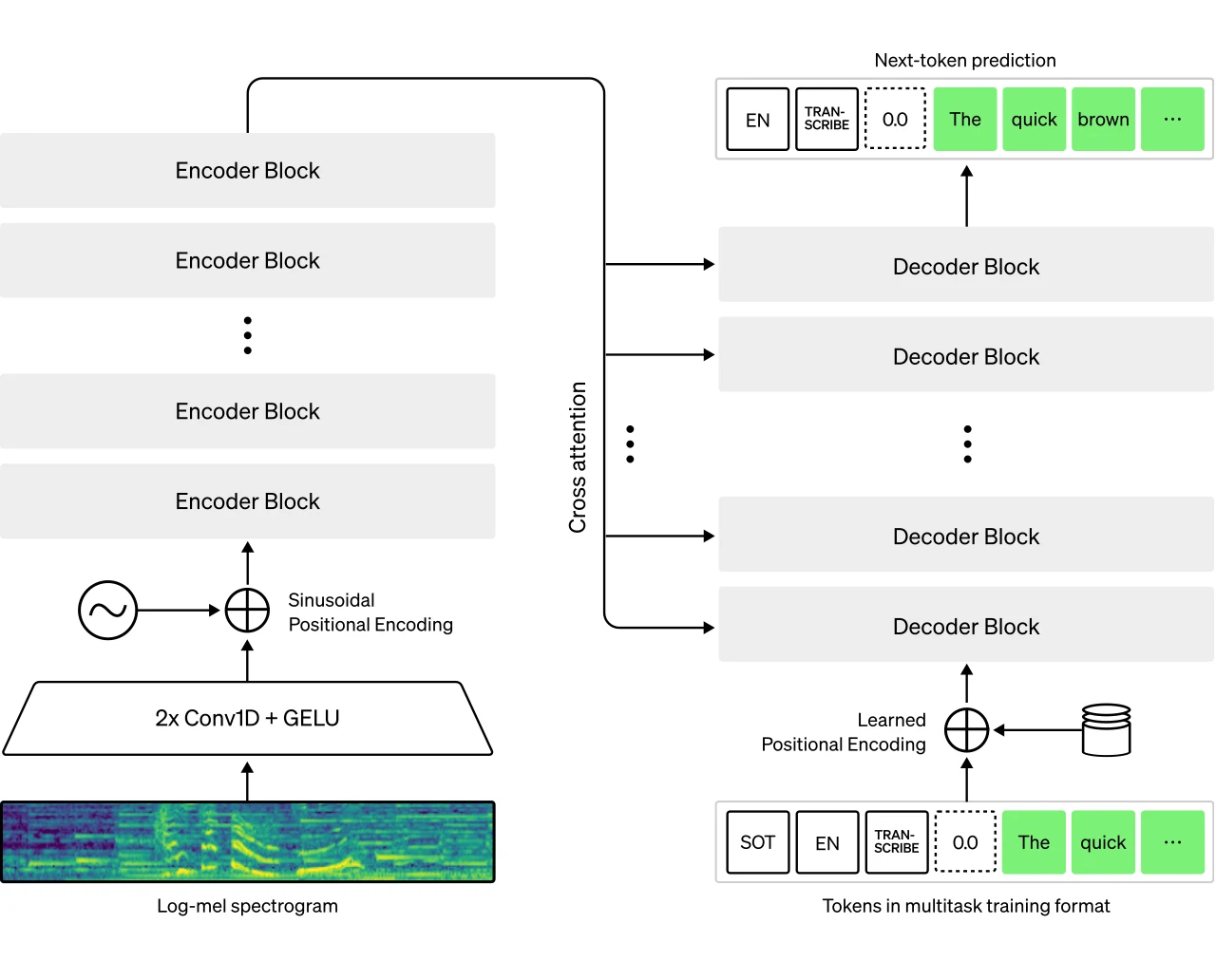
faster-whisper is a CTranslate2 reimplementation of OpenAI Whisper by SYSTRAN. Same accuracy, up to 4x faster, lower memory. The agent uses it as the default local STT backend.
How Do You Set Up Zero-Cost Voice Mode?
This is the free path -- $0 total, no API keys, quality that genuinely works for daily use.
Complete installation steps (macOS)
# Step 1: Install Hermes with voice and messaging extras
pipx install "hermes-agent[voice,messaging]"

# Step 2: Install system dependencies
brew install portaudio ffmpeg opus espeak-ng

# Step 3: Inject multimedia and voice Python dependencies
pipx inject hermes-agent Pillow pydub pyaudio PyNaCl

# Step 4: Install local STT backend
pipx inject hermes-agent faster-whisper

# Step 5: Verify installation
hermes doctor
# Expect: vision OK  tts OK  discord OK

# Step 6: Launch and activate voice
hermes
# Inside the session: /voice on
# Press Ctrl+B to start recording
Total cost: $0.
First-run note
The first time you use voice transcription, faster-whisper downloads the model from HuggingFace. The base model is about 150 MB. During download, the CLI appears to hang (no progress bar -- this is a known issue). Wait 1-2 minutes. Subsequent uses load instantly from cache.
Pre-cache the model by running pipx inject hermes-agent faster-whisper before your first voice session.
The progressive learning path that actually works
Do not try to set up Discord voice channels on day one. Build incrementally:
Day 1: Confirm text mode works correctly
Day 2: Install hermes-agent[voice], try CLI voice with local STT + Edge TTS
Day 3: Enable /voice on in Telegram or Discord text chat
Day 4: Once everything works, attempt Discord voice channels
Each step verified before the next. Jumping straight to voice channels makes debugging nearly impossible -- you cannot tell whether the problem is STT, TTS, network, or permissions.
How Does the Hallucination Filter Handle Whisper's Known Problems?
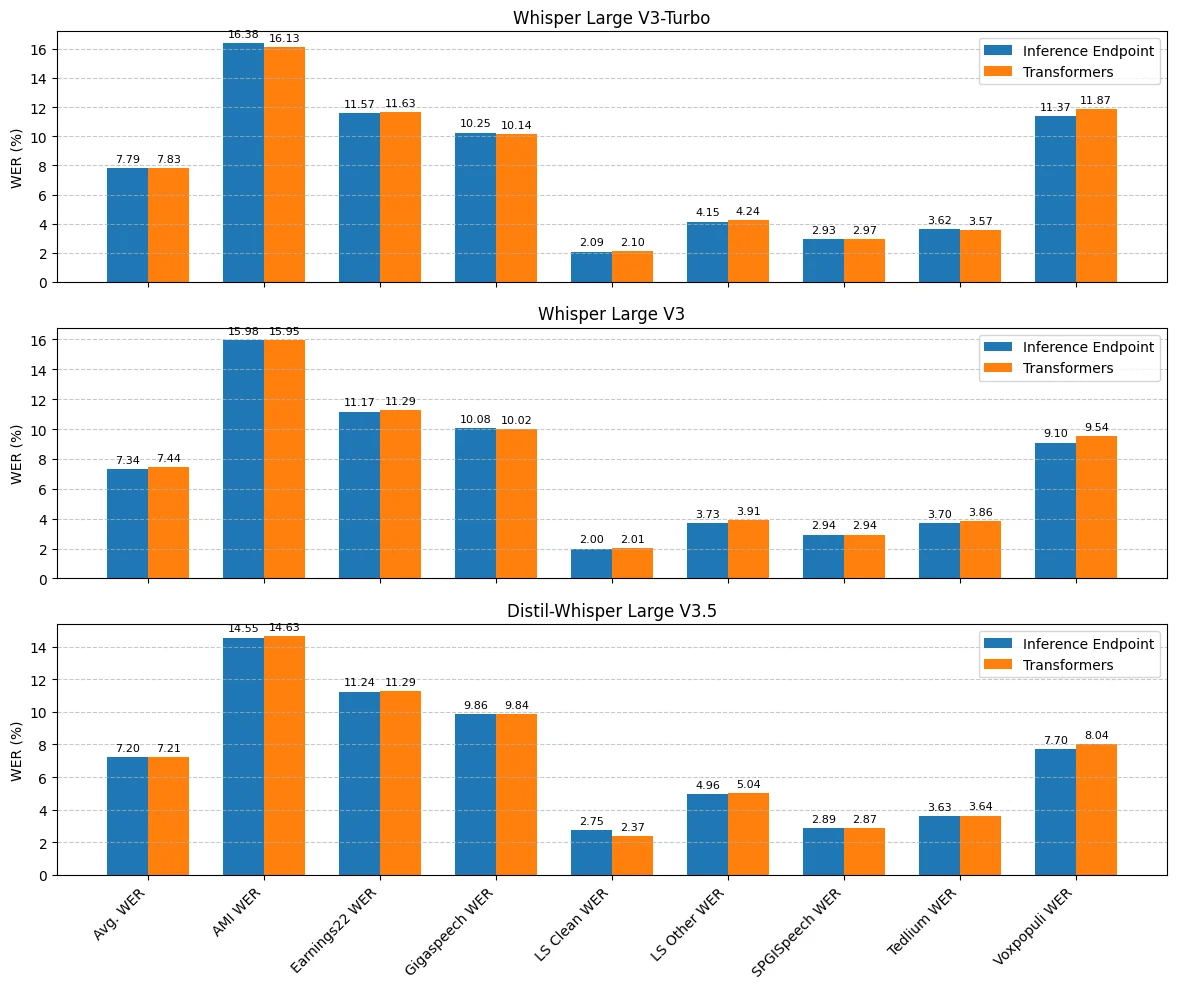
Whisper has a well-documented failure mode: generating text from silence or background noise. Academic research found roughly 1% of transcriptions contain entirely fabricated phrases. The OpenAI speech-to-text documentation covers the official API, but local faster-whisper avoids API costs entirely. The community has collected 135 common Whisper hallucination phrases.
Five layers of defense
26-phrase multilingual blocklist covering the most common patterns, including "Thank you for watching," "Subscribe," and equivalents in multiple languages
Regex pattern matching to catch repetitive variants and patterned hallucinations
Two-stage VAD (Voice Activity Detection) -- first confirms voice exists (RMS exceeds threshold for 0.3 seconds), then detects ending (3 seconds of continuous silence)
15-second no-voice timeout -- auto-stops recording with no voice activity, preventing long silent recordings that accumulate hallucinations
Configurable parameters -- both silence_threshold and silence_duration are adjustable
Optimizing for noisy environments
voice:
  silence_threshold: 350    # Raised from default 200
  silence_duration: 4.0     # Raised from default 3.0s

stt:
  provider: local
  providers:
    local:
      model: small           # Fewer hallucinations than base
If garbage transcriptions persist, the most effective fix is a larger model (small, medium, or large-v3), or switching to cloud STT (Groq whisper-large-v3-turbo has roughly 0.5-second latency and almost no hallucinations).
What Config Template Should You Use? (Four Ready-to-Paste Options)
Fast free tier (daily use)
Local base model for STT, Edge TTS for speech. Free, fast, good enough for most scenarios.
voice:
  record_key: ctrl+b
  max_recording_duration: 120
  auto_tts: false
  beep_enabled: true
  silence_threshold: 200
  silence_duration: 3.0

stt:
  provider: local
  providers:
    local:
      model: base            # 150 MB, fast, solid English quality

tts:
  provider: edge
  providers:
    edge:
      voice: en-US-AriaNeural  # 322 voices available
High-quality paid tier (content creation)
Cloud-accelerated STT via Groq, natural voice via ElevenLabs.
Ready-to-Use Prompt: Pick Your Voice-Mode Stack and Generate a Ready-to-Paste Config
What this does: Matches your use case to one voice surface (CLI / Telegram / Discord) plus an STT and TTS provider, scores the trade-offs, adds a Whisper hallucination filter, and outputs a ready-to-paste config with failure fixes. Based on: How to Add Voice Mode to Your AI Agent: CLI, Telegram, and Discord Setup Guide — https://aiworkflowpro.com/ai-agent-voice-mode/ Time to run: ~4 minutes
Copy this prompt into Claude Code, ChatGPT, or any AI assistant:
ROLE: You are a voice-mode integration architect. Your job: pick the right voice surface, STT, and TTS combination for one use case and produce a ready-to-paste config plus a Whisper hallucination filter.

CONTEXT — VOICE-MODE STACK SELECTOR:
Voice mode turns a text-only agent into a hands-free assistant across three surfaces — CLI push-to-talk (lowest latency, desktop coding), Telegram voice bubbles (mobile), Discord voice channel (real-time, community). Each surface pairs an STT (speech-to-text) with a TTS (text-to-speech), chosen on three trade-off axes: cost, quality, latency. The zero-cost baseline is faster-whisper (STT) + Edge TTS (TTS), no API keys needed. Because Whisper-class STT hallucinates text during silence or noise, every stack needs a hallucination filter before text reaches the agent.

INPUTS (fill in before running):
- USE_CASE: YOUR_SCENARIO_HERE (e.g., "hands-free coding on my laptop", "talk to my agent from my phone", "voice channel for my community")
- DEVICE: YOUR_DEVICE_HERE (desktop / mobile / server)
- BUDGET: YOUR_BUDGET_HERE ($0 free-only / low / flexible)
- LATENCY_TOLERANCE: YOUR_TOLERANCE_HERE (real-time / near-real-time / async-ok)

METHOD — 6 STEPS:

Step 1 — Pick the surface
Match USE_CASE + DEVICE to exactly one surface: desktop + coding → CLI push-to-talk; mobile → Telegram voice bubbles; multi-user / community → Discord voice channel. State the surface and a one-line reason.

Step 2 — Choose STT
If BUDGET = $0 → faster-whisper (free, local, no key). If latency-critical → a streaming cloud STT. If accuracy-critical → a higher-quality paid STT. Score every candidate you considered 1-5 on cost, quality, latency, and show why the winner wins.

Step 3 — Choose TTS
If BUDGET = $0 → Edge TTS (free, no key). If natural voice matters → a neural paid TTS. If latency-critical → a low-latency streaming TTS. Show the score table.

Step 4 — Size the hallucination filter
Specify guards for Whisper-class STT: a confidence threshold (reject below ~0.5), a silence/noise detector (drop segments with no real speech), and a length/plausibility check (reject runaway or garbage tokens). Mark which guards apply to your chosen STT — non-Whisper STT may skip some.

Step 5 — Generate the config
Produce a ready-to-paste config.yaml covering: surface, stt provider + model, tts provider + voice, a hallucination_filter block, and the trigger for the surface (Ctrl+B for CLI, hold-mic for Telegram, join-channel for Discord).

Step 6 — Failure-mode check
For your stack, name the top two likely failures and their fixes from the common set: no audio capture → check device permission; high latency → switch to streaming/local provider; hallucinated replies → tighten the filter; TTS cuts off → raise max-char limit; provider 401 → check API key.

RULES:
- Match one surface to one use case — never run all three for a single scenario.
- If BUDGET = $0, both STT and TTS must be the no-key pair (faster-whisper + Edge TTS); do not mix a paid provider in.
- Every Whisper-class STT must have a hallucination filter before its output reaches the agent.
- Latency-critical use cases cannot use async or batch providers.

OUTPUT FORMAT:
Output six sections:
1. **Surface choice** — surface + one-line reason.
2. **STT selection** — markdown table with columns: Candidate | Cost (1-5) | Quality (1-5) | Latency (1-5) | Picked? (Y/N).
3. **TTS selection** — markdown table with columns: Candidate | Cost (1-5) | Quality (1-5) | Latency (1-5) | Picked? (Y/N).
4. **Hallucination filter** — markdown table with columns: Guard | Setting | Applies? (Y/N).
5. **Config** — a ```yaml block ready to paste, covering surface, stt, tts, hallucination_filter, and trigger.
6. **Failure-mode fixes** — markdown table with columns: Likely failure | Fix.
Save as @templates/ai-agent-voice-mode.md and run whenever you add voice to an agent or change surface, device, budget, or latency requirements.
FAQ
Can I run AI agent voice mode completely free?
Yes. faster-whisper provides local STT (free, no key), and Edge TTS provides 322 voices across 74 languages at no cost. The entire pipeline requires zero API keys and zero dollars.
What is the difference between faster-whisper and OpenAI Whisper?
faster-whisper is a CTranslate2 high-performance reimplementation. Same accuracy, up to 4x faster, lower memory. Supports 8-bit quantized inference. It is the default local STT backend.
How do I fix Whisper hallucinations?
The agent includes a 26-phrase multilingual blocklist plus regex filtering. Beyond that: raise silence_threshold to 300-400, use the small model or larger, and record in quieter conditions.
Why does the Discord voice bot leave after 5 minutes?
Hardcoded 300-second inactivity timeout. Speaking or sending text resets the timer. A community issue requesting configurable timeout has been filed.
What audio format does Telegram require for voice bubbles?
Opus/OGG. OpenAI TTS, ElevenLabs, and Mistral output Opus natively. Edge TTS and others output MP3/WAV and need ffmpeg for conversion. Without ffmpeg, audio sends as a file attachment instead of a bubble.
A Skill is an operating manual, not a plugin. The five-layer architecture behind workflow automation that survives context compression, session crashes, and handoffs: SKILL.md as the single entry point, deterministic scripts, run state for crash recovery, and a resource layer.
Two of the three fixes can be undone the same afternoon. The third cannot, and it is the one people reach for first. LoRA cut costs tenfold, which made the expensive option tempting rather than correct. In business process automation, the order you try things in is the whole decision.
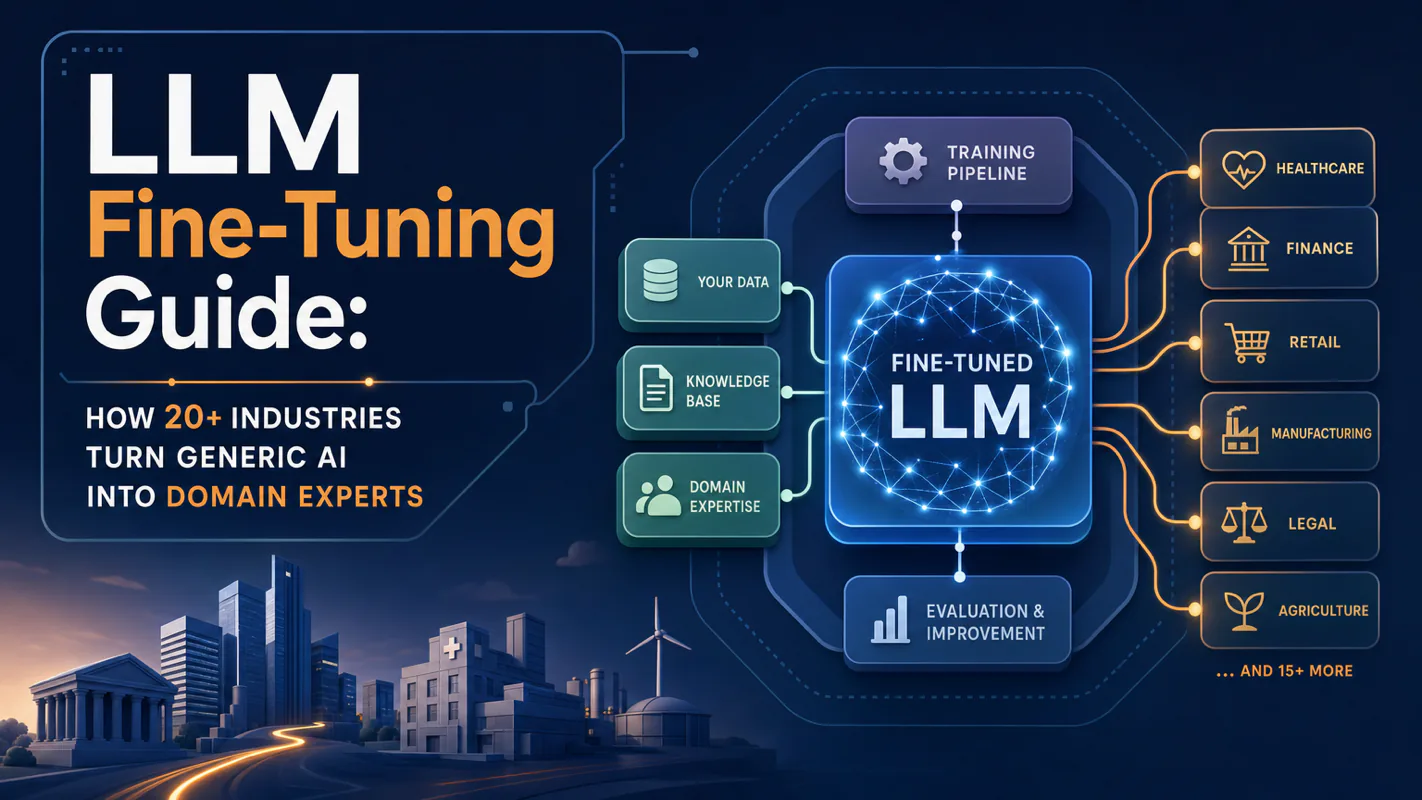
Fine tuning turns a generalist into a specialist - skip the baseline and you can never prove it worked. Five steps on Google Cloud: baseline, data prep, instruction design, hyperparameters, evaluation. Plus the finding that surprises business process automation buyers: 100 good samples beat 1,000.
Two vendor-locked tools is not redundancy, it is two eggs in one basket, as a single morning of simultaneous lockouts proved. Install OpenCode as a third path: two install routes, per-task model routing that also cuts cost, five settings to configure first.