A 30-minute video is too long for one conversation. This guide walks the 8-step Skill that locks the narration and one look, then gives each 3-minute segment to a fresh sub-agent, five at a time, and polishes the cut in an empty-context session.
The folder structure behind my AI agent team, the Herdr setup where Grok Build, Claude Code and Kimi Code work side by side, and the two live tasks from the video: an article published by voice and a three-model front-end test.
Eight folders of plain Markdown, a CLAUDE.md index in each, and seven prompts that make your agent interview you. Every prompt, template and command from the video, in order.
How to Edit Long Videos With Claude Code (10 Sub-Agents)
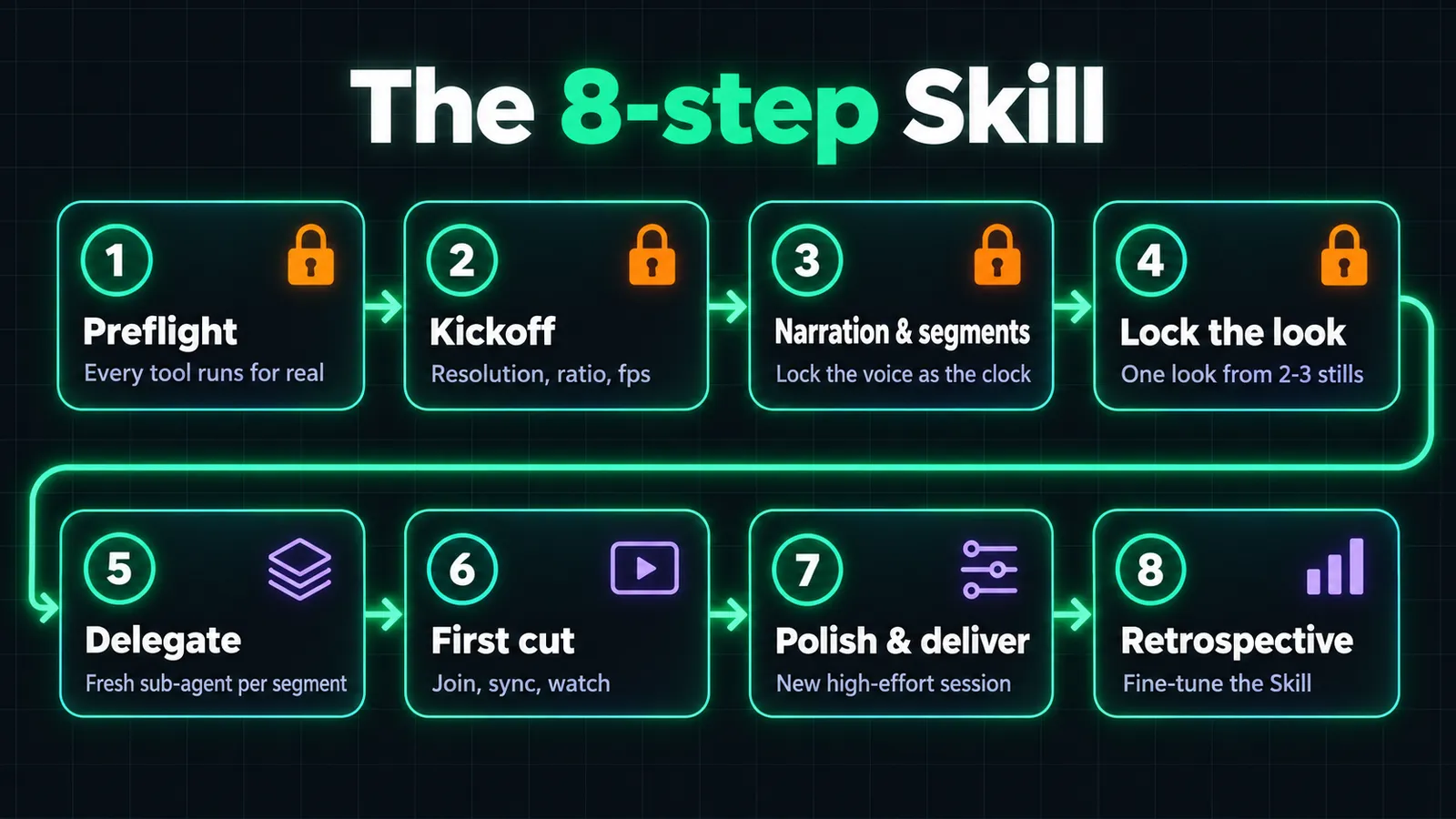
A 30-minute video is too long for one conversation. This guide walks the 8-step Skill that locks the narration and one look, then gives each 3-minute segment to a fresh sub-agent, five at a time, and polishes the cut in an empty-context session.
You can edit a 30-minute talking or explainer video with a coding agent such as Claude Code, but not in one conversation. An eight-step Skill locks the narration, the format and one look, then hands each three-minute segment to a fresh sub-agent that builds it in code with Remotion, and a brand-new session polishes the first cut. It works with Claude Code, Codex, Cursor, Gemini CLI and other agents that read Agent Skills; it renders a video file and does not edit a Premiere Pro, Final Cut or DaVinci Resolve timeline.
Lock the narration first. It is the clock every shot and animation hangs on.
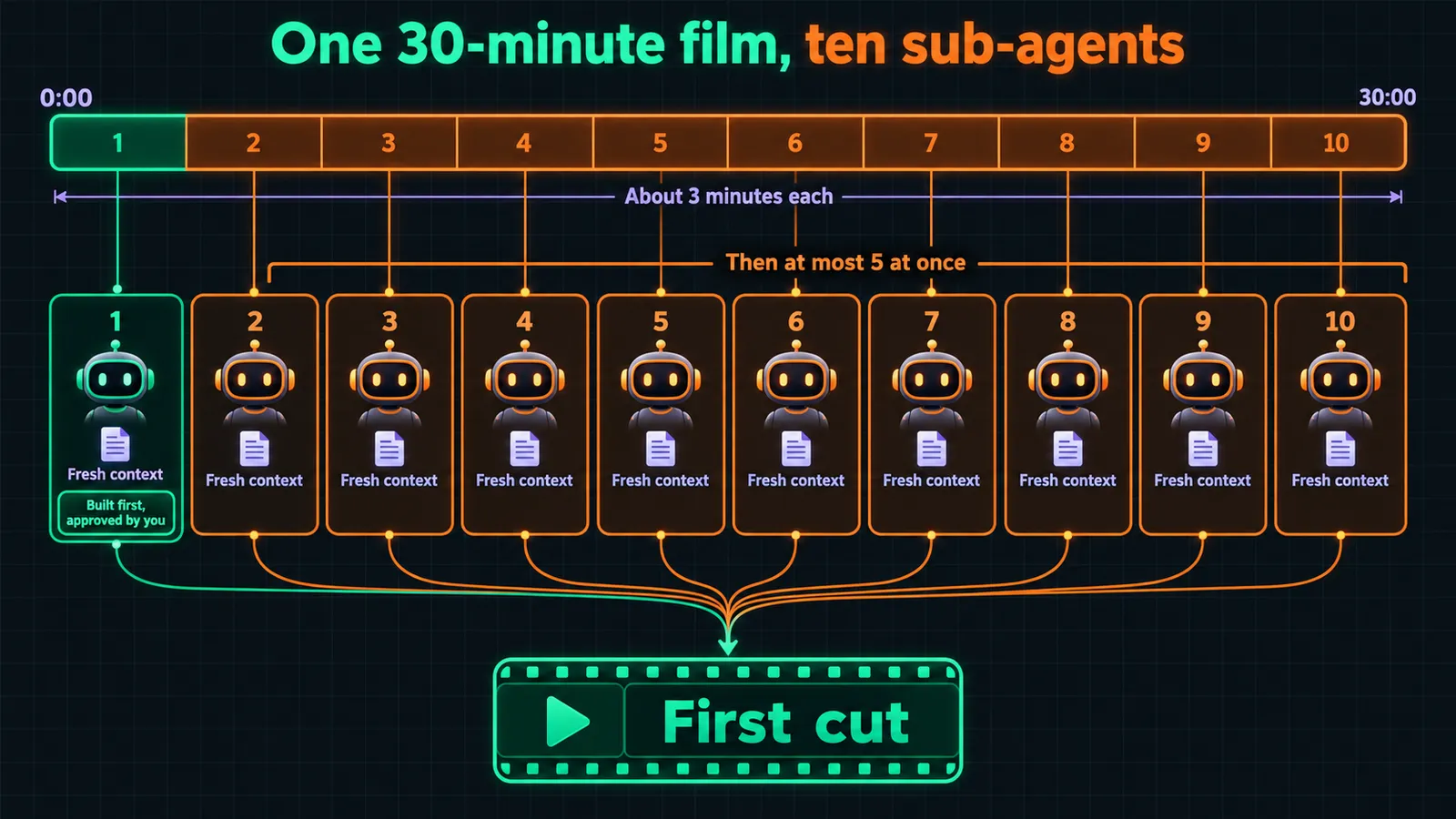
About three minutes per segment, one fresh sub-agent each, at most five at once. A 30-minute film is ten segments.
Give each sub-agent a framework and a feeling, not a list of rules.
Judge the cut by watching it, with a model that did not build it. Never trust a score.
Polish the first cut in an empty-context session at high effort. Install lines are in Step 9.
What you need
A voiceover or a script for your film.
An agent that reads Skills (Claude Code, Codex, Cursor, Gemini CLI or similar), signed in with your own login.
Node.js 18 or newer and FFmpeg, for Remotion. A minimal Remotion project is in the repo's template/ folder.
Python 3.11 or newer, for the helper scripts.
Two or three clips you are allowed to learn from, as role models for the look.
The ability to open a fresh conversation. Sub-agents help, but a new chat per segment works too.
Optional: a local Whisper for word timings, and your own image, video or music generators.
Everything runs on your own computer, with no paid API or GPU required; the agent asks before anything that costs money.
Step by step
Each step matches a chapter of the video; the time links jump to that moment. A cleaned-up transcript is at the bottom of this page.
Step 1: Treat the film as code, not a timeline
Video: 0:32 Why editing is hard · 1:23 How AI edits: code, not timelines
An agent does not drag clips around a timeline. To an agent, the picture on screen is a function of time: at any moment, code computes what that frame should look like. At 60 frames per second, that code runs 60 times for every second of film. Remotion and HyperFrames work this way: the whole picture is rendered from code, web components assemble it, and the frames are linked into a video.
That has two practical consequences, both from the video:
Fast trial and error. Elements, transitions, easing curves and text sizes are all just parameters of one function. The agent can work out an answer quickly, render it and say, "here is one way of presenting this, does it pass?" Because it explores fast, you can delegate to more than one agent: ten, or, with the right setup and the workflow feature in Claude, hundreds, to try different styles. The Claude Code dynamic workflows guide shows orchestration patterns for running many sub-agents in parallel.
Reuse. Because the film is code, you swap the text, colors and sizes and reuse it. My previous video was tens of thousands of lines of code; for the next one I change some text and some of the staging, and the next edit goes much faster.
The hard part of AI video editing is therefore not rendering. It is having too many options: every element, layout, transition and easing curve multiplies, and a film is tens of thousands of frames. Someone has to choose, by the meaning of the narration, the best path through that space.
Step 2: Don't ask one conversation for the whole film
Video: 3:33 Why one prompt can't edit a long video
Ask an agent for a one- or two-minute video and it holds together: its attention stays on a short job and its context is small. Ask for 30 minutes, 50 minutes or an hour and the context runs out. The film starts out good and gets worse toward the end until it is basically a slideshow. Even with a million-token context window, my estimate is that the model's sharpness falls to about 60 to 70 percent once the window fills, which is a loss of 30 to 40 percent. That figure is my own rough observation, not a benchmark. If you want the mechanics of why long sessions degrade and what to do about it, the Claude Code context management guide covers compaction, sub-agents and when a fresh session beats carrying everything forward.
The fix is not a longer prompt. It is managing what goes in and what comes out, which is what the rest of this guide is about.
Step 3: Sort the work into the four quadrants
Video: 4:45 Three layers and the four unknowns · 6:41 The four quadrants
I break "working with AI" into three layers, from the bottom up.
Worldview: framework thinking. Build a framework and rules first, then let the AI improvise freely inside them.
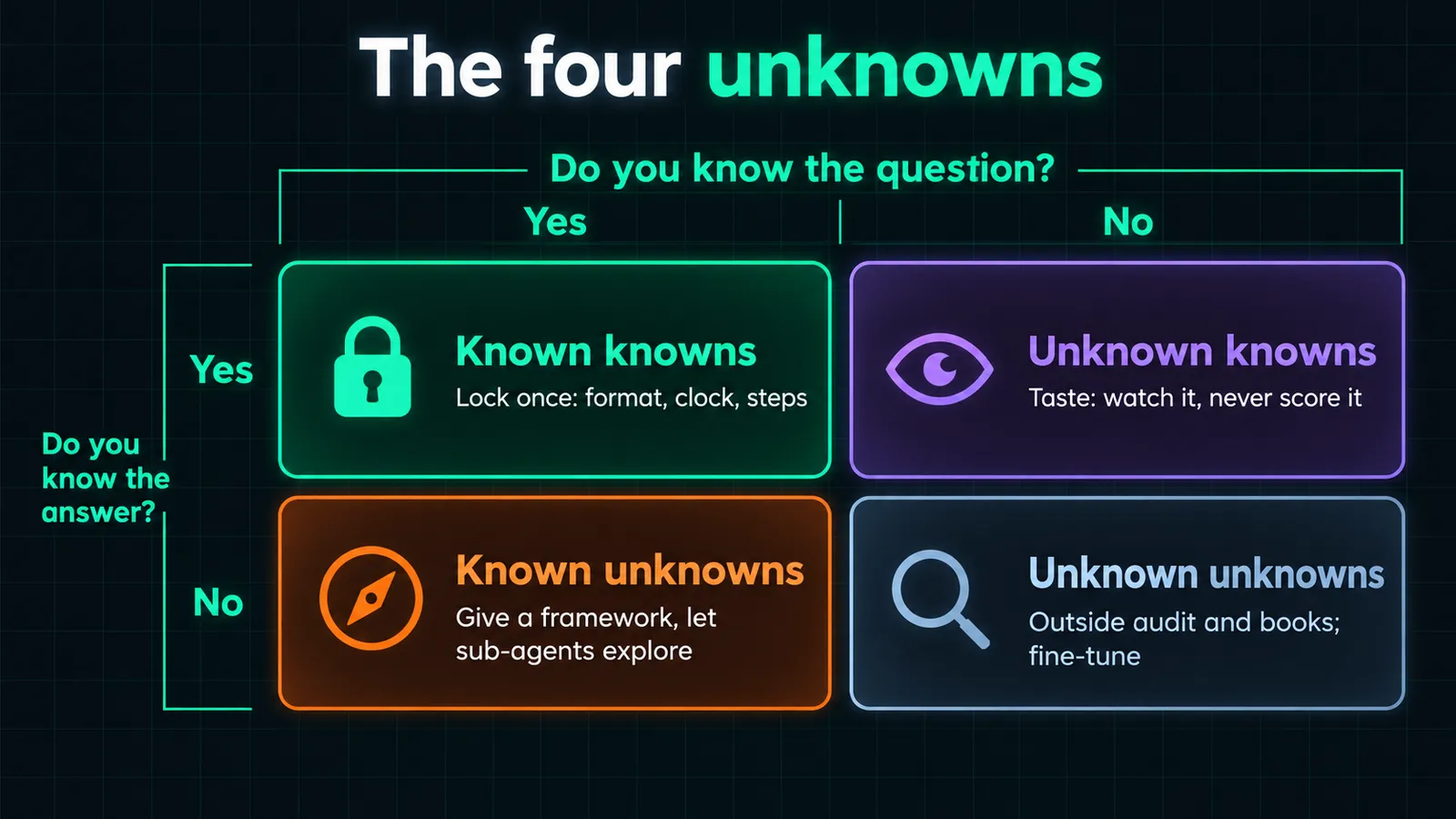
Methodology: the four unknowns. I borrow this from Anthropic's article A field guide to Claude Fable 5: Finding your unknowns. It splits human-AI collaboration into four kinds of unknowns and tells you which parts to lock down and which to leave open.
Skill: the thing you actually run. The Skill stores what stays fixed, what flexes, and the delegation prompts, so what you learn on one film speeds up the next. If you want to write your own, the Claude Code Skill development guide is the long version.
The reason for the framework is what happens to everything you leave blank. A brief never covers every detail. In the video's analogy, you hand a renovation crew a floor plan; it will not say how high the outlets are or whether the plumbing is exposed. The crew guesses. If it guesses right, you are lucky. If it guesses wrong, it falls back on the safest, most conservative choice, and a video does the same: it falls into "that AI feel", and a long video plays like a slide deck.
Cut along two axes: do you know the question, and do you know the answer?
Quadrant
In plain words
What it means in editing
What the Skill does
Known knowns
You know what you want and how to do it
1080p, 60 fps, narration, captions as a track: the industry already has answers
Lock them once; they become the framework of steps
Known unknowns
You know the feel, not how to make it
"I want this style of editing"
A brief that gives a framework, not constraints; sub-agents explore
Unknown knowns
You can't say it, but you know it when you see it
Taste. You can judge a 10-second clip instantly
Watch the cut, never score it; a model that did not build it does the watching
Unknown unknowns
You don't know the question, let alone the answer
What is wrong with your Skill, and you can't see it
Outside experts, a stronger model's audit, books; fine-tune, never rebuild
Steps 4 to 7 below are these four boxes, applied in order. The four quadrants are not only about video. I expect the same thinking to apply to producing articles, image generation, or cross-border e-commerce sales and growth, because they cover any problem where you work with AI to produce output. That last point is my expectation, not something this repo tests.
Step 4: Lock what the industry already knows: the eight steps
Video: 9:31 Known knowns: the 8-step Skill · 10:25 Preflight · 11:40 Kickoff · 12:11 Narration and segments · 13:45 Lock the look · 14:30 Sub-agents in 3-minute chunks · 15:58 First cut, polish and deliver · 16:17 Retrospective
To build the framework I delegate research: search the internet, open-source projects, creators on YouTube and X, and books for the best practices in video editing. If, say, you find 100 open-source projects, the steps they all share are the common framework of the field. That is humanity's best practice for the task, so you lock it. This is what the Skill's eight steps are.
Skill step 1, Preflight. Before delegating, run every tool the sub-agents will use for real, and from a sub-agent too. For me that means a screenshot CLI, Google's Flow for AI B-roll, and Codex for generating images with the GPT image 2.5 model. This step exists because of a mistake, described under What broke. Get the agent's hands and feet ready first.
Skill step 2, Kickoff. An interview, not a build. You settle 1080p, 16:9 or 9:16, long-form for YouTube or a short, 30 or 60 fps, and what feeling the film should give people. The project is then set up to those numbers. Nothing visual is made before you have answered.
Skill step 3, Narration and segments. This is the core of the process, because everything else is handed to the AI. Cut the breath pauses, slip-ups and repeated lines from your recording. Then lock the narration as the main track, timestamps included, and turn it into SRT captions. The narration is the clock: every shot and every animation hangs on a word or a stretch of time, which also makes easing curves easy to place. If the narration is not locked, cutting a single word later shifts the timeline and every later shot needs adjusting. The message, the hooks and the payoffs must be clear here. I use the Antigravity CLI to help refine the text, but I cannot just read its output; it gives me ideas, and I still talk to the screen and work it out myself. Then the film is cut into segments.
Skill step 4, Lock the look. Fix one style so the whole film feels harmonious. If every part were in a different style, it would feel chaotic and viewers would get impatient, which hurts retention. Art direction includes choices such as a dark tech look, cyberpunk, a light-colored card style or a Vox-style paper-cutout look. In the Skill you pick a look from two or three stills, lock it with a few shared pieces and finish one segment in it before the rest go out. This guide does not tell you which look to pick. The repo is a framework: you explore your own look, and the video says the same.
Skill step 5, Delegate. From here it gets simple. A set of delegation prompts hands the work to sub-agents, one fresh sub-agent per segment of about three minutes, five at once.
Skill steps 6 and 7, First cut, polish and deliver. Join the segments, put sound and picture in sync, and fix the small bugs in transitions and continuity slips. Then a brand-new session at high effort polishes what the first cut got wrong. Export the master, captions and chapters.
Skill step 8, Retrospective. Save everything and write down how this style's edit turned out. Every conversation with the AI teaches small lessons; fine-tune them into the Skill so the same problem does not come back.
Why about three minutes, and why five at a time. Without delegation, a 30, 50 or 60-minute video cannot keep its quality, because the model does not spread its effort evenly over every segment. From my experiments, around three minutes is a sweet spot where it really performs. So a 30-minute video becomes ten large segments, and each segment is cut again at the breath pauses, where a beat is usually one idea, one sentence or two. The agent builds the visuals beat by beat. Ten agents are needed for a 30-minute film, and I usually run five at once. The reason is tooling, not the model: if your CLI tools are not set up for concurrency, ten agents in parallel produce errors and the edit runs into trouble. With this approach, 1, 2 or 3 hours of film is the same procedure with more sub-agents, as long as you have the quota and the time. For the mechanics of dispatching them, see the Claude Code subagents guide.
Keep room for the model's own initiative. Locking everything and locking nothing both fail; the video calls it dancing on a knife's edge: within a fixed set of constraints, the AI can thrive. In every step I kept some room for the model's own initiative. For example, when deciding the style, describe the narration to the model, ask which visual styles it thinks would suit it, shortlist them, and then let it loose.
Step 5: Write a task card that gives a framework, not constraints
Video: 18:09 Known unknowns: task cards and references
For the part you know the feel of but cannot specify, you let the AI explore, and the quality of the whole thing rests on the task card you give each sub-agent.
I once ran an experiment: a completely airtight delegation card against one that gives a framework but no constraints. Side by side, the framework card got better results. A strict card looks like this: every segment must fade in and fade out, captions go at the bottom, always use easing between shots. With that many fixed terms the model has little room to explore, so it tries to cover every requirement and the result is neither here nor there.
My delegation prompts describe a feeling instead. Roughly, in my own words: the theme style is light-colored paper cutout; the video is about knowledge bases; your job is to serve retention, think like a viewer, make people want to keep watching, and design the elements, the segments and how to present them; here are the assets I have, search the internet if you need more; here are my tools, a screenshot tool, an AI image tool and an AI video tool. Within a fixed style, the sub-agent has full room to explore.
I also do not let it start from nothing. I built a large reference library by taking apart 10 channels and 50 videos into segment clips, and the agent searches it when it needs, say, a way to show a comparison: two tables, or the trend of a curve, and how do the best channels switch between segments. The role model shows what high-quality motion looks like. The repo does not include a reference library; the Skill asks you to bring two or three clips you are allowed to learn from. The sub-agent then combines the techniques, your theme and the feeling you asked for, iterates, and hands the segment back to the main agent when it is done.
You cannot predict what a sub-agent's edit will look like, but you will know whether it is good the moment you see it. That is tacit knowledge, and in editing it is taste. Scoring it does not work (the scoring trap is under What broke). What works instead:
Use a multimodal model, and switch models. Do not let the sub-agent that made a segment judge its own work.
Gemini is the model with the strongest visual recognition. It samples frames, looks closely and links them into motion. I usually have Antigravity watch the cut; if you do not have it, spin up a separate sub-agent in Claude.
Ask it to describe, as a viewer, how the video feels and what is off: is it good, is it beautiful, would you keep watching? Have it hunt for flaws from that angle, then polish.
Let it check what a model can check: where there is white space, whether elements fill too much of the frame, whether it hits the golden ratio, whether there are glitchy shots or flicker.
After one round of polish you can count on a pretty good result. Code is still useful, but only for hard faults.
When you don't know what is wrong with your own Skill, there is no option but to expand your professional knowledge and break out of a closed space. Two ways, both from the video:
A model audit. Once the editing Skill is built, I send it to a stronger model (the Fable 5 model, or GPT-6 in Codex) at the highest effort level, in a fresh session, and ask where the Skill has issues, what I might not notice, and where it lags behind the industry.
Expert books. I put authoritative material on animation design, easing curves, film theory, directing theory and animation theory into NotebookLM, then give the model the whole Skill framework and ask what experts in the field would say matters.
Then comes the word that matters: fine-tune. If you hand a Skill to a model for "revision", it may tear the whole thing down and start over. Always say fine-tune. One outside correction changed how I start every film; it is the last item under What broke.
Step 8: Set effort levels and polish in an empty context
Video: 25:37 Bonus: effort levels and the polish pass
If money is no object, you would use Opus 5.5 at the max effort level. In many cases a Claude subscription is hard to get, so high is what you can use. Here is how I work:
Delegate at Opus 5.5 on high effort.
Let the segment builders run a notch lower.
Once a first cut exists, start a new session with an empty context and bring in Opus 5.5 on high for a polish pass.
After the first cut, the style is mostly set and the elements are where they should be. A high-effort model starting from a blank context can quickly spot which segments share which common problems, keep what works and adjust the rest. The video gets a lot better, with a noticeable lift in the motion. For how effort levels actually work in Claude Code, see the thinking modes guide.
The Skill is a free framework edition. It gives you the order of work, the gates, the checks and the shapes of the hand-offs. It does not give you a house style: you define your own look in Skill step 4, or fall back on a plain starter look. As I say at the end of the video, I don't think anyone who gets a Skill like this will produce high-quality results from it alone. You still have to explore with the broad framework; once you know it, you know how to adjust.
Run the Skill's preflight script, then say "make an explainer video from this voiceover", or paste the start-a-film prompt from the repo. If you are new to Claude Code itself, start with What is Claude Code and the quickstart setup.
Repo part
What it is
skills/explainer-video/
The Skill: the eight steps, the four unknowns, four gates
steps/
One page per step, each with a pass line
templates/
The segment brief shown in the video, lock list, style sheet, handoff
scripts/
Preflight and other helpers (Python, standard library only)
template/
A minimal Remotion project
Tested with, stated honestly:
Agent
Model
Date
What was run
Claude Code
Claude Opus 5.5
2026-10
This method on the film in the video: about 29 minutes, ten segment builders
Claude Code 2.1.302
Claude Opus 5.5
2026-10-17
The repo's scripts on macOS with Python 3.14: preflight.py and --help on every script.
The public Skill has not been run end to end on a new film on its own. Treat it as a starting framework to adapt, not a finished product. Remotion has its own license: free for individuals and small teams, while larger companies need a company license.
The lock-or-leave-open checklist. Use this before every film. It turns the guide into a decision sheet you can run through in a few minutes.
Sort the problem first. Lock what the industry already agrees on (format, the narration clock, the order of steps). Leave open what you can only judge by looking (taste). Give a framework, not rules, for what you can feel but not specify. Bring in outside expertise for what you cannot see.
Pass lines, one per step:
Preflight: no tool gets skipped because it failed quietly.
Kickoff: resolution, aspect ratio, frame rate and length are answered before anything visual is made.
Narration and segments: the narration is finished and locked, because changing a word later shifts every timing.
Lock the look: segment 1 is finished and approved by you.
Delegate: every segment came back.
First cut: watched by a viewer who did not build it.
Polish and deliver: a brand-new session at high effort fixed what the first cut got wrong.
Retrospective: lessons added as small fine-tunes, not a rebuild.
Four checks before you delegate:
The brief describes a feeling and a goal (keep the viewer watching), not a list of must-do rules.
It names a role model or two (clips you are allowed to learn from), not a technique list.
Nothing in it is a rule only because you wanted control.
One segment came out well before the other nine started.
Judging the cut: never let the model that built a segment judge it. Ask a different model, or a fresh sub-agent, how it feels as a viewer and what is off. Use code only for hard faults: format, loudness, flashes, black or frozen stretches.
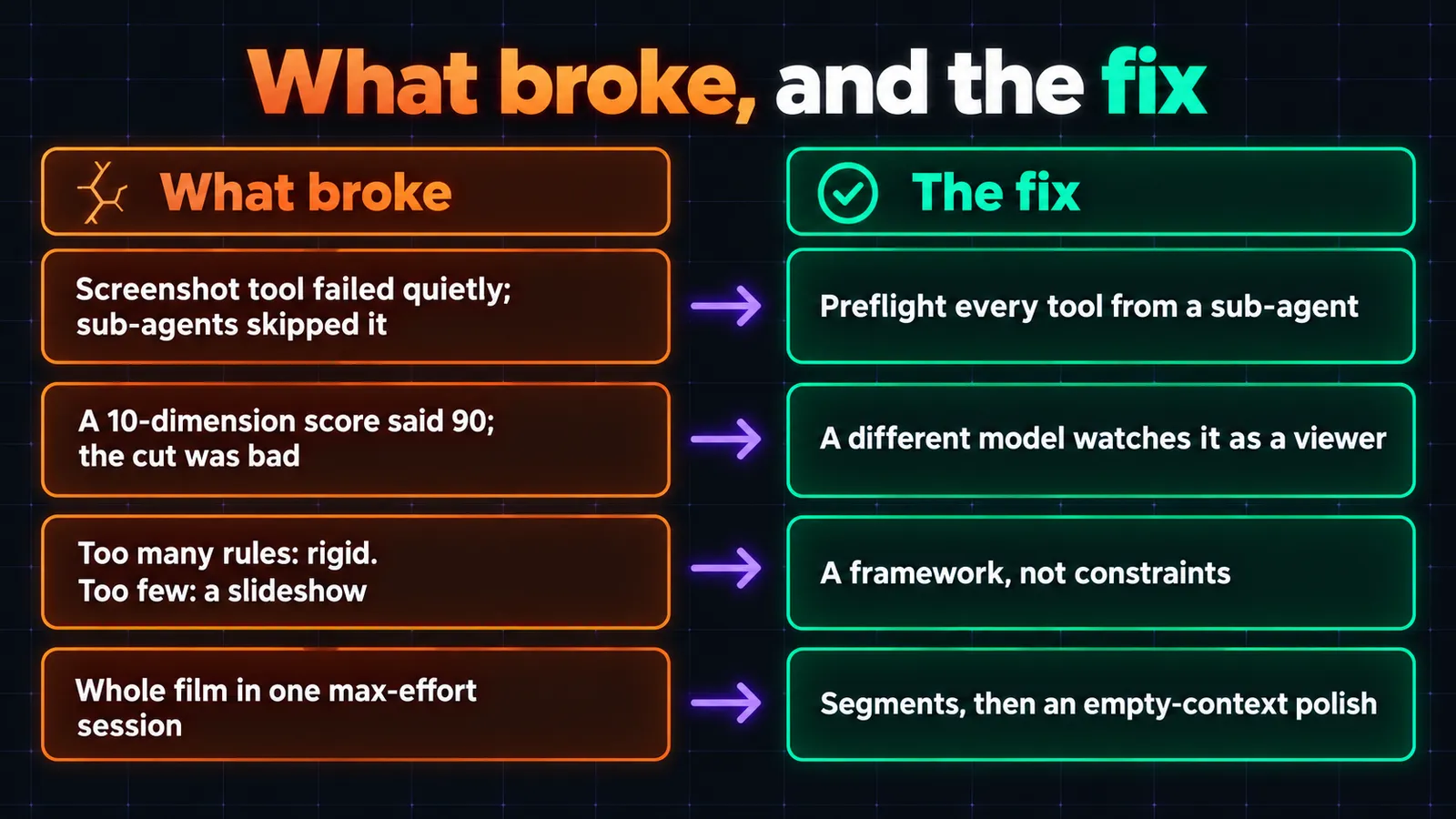
What broke
Sub-agents skipped a tool that failed quietly. In my previous video I assumed the screenshot CLI worked. Each sub-agent hit a failure, reasoned that screenshots were the infrastructure manager's job (I had assigned roles), skipped them and drew everything itself. The video barely contains a web page screenshot and is monotonous. The fix is Skill step 1: run every tool for real, from a sub-agent too, before anything is delegated.
A score said 90, and the cut was garbage. Early on, the AI proposed a scoring system for AI videos, ten dimensions such as transitions, segments, elements and easing curves, each scored. I really believed it. Give a scoring system to Codex and it immediately writes a function that checks whether elements overlap, how many there are and how big they are; then it tells you it spent half an hour editing and gives the video a 90. The moment you watch it, it is garbage. Beauty and design sense are a feeling you cannot score. The fix is Step 6: a different model watches it as a viewer.
Too many constraints, then too few. Some videos took me three or four months because I fell into the over-engineering trap, locking the Skill's steps down too rigidly; the AI followed each handoff step by step and what came back was rigid and low quality. Handing it off with a simple prompt sometimes gave a high-quality cut, but more often it looked AI-made: the slideshow style of editing. The fix is a framework, not constraints (Steps 4 and 5).
One max-effort session for the whole film. When I handed everything from the narration onward to a single session at max effort for 30 minutes, it did not go well: the context got heavily compressed and the model could not perform. The fix is segments, then an empty-context polish on high (Step 8).
Editing the whole film as soon as it had a style. I used to give the model the whole film to edit as soon as it had a style. When I asked NotebookLM, it said that in edits like this you usually do a test cut first, with style frames, before going into segments. Style frames let you judge whether the look matches what you need before you commit. So now I run one agent on one segment first and check how it looks. Not every style suits your video.
FAQ
How do you edit a long video with Claude Code?
Do not ask one conversation to edit the whole film. Lock the narration as the clock, fix one look, split the film into segments of about three minutes, and give each segment to a fresh sub-agent that builds it in Remotion. Run about five at a time, join the segments into a first cut, then polish that cut in a brand-new high-effort session.
Can an AI agent edit my Premiere Pro or Final Cut timeline with this?
No. The Skill makes explainer videos in code (Remotion) and renders a video file. It does not open or edit a Premiere, Final Cut or DaVinci Resolve timeline. You can bring the rendered file, or parts of it, into your editor afterwards.
Why three-minute segments, and why only five agents at once?
Three minutes is where, in my experiments, a sub-agent performs well. Five at once is a tooling limit: if your CLI tools are not set up for concurrency, ten agents in parallel cause errors. With the right setup you can run more.
My agent has no sub-agents. Can I still split the video?
Yes. A brand-new chat is a clean desk too. Open one chat per segment in the film folder, paste the same brief, and build the segments one after another. It is slower, and it works. If your whole piece fits in one conversation, skip the split and still watch it twice.
Which model and effort level should I use?
I delegate with Opus 5.5 on high effort, let segment builders run a notch lower, and polish the first cut in a new session on high. Max effort for the whole film in one session did not work for me because the context got heavily compressed. Other agents have an equivalent thinking or effort setting.
Do I need a paid API or a GPU?
No. Everything runs locally with Remotion, FFmpeg and, optionally, a local Whisper, and your agent uses your own login. Generated images, video or music are optional and you bring your own.
Transcript of the video (cleaned from the auto-captions)
Cleaned from YouTube's English auto-captions: music cues removed, obvious recognition errors fixed from context (Remotion, HyperFrames, Antigravity, NotebookLM), wording otherwise left as spoken. Timestamps mark the start of each paragraph.
[0:00] What's on screen is exactly what I edited with AI. But if you're making a long video, 30 minutes, 50 minutes, an hour, or even longer, its context will surely fall short. We can't use one prompt to have it edit a long video because its attention is limited. Context rots. It'll start out good and get worse toward the end until it's basically a slideshow. Today I want to talk about how one person can edit a long video using AI.
[0:32] So what makes editing hard? The hard part is taking all the elements in your shot and putting them together through a smart layout and arrangement so it can deliver a high-quality way of acting it out. Each thing I just mentioned has so many techniques in editing. But if you add up all those techniques, multiply them together, you end up with tens of thousands of combinations. And a video certainly isn't a single still image. It's made of tens of thousands of frames. Line them all up and just think the possibilities are astronomical. So in AI video editing, the hard part is having too many options. Everyone has to go by the content and meaning of the narration and among these nearly infinite combinations, choose the most beautiful, best possible path to arrange and assemble it all. Only then is a video high-quality and artful and able to keep people watching for long. So how does AI solve a problem like this?
[1:26] AI itself never drags the timeline around. It just writes code and renders. The underlying idea here is that to AI, video or the picture on screen is a function of time. At any given moment, it just computes what the frame should look like. Every single frame is computed through code. At 60 frames per second, that code has to calculate it 60 times. The most common approach today, the whole picture gets rendered out with code, then web components put it together, and by calculating images one by one, layering and combining them, And linking them up, you get a complete video. Tools like Remotion and HyperFrames take this route. At the core, it's all drawn out through code. So, for AI, everything we just talked about, whether it's elements or transitions or segments or any technique in its eyes, are really just different parameters of one function. They're all just numbers, whether it's a motion curve, a Bezier curve, or the text size, it's all a function to AI. Once you see that, handing it to AI pays off. AI can use its massive computing power and in a space of infinite possibilities quickly work out an answer for you. We delegate with a prompt, "Edit me a video." Once it's done, right away it renders the final result for you to see.
[2:39] It's like it's saying, "Look, out of infinite video combinations, I've put together one way of acting it out. Here's the finished cut. Does it pass?" Because it can explore fast, you can delegate more than one agent to this. Try 10 or even, with the right setup, use the workflow feature in Claude to delegate hundreds, and that way quickly explore different styles. That alone can massively boost how efficient we are as human editors. That's one side. The other side is, since it's code, that code lets you swap the text, the colors, and the sizes to quickly reuse it. That is, this film's accumulated craft and technique can be quickly reused on the next project. Say my previous video is done, tens of thousands of lines of code. I just change some text, change some acting out methods, and the next edit becomes really fast, taking almost no time. AI gives you fast trial and error, plus reuse. That's AI editing's biggest benefit. So, now that we understand AI editing, there's another question. How do we get high-quality edits? We're talking long videos here.
[3:40] For a one-to-two-minute video, since the model's attention is fairly focused and its context is relatively short, its abilities come through. But, if you're making a long video, 30 minutes, 50 minutes, an hour, or even longer, its context will surely fall short. Even with a million token context, as it fills up, how nimble the model is drops, I'd say, to 60 to 70%, meaning a 30 to 40% loss. So, we really have to figure out a way to collaborate with AI to get the job done. Basically, working with AI is managing its inputs and outputs. My way of breaking it down has three main layers. From the bottom up, layer by layer, let me peel it apart for you.
[4:22] The bottom layer, how do you get stable output from AI? I think it's driven by a worldview. That is, we need framework thinking to solve the problems we run into. Applied to editing, it means figuring out how to collaborate with AI. In other words, whatever we do, we need to build ourselves a framework and some rules. Once the big framework and rules are set for the details, we can let AI improvise freely. The middle methodology I can borrow from Anthropic, something they published a while back, a classic piece on human-AI collaboration. In it, they break human and AI collaboration into four kinds of unknowns, what we call the four quadrants. It tells us clearly which parts should be locked down and which should be left open.
[5:03] The article uses a really easy analogy. Say we hire a renovation crew to redo our home. What you hand the crew is a floor plan. That's our input. And we're hoping to just move right in. The finished home after the renovation is what gets delivered, our output. But as individuals, the context we give a model can never cover every specific aspect of the thing. You can't exhaust every combination telling it how to act. So, like in our example just now, the floor plan you hand the model definitely won't say how high the outlets are, or if the plumbing's exposed or hidden. Normally, if the plans we give AI are missing these core parts, then for whatever's left blank, the model is sure to guess.
[5:46] If it guesses right, you're in luck, good output. If it's wrong, then AI is very likely to fall into mediocrity. It'll pick its most stable way of producing output. What it thinks is the safest on the internet and in video, the most conservative. So, it takes that path. On that path, it falls into what we call that AI feel, very mediocre, and the long video plays like a slide deck. So, how do we keep that from happening? By using these four quadrants to set our framework and to build up a whole mature industrialized process over time. That's the skill we use in AI today. With the skill, what needs to stay fixed? What needs to flex? And our delegation prompts to AI all get locked in. That way, experience built up over time can be reused and speeds up our editing to finish a high-quality edit like this one.
[6:37] Next, let's talk about how these four quadrants guide us in building this skill. What are the four quadrants? The parts we get by cutting along two axes make it clear right away. The horizontal axis is whether you know the question, vertical, do you know the answer? So, question and answer cross to form the four quadrants. Let's use one analogy all the way through. First, let's look at the first box. Known knowns. That's when you know the question and you also know the answer. In plain English, you know exactly what you want and how to do it. That's the simplest case, known knowns. Take AI video editing. I want AI's help editing a video.
[7:16] It should be 1080p, you know that. And I want 60 frames. Since motion looks clearer and smoother at 60, what should the narration and captions be? Placed where? Captions on screen or not? These are all things you're sure of. The industry has long had the answers. These best practices we want our skill to lock in once and for all. They build the framework of steps for the whole skill. Now, let's look at the second box, known unknowns. You know the question, but you don't know the answer. Put plainly, what's that mean? It means you know the feel you're after, but not how to make it. How do we solve that? The only way is to tell it, "Hey model, I want this style of editing. Go explore and make me a high-quality edit." Let it keep trying and you judge what it comes up with. You just have to let AI experiment. That's the skill's second part, letting sub-agents do the exploring for the edit. Then the third box is unknown knowns. You don't know the question, yet you know the answer.
[8:13] This one's trickier, so here's an example. Before a shot is put in front of you, you don't know what it'll look like. But show you say a 10-second clip, you know if it's good because taste is a feeling, so you can judge it right away. In philosophy, that's called tacit knowledge. Say a popsicle. Tasty? No idea. If you're a newborn, just a little baby, one taste, sweet. You know it's good. You'll happily eat it. That's tacit knowledge, the unknown knowns. In AI editing, it's your sense of aesthetics. Often, the results of our AI editing don't come from anywhere else, they come from that taste. You think it's good, but someone with a more refined taste looks at it and thinks it isn't. So in AI video editing, people quickly pull apart because people really do differ in how they judge what's beautiful. That's the third part.
[9:04] The fourth part is unknown unknowns. You don't know the question, let alone the answer. It's like walking in thick fog, totally lost. In AI editing, what's that? Say I have this skill now, already built, and this skill, I don't know what's good about it, how to improve it, I don't even know what's wrong with it. So what now? We can only turn to outside experts, to AI, and to expert knowledge to iterate to find the skill's flaws, iterating step by step. With these four parts understood, let's peel it back.
[9:34] Starting with part one, what's the framework of this skill? Its job is pretty clear. In AI video editing or editing in film and TV, what's the established experience in the industry? Usually I delegate this to AI with a prompt. Go search the internet, whether that's open source projects or creator content on social media, searching YouTube, X, and the web, or searching inside books, and find me the best practices for video editing. Say we find 100 open source projects. Then from those 100 projects, we find the shared steps. If all share it, it's a common step in the industry, a common framework and method. So that method from the internet or wherever is humanity's best practice for that task.
[10:16] With that best practice, we have our foundation because we know it's right, so we apply it. So for the skill for editing, I break it into these few steps. Step one is preflight because before we edit a video like this, I have related CLIs. Which ones? For example, I use Flow, Google's Flow, for generating B-roll footage with AI video. I need to check before I run the agent, I have to make sure the Flow CLI runs reliably.
[10:42] Then say in terms of images, the video will also have some screenshots. I have to check my screenshot CLI runs reliably and successfully. Also for example, sometimes I need to use Codex to generate images inside it. Having the GPT image 2.5 model make the images: is that stable? Is it usable? Only with all this preflight done, when I send out sub-agents, can they run smoothly? Because the ones actually editing later on are the sub-agents. Without those tools ready, it'll surely skip them because it hits lots of issues. Look at my previous video. It barely used any web page screenshots as material. The problem's obvious. Know why? Because back then I assumed the CLI worked, but every sub-agent when it hit the screenshot problem said, "Since I'd assigned roles, that's the infra manager's job, not mine as editing manager. I won't. I'll skip it." and just acted it out myself. So, the video was monotonous. That's what step one has to solve. First, get AI's hands and feet ready. That's step one, pre-flight. With step one done, we come to step two, the kickoff. This kickoff part is really an interview process. You need to tell AI say my video is 1080p, 16 by 9 or 9 by 16. Long form for YouTube or a TikTok short, 30 frames or 60.
[11:56] What feeling should it give people? You settle all this in the kickoff as the overall framework. That's the kickoff. Once the kickoff is done, based on your parameters, it sets up in Remotion or HyperFrames the framework parameters. That's what step two does. Then step three, we need the narration and the segments. This is the core of the entire process because we hand everything else to AI. So, this part narration and segments has to be well organized. Then, once you have the narration and the script, you must cut the breath pauses in the audio you recorded yourself, cut the slip-ups and repeated lines, so it locks in the narration as your main track because the whole video has narration as one main track and the picture as another. At least one must be fixed and that's the narration since we're making talking head videos and tutorial videos.
So, your meaning and your voice have to come first and lead. Lock your narration down, time stamps included. The narration ends up as SRT captions because later your whole picture, your animation should be anchored to every word or every stretch of time. Once it's locked, when AI edits the picture, it knows which shot goes at which moment and which word hits which beat and it can easily make easing curves. That's what step three, narration and segments, needs to solve. Here, the message has to be clear, the hooks well placed, and the setups must pay off. It's a really important process. I usually use the Antigravity CLI to have it refine the text for me. Even refined, I can't just read it off. It only gives me ideas and I still talk to the screen and work it out myself. If step three, narration and segments, isn't locked, you can't casually touch the visuals afterward.
[13:34] Say a word is wrong, and you cut one word. The timeline after it shifts, and later shots all need adjusting. So, the first thing to lock is the narration and segments. That's step three explained.
[13:45] Step four, locking the look. Locking the look really just means fixing one style. So, the AI gives the whole video a sense of harmony and beauty. If every part of our video were in a different style, it would feel chaotic, and viewers would get impatient or annoyed. That's not a good choice. That disjointed feeling really takes a big toll on our video's retention. What goes into this includes, for example, the art direction. Say, is this part a dark tech style or more of a cyberpunk style? Or maybe it's more of a light-colored card style? Or that vox style paper cutout look? These are all art styles. Once you've locked that style in, the sub-agents can work in one unified style, so two segments side by side won't clash. That's step four, locking the look.
[14:30] Step five, and from here on it gets simple. You use a set of delegation prompts to hand the work off to sub-agents, and let them build out the rest step by step. If you don't delegate the work to sub-agents on long videos, 30 minutes or 50 minutes or an hour, it just can't guarantee high quality. It won't spread all of its effort evenly across each and every segment. It'll start out good and get worse toward the end, until it's basically a slideshow. Generally, from what I've found in my experiments, around 3 minutes is a pretty reasonable sweet spot for it, where it can really perform. So, how do you split the video up into segments? You cut a long video into 3-minute chunks. Say, a 30-minute video, I cut it into 10 big 3-minute segments. Then those 10 big segments get cut down further. Smaller still are breath pauses, and each breath pause might be one idea, one sentence or two. The AI edits breath pause by breath pause and builds the visuals. That's a pretty reasonable way to plan it. For a 30-minute video, we need 10 agents. I usually run five at once to make sure your tools can handle it without errors.
[15:37] Because say you haven't set up your CLI tools for concurrency and 10 agents run in parallel, errors will pop up and the AI edit runs into big problems. With this approach, whether it's 1 hour, 2 hours, or 3 hours, you can edit a video of any length because you can always delegate more sub-agents to get it done as long as you've got the quota and enough time. Once the segments are made, we take that first cut, do a rough edit, then get the audio and picture in sync.
[16:04] That means taking the little bugs in the transitions and any continuity slips, fixing them, and delivering the polished cut. That's step seven, polish and delivery. Pull out all the small errors, then just have an agent optimize it. Step eight, we run a retrospective and save everything.
[16:20] Summing up how this style's edit turned out. Because every time you talk with the AI or the skill, you pick up small lessons. So you take those lessons and fine-tune them into the overall skill so that problem doesn't come back next time. Look, so far I haven't really walked you through anything in fine detail because what I want is to explain things within a framework because you can't lock everything down. If you do say video editing is exactly these steps, then it can't handle different styles. In each of these steps, I've kept some room for the AI's own initiative. Look, when you're deciding on the style, discuss it with the AI model. Say I have a narration like this, I'm explaining the process of building a knowledge base.
[17:02] Model, going by your gut, which visual styles do you think this should pair with? To edit well, shortlist them and let the AI loose. That's the only way that within a fixed set of constraints, the AI can thrive. Like the saying goes, it's dancing on a knife's edge. If you can't, you swing to one extreme. You pile on way too many constraints. Some videos took me three, four months because I tend to fall into the over-engineering trap, locking the skill steps down too rigidly. The AI follows each handoff step by step and moves on. But in that case, what the AI gives you is very rigid and low quality, not what you need. That's one extreme. The other extreme is I let go completely. Hand it off with a simple prompt and let it explore. Two things can happen. One, once in a while it cuts a high-quality video, but more often it feels AI-made.
[17:52] That slideshow style of editing. So, you really have to, between constraint and freedom, do some sensible exploring of the parameters to find the sweet spot in between. That's the first part of the editing, the known knowns constrained by a framework while still giving it plenty of room to orchestrate and act on its own. The second part is what we call the known unknowns. Here, we can only let the AI explore freely. So, the handoff ticket you give a sub-agent or task card is the key to the whole thing working. I once ran an experiment. I wrote a delegation card that was completely airtight and compared it with a task card that gives a framework but no constraints. Side by side, the card with a framework but no constraints turned out to get better results. For example, what does a really strict task card that you delegate look like? I require every segment to fade in and fade out, put the captions at the bottom, and always use easing between shots. Once you put these fixed terms, these constraining terms, into the task card, the edit won't be good because the model has to follow so many of your constraints, and lots of constraints mean it has limited room to explore. So, whatever it finally puts together will try to cover every possibility, and you end up with something that's neither here nor there.
[19:09] So, in my delegation card, do you know how I usually write the delegation prompt? I tell it, my theme style is a light-colored paper cutout style. The video I'm editing is about knowledge bases. What you need to do is serve my video's retention, thinking like a viewer, make people want to keep watching, and design the elements, the segments, and how you act it out. I have plenty of assets. If not enough, you can go search the internet for more. Here are my tools. I have screenshot tools, AI image generation tools, AI video generation tools. Based on these elements, edit it for me. That's the delegation prompt. See, I'm describing a feeling. Within a fixed style, I give it full room to explore, and once it has, it produces the output. There's technique in that output, too. I don't let it start from nothing. Right on my own computer, I took apart 10 channels, 50 videos, and out of them I cut hundreds, even tens of thousands of segment clips. Say the opening talking head part where a face is on screen, or the clip where the title appears. How do top AI studios or creator channels act it out? I build a huge reference library the AI uses as needed. Say you need to explain a comparison right now. Okay, go search the reference library for comparison techniques. Go look at the highest-quality channels. How do they show a comparison?
[20:30] Do they compare with two tables or through the trend of a curve? Those are all options. How do they switch segments? So, I give it an example or a role model to follow to see how high-quality motion is done and feel it. Then do it for me. That's the little logic behind letting it try freely. Then the sub-agent will gradually, drawing on techniques from the reference library, plus your overall theme requirements and the feeling you're asking for, pull all of that together and iterate. If one round isn't good enough, it optimizes it again and finally hands it to our main agent, saying this task is done, and moves on to the next segment. That's my summary of how to use the second quadrant. Now, the third quadrant stands for unknown knowns. You delegate the editing task to a sub-agent. Before it's done, I'm really curious what its edit will look like. But once I get the video back, I'll definitely screen it. I'll polish it or watch it and judge for myself whether it's good or bad. And there's a really big misconception here, too.
[21:29] Early on, the AI gave me a plan. Know what it was? It said, "I'll build you a scoring system for judging AI videos. I'll split it into 10 dimensions. Things like transitions, segments, elements, easing curves, and I'll score each one for you." I figured the model would be great at 10-dimension scoring. So, the score shows whether it's good. I really believed it, but it was wrong. Why? Because a video's beauty and its sense of design aren't something you can judge with a score. It's a feeling. It's an expression of emotion. It's a feeling you can't put into words. You can't score that feeling. Say Codex is doing your editing. Hand Codex the scoring system, and it'll immediately write you a function for it. Whether elements overlap, how many there are, and their sizes. Then it'll tell you, "I spent half an hour editing this video, and I give it a 90." But the moment you actually watch it, it's garbage. It's nothing. That's the scoring trap. So, when it comes to the unknown knowns, my solution is this. You use a multimodal model. Switch models. Don't let the sub-agent that made the segment judge its own work. Give it to a third-party agent and to Gemini, too. It's the model with the strongest visual recognition.
[22:39] It samples frames, looks closely, and links them into motion. It watches motion and describes it accurately. I usually have Antigravity watch it. If you don't have Antigravity, that's fine. In Claude, spin up a separate sub-agent, and have the sub-agent describe how the whole video feels and what's off. How's it feel? As a viewer, what's your take on this short video? On this segment? Is it good? Is it beautiful? Would you keep watching? Have it hunt for flaws and problems from that angle? And then we polish. That's how we handle unknown knowns. We use a multimodal model to watch the whole motion sequence. Like where to leave white space, whether the elements fill too much of the frame, whether it hits the golden ratio, whether there are glitchy shots or screen flicker. It can check all that.
[23:23] After one round of polish, you can count on a pretty good result. On to the fourth part, how do we solve unknown unknowns? For the fourth quadrant, there's no other option here but to expand our professional knowledge.
[23:35] Usually, once my editing skill is built, I'll send that skill over to the Fable 5 model or to the GPT-6 model in Codex. Pick the highest effort level and have it judge where the skill has issues and point out problems I might not notice myself or where it lags behind the industry. A model audit is one way and it's simple. A fresh session and have it identify the flaws. Another way is I take everything on animation design, easing curves, film theory, directing theory, and animation theory, the authoritative books, and put them into NotebookLM, a knowledge base like that. Then starting from my skill, I have the model take the whole skill framework and ask for expert knowledge.
[24:16] Ask what experts in this field have to say about it, what they think really matters, too. Use outside information and knowledge to round out our skills abilities. That's how we fight entropy. We must break into a bigger space and not stay too long in a closed space. So you must gather information. Look at the industry's mature workflows. Look in professional books and keep researching open source projects. See what others do and improve the skill bit by bit. Now it's not about the big framework anymore. It should be fine-tuning. Make sure it's fine-tuning. If you hand the skill to a model like Grok for a revision, it'll tear the whole thing down and start over. Always add the word fine-tune into this step of ours. Actually, here's an example. When I used to make videos like this, once the whole video had a style, I'd immediately have the model edit the whole thing start to finish. But, if I'd ask NotebookLM back then, it would say that in edits like this, you usually do a test cut before going into segments.
[25:14] We'll create style frames in that style. That way, you judge first. Whether in filmmaking or editing, look at style frames first. Do these style frames match what you need? Then, you decide whether to edit the rest. Before editing, I run one agent first on one segment and check how it looks. Because sometimes, a lot of styles just don't work for your video's edit. So, that's how we solve the last one, unknown unknowns. Take the style I just mentioned. You need to find a style that fits this video. Not every style suits your video, that's point one. Another thing, effort level is also pretty useful. Sure, if money's no object, you'd go with Opus 5.5, pick the max effort level, and let it edit for high-quality output. But, in many cases, it's hard to get a Claude subscription, so you can only use high. So, what do I usually do?
[26:01] Generally, when I'm delegating work, I go with Opus 5.5 at the high effort level. When editing segments, you can lower its effort level a little. Then, once a first cut is out, make sure you bring in Opus 5.5 on high and let it work from an empty context with nothing loaded and do a polish pass. This is a small trick I found through my own experiments. Say I handed everything from the narration on on max effort to edit 30 minutes, it won't go well. The context gets heavily compressed. It can't perform well. Once you've got a first cut, the style's mostly set, and the elements are where they should be.
Then, starting from a blank context, you have a high effort Opus model edit another round. For it, the effort level is high enough, and it can quickly spot across your video which segments have what kinds of common problems. It keeps what's good and tweaks the parts that aren't. After those adjustments, the video gets a whole lot better with a really nice boost to the motion. We started by showing the results, then explained what makes AI editing hard, and finally landed on how input and output line up, and a methodology for working with AI, which led to our solutions for the four quadrants to build this editing skill.
Today's topic is AI video editing, but later on you can use these four quadrants for producing AI articles or image generation, or even helping with all kinds of cross-border e-commerce sales and growth. It all works. Because these four quadrants don't just constrain video editing. They cover any problem of working with AI to produce output. I hope to use this kind of framework thinking to tackle the question of how we as people can work with AI efficiently. At this point, you might be asking, "Can you share your skill?" I can. I'll link my skill in the video description. Check it out.
Even so, I don't think anyone who gets a skill like this can produce high-quality results. I think you still have to explore it yourself using this broad framework. Once you know the big framework, you'll know how to adjust. My latest few videos were all made with this method. Like the quality? Then use it. If you don't find it beautiful, then you can explore better approaches. There are many paths when it comes to exploring beauty, but I wanted to carefully unpack the details and explain them to you. If you found today's video helpful, I hope you like, follow, and leave a comment supporting AI Workflow Pro. Okay, thanks, everyone.
The folder structure behind my AI agent team, the Herdr setup where Grok Build, Claude Code and Kimi Code work side by side, and the two live tasks from the video: an article published by voice and a three-model front-end test.
Eight folders of plain Markdown, a CLAUDE.md index in each, and seven prompts that make your agent interview you. Every prompt, template and command from the video, in order.
The same request gives a different answer every run because the agent fills every gap with the average of its training data. Three Markdown standards fix that: a meta standard, an eight-part prompt standard and a Skill standard. Free repo, one-prompt install.
Stop briefing your AI from scratch. One free folder holds your background, your rules and your voice. Eight prompts build it, no code, and any AI can read it.