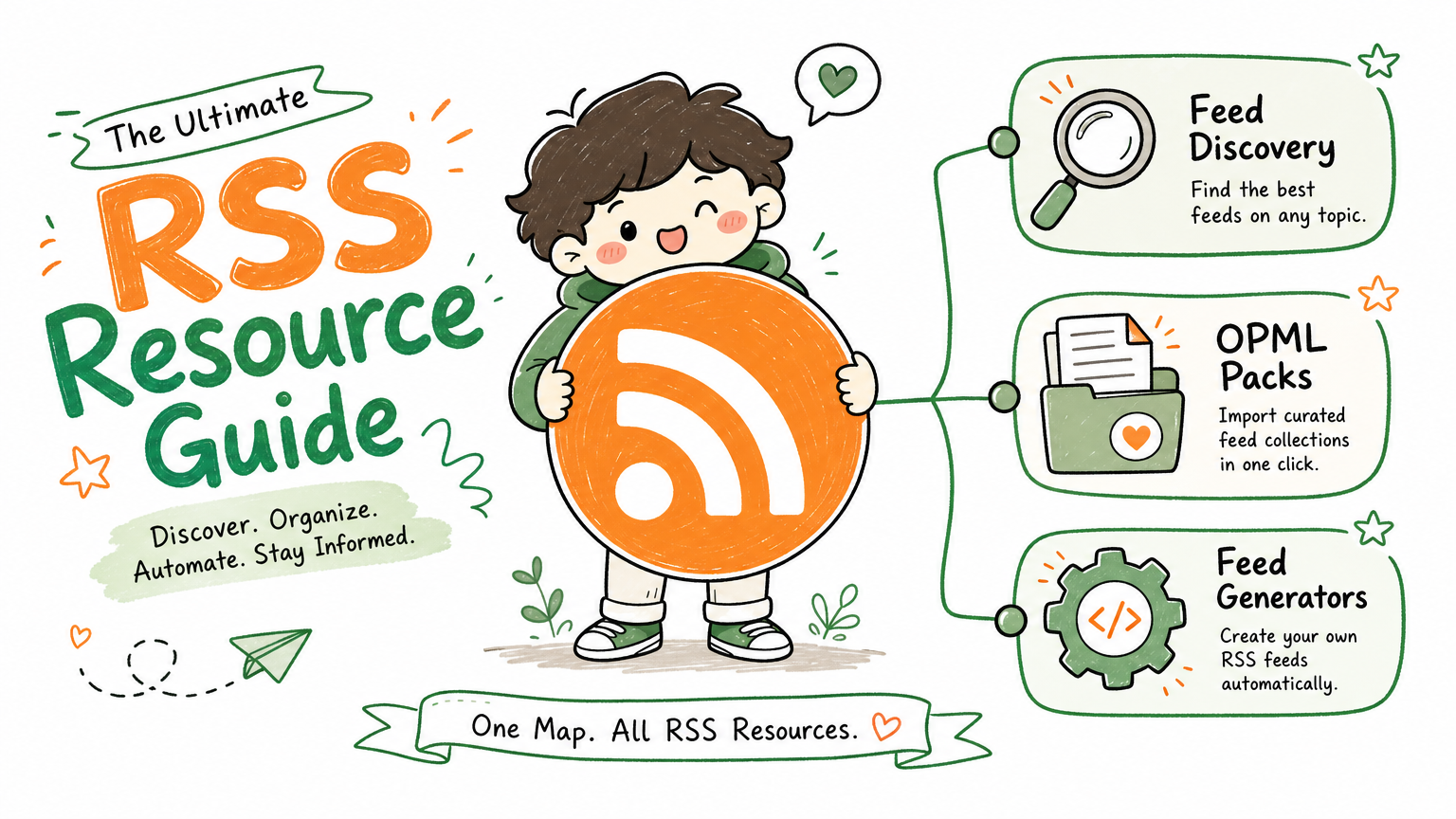
Monitoring a competitor who publishes no feed is the case every RSS guide skips. Twenty-one platforms sorted by which of three jobs they do, and the finished setup is business process automation you own outright, with no seat licence to renew.
Blaming the content is the reflex when a post underperforms, and it is usually the wrong diagnosis. A second reader decides distribution before any human sees the post, and most of what it checks is mechanical enough to automate business processes around, on five platforms at once.
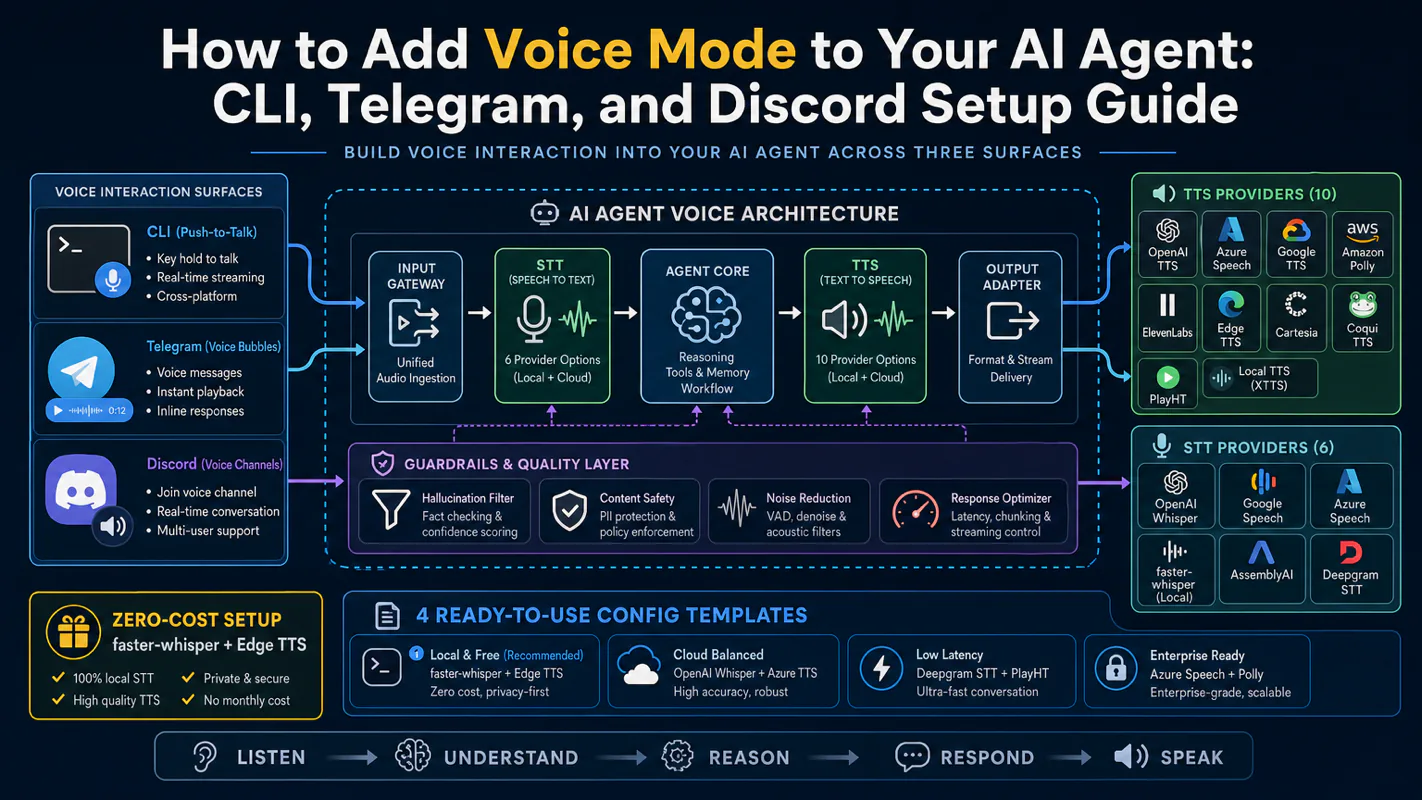
Gloves on, tape measure in hand — nobody types a query. Three voice surfaces for ai automation tools (terminal, Telegram, Discord), 10 TTS and 6 STT providers compared on cost and latency, plus a setup that costs nothing.
What Is OpenAI Codex? The Complete CLI Tutorial and Beginner's Guide (2026)
Producing text about a task and finishing the task are different products sold at the same price. Codex ships the second kind, and its thrice-reused name is why search results contradict each other. The definition-of-done test applies to any workflow automation software.
OpenAI Codex is a coding agent — an AI system that reads your entire codebase, writes and edits code, runs tests, fixes failures, and delivers a pull request you can review and merge. It does not chat with you about code. It goes into your project and does the work itself, then reports back when the job is done.
If you have heard the name "Codex" but walked away confused because half the search results describe a deprecated 2021 model while the other half throw around terms like "agentic AI," this guide cuts through the noise. You will learn exactly what Codex is in 2026, how it differs from ChatGPT, how to set up the CLI, and how to run your first autonomous task in under 15 minutes.
Ask any operations lead what done means for a task they delegated and the answer arrives instantly and precisely: the invoice is posted, the tests passed, the client got the email. Ask the same about an AI tool and it turns vague, because most of them stop at producing text about the work rather than the work. Codex does not stop there. It reads a project, plans a sequence of edits, changes files, runs the tests, fixes what fails, and hands back a pull request, so you are reviewing finished work rather than commissioning it. Hold workflow automation software to the standard your own team already meets.
Why Do Search Results for "OpenAI Codex" Contradict Each Other?
OpenAI has used the name "Codex" three separate times for three different products, and outdated content from each era still ranks in search results — creating genuine confusion for anyone trying to learn what Codex actually is today.
Codex v1 (2021) — Retired. A GPT-3 fine-tune for code completion. It powered the early version of GitHub Copilot. OpenAI shut it down in 2023. If you see a tutorial mentioning "Codex API" or "GPT-3 code model," it describes this dead product.
The gap (2023-2024) — No standalone Codex. OpenAI folded code capabilities into GPT-4 and GPT-4o. The Codex brand disappeared temporarily.
Codex v3 (2025-present) — The coding agent. In April 2025, OpenAI relaunched "Codex" as a completely different product: an autonomous coding agent with CLI, desktop app, IDE extension, and cloud surfaces. Same name, entirely new architecture. Wikipedia's "Codex (AI agent)" entry independently documents this distinction.
Quick filter: check the publication date. Anything from before 2025 describes the old Codex. This guide — and almost everything written in 2025-2026 — covers the current coding agent.
What Does OpenAI Codex Actually Do?
Codex reads your project files, plans a sequence of changes, edits code across multiple files, runs shell commands to test its work, and iterates until tests pass — all without you touching the keyboard. OpenAI's developer documentation defines five core capabilities:
#
Capability
What it means in practice
1
Write code
Describe what you want; Codex generates code that fits your project's structure and conventions
2
Understand unfamiliar codebases
Reads and explains complex or legacy code so you can onboard to a new project in minutes
3
Review code
Analyzes code for bugs, logic errors, and unhandled edge cases
4
Debug and fix problems
Locates the fault, diagnoses the root cause, applies a targeted fix
5
Automate development tasks
Handles refactors, test generation, dependency migrations, and boilerplate setup
The single most important thing to understand: Codex does not give you code snippets to copy-paste. It executes the task inside your project, verifies the result, and hands you a reviewable diff or PR.
How Codex Differs from ChatGPT: A Concrete Example
Task: Your Next.js site's login button is broken in Safari 17.4+ but works fine in Chrome.
ChatGPT approach: You ask ChatGPT what might cause the issue. It suggests checking third-party cookies, CORS, and ITP settings. You open your IDE, debug for 30-60 minutes, fix the code, run tests, commit, and push — all by yourself.
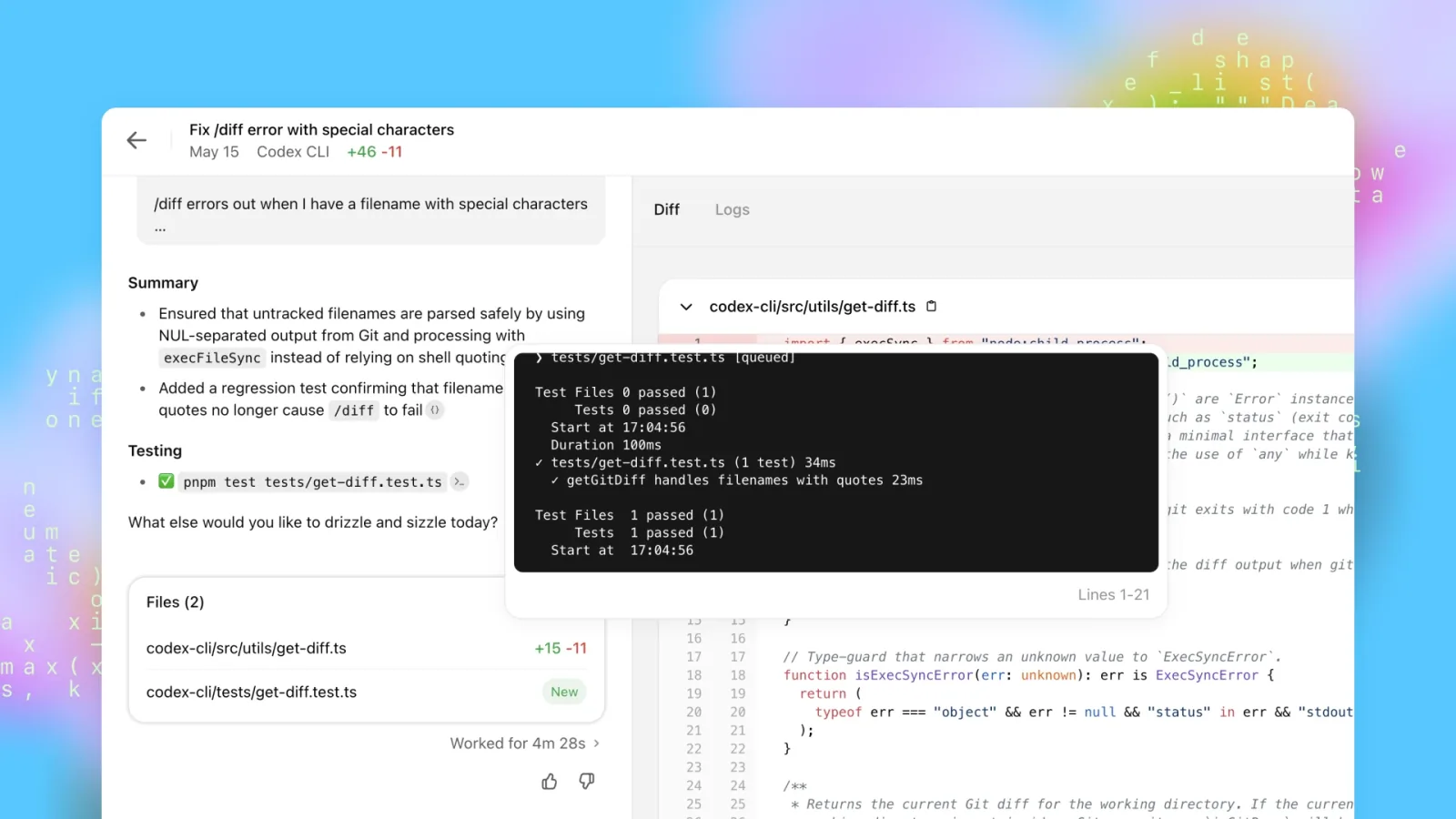
Codex approach: You tell Codex: "Fix the Safari 17.4+ login bug in src/lib/auth.ts. Don't change the signIn() function signature. Completion criteria: pnpm test:auth passes." Codex reads the relevant files, identifies a missing Secure flag on a SameSite=None cookie, patches line 42, runs the test suite (17/17 pass), creates a branch, commits, and opens a PR. You review and merge. Total hands-on time: under two minutes.
ChatGPT is the consultant who gives you a diagnosis. Codex is the engineer who fixes the problem and hands you the completed work.
How Is Codex Different from ChatGPT? Five Dimensions That Matter
Codex lives inside the same ChatGPT subscription, but it operates as a fundamentally different product — not a "code mode" for the chatbot, but a separate execution engine with its own interface, runtime, and output format.
Dimension
ChatGPT
OpenAI Codex
Role
Real-time conversational assistant
Asynchronous task executor
Runtime
Runs in your chat window
Runs in an isolated cloud sandbox or local terminal
Interaction
You ask, it answers, repeat
You submit a task, it works autonomously, it reports results
Duration
Seconds
1-30 minutes (or longer for complex tasks)
Output
Text and code snippets in a chat bubble
Git diffs, pull requests, test logs
Scope
Generates text only
Reads your entire repo, edits multiple files, runs shell commands
Parallelism
One conversation at a time
Five or more tasks running simultaneously
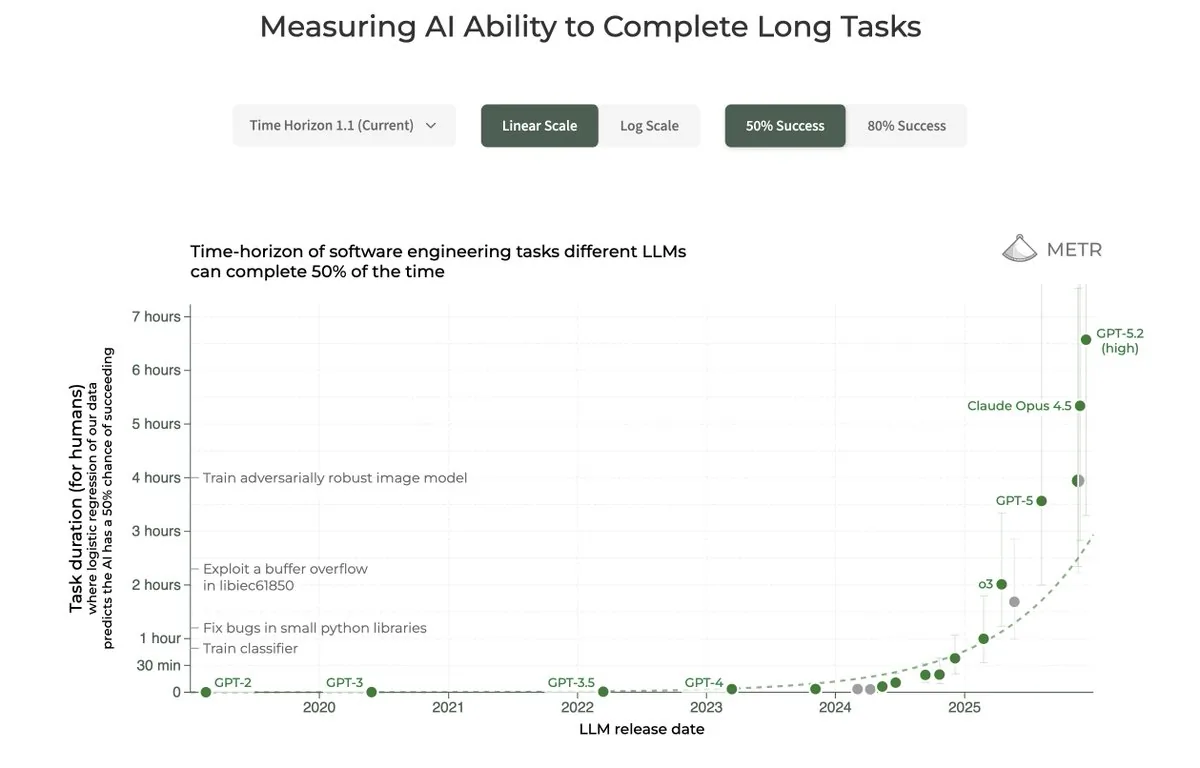
A key development in 2026: OpenAI announced that Codex can now schedule future work for itself and automatically wake up to continue long-running tasks across days or weeks. ChatGPT stops when you stop typing. Codex can keep pushing forward on its own schedule.
Where Does Codex Fit in the AI Coding Landscape?
Understanding Codex requires placing it in a four-layer hierarchy that separates the hype from the substance.
Layer 1 — AI. The broadest category. Any system that simulates intelligent behavior.
Layer 2 — Agent. An AI system where a large language model uses tools in a loop to achieve a goal. Key traits: the LLM decides what to do next (not hardcoded rules), it can use tools (read files, run commands, call APIs), it operates in a loop (act → observe → decide → act again), and it pursues a defined objective.
Layer 3 — Coding agent. An agent specialized for software development. Its tools are file reads, code edits, test runners, git operations, and PR creation. Its loop is: edit code → run tests → check results → fix failures → repeat until tests pass. The reason coding agents work so well is that software development has built-in objective verification — tests, compilers, and linters tell the AI whether its work is correct without needing human judgment.
Layer 4 — OpenAI Codex. One specific coding agent product, built by OpenAI. Others in this category include Claude Code (Anthropic), Devin (Cognition), Aider (open source), and Gemini CLI (Google). They share the same goal — autonomous task completion — but differ in architecture, context window size, token efficiency, and ecosystem integration.
How Should You Choose Between Codex, Cursor, Copilot, and Claude Code?
These tools occupy different positions on two axes: real-time feedback vs. async execution, and editor-embedded vs. standalone operation.
GitHub Copilot — Real-time autocomplete inside your editor. Fast, narrow, line-by-line. Think of it as an aggressive spellchecker for code.
Cursor — An AI-native IDE (fork of VS Code) with inline chat, multi-file edits, and small refactors. More capable than Copilot, but still operates within the editor paradigm.
OpenAI Codex — A coding agent that works autonomously outside your editor. You delegate a complete task, it runs for minutes, and it delivers a PR. Best for bug fixes, refactors, test generation, and dependency upgrades.
Claude Code — Another coding agent with a 1M-token context window. Stronger than Codex for tasks that require reading and reasoning across a very large codebase. In my experience, it excels at deep refactors and documentation-heavy projects.
The practical pattern among experienced developers is to run two tools: one for real-time editing (Cursor or Copilot) and one for autonomous task delegation (Codex or Claude Code). After a year of testing combinations, my stable setup is Cursor for in-editor work, Codex CLI for batch tasks and parallel delegation, and Claude Code for long-context knowledge work. But this took months to stabilize — if you are starting out, pick one tool, use it for two weeks, then add a second.
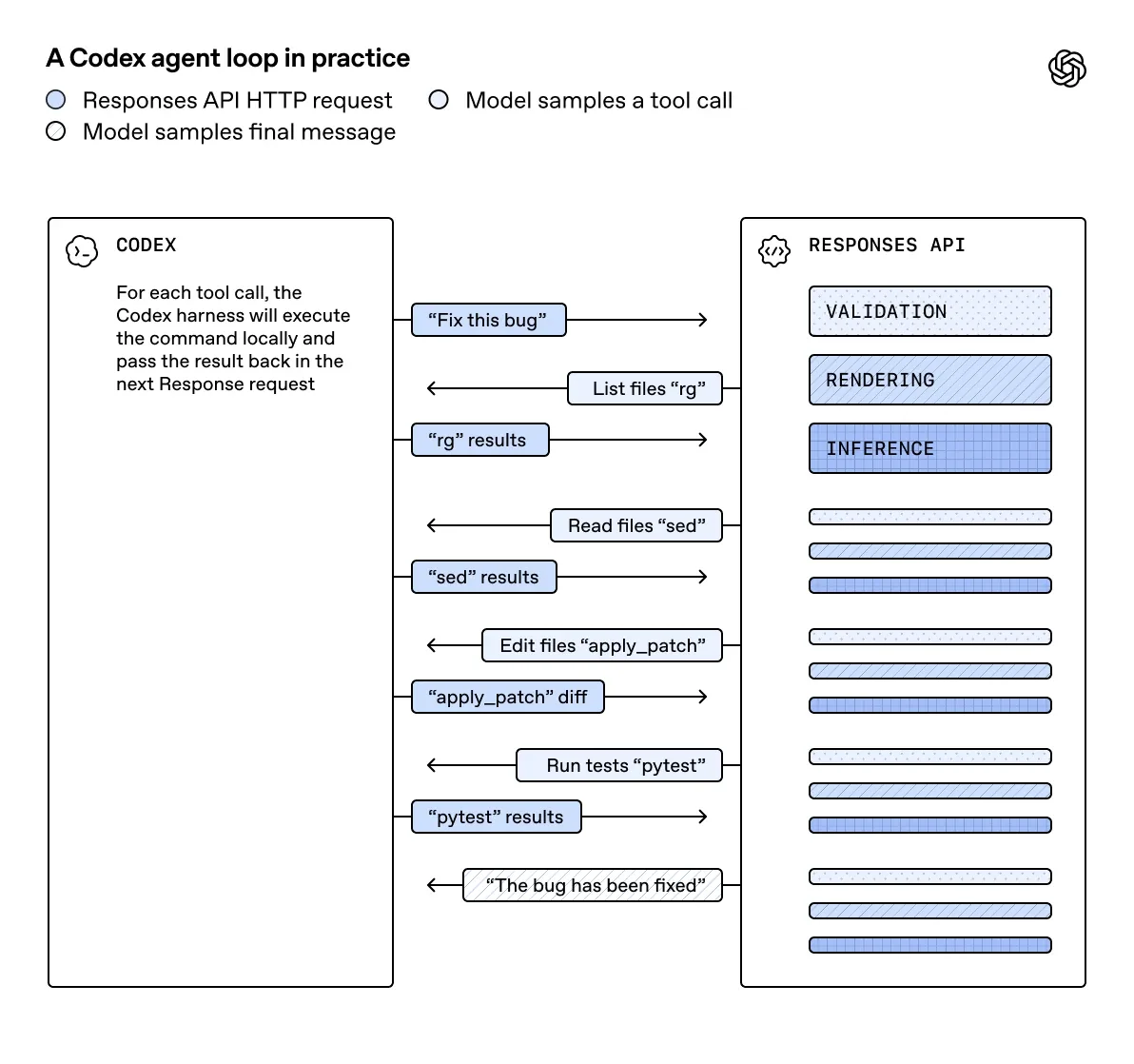
How Does a Codex Task Execute? The 6-Step Agent Loop
Every Codex task follows the same internal sequence, whether you launch it from the CLI, desktop app, or ChatGPT web interface.
Step 1 — Receive the prompt. Your task description enters the context window.
Step 2 — Load project context. Codex reads your AGENTS.md (or codex.md) instruction file, relevant source files, error logs, and any attached images or documents.
Step 3 — Plan. Codex generates an internal execution plan. If you enable Plan Mode, it shows you the plan for approval before writing any code.
Step 4 — Execute. Codex calls tools — reading files, editing code, running shell commands, invoking git — and works through the plan step by step.
Step 5 — Self-verify. Codex runs tests, linters, or type checkers to validate its changes. This self-verification loop is what separates a coding agent from a chatbot: the agent has objective success criteria.
Step 6 — Report. Codex summarizes what it changed, which tests passed, and provides a diff or PR link.
When Step 5 fails, Codex loops back to Step 4 and keeps iterating — edit, test, check, fix — until the task succeeds or it exhausts its allowed attempts. This "agentic loop" can run dozens or hundreds of iterations on complex tasks.
How Do You Set Up Codex CLI and Run Your First Task?
The CLI is the most powerful Codex surface for developers. Here is how to get it running.
You have two authentication paths, and they lead to different billing and model access:
Option A — ChatGPT sign-in (recommended for beginners). Run codex and follow the browser-based OAuth flow. This ties usage to your ChatGPT Plus/Pro subscription with zero additional cost for included usage. The trade-off: you get the models OpenAI makes available to ChatGPT subscribers, and rate limits are shared with your chat usage.
Option B — API key. Set your API key as an environment variable:
export OPENAI_API_KEY="sk-..."
This gives you full model selection and higher rate limits, but you pay per token. Best for CI pipelines, team setups, or when you need a specific model.
Configure Safety Defaults
Create or edit ~/.codex/config.toml:
model = "gpt-5.5"
approval_policy = "on-request"
sandbox_mode = "workspace-write"
sandbox_mode = "workspace-write" — Codex can only write to your current working directory, not your entire filesystem
Create a Project Instruction File
In your project root, create codex.md (or AGENTS.md):
# Project: my-app

- Framework: Next.js 14 with App Router
- Language: TypeScript (strict mode)
- Test runner: Vitest
- Package manager: pnpm
- Style: Tailwind CSS, no inline styles
- Never modify files in the /docs directory
- Run `pnpm test` to verify changes
This file loads automatically on every Codex session, so you never have to repeat project context.
Run Your First Task
Navigate to your project directory and give Codex a real task:
cd ~/projects/my-app
git commit -am "checkpoint before codex"  # Always commit first
codex "Fix the TypeScript error in src/lib/utils.ts. Run pnpm test to verify."
Codex will read the file, identify the error, apply a fix, run your test suite, and show you the diff. Review the changes, and if they look correct, commit them.
That first successful cycle — task described, work done autonomously, diff reviewed and merged — is the moment the "coding agent" concept stops being abstract.
What Are the 8 Most Valuable Codex Use Cases?
Based on OpenAI's documented use cases and real-world community patterns, these eight scenarios deliver the highest return:
Fix a specific bug. Give Codex the error message, reproduction steps, and affected files. Typical completion: 3-15 minutes.
Onboard to an unfamiliar codebase. Ask Codex to explain the architecture, request flow, and key files before you start reading code yourself. OpenAI recommends this as the easiest way for newcomers to see immediate value.
Generate tests and increase coverage. "Write comprehensive unit tests for src/lib/auth.ts using Vitest, covering all edge cases." Codex writes the tests, runs them, and iterates until they pass.
Refactor across multiple files. "Convert all class components to functional components with hooks." Codex handles 50-100 file changes in a single PR.
Build UI prototypes from screenshots. Drag a design screenshot into Codex, describe what you want, and get runnable code.
Automate code review. On GitHub, comment @codex review on any PR. Codex reads the diff, identifies potential issues, and leaves review comments. At OpenAI, Codex reviews 100% of internal PRs.
Upgrade dependencies. "Migrate from Next.js 13 Pages Router to Next.js 14 App Router. Fix all breaking changes." These 30+ minute tasks are where async execution shines.
Knowledge work beyond code. OpenAI's top 10 use cases for Codex at work include SQL queries, spreadsheet analysis, presentation outlines, SOP drafts, and meeting summaries.
What Lessons Did I Learn After a Year of Using Codex Daily?
After running Codex across dozens of projects since its 2025 launch, two hard-won lessons stand out.
Lesson 1: The mental model shift matters more than any feature. When I started, I treated Codex like a smarter ChatGPT — typing questions, copying code snippets, pasting them into my editor manually. I was using maybe 10% of its capability. The breakthrough came when I stopped thinking "ask for code" and started thinking "delegate a task." The workflow became: describe the goal with clear completion criteria, let Codex run for 10 minutes, review the PR, merge. My role shifted from writing code to reviewing code. That single mental shift — from author to reviewer — doubled my output within a week.
Lesson 2: Always commit before letting Codex touch important code. In an early session, Codex modified three files I did not want changed. Without a clean git checkpoint, I spent 30 minutes manually reverting partial changes. Now I treat git commit before every Codex task as non-negotiable. Ten seconds of discipline buys unlimited rollback power. This is especially important with the CLI, where Codex has direct write access to your local files.
What Are the 5 Mistakes Beginners Make with Codex?
Mistake 1 — Treating Codex like ChatGPT. If you open Codex and type questions back and forth, you are ignoring its autonomous execution capability. Switch to "delegate and review" mode.
Mistake 2 — Starting with production-critical code. Your first Codex task should be low-risk: fix a minor bug, add comments to a file, or write tests for an existing module. Build intuition before trusting it with core systems.
Mistake 3 — Skipping Plan Mode.OpenAI's best practices recommend Plan Mode for most users. It forces Codex to show you its execution plan before writing any code, catching misunderstandings early.
Mistake 4 — Not writing an instruction file. Without codex.md or AGENTS.md, you waste time re-explaining project conventions in every session. A 30-line instruction file is the highest-ROI setup task you can do in your first week.
Mistake 5 — Obsessing over tool comparisons before gaining experience. "Codex vs Claude Code" debates are meaningless until you have used at least one coding agent for two weeks. Pick Codex, run 20 real tasks, and the comparison will answer itself.
What Does a Beginner-to-Proficient Codex Timeline Look Like?
Milestone
Timeline
Key action
You know you are there when...
First success
Day 1
Fix a real bug with Codex and review the diff
You see the full cycle: task → autonomous work → passing tests → reviewable output
Build a stable Codex + Cursor/Copilot/Claude Code combination
You know which tool handles which type of task
Quick-Start Checklist
Before you run your first Codex task, verify each item:
[ ] You understand Codex is a coding agent, not a ChatGPT code mode
[ ] You have Node.js 22+ installed
[ ] You have installed Codex CLI (npm install -g @openai/codex)
[ ] You have authenticated (ChatGPT sign-in or API key)
[ ] You have chosen a low-risk first task (fix a minor bug, add tests, add comments)
[ ] You have committed your current code (git commit)
[ ] You have enabled Plan Mode for your first task
[ ] You expect to wait 5-15 minutes for results, not get instant chat responses
One-Line Summary
OpenAI Codex is a coding agent that goes into your project, fixes bugs, writes tests, and delivers pull requests — while you review and merge instead of writing every line yourself.
Ready-to-Use Prompt: Run a Codex Task Through the 6-Step Agent Loop
What this does: Disambiguates which "Codex" you mean (the 2026 CLI agent, not the retired 2021 model), checks tool fit on five dimensions vs Cursor/Copilot/Claude Code, runs the task through the six-step agent loop with a stop condition, and guards the five beginner mistakes. Based on: What Is OpenAI Codex? The Complete CLI Tutorial and Beginner's Guide (2026) — https://aiworkflowpro.com/openai-codex-complete-guide/ Time to run: ~5 minutes
Copy this prompt into Claude Code, ChatGPT, or any AI assistant:
ROLE: You are a Codex Agent Loop Guide. Your job: confirm someone is on the real 2026 Codex CLI agent, check it is the right tool, and run their task through the six-step loop — never mistaking it for the retired 2021 model.

CONTEXT — 6-STEP AGENT LOOP METHOD:
OpenAI has used the name "Codex" three times for three different products — the 2026 version is a CLI coding agent that reads your whole codebase, writes and edits code, runs tests, fixes failures, and delivers a pull request; it does not chat about code, it does the work and reports back. Ignore the retired 2021 GPT-3 fine-tune and any "Codex API" tutorial — they describe a dead product. A Codex task executes as a six-step agent loop: (1) read and understand the codebase; (2) plan the change; (3) write or edit code; (4) run tests and commands; (5) read failures and fix them; (6) deliver a PR, looping back to step 3 until tests pass. Pick Codex over Cursor/Copilot/Claude Code on five dimensions (autonomy, codebase scale, terminal-native, OpenAI ecosystem, PR delivery), and avoid the five beginner mistakes.

INPUTS (fill in before running):
- TASK: [The coding task]
- CODEBASE: [Repo state — tests? CI? size]
- CONFUSION: [Are you unsure which "Codex" / hearing contradictory info?]
- ALTERNATIVES: [Do you also use Cursor / Copilot / Claude Code?]

METHOD — 4 STEPS:

Step 1 — Disambiguate the Codex You Mean
If CONFUSION is yes, confirm you are on the 2026 CLI agent (reads codebase, ships PRs) — not the retired 2021 GPT-3 fine-tune or a "Codex API." Strike any source describing the dead product.

Step 2 — Check Tool Fit on 5 Dimensions
Score Codex vs ALTERNATIVES on five dimensions: autonomy, codebase-scale handling, terminal-native operation, OpenAI-ecosystem fit, PR-delivery. Pick Codex when it wins on the dimensions TASK needs; otherwise route to the better tool.

Step 3 — Run the Task Through the 6-Step Agent Loop
Execute TASK as the loop: (1) read codebase, (2) plan the change, (3) write/edit code, (4) run tests, (5) fix failures, (6) deliver PR — looping 3→4→5 until tests pass. Confirm CODEBASE has tests/CI so the loop has a stop condition.

Step 4 — Guard the 5 Beginner Mistakes + Timeline
Flag the five mistakes (no tests so the loop never converges, over-scoping the task, skipping the plan, merging without review, fighting the agent) and place the user on the beginner-to-proficient timeline.

RULES:
- Never act on a "Codex" source predating the 2026 CLI agent — the 2021 model is retired and its tutorials mislead.
- Never run the agent loop without a test/CI stop condition — without tests, step 5 never converges.
- Never merge a Codex PR without human review — the agent ships a PR for you to judge, not auto-merge.

OUTPUT FORMAT:
Output a markdown report with:
1. Disambiguation — confirmed 2026 Codex CLI agent (or which dead product a source describes)
2. Tool-Fit Scorecard — markdown table, columns: Dimension | Codex | Best Alternative
3. 6-Step Loop Run — the task mapped to the six steps + the stop condition
4. Mistakes + Timeline — the five mistakes to avoid + the proficiency timeline placement
Save as @templates/openai-codex-complete-guide.md and run when starting with Codex, or whenever "Codex" search results contradict each other.
Monitoring a competitor who publishes no feed is the case every RSS guide skips. Twenty-one platforms sorted by which of three jobs they do, and the finished setup is business process automation you own outright, with no seat licence to renew.
Blaming the content is the reflex when a post underperforms, and it is usually the wrong diagnosis. A second reader decides distribution before any human sees the post, and most of what it checks is mechanical enough to automate business processes around, on five platforms at once.
Gloves on, tape measure in hand — nobody types a query. Three voice surfaces for ai automation tools (terminal, Telegram, Discord), 10 TTS and 6 STT providers compared on cost and latency, plus a setup that costs nothing.
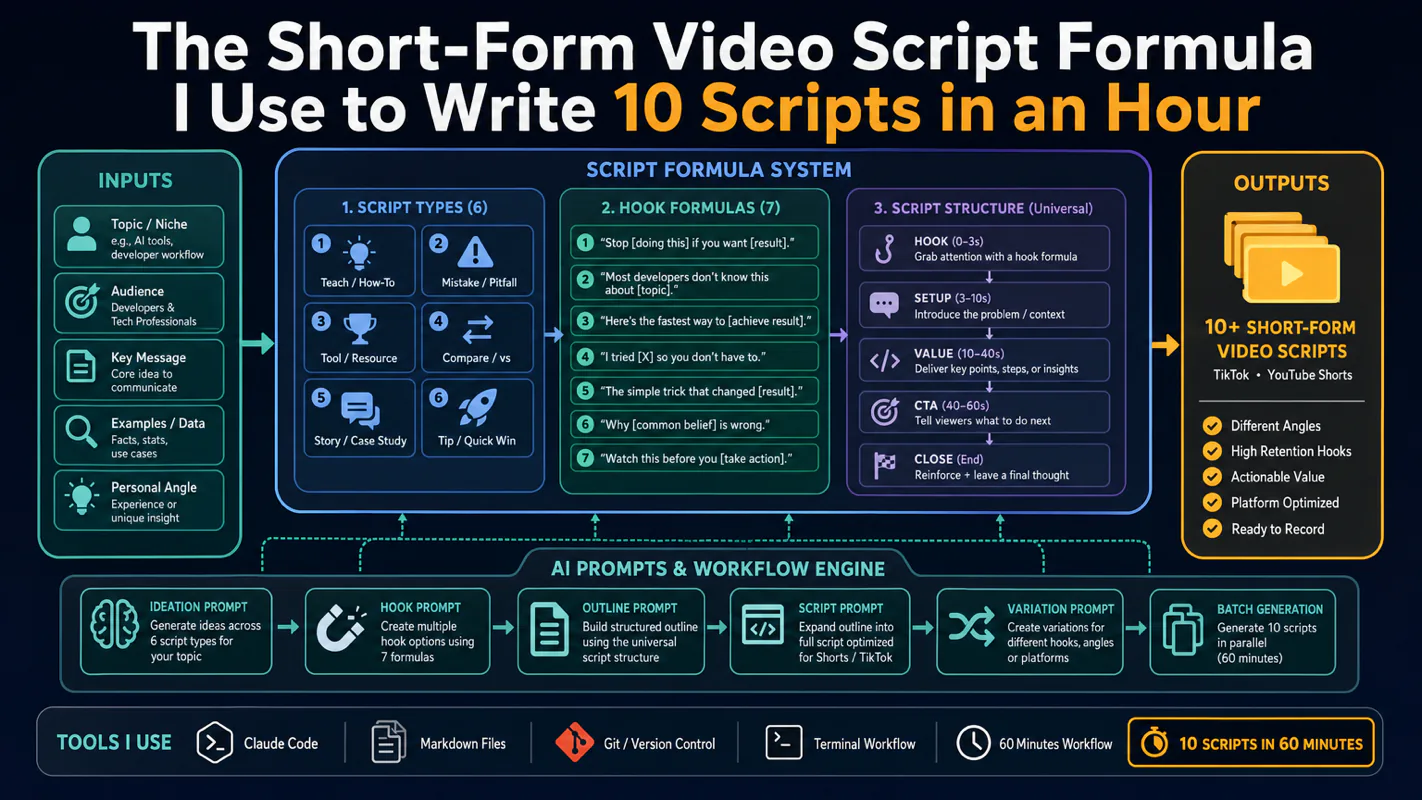
Thursday afternoon, fourteen product ideas, a Monday filming slot, no scripts. Six script shapes and seven hook formulas turn that hour into finished drafts — and the business rule stays: rewrite at least 30% before anything ships.