Monitoring a competitor who publishes no feed is the case every RSS guide skips. Twenty-one platforms sorted by which of three jobs they do, and the finished setup is business process automation you own outright, with no seat licence to renew.
Blaming the content is the reflex when a post underperforms, and it is usually the wrong diagnosis. A second reader decides distribution before any human sees the post, and most of what it checks is mechanical enough to automate business processes around, on five platforms at once.
Gloves on, tape measure in hand — nobody types a query. Three voice surfaces for ai automation tools (terminal, Telegram, Discord), 10 TTS and 6 STT providers compared on cost and latency, plus a setup that costs nothing.
Nine free AI tools that read the files on your own computer, not a chat window. Which one to install first, what to type when it opens, and how to let the easy one install the powerful one for you.
Search for free AI tools and you get a ranked list of a hundred websites. Almost none of them are what you need, because almost all of them are a text box on somebody else's server. You paste something in, you copy something out, and when you close the tab the tool has no idea who you are.
This guide covers a smaller and more useful category: free AI tools that read the files on your own computer. Not uploads. Not a paste. A folder on your disk that the tool opens, reads, and writes back to. There are nine worth knowing about as of August 2026, they split into two clear groups, and the only decision that matters tonight is which group you start with.
This is not a ranking. Lists of the best AI tools go stale in a season, and the one you pick tonight will not be the one you use next year. What lasts is the folder you point it at, which is why the last section of this guide is four minutes of writing rather than a download link.
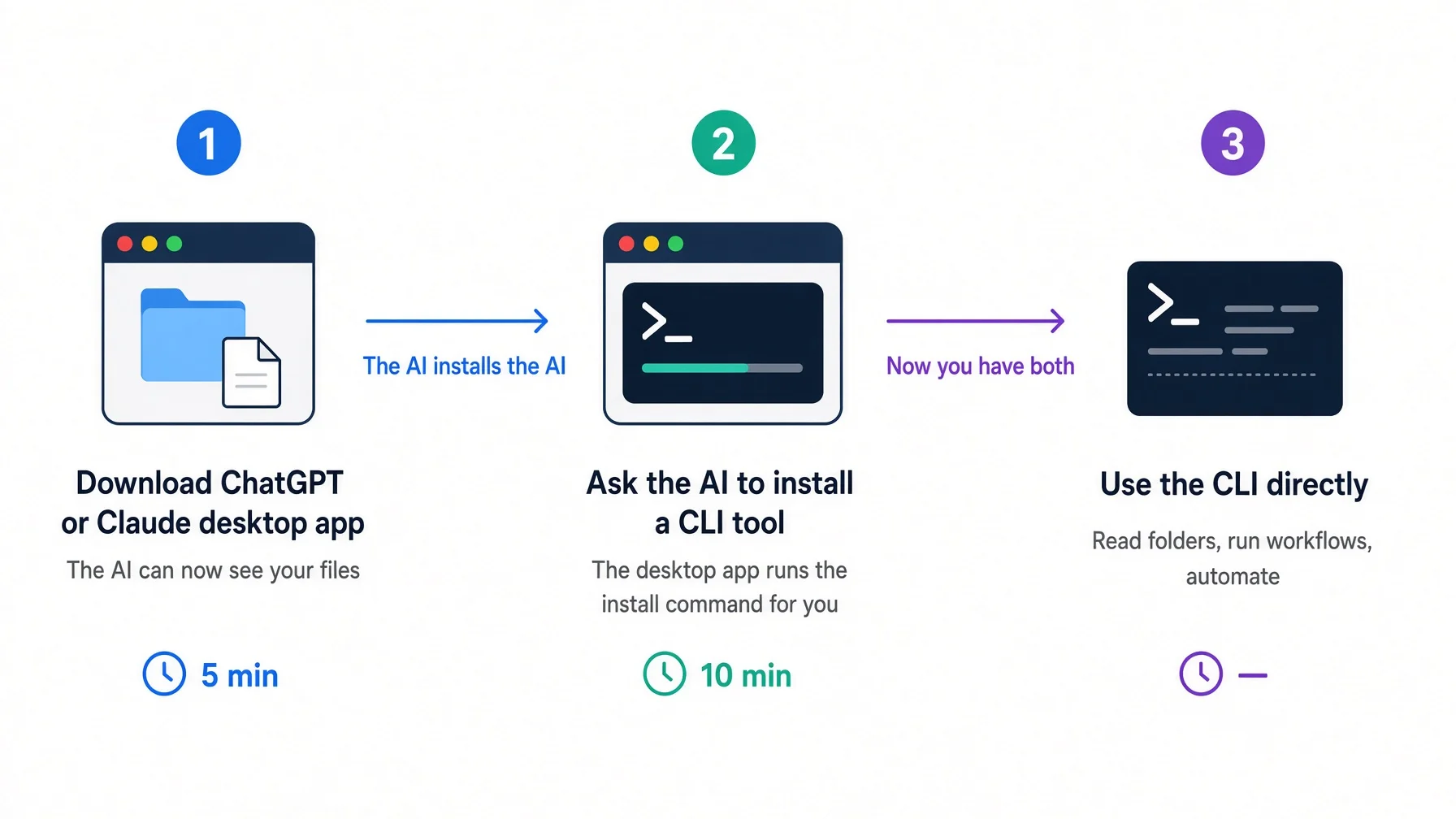
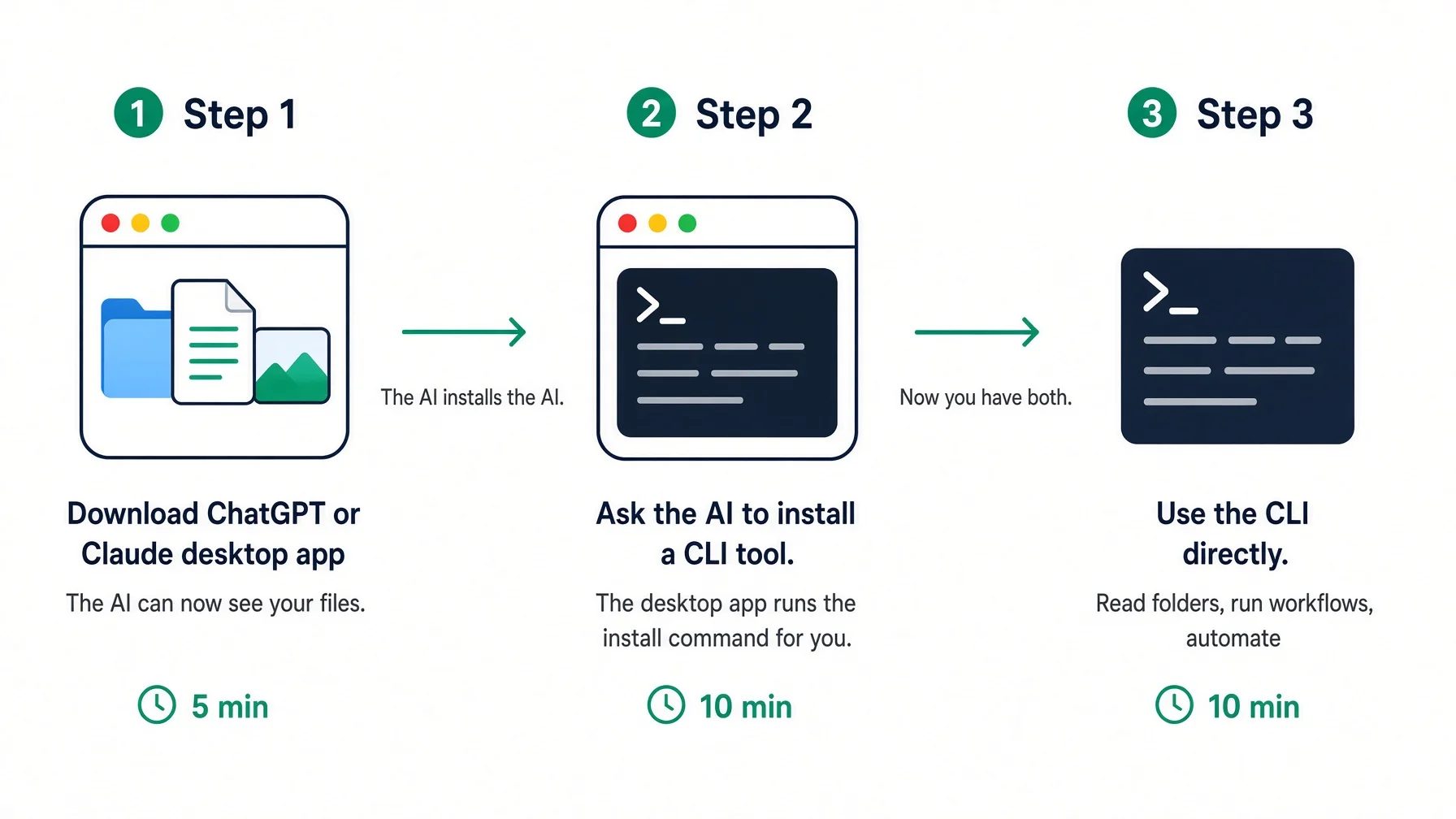
The short answer, if you want it now: start with a desktop application, because it can install the terminal tool for you. That path is what most guides skip, and it is the difference between getting running in twenty minutes and giving up at a command prompt.
Key takeaways
The free AI tools worth your evening are the ones that read a folder on your machine. A chat window that forgets you is a different product with the same marketing.
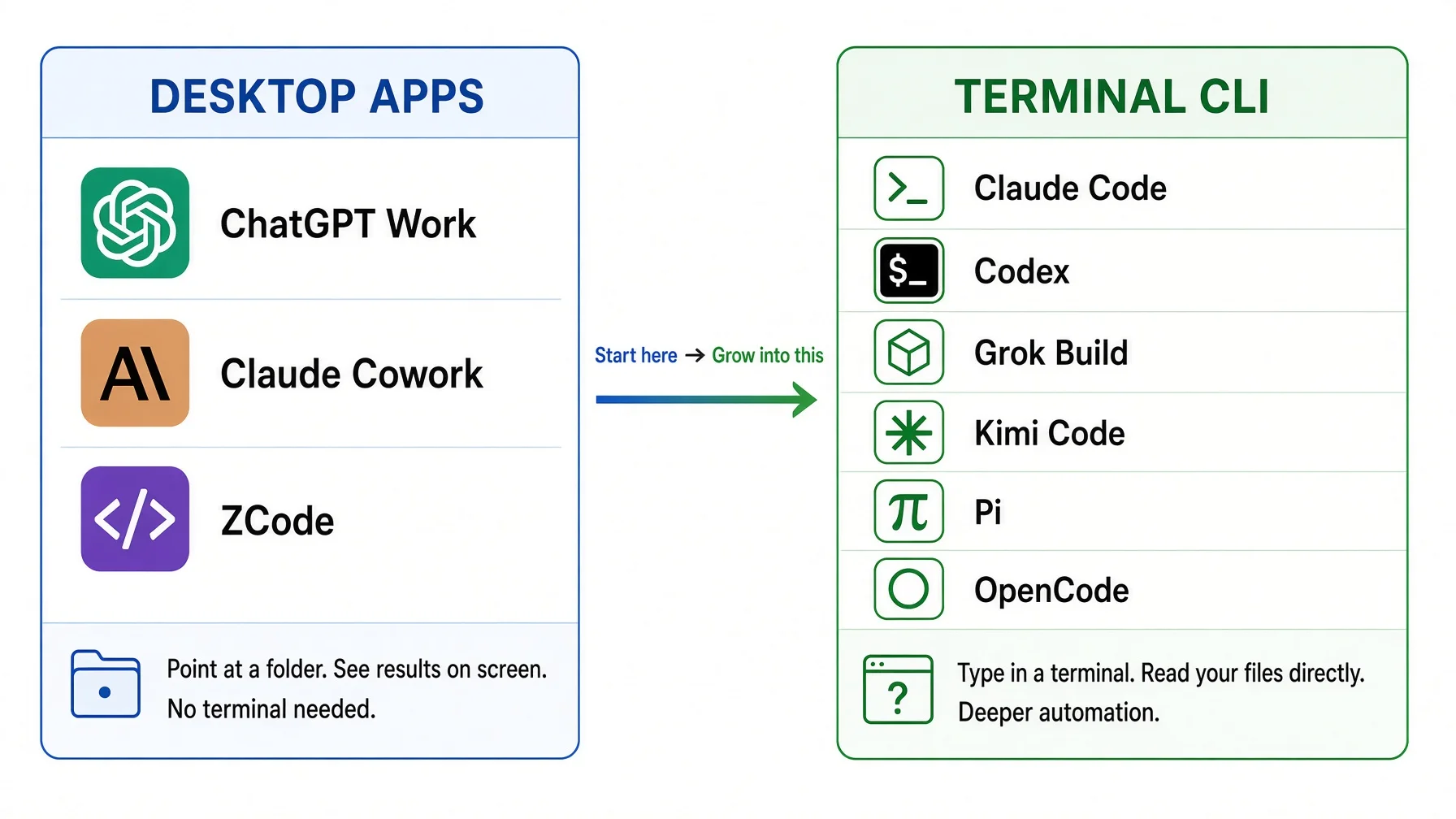
There are two families of free AI tools: desktop applications with a window and a folder picker, and terminal tools that run at a command line. Both read the same files.
Start with a desktop application even if you intend to end up in the terminal. Its first useful job is installing the terminal tool for you, in ordinary language.
"Free" describes the tool, not the model. All nine install for nothing; most need a subscription or an API key to think. Only OpenCode has a path to zero that never expires.
The thing you build is not the tool. It is the folder, and one plain text file in it that explains what the folder is for.
Whichever you pick will not be the best choice in six months. Pick anyway. The folder is what carries forward.
What "free AI tools" actually means
Two things are being sold under the same phrase, and confusing them is why people bounce off this category.
The first is a hosted chat product: a website or app where you type and it replies. Genuinely useful, genuinely free at the entry tier, and completely disconnected from your work. It cannot see your files. Everything it knows about your situation is what you typed into it in the last few minutes.
The second is a tool that runs on your computer and reads a directory you choose. You point it at ~/work/clients/ and it can list what is there, open the pricing document, notice that two files disagree, and edit one of them. That is a different kind of software wearing similar branding.
This guide is about the second kind. Every one of the free AI tools below installs on your own machine, and every one of them can be pointed at a folder.
The one question that sorts the whole market
When you evaluate any of the free AI tools you come across, ask one thing:
Can it open a file I did not paste into it?
If yes, it can accumulate. Your notes, your standards, your client history and your half-finished drafts sit in one folder, and the tool reads whatever it needs. Next week it reads the same folder plus whatever you added. Work compounds.
If no, you are the storage layer. You carry context in and out by hand, every session, forever. That is a fine way to draft an email and a terrible way to run anything ongoing. The difference between an assistant that answers and an agent that works comes down almost entirely to this one capability.
The word "free" is doing two jobs
All nine free AI tools in this guide cost nothing to install. Several are open source AI tools in the strict sense, released under MIT or Apache licences with the full source code public. That part is genuinely free and not a trial.
The model behind the tool is a separate bill. Three ways it gets paid:
How you pay
What it looks like
Who it suits
A subscription you already have
The tool signs in to your existing ChatGPT, Claude or xAI account
Anyone already paying for a chat product
An API key, billed by usage
You paste a key from a model provider; you pay per million words processed
People running a lot of automated work
A genuine free tier
Sign in, work, pay nothing, accept limits
Anyone testing the water
That third row is rarer than the marketing suggests, and it is worth being precise about who has it as of August 2026:
OpenCode is the one unambiguous answer. Bring your own key and it takes no cut at all, or use its gateway, which includes models priced at zero for both input and output. No countdown.
Kimi Code and Codex CLI have real free tiers with real ceilings. Enough to judge the tool; not enough to run on.
ZCode gives new accounts a few days of trial usage. That is a trial, not a free tier, and the difference matters on day six.
Everything else is a free tool that needs a paid brain.
This matters for planning rather than for tonight. Tonight, the honest position is that if you already pay for ChatGPT or Claude, you have already bought everything you need and simply have not installed it.
💡 Why not just use the website? Because the website cannot be the thing that runs at 6am, cannot read the folder you spent last month organising, and cannot be pointed at a different model when a better one arrives. Those three limits are not fixable with a better prompt.
The two families
Desktop application
Terminal tool
What you see
A window, a folder picker, buttons
A text prompt in a terminal
How you start
Download, install, sign in, choose a folder
One install command, then type its name
Best at
Getting started, visible permissions, non-technical work
Automation, scheduling, running several at once
Worst at
Scripting and unattended runs
Looking approachable on day one
Reads your folder
Yes
Yes
Count in this guide
3
6
Both families read the same files from the same directory. That is the single most important fact in this article, because it means the choice you make tonight is reversible at zero cost. Nothing you write into your folder is trapped in the tool you wrote it with.
Start here: free AI tools with a desktop window
Three desktop applications can take a folder on your machine as a workspace. These are the free AI tools to try first, whatever you eventually settle on. All three are free to download and all three expect a paid account behind them in practice. ZCode is the softest landing of the three: the download is free and new accounts get a five-day trial, after which the entry plan is $18 a month.
Tool
Maker
How you get it
Sign in with
Notable for
ChatGPT Work
OpenAI
The ChatGPT desktop app
An OpenAI subscription
Chat, work and coding modes in one window
Claude Cowork
Anthropic
The Claude desktop app
An Anthropic paid plan
Operating the desktop itself; scheduled runs
ZCode
Z.ai
Download from zcode.z.ai
A trial, then a GLM plan
Goal Mode — it verifies its own work before stopping
ChatGPT Work — the shortest path for most people
If you already pay for ChatGPT, this is the one to open tonight, purely because you will not have to learn a new interface to do it.
OpenAI folded three modes into the ChatGPT desktop application in July 2026: ordinary Chat, Work for acting on local files and applications, and Codex for coding. Work mode is the relevant one here. You grant access, choose a directory, and the model can read and edit what is inside it. The permission model is visible and per-item, which makes it a reasonable first experience: you can watch what it is reaching for.
Get it: download the desktop app from chatgpt.com/download, sign in, and switch to Work mode.
Why start here: the interface is one you already know, so the only new concept is the folder. That is the concept worth your attention, and it deserves to be the only unfamiliar thing on the screen.
Claude Cowork — for work that is not writing code
Anthropic released Cowork in January 2026 and described it, in the plainest available terms, as Claude Code for the rest of your work. It runs inside the Claude desktop app on a paid plan.
What separates it from the others is reach. It reads and writes local files like the rest, but it also operates the desktop — moving between applications the way a person would — and it can run on a schedule, which means a task set up once happens again on Tuesday without you. You can also start a task from your phone and find it finished when you get back to the machine. One limit worth knowing before you plan around it: a scheduled run happens on Anthropic's servers, so it cannot touch a folder on your laptop. Work that needs your local files still needs a session on the machine itself.
Why pick this one: you want the AI to do multi-application errands, or you want something running when you are not there. Scheduling is the capability that turns a tool into a colleague, and few desktop products expose it this plainly.
ZCode — the one that checks its own work
ZCode is Z.ai's desktop application for the GLM model family. Its makers call it an agent development environment rather than an editor, and the layout says why: the conversation sits in the middle, with the file browser, terminal, version control panel and live preview arranged around it, rather than an editor with a chat panel bolted to the side.
The feature worth the download is Goal Mode. You state an objective that can be verified, and it keeps planning, doing, testing and fixing until either the objective is met or it hits something that genuinely needs your decision. Most tools stop after one attempt and wait for you to notice it failed. This one checks.
The application itself is free to download, and new accounts get a five-day trial. After that the model is a paid subscription starting at $18 a month for the entry plan — this is a trial rather than a permanent free tier, so plan for day six. The subscription is not locked to ZCode, though: the same plan works in twenty or more other clients, including several in this guide.
⚠️ The migration trap. ZCode does not keep reading CLAUDE.md. During first-run setup it copies the contents of any CLAUDE.md it finds into AGENTS.md once, and from then on AGENTS.md is the only file it obeys. If you arrive from Claude Code and keep editing CLAUDE.md, your changes will silently stop taking effect. This catches more people moving between these tools than anything else on this page.
Why pick this one: you want the tool to verify its own work instead of declaring victory, and you want a window rather than a terminal while it does.
What to do in the first ten minutes
Whichever of the three you opened, the sequence is the same, and it is the same for all the free AI tools further down this page too. It is shorter than you expect.
Make a folder first. Somewhere you will find it again, named for what it holds. my-work/ is fine. An empty folder is fine.
Put one file in it. Create README.md and write three lines: who you are, what you do, and the two or three rules that matter to you. Ordinary sentences. This takes four minutes and it is the highest-value four minutes in this article.
Point the tool at the folder, using whatever the application calls its workspace or folder picker.
Ask it what it sees. Type: read every file in this folder and tell me in plain language what you think this folder is for.
That last step is a test, not a formality. If the answer describes your work back to you, file access is real and your file is clear. If the answer is vague, your file is vague — fix the file, not the prompt. And if the tool cannot see the folder at all, you have found that out in ten seconds rather than after an hour of confusing replies.
The next step: free AI tools that live in your terminal
A terminal tool is the same idea with the window removed. You type its name at a command prompt, it starts a conversation in that window, and it already knows the directory you started it from — no folder picker, because the folder is where you are standing.
Losing the graphical interface buys three things a window cannot give you: these tools can be scheduled to run at a set time, scripted so a task runs the same way every time, and run several at once in separate windows working on different jobs. That is the point at which free AI tools stop being assistants you talk to and start being AI automation tools that work while you do something else.
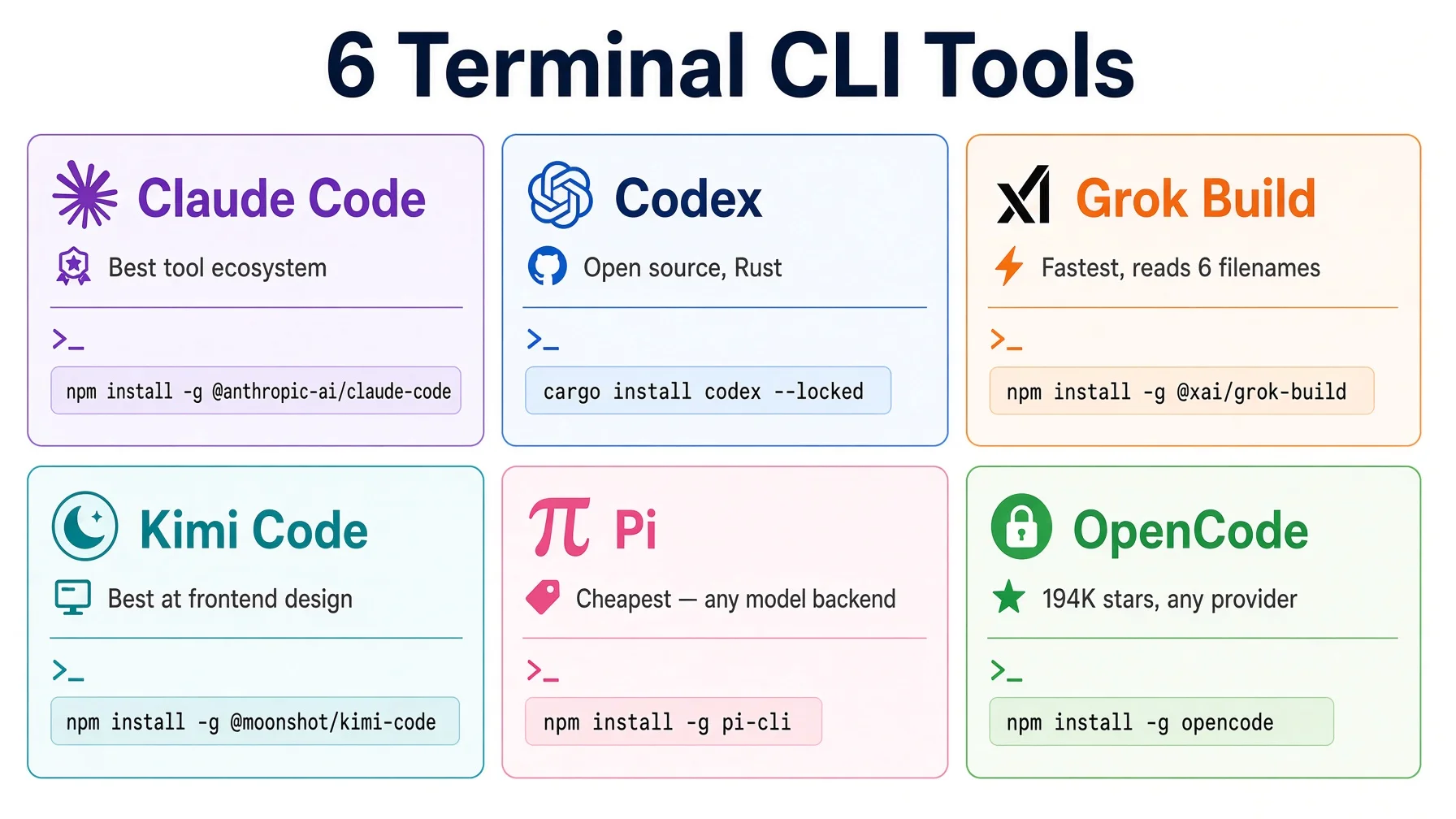
Six are worth knowing, and all six are free to install. These are the free AI tools that do the unattended work once you are past the first week.
Tool
Maker
Install
Instruction file it reads
Can you run it at zero cost?
Strongest at
Claude Code
Anthropic
curl -fsSL https://claude.ai/install.sh | bash
CLAUDE.md
No — needs a paid plan
The deepest toolset — skills, hooks, plugins, sub-agents
Codex CLI
OpenAI
curl -fsSL https://chatgpt.com/codex/install.sh | sh
AGENTS.md
Limited free tier
Sharing one account with ChatGPT; fine-grained sandboxing
Front-end and visual work; long context without a surcharge
Pi
Earendil Works
curl -fsSL https://pi.dev/install.sh | sh
AGENTS.md and SYSTEM.md
Tool is free; you supply the model
Stripping the tool down and rebuilding it your way
OpenCode
Anomaly
curl -fsSL https://opencode.ai/install | bash
AGENTS.md
Yes
Refusing to lock you to one model provider
Install commands and instruction-file behaviour checked against vendor documentation on 10 August 2026. All six also offer package-manager installs; Homebrew is the best-maintained route on macOS for several of them.
Claude Code — the most capable, and the most to learn
Claude Code has the largest surrounding toolset of any tool here: skills, lifecycle hooks that fire your own scripts at defined moments, plugins, sub-agents that let one session hand work to another, and the most complete support for the Model Context Protocol, the open standard for connecting outside services. It reads CLAUDE.md and walks up the directory tree collecting them, so a rule set at the top of your folder applies everywhere beneath it.
One thing to know if you are coming from another tool: Claude Code does not read AGENTS.md by default. If you already keep one, put @AGENTS.md on the first line of your CLAUDE.md to pull it in, rather than maintaining two copies.
That is genuinely more machinery than a first-week user needs. It becomes the right answer at the point where you want several agents cooperating on one body of work rather than one assistant answering questions.
Codex CLI — free and open, if you already pay OpenAI
Codex CLI signs in with the ChatGPT account you may already have and shares one usage allowance with ChatGPT Work on the desktop. It reads AGENTS.md, the open convention now used across a wide range of agent tools, collecting a global file plus one from each directory level down to where you are working.
Its quieter strength is control. Codex has the most fine-grained sandbox and permission settings of the six, which matters when you are about to let something loose on a folder of real work.
The practical appeal is that it costs no extra subscription if you already pay for ChatGPT. Pair it with ChatGPT Work and you have one account covering both a window and a terminal.
Grok Build — the most forgiving about your existing setup
Grok Build is the widest net for configuration you already have. It reads bothAGENTS.md and CLAUDE.md, and it also accepts Anthropic-format skills and plugins directly. Every other tool here expects one convention and largely ignores the other, which is why people end up maintaining duplicate files. Grok Build reads whatever is already in the folder.
Its other distinguishing feature is plan mode. Complex tasks produce a written plan before anything happens, and you can approve the whole thing, annotate a single step, or rewrite the plan and send it back. Approving one step of a plan rather than the whole plan is a genuinely better shape for supervision than a yes/no prompt, and no other tool here does it as well.
It runs on a model built specifically for this kind of work rather than a general flagship, which is the usual reason it feels responsive in ordinary use.
Requires a SuperGrok or X Premium Plus subscription; it is still an early release. Install script and current documentation at x.ai.
Kimi Code — the best-looking output, and a free tier with a ceiling
Kimi Code is the tool people reach for when the result has to look good. Front-end and visual design work is where it separates from the pack, and it reads all three instruction filenames — AGENTS.md, KIMI.md and CLAUDE.md — so it fits whatever you already have. It accepts video as input, which means a screen recording of an interface can become a description of that interface.
Be careful with the word free here, because it is doing less work than it appears to. There is a permanent free tier, and you can sign in and work without paying. But it is the entry rung of a five-rung ladder, and it caps how much of the model's context you get — roughly a quarter of what the paid tiers open up. It is a real way to try the tool and a poor way to run a business on it.
Its long-context pricing is unusually honest, though: the top model does not charge a surcharge for long context the way several competitors do.
Pi is an independent open source project under the MIT licence, and it is the odd one out here in a way worth understanding. Its core is four capabilities — read, write, edit, and run a command — and its system prompt is deliberately tiny, which costs you less on every single request. It reads AGENTS.md, and it is the only tool here that also lets you replace the system prompt itself per project, through a file called SYSTEM.md.
What it leaves out is the interesting part, because the omissions are choices rather than gaps. There is no built-in Model Context Protocol support, no sub-agents, no plan mode, no permission prompts. The author's position is that a tool should be a documented command-line program loaded as a skill, not a protocol, and that if you want the missing pieces you should install an extension or use the operating system — several terminal windows instead of sub-agents, a container instead of permission prompts. The repository ships more than fifty example extensions for exactly this.
It connects to fifteen or more model providers with no default, which is why it is the usual choice for running a cheap model at volume: point several sessions at a low-priced backend and give them the mechanical work — reformatting, sorting, first-pass drafting. It is not the tool for your hardest judgement call. It is the tool for the fifty easy ones.
Requires an API key from whichever provider you choose. Details at pi.dev.
OpenCode — the open source one with the largest community
OpenCode is MIT licensed and, checked directly against the GitHub API on 10 August 2026, carries 195,676 stars — the most-starred project in this category by a wide margin. Popularity is not quality, but at this scale it reliably means documentation, answered questions and quick bug fixes.
Its organising principle is that it locks you to nobody: seventy-five or more providers, including models running on your own hardware, and no default that quietly favours the maker's own product. When you bring your own API key, OpenCode is not in the payment path at all and takes no cut. It ships a terminal interface, a desktop application and editor extensions, and it has two built-in modes worth copying as a habit — a build mode that can change things, and a plan mode that can only read and propose.
This is also the honest answer for spending nothing. Its own model gateway includes models priced at zero for both input and output, so there is a genuine path to running this tool at no cost that does not expire after a trial period.
All of the free AI tools above look for a plain text instruction file in your folder when they start. They do not agree on the name, and this is the single most common source of "why is it ignoring my rules".
Tool
Reads
Note
Claude Code
CLAUDE.md
Does not read AGENTS.md unless you import it
Codex CLI
AGENTS.md
Global, project root, then subdirectories
Grok Build
AGENTS.mdandCLAUDE.md
The widest compatibility of the six
Kimi Code
AGENTS.md, KIMI.md, CLAUDE.md
Also reads all three
Pi
AGENTS.md, plus SYSTEM.md
SYSTEM.md replaces the system prompt itself
OpenCode
AGENTS.md
Plus opencode.json for configuration
ZCode
AGENTS.md only
Migrates CLAUDE.md once at setup, then ignores it
The contents are identical whichever name it wears — plain writing about who you are, what this folder holds and how you want things done. The practical move is to keep the real content in AGENTS.md, since six of the seven read it, and put a single @AGENTS.md import line at the top of CLAUDE.md for the ones that need it. Managing that one file across several tools is worth setting up early, rather than discovering the problem after three copies have drifted apart.
⚠️ A note on install scripts. Every command in the table above pipes a script from the internet straight into your shell. This is the normal distribution method for developer tools and each address is the vendor's own domain, but the habit deserves to be deliberate rather than automatic: check the domain is the real one before you run it, and prefer Homebrew or your system package manager where the tool offers one — several of these are better maintained through Homebrew anyway.
From desktop to terminal: let the AI install the AI
Here is the step that most guides leave out, and it is the reason to start with a desktop application even if you know you want to end up in a terminal.
The desktop tool can install the terminal tool for you. You do not need to know what a package manager is, whether the install script needs anything already present on your machine, or what to do about the error message. You describe the outcome; it works out the commands and shows you each one before running it. Installing free AI tools is exactly the kind of fiddly, well-documented errand they handle better than they handle your actual work.
Four steps, one evening
Step 1 — Set up the folder in the desktop tool.
Create my-work/, point your desktop application at it, and write README.md inside: who you are, what you do, your two or three rules. Ask the tool to read it back to you. You should have: a folder, one file, and a tool that can describe your work in its own words.
Step 2 — Ask the desktop tool to install a terminal tool.
In ordinary language. Something like: install Claude Code on this machine using the official install script, then run it once to confirm the version. Show me each command before you run it. You should have: a version number printed back to you. If something failed, the tool has the error message and can be asked to explain and retry — which is exactly the situation that would have stopped you alone.
Step 3 — Open the terminal tool in the same folder.
Open a terminal, move into my-work/, and type the tool's name. It starts in that directory, so it can already see your README.md without you selecting anything. You should have: a second tool reading the same file the first one read.
Step 4 — Give both the same task and compare.
Ask each: based on this folder, draft the thing I do most often. Read both answers side by side. You should have: a real opinion about which tool suits your work, formed from your own material rather than from a review.
Why the comparison is the point
Two tools reading one folder is the demonstration that matters, because it proves the folder is the asset and the tool is interchangeable. Free AI tools come and go on a cycle of months; every hour you put into the folder pays out in whichever one you open next year.
That is not a theoretical claim. We currently run seven different model backends against one shared knowledge base — verified on 10 August 2026 — and the folder needs no modification when a new one is added. The backends change roughly every quarter as capabilities shift. The files do not change at all. If you want the mechanics of why that works, the portability question has its own article.
💡 What to do when it goes wrong. Something usually does on the first try — a permissions prompt, a missing dependency, a shell that cannot find the new command. Paste the entire error back into the desktop tool and ask what it means. Debugging installation errors is one of the things these tools handle well, and it is a much better first real task than a toy exercise.
Which free AI tools should you pick?
The honest summary is that any of these free AI tools will do for a first evening, and which one you choose matters far less than whether you make the folder. But there are better and worse starting points depending on what is already true for you.
Your situation
Start with
Why
You pay for ChatGPT already
ChatGPT Work, then Codex CLI
One account covers both; nothing new to learn
You pay for Claude already
Claude Cowork, then Claude Code
Same account; the deepest toolset when you want it
You pay for neither and want to spend nothing
OpenCode, or Kimi Code's free tier
The only paths that stay at zero after the trials end
You want it to run while you sleep
Claude Cowork
Scheduling is built in and visible
You want to approve the plan before it acts
Grok Build
Plan mode lets you annotate one step, not just say yes
You already have instruction files from another tool
Grok Build
Reads AGENTS.md and CLAUDE.md without conversion
Design and front-end work
Kimi Code
Clearly the strongest at visual output
You want it to verify its own work
ZCode
Goal Mode keeps going until the objective checks out
Lots of repetitive, mechanical work
Pi
Point it at a cheap model, run several sessions
You refuse to be locked to one vendor
OpenCode
Seventy-five-plus providers, including models on your own hardware
You are nervous about giving file access
Codex CLI
The most fine-grained sandbox and permission controls here
Two rows deserve emphasis. If you already pay for a chat subscription, you are in row one or two, you have already bought this, and the only remaining task is installation. And if you are nervous about file access, that instinct is correct and the answer is not to skip it — it is to start with a folder that contains nothing sensitive and a permission setting that asks first.
The prompt to paste when it opens
Whichever tool you install, this is what to type first. It works in a desktop window and at a terminal prompt without modification.
You are helping me set up a working folder that I intend to keep for
years and open with different AI tools over time. Work only inside the
folder that is currently open. In this first pass, do not create,
rename, move or delete anything, and do not run any command that
changes a file.

STEP 1 — READ
List every file and subfolder here, including README.md if one exists.
Open each plain-text file and read it in full. If a file is too large
to read completely, say so, read the beginning and the end of it, and
mark the summary as partial rather than guessing at the middle.

STEP 2 — REPORT
Answer under these four headings, in this order:

  What this folder is for
  Two sentences, plain language, no jargon.

  Who works here
  What the files alone tell you about the person or the business.
  Where the files do not say, write "not stated". Do not infer.

  What is already written down
  A short list of the decisions, rules and facts you found. Put the
  filename next to each one so I can go and check it.

  What is missing
  The five things you would most need to know to be useful to me that
  are written nowhere in this folder. Order them by how much each one
  would change your answers. For each, write the single question you
  would ask me to close the gap.

STEP 3 — BE SPECIFIC ABOUT THE GAPS
"More context about the business" is not an answer. "I do not know
what you charge, so I cannot draft a quote" is. If a gap only matters
for one kind of task, say which kind.

STEP 4 — STOP
End after the report. Do not start filling the gaps yourself, and do
not write anything to disk.

Once I have answered your questions, I will ask you to write my
answers into README.md. When I do: keep the text that is already
there, add the new material under clear headings, use short sentences,
and show me the whole file before you save it. Never quietly replace
something I wrote with your own version of it. Add underneath it, and
tell me separately which older lines you now think are wrong.

If you cannot read files from disk at all, say so in your first line
instead of answering from imagination, and tell me what you can read
instead.
The "what is missing" section is what earns this prompt its length. Asking what is absent turns the tool into a reviewer of your own setup, and the answer is usually specific and correct: it has no idea who your customers are, what you charge, or what you have already decided against. Write those answers into the file. Repeat next week.
And when you want the AI to install another AI for you, this is the version of that request that works:
I want to install a second AI tool on this machine — a command line
one — and I want you to do the installation. The tool is [TOOL NAME].
My operating system is [macOS / Windows / Linux].

BEFORE YOU RUN ANYTHING
1. Tell me which installation method the vendor's own site recommends
   for my operating system, and whether a package manager on this
   machine (Homebrew, winget, apt) also carries the tool. If a package
   manager version exists, prefer it and tell me why.
2. Check what has to be present before the tool will run — a version
   of Node, Python, git, a particular shell. Report what this machine
   already has and what is missing.
3. Show me every command you plan to run, in order, and wait for me to
   say go.

WHILE INSTALLING
4. Run the commands one at a time. Show each command and its output.
5. If a command fails, stop. Do not quietly try a different approach.
   Show me the full error text, tell me in one sentence what it means,
   and propose one fix. Wait for my answer before retrying.
6. Never turn off a security prompt, never add a flag that skips
   verification, and never install from a domain that is not the
   vendor's own. If the official instructions ask for administrator
   rights, tell me why before you ask for them.

WHEN IT FINISHES
7. Confirm the version by running the tool's own version command.
8. Open a fresh shell and run the command there, to check it is on my
   PATH. If it is not found, tell me which line to add to which file,
   and what that line does.
9. Tell me in one sentence what I type to start the tool and what I
   type to quit it.
10. Tell me how to remove it again in one command, so I know the way
    out before I need it.

THEN THE COMPARISON
11. Tell me how to open the new tool inside this same folder, so it
    reads the same files you have been reading.
12. Give me one task to hand to both tools — something real from this
    folder, not a toy exercise — and tell me which differences between
    the two answers would be worth my attention.
13. Add a short section at the end of README.md recording what you
    installed, the version, today's date, and the command that starts
    it. Show me that text before you save it.
Step 3 is not decoration. Seeing the commands before they run is how you learn what is happening, and it is the difference between a tool you trust and a tool you merely hope about. Step 10 matters for the same reason from the other end: knowing how to remove something is what makes installing it a low-stakes decision.
Frequently asked questions
Are free AI tools really free?
The tool is free; the model usually is not. Every tool here installs for nothing, and four are open source — OpenCode, Kimi Code and Pi under MIT, Codex CLI under Apache-2.0. What you pay for is the model, through a subscription you may already have or an API key billed by usage. Only OpenCode has an unambiguous path to zero that does not expire. Kimi Code and Codex CLI have free tiers with real ceilings, and ZCode gives you a short trial rather than a free tier. Read any pricing claim as two separate questions.
What are the best AI tools right now?
Any list of the best AI tools is out of date within a season, and the ordering shifts with every model release. The more useful question is which category you are in: free AI tools that read a folder on your computer accumulate your context, and tools that only take pasted text do not. Within that category, the nine here are the serious options as of August 2026. Choose on what you already pay for, not on a ranking.
Which free AI tool should a beginner install first?
A desktop application, not a terminal tool. If you pay for ChatGPT, use the ChatGPT desktop app; if you pay for Claude, use the Claude desktop app; if neither, ZCode is free to download and starts with a short trial. The reason to start with a window is not that terminals are difficult — it is that the desktop tool can install the terminal tool for you. Among the free AI tools here, that is the shortest route from nothing to working.
Do I need to know how to code to use these AI tools?
No. All nine were built with programmers in mind and all nine work on any folder of ordinary files. The instruction file that shapes their behaviour is plain writing, not code. The one real barrier is installation, and that is exactly what the desktop applications remove.
What are the best open source AI tools for this?
Four of the six terminal tools are open source, checked against their repositories on 10 August 2026: OpenCode (MIT, 195,676 stars), Codex CLI (Apache-2.0, 105,094), Pi (MIT, 86,452) and Kimi Code (MIT, 6,265). OpenCode is both the most active and the most deliberately provider-neutral. Note that open source describes the tool, not the model — an open source client usually still calls a commercial model.
Can I use free AI tools for business work?
Yes, with two cautions. Check where your files go, because a tool that reads a folder sends parts of it to a model provider — client data and anything confidential deserves a deliberate decision. And free tiers usually carry weaker data handling terms than paid ones. Business use is often the reason to pay, not because the tool improves but because the terms do.
What is the difference between a desktop AI tool and a terminal AI tool?
Where the conversation happens, and how much you can automate. A desktop tool gives you a window, a folder picker and visible permission prompts. A terminal tool can be scheduled, scripted and run several times at once. Both read the same files, so moving between them costs nothing.
Can I use more than one AI tool at the same time?
Yes, and comparing two on identical work is the fastest way to learn what each is good for. Point both at the same folder and give both the same task. We run seven model backends against one shared knowledge base for this reason, verified 10 August 2026.
Do I need Node.js to install AI automation tools?
Usually not any more. All six terminal tools now ship an official one-line install script, and most also offer Homebrew or your system package manager, which is the better-maintained route on macOS. Some still publish npm packages as a secondary path, and those do need Node.js. If you would rather not think about any of it, this is exactly the errand to hand to a desktop tool.
What should I type the first time one of these tools opens?
Ask it to describe what it can see: read every file in this folder and tell me in plain language what you think this folder is for. This confirms file access is real, shows you how the tool reports its work, and tells you whether your folder makes sense to someone who was not there when you made it.
What happens to my work if I switch tools later?
Nothing, provided the work lives in files rather than in a chat history. Transcripts, custom instructions and vendor memory belong to the vendor and do not move. A folder of Markdown files on your own disk is read by every tool here, so switching means opening a different application against the same directory. One caveat when moving between tools: they disagree about the instruction filename. Keep your content in AGENTS.md, which six of the seven read directly.
Why did my rules stop working after I switched tools?
Almost always the filename. Claude Code reads CLAUDE.md and does not read AGENTS.md unless you import it. ZCode is the sharpest edge here — it copies CLAUDE.md into AGENTS.md once during setup and never reads CLAUDE.md again, so edits you make afterwards silently do nothing. Check which file your current tool actually reads before assuming the model is ignoring you.
Your checklist
[ ] Decide which subscription you already pay for — that decides your first tool
[ ] Create one folder, named for the work, somewhere you will find it again
[ ] Write README.md inside it: who you are, what you do, two or three rules
[ ] Install one desktop application and point it at that folder
[ ] Ask it to read the folder and describe it back to you
[ ] Ask it what is missing, and write the answer into the file
[ ] Ask the desktop tool to install one terminal tool for you
[ ] Open the terminal tool in the same folder and give it the same task
[ ] Compare the two answers and keep whichever suits your work
[ ] Add one thing to the folder every time you correct either tool
Where to go next
You now have one of these free AI tools installed and a folder it can read. The folder is the part that matters from here, and it is currently one file long.
Monitoring a competitor who publishes no feed is the case every RSS guide skips. Twenty-one platforms sorted by which of three jobs they do, and the finished setup is business process automation you own outright, with no seat licence to renew.
Blaming the content is the reflex when a post underperforms, and it is usually the wrong diagnosis. A second reader decides distribution before any human sees the post, and most of what it checks is mechanical enough to automate business processes around, on five platforms at once.
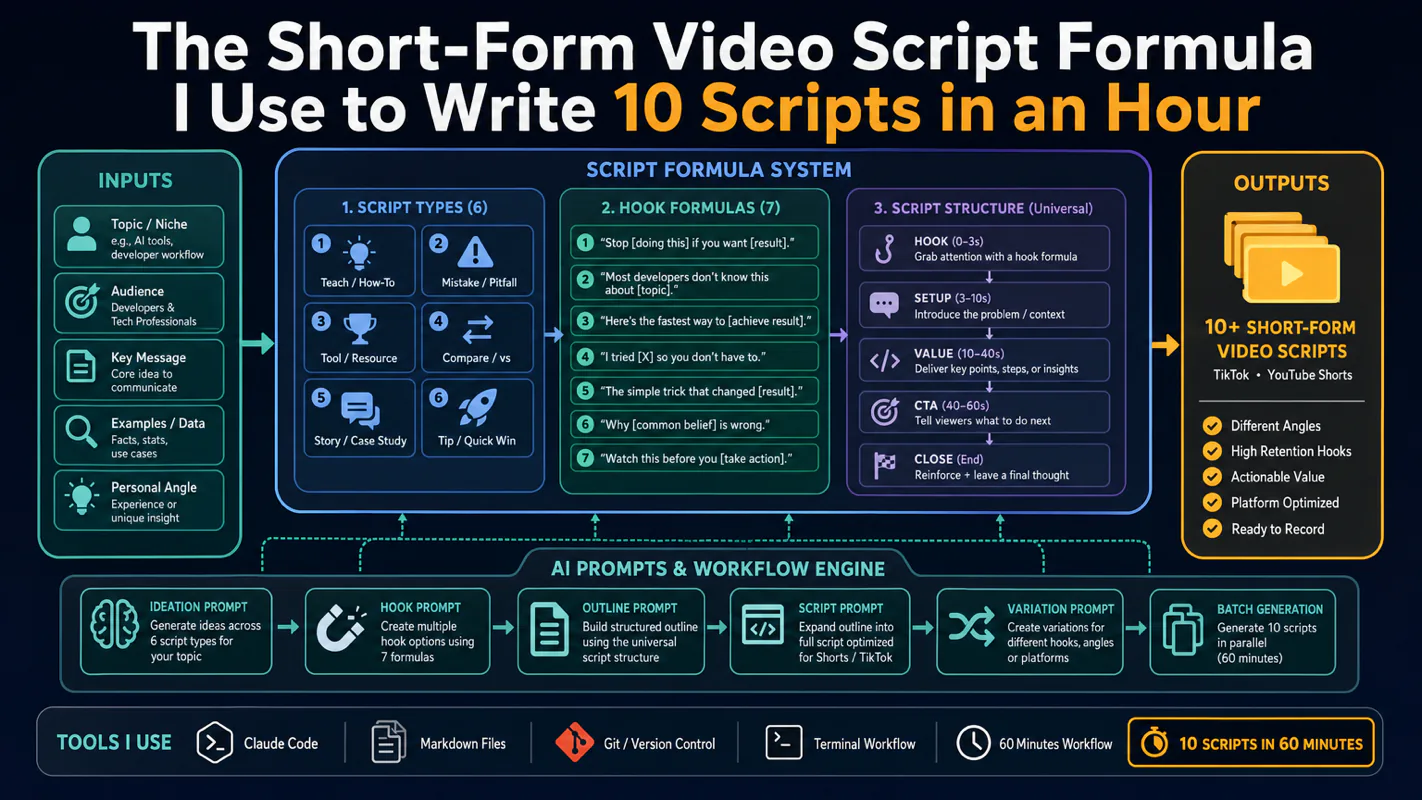
Thursday afternoon, fourteen product ideas, a Monday filming slot, no scripts. Six script shapes and seven hook formulas turn that hour into finished drafts — and the business rule stays: rewrite at least 30% before anything ships.
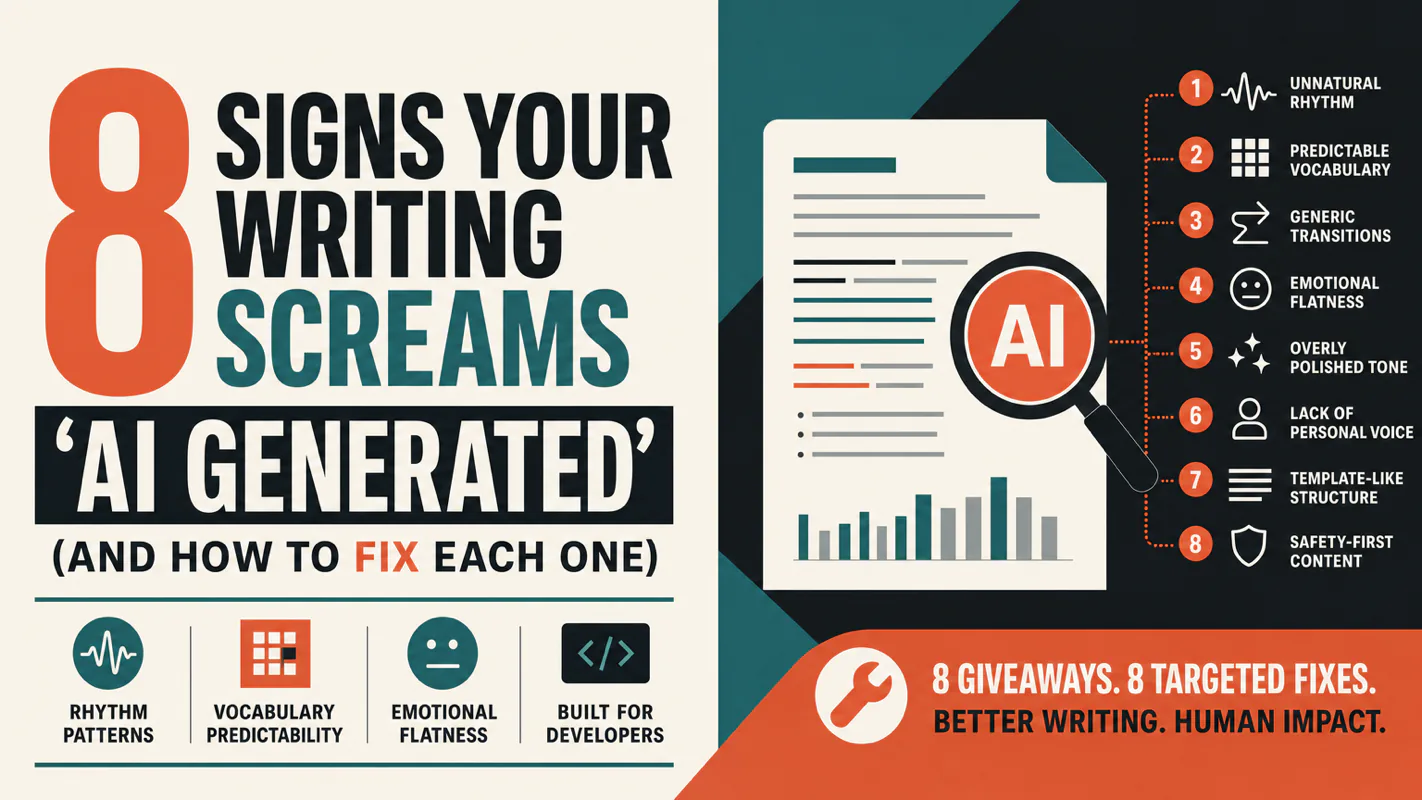
A detector score cannot survive a conversation with the freelancer it just cost three weeks of payment. What holds up is the specific thing on the page: rhythm, vocabulary, missing detail. Eight of them here, and the reason review stays human when you automate business processes.