Monitoring a competitor who publishes no feed is the case every RSS guide skips. Twenty-one platforms sorted by which of three jobs they do, and the finished setup is business process automation you own outright, with no seat licence to renew.
Blaming the content is the reflex when a post underperforms, and it is usually the wrong diagnosis. A second reader decides distribution before any human sees the post, and most of what it checks is mechanical enough to automate business processes around, on five platforms at once.
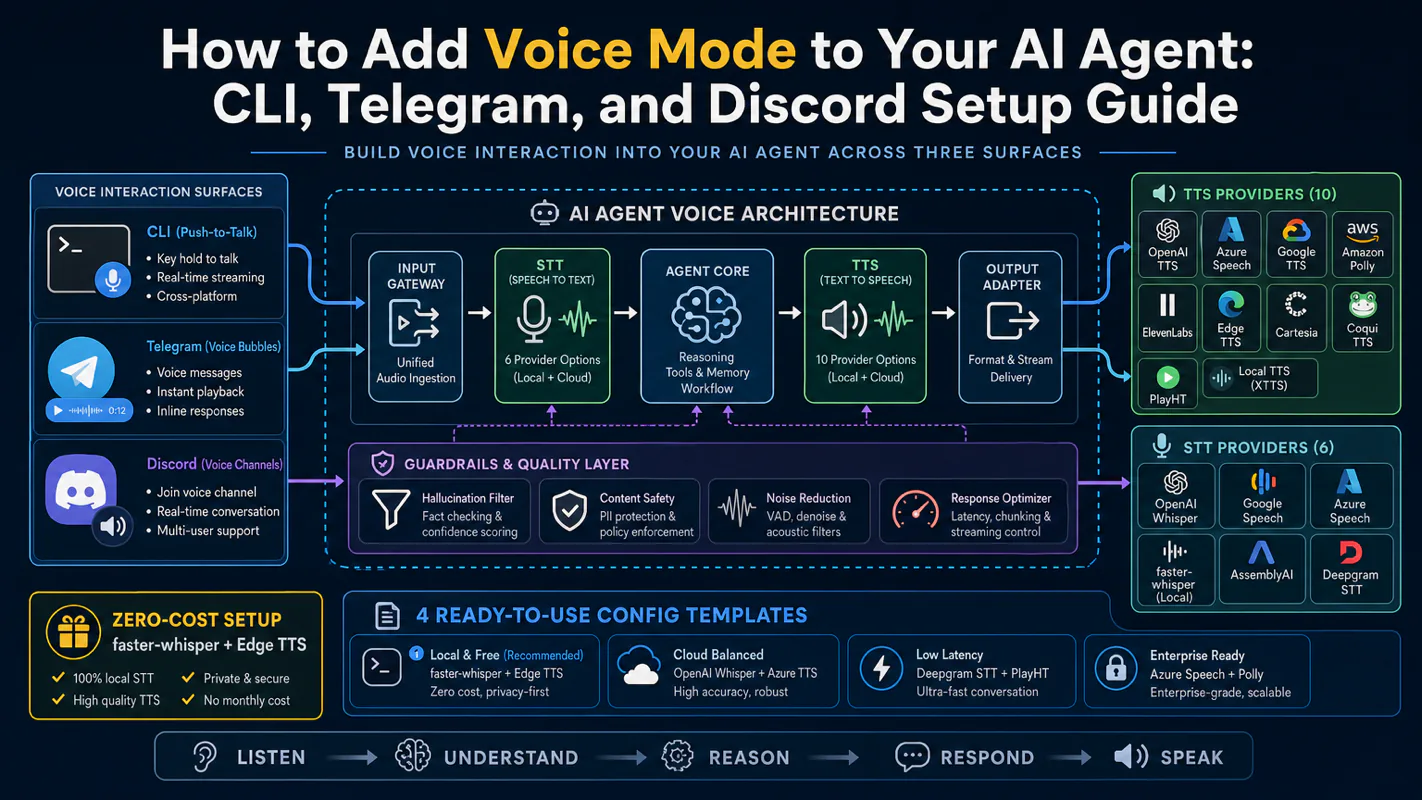
Gloves on, tape measure in hand — nobody types a query. Three voice surfaces for ai automation tools (terminal, Telegram, Discord), 10 TTS and 6 STT providers compared on cost and latency, plus a setup that costs nothing.
No-Code AI Agents: A Stage for Twenty on One Laptop
Every guide to no-code AI agents stops at the moment the agent is built. Nobody tells you where it lives after that. This is the missing layer: what keeps twenty agents alive on one laptop, what it cost me to learn, and how to copy the useful part with two browser tabs.
Every guide to no-code AI agents ends at the same moment: the agent works. You dragged the boxes together, you tested it once, it replied. Then the tab closes and the guide is over.
Nobody writes the next paragraph. Where does that agent live tomorrow? What happens when you have four of them and they need to hand work to each other? What do you look at to find out which one is stuck?
I have been running a group of agents on one laptop for about a year. The part that took longest to get right was not the agents. It was the room they sit in.
Key takeaways
The builder is the easy half of no-code AI agents. The hard half is the runtime: a place where sessions stay open, where you can see which agent is stuck, and where one agent can hand work to another.
The first page of Google for this term is almost entirely product pages and "best builder" lists. None of them describe what you do after you have three agents.
Herdr is an open-source terminal program that fills that gap. Its own tagline is "the runtime your coding agents live on." Its documented states are idle, working, blocked, done, and unknown.
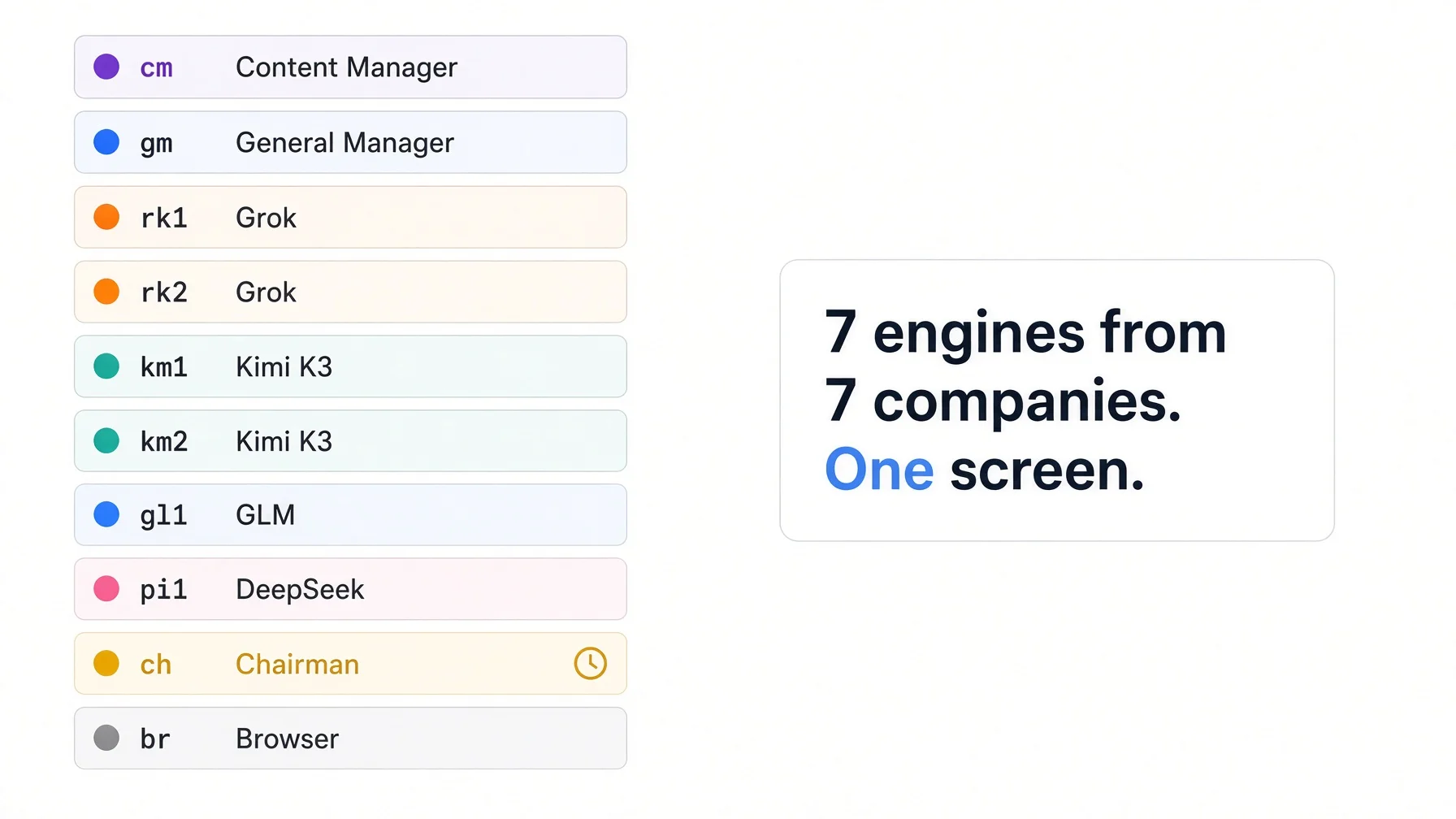
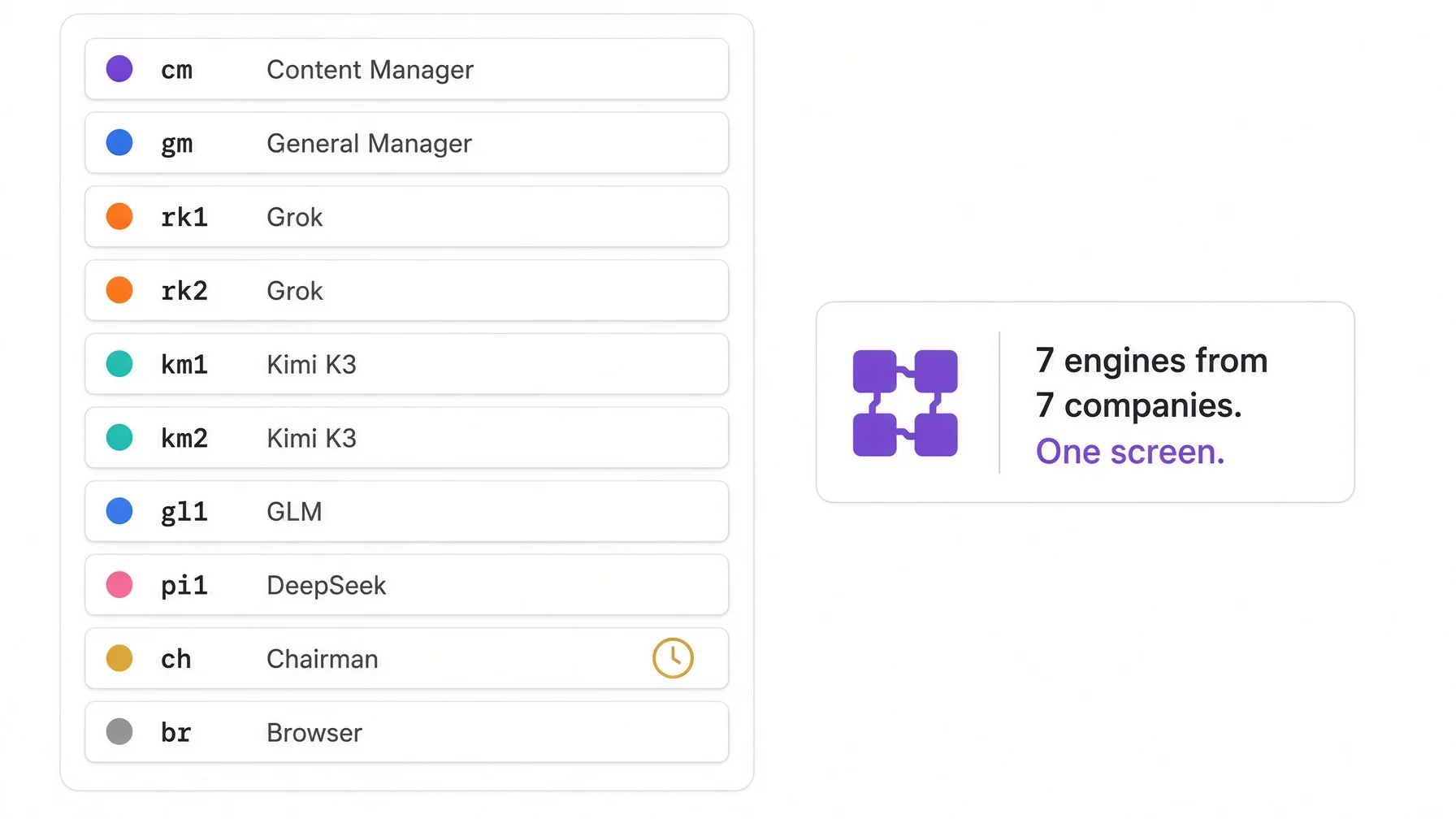
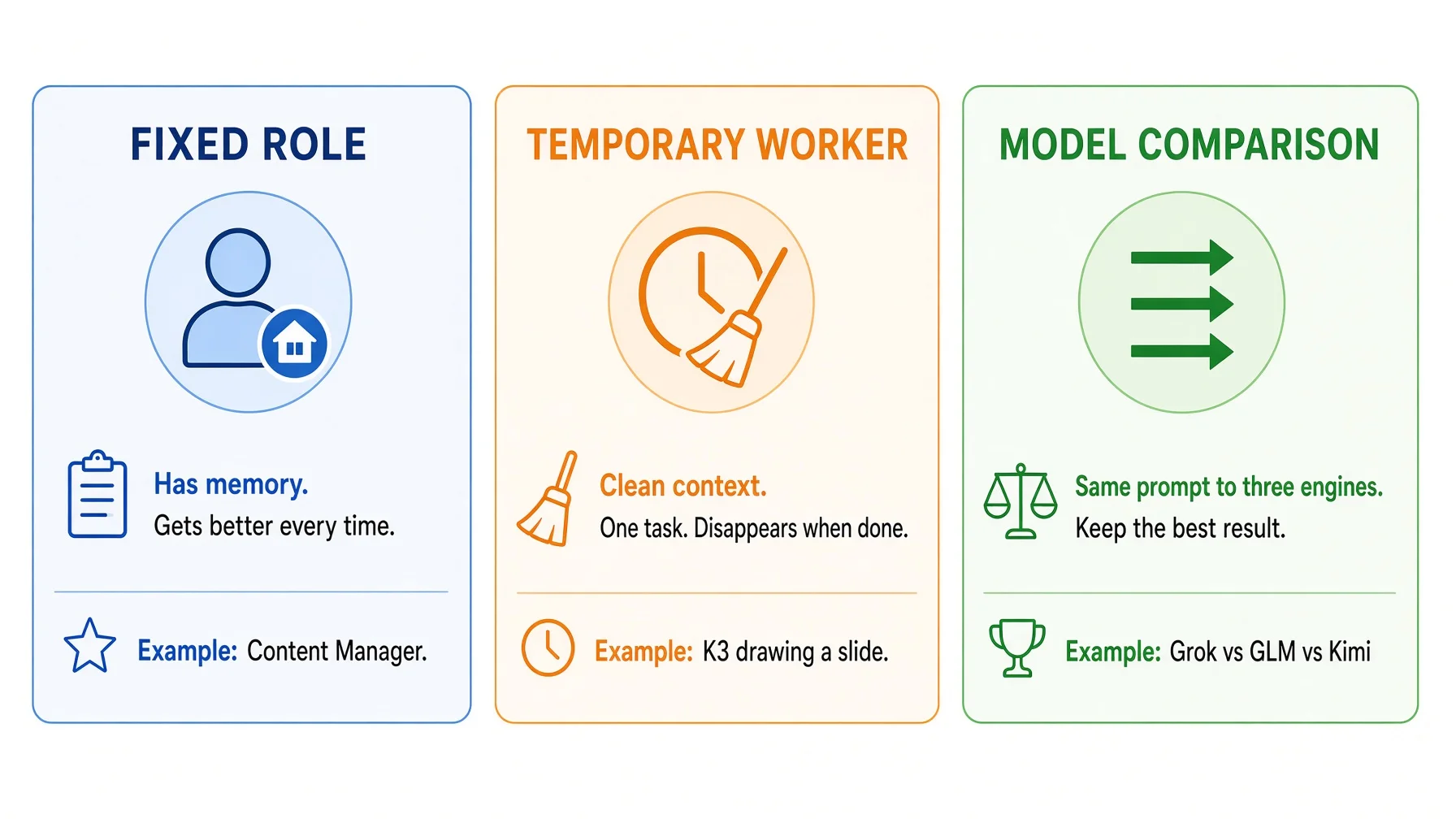
My roster declares twenty-seven windows across seven different model engines on one machine. The useful lesson from it is not the number, it is the three-way split between permanent seats, throwaway seats, and side-by-side comparison.
You can copy the working habit today with two browser tabs and no install. The last section gives you the exact prompts.
The honest limits are real: memory grows fast, restarts do not bring processes back, and no tool can tell you who was waiting for a result.
What no-code AI agents actually are, and what the market sells instead
A no-code AI agent is a program you configure in plain language rather than in code, which can take a goal, break it into steps, use tools, and come back with a result. That definition is uncontroversial, and every vendor on the first page of results agrees with roughly that wording.
Look at what actually ranks for the phrase and a pattern shows up immediately. n8n sells a drag-and-drop workflow canvas. Relevance AI sells teams of specialist agents you recruit in plain language. MindStudio sells a visual builder with model flexibility. Between them sit the round-ups: twelve best builders, eight best builders, seven best builders. The highest-ranking non-vendor result is a Reddit thread asking which no-code agent builders are actually no-code, because so many turn out to need code before you can ship anything.
Every one of those pages answers the same question: which tool should I build in?
None of them answer the question you hit about a week later: where do the things I built keep running?
💡 Builder versus runtime: a builder is where you decide what the agent should do. A runtime is where the agent is actually alive — the process that holds its memory of this conversation, waits for your next message, and dies when something closes it. On hosted platforms the runtime is theirs and invisible. Run agents on your own machine and the runtime is a terminal window, which means it is yours and also fragile.
That distinction is not academic. It decides what you own. When the runtime belongs to a vendor, your agent lives at their address on their schedule. When it belongs to you, it lives in a terminal window — and a terminal window closes when you close the lid, when the network drops, when you accidentally hit the wrong key.
So the practical question for anyone building more than one agent on their own hardware is: how do I make a terminal window stop being fragile?
That question already had an answer for humans, twenty years before agents existed.
Herdr in one sentence: tmux for no-code AI agents
If you have ever used tmux, you know the trick. You start a long job on a server, you detach, you close your laptop, you fly somewhere, you reattach, and the job is still running. Tmux keeps terminal sessions alive independently of the window you were looking at them through.
Herdr does that same trick, rebuilt for agents. The project describes itself as "the runtime your coding agents live on," and the whole thing is a single Rust binary you install with brew install herdr or a one-line script. It runs inside whatever terminal you already use. There is no desktop app.
But tmux was built for human commands, and that is the difference that matters. Tmux knows a process exists. It does not know what is happening inside it. When you have twenty no-code AI agents, "a process exists" is not enough information to work with. Three capabilities fill the gap.
One: every no-code AI agent reports its state
In tmux, an agent that has been sitting there for forty minutes waiting for you to approve a file write looks exactly like an agent that is churning through work. You have to click into each one to find out.
Herdr marks each pane instead. From the socket API documentation, the states are idle, working, blocked, done, and unknown — and done is defined precisely as idle and not yet seen by you, which is a distinction that only makes sense once you are running enough agents to lose track of them.
In the sidebar that becomes a colour per row. Green for idle and ready. Yellow for working. Blue for done and waiting for you to read it. Red for blocked and waiting for an answer. I can look at twenty rows and know in about a second which two need me.
That is the entire value. Not automation — attention. The bottleneck in running several no-code AI agents is never their speed, it is your ability to notice which one stopped.
🔍 How the detection works, and where it breaks: Herdr detects state two ways. It reads what is on the screen against a per-agent rule set, and it accepts direct reports from an integration hook using a pane.report_agent call, which is more precise. Screen reading has a physical dependency I learned the hard way: a narrow pane wraps the agent's status line and the pattern stops matching. On my setup, blocked agents were being reported as idle until I forced panes to at least 120 columns. If your states look wrong, check the width before you check anything else.
Two: every window is a session that survives you
The second capability is the tmux inheritance, and it is worth stating plainly because it changes how the day is shaped.
Herdr runs a background server, and the terminals live inside it. You detach the client with ctrl+b q and everything keeps running. You type herdr to reattach. You can reattach from a different terminal, or over SSH from a different machine entirely.
What this means in practice: I close the laptop at night. The next morning I open it and every agent is exactly where I left it. The content window still has the article half-drafted, with all the context of the conversation that got it there. The overnight run has left its notes in the window it was told to leave them in. Nothing was re-explained.
That is the actual compounding effect of a long-lived agent seat. A window that has been the content window for three months has a knowledge base underneath it and a working relationship on top of it. Start a fresh session and you get a stranger who is technically just as smart.
⚠️ Sessions survive detaching. They do not survive a restart the way you would hope. The documentation is precise about this: after a full server stop, Herdr "restores the saved session shape." Shape, not processes. Your tabs come back, in order, with the right names — and empty. On my machine that gap needed a background job that polls every 120 seconds, walks the roster, and relaunches anything that is a shell where an agent should be. Budget for that routine on day one. Discovering it during a power cut is a bad afternoon.
Three: agents can talk to each other
The third capability is the one that turns a set of windows into something that behaves like a team, and it is the one most people miss.
Herdr exposes a socket API, and the CLI is a thin layer over it. That API can create workspaces, split panes, read what is on a pane, send input to a pane, and — the important one — wait on another agent's state.
# Read what another window has produced
herdr pane read w1:p2 --source recent --lines 50

# Block until the agent in that pane is finished
herdr agent wait w1:p1 --until done

# Or until it is stuck and needs a human
herdr agent wait w1:p1 --until blocked
The documentation notes that agent.wait is server-owned and event-driven, and that it pins the resolved pane occupant so a replacement process cannot accidentally satisfy the wait. That is a small detail with a large consequence: it means one agent can genuinely coordinate another, rather than guessing based on a timer.
This is how a coordinating agent hands a task to a writing agent and knows when to collect the result. No shared database, no message queue, no webhook. The terminal is the message bus.
💡 Why a terminal makes a decent message bus: because both sides already have the same address book. Every managed pane gets HERDR_PANE_ID, HERDR_TAB_ID and HERDR_SOCKET_PATH injected into its environment, so an agent inside a pane knows its own name and knows how to reach the server. There is nothing to configure. The plumbing is the room they are standing in.
What breaks when no-code AI agents have no stage
It is easier to see the value of the layer by removing it. Here is what happens to no-code AI agents without one, in the order most people hit it.
You close the terminal and the agent is gone. Not paused. Gone. The process received a hangup signal and exited, and with it went everything it had loaded: the files it read, the reasoning it had built up, the half-finished thing it was doing. Some agents write a transcript you can resume from, which recovers the conversation but not the state — the working directory it had, the file it had open, the command it was three-quarters through.
A long job dies at the exact wrong moment. The failure mode is specific and infuriating. Anything that runs longer than your attention span — a large refactor, a batch of twelve articles, an overnight research sweep — will at some point collide with a laptop lid, a train tunnel, or a Wi-Fi switch. The work is not just lost, it is lost partway, which is worse than not started, because now you have to work out what it did before it died.
You become the network cable between your own agents. This is the one that quietly eats the most time. Agent A produces a draft. You select it, copy it, switch windows, paste it into agent B for review. B produces notes. You copy those back to A. Every hand-off is a manual round trip through your clipboard, and every round trip is a chance to paste the wrong version. Two agents is annoying. Five is a full-time job, and the job is being a courier.
You cannot see who is stuck. With four agents running, three of them silently finished eleven minutes ago and one has been waiting for you to type y since before lunch. Without a status view there is no way to know that except by clicking through all four, which you will do less and less often as the number grows. Useful output quietly collapses and you do not notice, because from where you sit everything looks busy.
None of these are exotic. They are the first four things that go wrong, and they go wrong in that order.
Inside a fleet of twenty-seven windows and seven engines
This is what running no-code AI agents looks like after the builder tab closes: my own machine at full size, as of 10 August 2026. I am including the ugly parts because the tidy version is not useful to anyone.
The roster is a file, not a habit
The single most important decision was writing the fleet down. Once you are past three no-code AI agents, the roster stops being something you can hold in your head. Every window, which workspace it belongs to, which directory it opens in, and which engine runs in it lives in one configuration file. Nothing about the layout exists only in my head or only in a shell alias.
That file declares twenty-seven windows across two workspaces on this machine: twenty-five in the workspace rooted at my knowledge base, and two more rooted at the English content repository. Seven engine types are declared: Grok CLI, Claude Code, a Claude Code shell running GLM, Kimi Code, Codex CLI, a Pi agent running DeepSeek, and Antigravity. A few of those windows run an agent wrapper rather than a bare engine — the wrapper adds scheduling and a persistent identity on top of whichever model it is pointed at, which is why it is not an eighth engine.
The structure is simple enough to describe in a sentence: named seats for roles, numbered pools for everything else.
Group
Windows
What it is
Role seats
hmczcncycfhsha
Permanent. Each opens in its own role directory and picks up that role's instructions automatically
Grok pool
rk1–rk4, plus rk5–rk6 in the other repo
General work. Fastest engine for most tasks
Claude pool
cc1–cc4
Protected pool. Reserved, not taken by automation
Codex pool
cx1–cx2
Second opinion on code
Kimi pool
km1–km2
Long context, strong on front-end work
Pi pool
pi1–pi2
Cheap bulk work on my own server
GLM pool
gl1–gl2
Open weights inside the Claude Code tool ecosystem
Shell
sh1
A plain shell. Not an agent
The role seats are the interesting half. Each one opens in a directory that contains that role's own instruction file, and the agent reads up the directory tree when it starts. So the content window is a content manager not because I told it so this morning, but because of where it is standing. Move the window, change the role. That is the whole mechanism.
🔍 A second machine, and why: I run the same pattern on a second Mac with role seats named gm, cm, vm, dm, im and iq — general manager, content, visual, development, infrastructure, intelligence — all running Grok, plus two non-agent seats: a file-tree pane and a real-pixel browser pane pinned to 1920×1080. It buys exactly two things: work that carries on while the first laptop is closed, and somewhere to put slow bulk jobs. It does not change how anything is organised. If you are deciding whether to add a second machine, that is the honest return.
Three ways to hand out work
Everything I do with these no-code AI agents falls into one of three shapes. Recognising that was more useful than any tooling.
Permanent seats, for work that compounds. The content window sits there every day. It has read the style guide, it has been corrected forty times, it knows which mistakes I care about. Its value is entirely in accumulated context, so it never gets cleared and never gets reassigned. Same for the general manager seat and the infrastructure seat.
Throwaway seats, for work that does not. A blank window, one job, then gone. "Read these four files and tell me which one contradicts the other three." There is nothing worth keeping afterwards, and keeping it would only pollute the next job. Open, use, close.
# Find a free window in a pool rather than guessing a name
fleet-cli resolve --pool grok --repo kb

# Send it the job
fleet-cli send rk1 "Read /path/to/spec.md and list every requirement
that has no corresponding test. Output a markdown table."
Parallel seats, for when I do not know which engine is better. Same prompt to three engines, read all three answers, keep the best. This is the cheapest quality check I have found, and it is only cheap because the windows already exist. Deciding which model to use in advance is a guess; running three and comparing is a measurement.
💡 On fleet-cli: that is a wrapper I wrote over Herdr's socket API for my own roster. It is not something you can install. Everything it does, the built-in commands do too — herdr agent wait, herdr pane read, herdr pane split, herdr workspace create --cwd ~/project --label api. If you want the pattern rather than my plumbing, start with those. Write your own wrapper only when you have typed the same three commands together for the third time.
Waiting on events instead of polling, and the trap inside it
The first version of my batch runner checked every window every ninety seconds to see if anything had finished. It worked and it was slow.
Switching to Herdr's event-driven wait — hanging an agent wait --status idle on every busy window so that the whole loop wakes the moment any one of them frees up — changed the numbers a lot. On a measured run of twelve small tasks: 381 seconds by polling at ninety-second intervals, 40 seconds event-driven. The interval stopped being a heartbeat and became an upper bound.
Then it broke in a way I did not predict, and the lesson generalises.
⚠️ Two guards you cannot skip when waiting on agent state. A wait against an already-idle window returns instantly. But a window you just sent work to takes a second or two to flip from idle to working. That gap is a spin loop: the wait returns immediately, the loop goes round, sends nothing, waits again. My first version turned twelve small tasks into twenty-eight loop iterations in twenty-two seconds, and burned one task's entire retry budget in those seconds — so a task that was fine got marked failed. Two fixes, both required: only watch windows you have actually read as working right now or that are inside a grace period after dispatch, and never let two iterations run closer than five seconds apart.
I also do not hang waits on windows over SSH. Each one holds a connection open, and ten remote windows means ten connections held for the sake of saving thirty seconds. Local windows are event-driven, remote ones are polled, and the inconsistency is deliberate.
The thing no tool will do for you
I tried three separate times to build automatic completion reporting — some mechanism where a window that finishes a job tells the right person it finished. All three failed. The record is worth reading because the failures were not implementation problems.
Attempt
What it was
Why it died
July 2026, first try
A watcher script plus a global mailbox
Dumped everything into one window. Missed half the fleet, because windows launched by a script often had no name yet and the lookup was by name
July 2026, second try
A three-layer routing service with a smart fallback that guessed the recipient by topic
7.6 hours of running, 9 model calls, 0 useful notifications, 4 messages delivered to managers who had not asked for anything
July 2026, third try
Making the send command auto-inject a reporting instruction
Still code doing a human's job. Scrapped the same week
All three failed at the same point. The only party who knows who is waiting for a result is the person who dispatched the work, at the moment they dispatched it. A machine looking at a finished job can guess whose subject area it falls into, which is a completely different thing from who asked.
The fix is not a system. It is a habit: whoever sends the task writes the reply instruction into the prompt itself.
fleet-cli send rk2 "Audit every internal link in /content/ and list the
broken ones. Execute directly, do not wait for confirmation.
When finished, run: fleet-cli send cn \"Result: {the broken link list}\""
Three slots, all filled by the sender at dispatch time: which window to report to, what to report, and what counts as failure. If the sender does not write it, there is no reply, and that is a fair price. The alternative was four automated messages to people who never asked.
🔍 Make the reply instruction mirror the request. "Report when done" produces "done", which forces you to go and look anyway. If you asked for a judgement, ask for Conclusion: {judgement} + {one-line reason}. If you asked for a list, ask for the list itself. And always leave a failure exit in the template — / Stuck at: {step} — otherwise a failed run reports nothing, and silence and failure become the same signal.
Three things that cost me a day each
The failures were more instructive than the features, and none of them are in any guide to no-code AI agents.
A window name shadowed a system command. I keep launcher scripts on the executable path, named after the window they start. One of them was called sh. It shadowed /bin/sh for every process that resolved commands through that path, and mobile access to the whole fleet stopped working. Nothing in the error message pointed at a file name. Launchers now live in a directory that is deliberately not on the path, and are invoked by absolute path.
Workspaces silently renamed themselves. A workspace with no explicit name adopts the directory name of the first agent in it. Point a role window at a directory called general-manager and the whole workspace is now called general-manager — including on my phone, where the sidebar shows workspace and window name together, so every row appears to have been renamed at once. It also does not happen only once at creation; an unnamed workspace keeps drifting. One explicit rename pins it forever.
Unnamed windows counted as missing. The startup routine looked up live agents by name and relaunched anything absent. But a window started by a launcher script is often recognised by type before it is given a name, so five to eight perfectly healthy windows were reported missing on every single run, and the routine kept trying to restart them. The fix was to claim unnamed panes against the roster before the launch loop runs, rather than treating a missing name as a missing agent.
⚠️ Memory is the real ceiling, not CPU. Each agent process can start its own set of tool servers. Twenty-two agents at seven tool servers each is 154 processes in theory; I measured over two hundred and roughly 17 GB of RAM once duplicate sessions were counted. Nothing crashed, but the machine stopped being pleasant to use. Trim the tool list per agent before you trim the number of agents — a window with two tools costs almost nothing, a window with nine costs real memory whether or not you are using it.
Copy no-code AI agents with two browser tabs
and no install
Now the part that matters if you have read this far and do not want a terminal.
You do not need Herdr. You do not need a fleet. Almost all of the value in the setup above comes from one habit, and the habit works with no-code AI agents in a browser, today, with nothing installed.
The habit: give each job a seat that stays open, and never let one agent grade its own work.
Here is the whole thing in five steps. It takes about fifteen minutes to set up and you can do it this afternoon.
Before you start. Nothing here needs installing — two browser tabs are enough. The one step that gets easier with a tool is step 3: an AI that opens your folder directly beats re-uploading the same files to both tabs every session. If you want that version, pick a tool here; two windows of the same tool count as two seats.
Make one folder. On your own disk. Put in it the things you would otherwise re-explain every time: how you write, who your customers are, what you have already published, what you must never say. Plain text or Markdown files, nothing fancy. This is the shared memory both seats will read from. If you want the longer version of this idea, it is covered in AI knowledge base best practices.
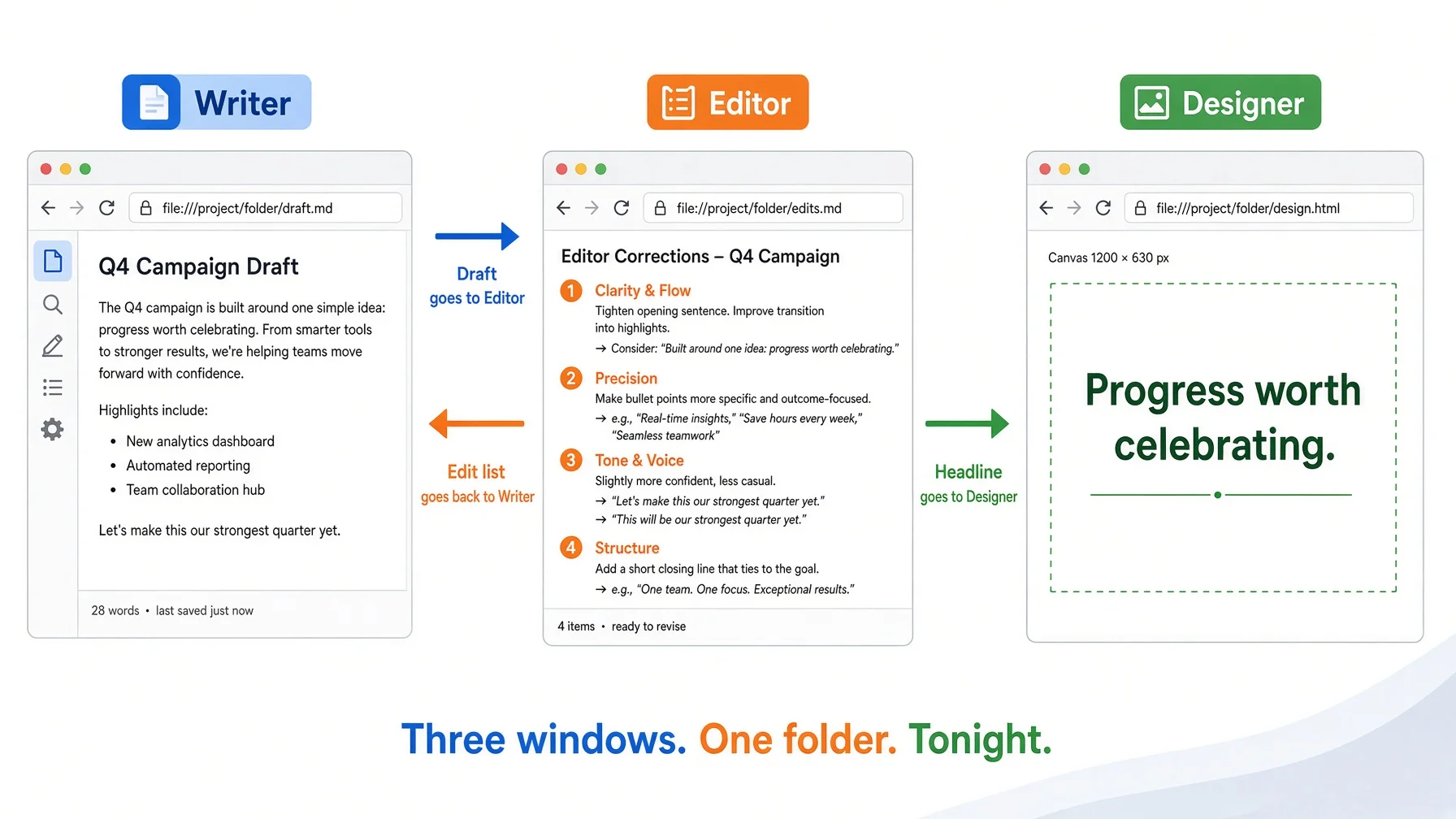
Open two browser tabs, same AI or different ones. Tab one is the Writer. Tab two is the Reviewer. Name the conversations that, in whatever your tool calls conversations, so you can find them tomorrow.
Give both tabs the same folder. Upload it, connect it, or paste the two or three files that matter. Both seats must be reading the same source of truth, or the Reviewer will object to things the Writer was told to do.
Give each tab one job and one job only. The Writer writes and never grades. The Reviewer grades and never rewrites. The moment one tab does both, you have lost the independent check, which was the only reason to have two.
Move work between them by hand, on purpose. You are the message bus in this version, and that is fine. The value was never the automation — it was having two seats that hold their roles. You are doing manually what herdr agent wait does automatically, and for two seats manual is genuinely faster than setting up plumbing. If your tool can open the folder rather than take uploads, hand over by saving a file instead of pasting; the prompts in the next section do it that way, and it is the one upgrade worth taking early.
The mapping from the terminal version to the browser version is closer than it looks. Every row is the same job done by no-code AI agents you already have open.
In the fleet
In two browser tabs
What it is actually for
A named window per role
A named conversation per role
The seat holds the role, so you do not re-explain it
A role directory with its own instructions
Your first message in each tab, kept and re-pasted
Same instructions every time, not whatever you remembered
One knowledge base both seats read
One folder uploaded to both tabs
Both seats argue from the same facts
Sessions that survive a closed lid
A conversation you do not delete
Context accumulates instead of resetting
herdr agent wait --until done
You, copying between tabs
Sequencing the hand-off
Colour-coded state in a sidebar
Two tabs you can see at once
Knowing which seat needs you
A throwaway window for one job
A third tab you close afterwards
Keeping one-off work out of the seats that compound
The row that does most of the work is the third one. Two agents reading the same folder disagree usefully. Two agents reading nothing disagree pointlessly, because neither has a standard to appeal to.
💡 Add the third tab before you add the fourth. Once the Writer and Reviewer pattern is working, the next useful seat is not another permanent role — it is a scratch tab you open for a single question and close afterwards. Research, a quick comparison, a one-off summary. Keeping that work out of your two permanent seats is what stops them silting up, and it is the browser equivalent of a throwaway window.
The prompts that make two no-code AI agents behave like a team
Copy these directly. The specifics matter less than the two rules underneath them: each seat is told what it does not do, and each seat hands over a file rather than a paste. I am using Researcher and Writer here rather than Writer and Reviewer, because the file handoff is easiest to see when the two seats produce different artefacts. The wiring is identical for any pair, and the Reviewer variant is at the end.
If your tool can open a local folder, this runs with no clipboard at all — the same mechanism as herdr pane read, done by the filesystem instead of a socket.
=== SETUP (once) ===

Make a folder called my-work/ with three empty subfolders:
  my-work/research/   my-work/drafts/   my-work/notes/

Open two AI windows. Point both at my-work/. Neither window gets the
other's conversation. The folder is the only thing they share.

=== WINDOW 1 — RESEARCHER ===

You are my researcher. This is the only job you have in this
conversation. You write files. You do not write articles.

Task: research [topic] for [audience].

Produce a 500-word research brief and save it as
my-work/research/[topic].md with exactly these four sections:

CLAIMS — every factual claim on its own line, each with a source URL.
NUMBERS — figures worth quoting, each with what it measures and when.
DISAGREEMENT — where sources contradict each other, and how.
GAPS — what you could not find. Do not fill a gap with a guess.

Rules:
- No claim without a URL. If you cannot source it, it goes under GAPS.
- Do not draft prose, headlines or arguments. That is the other seat.
- Do not tell me what the conclusion should be.

When the file is saved, reply with only:
RESEARCH SAVED — my-work/research/[topic].md, {n} claims, {n} gaps.

=== WINDOW 2 — WRITER ===

You are my writer. This is the only job you have in this conversation.
You read files. You do not do your own research.

Task: open my-work/research/[topic].md and write 800 words on [topic]
for [audience]. Save it as my-work/drafts/[topic].md.

Rules:
- Every number and every factual claim comes from the CLAIMS or NUMBERS
  section of that file. Nothing else. Not from memory.
- Where the file lists DISAGREEMENT, say so in the article. Do not pick
  a side silently.
- Where the file lists a GAP, write [GAP: what is missing] inline and
  keep going. Do not invent the missing part.
- Do not ask me to paste the research. Open the file.

End with: DRAFT SAVED — my-work/drafts/[topic].md, plus one line naming
the claim you leaned on hardest.

=== VERIFY (two minutes, you do this one) ===

Open both files side by side and check three things:
- Every number in the draft appears in the research file.
- Every [GAP] marker in the draft matches a GAP in the research file.
- Nothing in the draft is attributed to something the researcher never
  wrote.

Any number in the draft that is not in the research file was invented.
That single check is worth running every time.

=== IF A WINDOW CANNOT WRITE TO DISK ===

Some tools only run in a browser and cannot save files. Tell that window
to print the whole file as one Markdown block instead, and save it
yourself under the same path before opening the second window. The
handoff still has to be a file — you are just the one carrying it.
The verify step is the whole point, and it is why the handoff is a file. When work moves by clipboard you cannot audit it afterwards — the paste is gone and both windows will confidently agree about what was in it. Two files on disk can be opened next to each other a week later, and a number that appears in one and not the other is a fabrication you can point at.
To add review to this, open a third window with the same folder: it reads my-work/drafts/[topic].md, writes my-work/notes/[topic]-review.md, and outputs three headings — BLOCKING for things that are wrong and must change, quoting the sentence and saying what condition would make it right; WEAK for defensible things that would be better changed; CHECK for claims you should verify yourself before publishing. Tell it not to rewrite and not to praise. Then the writer opens the notes file and revises. The CHECK items must come to you rather than being quietly fixed by a model inventing a source, and if BLOCKING comes back empty every time, your reviewer is being polite — tighten it.
Where no-code AI agents on one laptop stop scaling
Three limits, stated plainly, because a piece that only lists benefits is an advertisement.
More seats do not mean more output past a point. The constraint is your reading speed. I have twenty-seven windows and on a normal day I genuinely read about six. The rest exist so work has somewhere to land, not because I am supervising them. If you cannot say what a new seat does that an existing one cannot, you are adding a tab, not capacity.
Nothing here is a permission system. Every one of these no-code AI agents runs as me and can read everything I can read. There is no approval chain, no audit trail that would satisfy a compliance team, no separation between an agent that drafts marketing copy and one that could delete a directory. For personal and small-team work that trade is fine. For anything with a regulator attached, it is not, and no amount of window discipline changes that.
Coordination has a hard floor that tooling cannot lower. I built three automatic reporting systems and killed all three. Some information — specifically, who is waiting for this result and what would count as done — exists only in the head of the person handing out the work, at the moment they hand it out. Every tool that promises to infer it is guessing. Write it into the prompt instead, and accept that if you forget, there is no reply.
Frequently asked questions
Is Herdr itself a no-code tool?
No, and it does not claim to be. It is a terminal program you install with one command and then mostly click around in. The no-code AI agents are what runs inside it. Herdr is the room, not the worker. If you never open a terminal, the two-tab method above gives you the same habit with nothing installed.
How is this different from n8n, Zapier or Relevance AI?
Those are builders: you draw a flow and they run it on their servers. Herdr builds nothing and runs nothing remotely — it holds terminal sessions open on your own machine. A builder answers what should happen. A multiplexer answers where it happens. You can use both.
Does running twenty agents cost twenty subscriptions?
It costs whatever the models cost, and an idle window costs nothing — no tokens move until you send a prompt. What scales with window count is memory rather than money.
What happens to my agents if the laptop restarts?
Tabs come back, processes do not. Herdr restores the saved session shape after a full stop, which means the layout returns and the panes are empty. Write a startup routine that walks your roster and relaunches each seat.
Does it work on Windows?
There is a Windows beta via PowerShell, but remote attach is not part of it. From Windows, connect to a Linux or macOS host over SSH and run it there. If your only machine is a Windows laptop, use the browser-tab method above.
How many no-code AI agents can one laptop actually hold?
Attention runs out before hardware does. Start with three: one that keeps context forever, one you throw away per job, one plain shell. Add a fourth only when you can name what it does that the first three cannot.
Do I need more than one computer?
No. A second machine buys work that continues while the first is closed, and somewhere to park slow bulk jobs. Both are conveniences, neither changes the organisation.
Is Herdr free, and can I use it at work?
It is open source under the Apache License 2.0 in the current repository, relicensed in July 2026. Apache 2.0 is permissive, so internal commercial use is straightforward. Read the licence file yourself before redistributing anything.
Your first hour
[ ] Make one folder on your own disk with the files you re-explain most often, plus the three empty subfolders from the setup block.
[ ] Open two conversations, name them after the two seats, give both the same folder.
[ ] Paste the two role prompts above as the first message in each.
[ ] Run one real piece of work through the loop, ending with the two-minute verify.
[ ] Count how many numbers in the draft were not in the research file. If it was more than zero, the writer is filling gaps from memory — tighten its rules before you run anything else.
[ ] Open a third tab as the Reviewer, or as one throwaway question you close afterwards. Notice that your two permanent seats stayed clean.
[ ] Only after all of that: if you are comfortable in a terminal, install Herdr and rebuild the same two seats as two windows. You will already know what you are building.
[ ] Before you scale past three windows, write your roster down in one file. Layout that exists only in your memory does not survive a restart, and neither do you.
Where to go from here
If you are choosing which agent to put in those seats, the honest comparison is in AI agent comparison 2026 — eight frameworks tested side by side, with costs and security records rather than feature grids. If you are still deciding whether you need an agent at all rather than a chatbot, start with AI agent vs chatbot.
Everything on this site is built on the same principle as the folder in step one: the parts you own outlast the tools you rent. If that is the kind of thing you want in your inbox, the notes are here — what actually broke that week and what I changed because of it, not what launched.
Gloves on, tape measure in hand — nobody types a query. Three voice surfaces for ai automation tools (terminal, Telegram, Discord), 10 TTS and 6 STT providers compared on cost and latency, plus a setup that costs nothing.
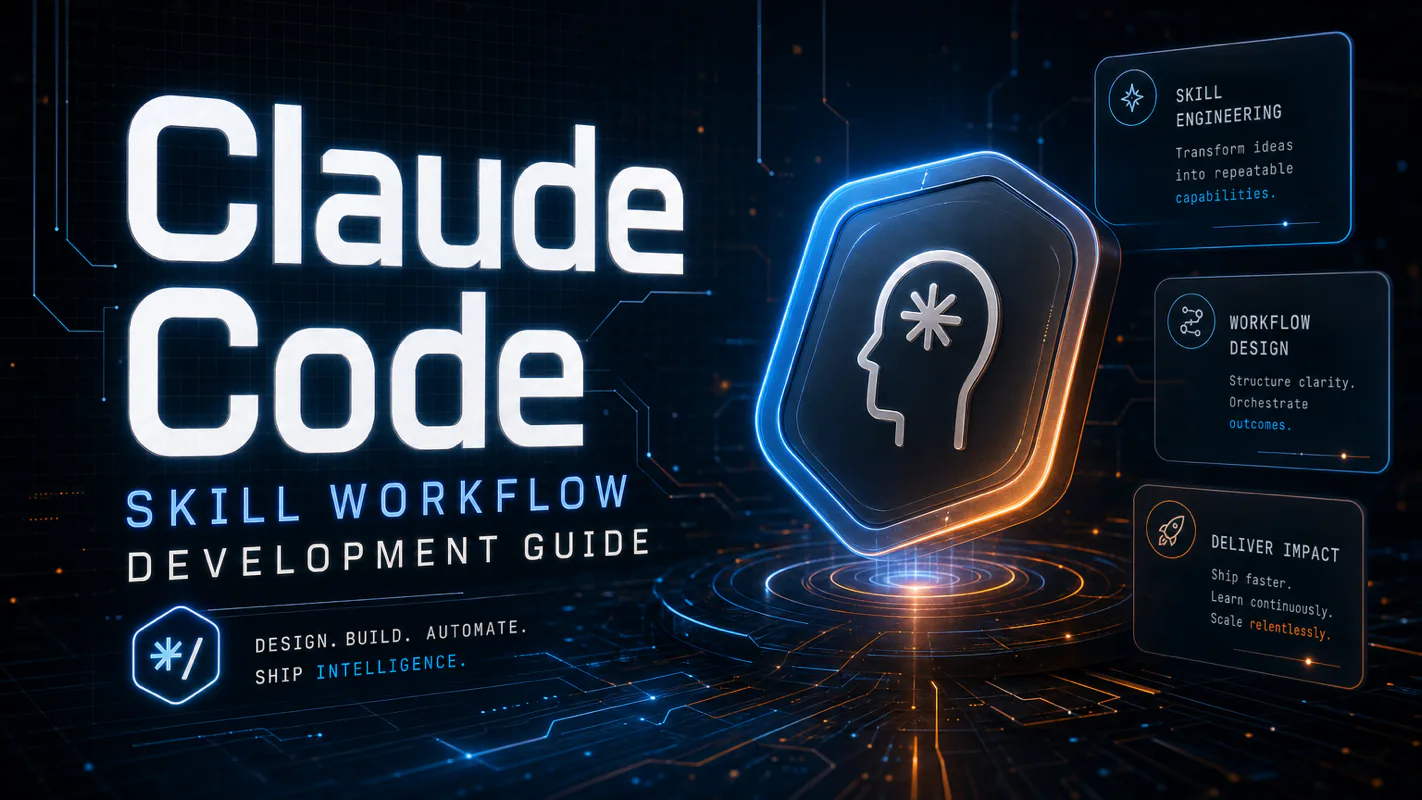
A Skill is an operating manual, not a plugin. The five-layer architecture behind workflow automation that survives context compression, session crashes, and handoffs: SKILL.md as the single entry point, deterministic scripts, run state for crash recovery, and a resource layer.
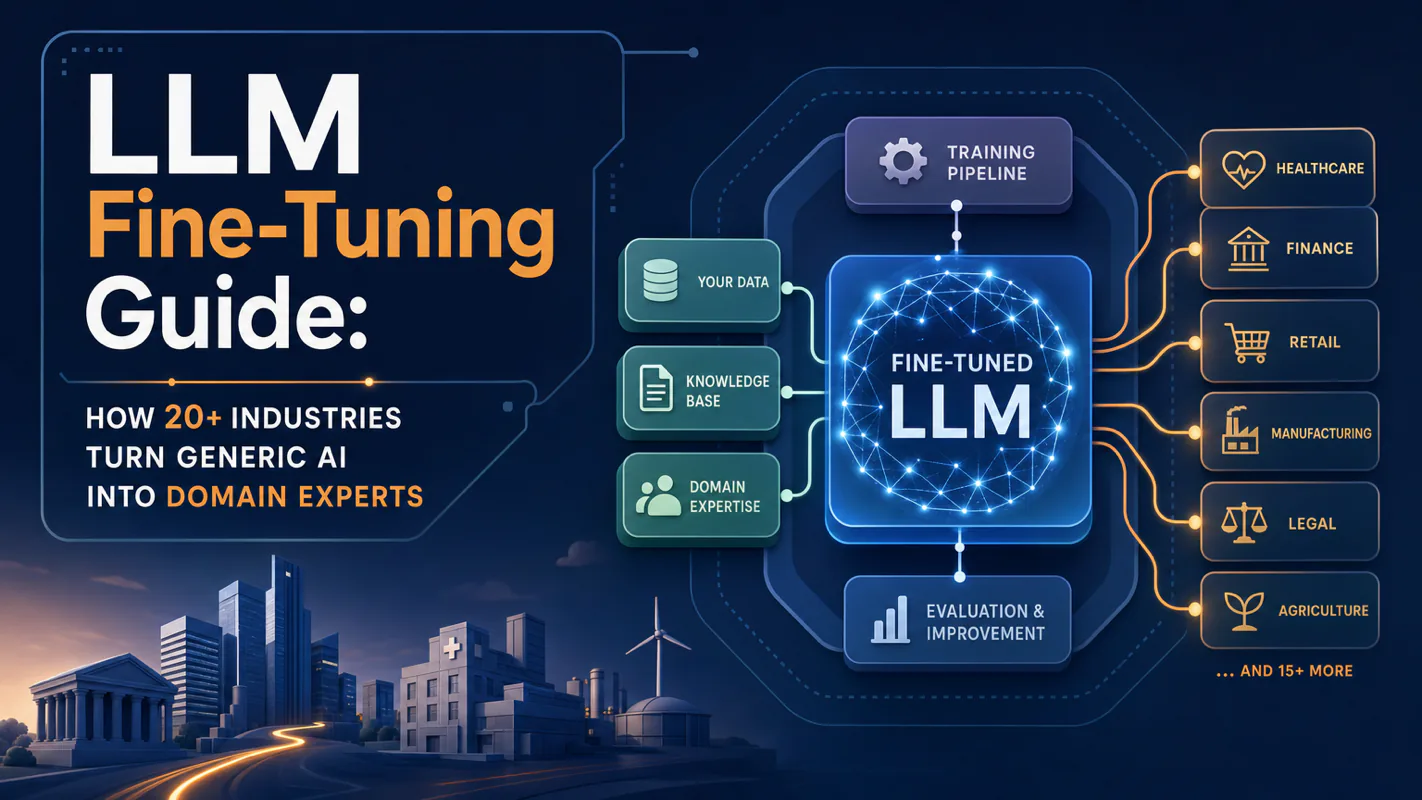
Two of the three fixes can be undone the same afternoon. The third cannot, and it is the one people reach for first. LoRA cut costs tenfold, which made the expensive option tempting rather than correct. In business process automation, the order you try things in is the whole decision.
Fine tuning turns a generalist into a specialist - skip the baseline and you can never prove it worked. Five steps on Google Cloud: baseline, data prep, instruction design, hyperparameters, evaluation. Plus the finding that surprises business process automation buyers: 100 good samples beat 1,000.