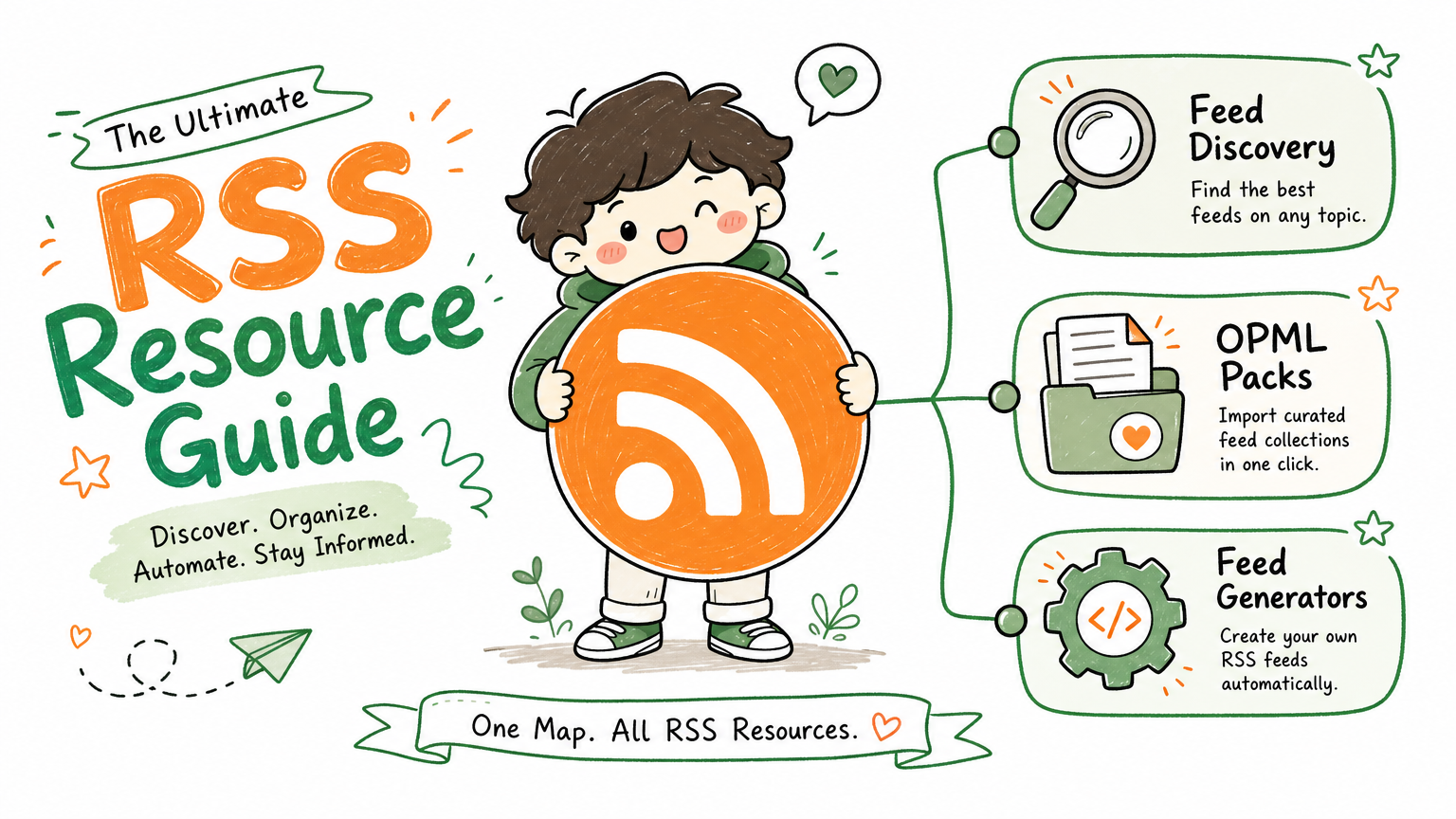
Monitoring a competitor who publishes no feed is the case every RSS guide skips. Twenty-one platforms sorted by which of three jobs they do, and the finished setup is business process automation you own outright, with no seat licence to renew.
Blaming the content is the reflex when a post underperforms, and it is usually the wrong diagnosis. A second reader decides distribution before any human sees the post, and most of what it checks is mechanical enough to automate business processes around, on five platforms at once.
Gloves on, tape measure in hand — nobody types a query. Three voice surfaces for ai automation tools (terminal, Telegram, Discord), 10 TTS and 6 STT providers compared on cost and latency, plus a setup that costs nothing.
ChatGPT for Business: Three Machines, One Knowledge Base
ChatGPT for business gives your team a shared workspace inside OpenAI's cloud. The alternative is a folder on machines you own that every AI tool can read. Here is how one 90 GB folder stays identical on three Macs, what it cost to get wrong, and how to set up your own tonight.
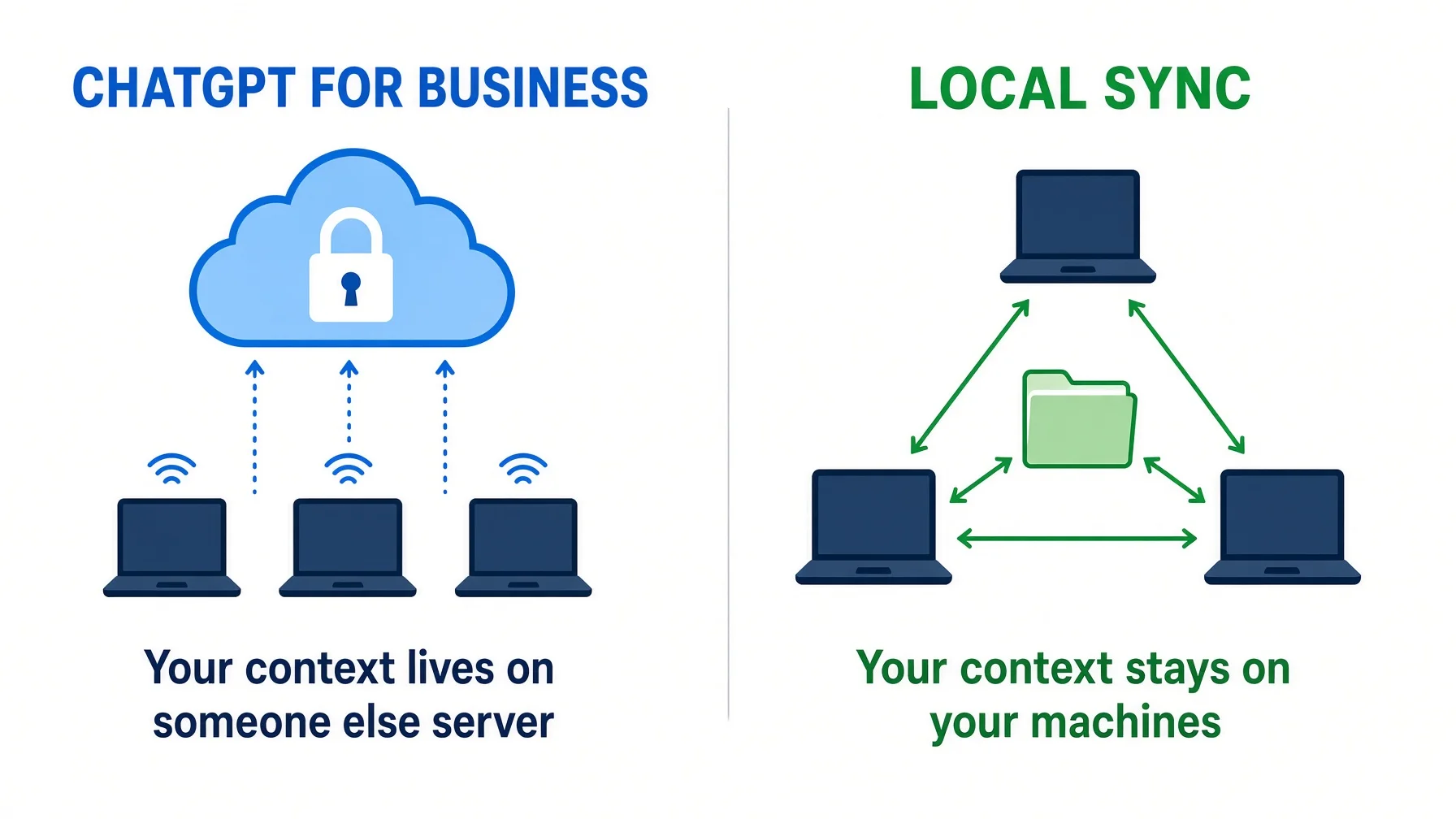
Almost every guide to ChatGPT for business answers a pricing question and stops there. The question underneath is where your business context actually lives. The answer is one folder, identical on every computer you own, with no cloud service holding a copy — fleet sync, if you want the term for it.
Because right now that context is scattered. It is on the laptop you take to meetings, the desktop you actually work on, and the machine at home you open at nine at night. Every AI tool you have taught anything sits on one of them and knows nothing about the other two — and the $20 per seat per month that ChatGPT for business costs does not fix that, because it was never the problem being sold to you.
This article covers what ChatGPT for business actually buys you, why one folder beats a shared cloud workspace, what it costs when you skip it, exactly how one 90 GB folder stays in step across three Macs — roughly 270,000 files, about 42 GB in flight, zero pending and zero errors as of 10 August 2026 — and how to set up your own in about thirty minutes tonight.
The short version
ChatGPT for business is sold per seat — $20 per user per month billed annually, or $25 monthly, minimum two users — and OpenAI's own help page says the settings export is "Not available for ChatGPT Business or Enterprise workspaces."
The ChatGPT desktop app can now open a local folder with your permission. So can Claude Code and Codex. A folder on your own disk is no longer the harder path.
Consumer cloud storage was built to sync documents, not working folders. OneDrive states it does not sync symbolic links at all; Dropbox syncs the link but not what it points to, and enforces a 260-character path limit.
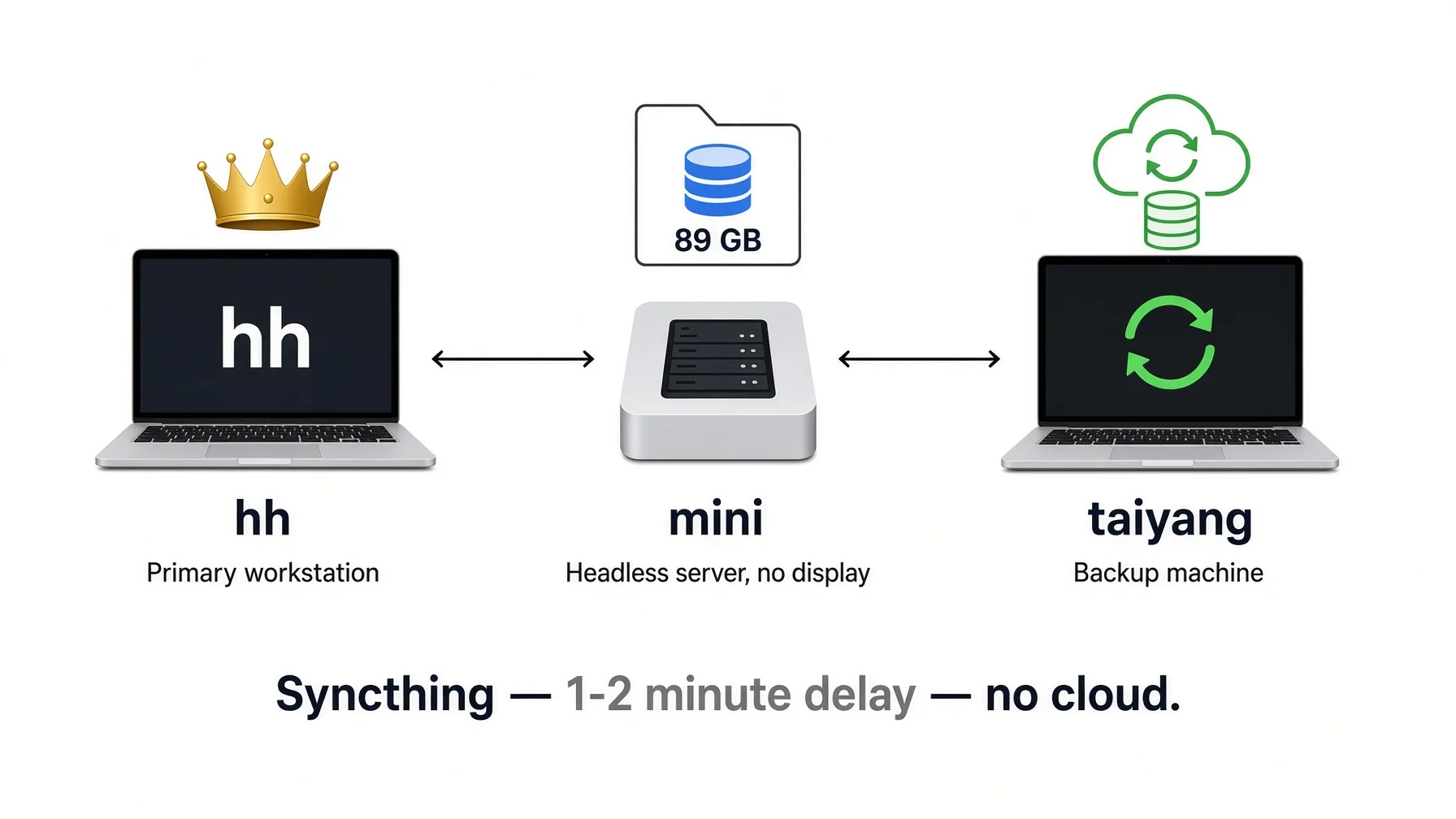
The setup here uses Syncthing: three Macs, four shared folders, no server, no cloud account, changes visible on the other machines in 1–2 minutes.
The hard part is not the sync. It is the ignore file, and getting it wrong deletes real work — it did here, and one incident cost 1,016 files.
What "ChatGPT for business" quietly assumes
Every page that ranks for chatgpt for business answers a pricing question. What plan, how many seats, what the admin console does. Those are real questions and the answers are easy to find. Underneath all of them sits an assumption nobody states: that your work lives in one place, and that place is the vendor's.
Sort what you have into two piles and the assumption becomes visible.
The first pile is rented. The model, the web app, the account settings, the shared workspace, the connectors, the price and the date any of it changes. You do not own a line of it and never did. OpenAI's business pricing page lists ChatGPT Business at $20 per user per month billed annually, or $25 billed monthly, minimum two users — and states that business data is not used to train its models by default, which is a genuinely good default and a reason to pay.
The second pile is owned. Your documents, your policies, your templates, the description of how your business actually works, the running list of things the AI keeps getting wrong. That pile is text and text moves.
The mistake is putting pile two inside pile one. You spend an evening writing a genuinely good description of your firm into Custom Instructions — a field that holds 5,000 characters on the Business plan. It is now your writing, stored in a settings page. And on the Business and Enterprise plans, OpenAI's help documentation states that self-serve data export is "Not available for ChatGPT Business or Enterprise workspaces." The plan with the strongest privacy guarantees is also the one you cannot export yourself. That trade sits at the centre of every ChatGPT for business decision.
💡 What "portable" means here: not that a vendor provides a migration button, but that the original lives in a file on a disk you own, and every tool gets a copy. If the original is a text box in someone's product, you have a copy of your own work and they have the original.
ChatGPT for business tools already read local folders — that is new
The old objection to keeping context in a folder was that the tools could not read it. That stopped being true.
Tool
What it reads from your disk
Source
ChatGPT desktop app
A local folder or project you explicitly grant access to
Two things follow. First, the folder is now the easier option for desktop work, not the technical one. Second, the folder is the only format all four accept — there is no other single place you can put your instructions and have ChatGPT for business, Claude Code and Codex all find them.
⚠️ Do not confuse the desktop app's folder access with the older macOS "work with apps" feature, which reads from applications that are already open and, by OpenAI's own description, sees only the last 200 lines of open panes. That is a different, much narrower thing.
Why consumer cloud storage is the wrong tool for this particular folder
If you already pay for Dropbox or Microsoft 365, the obvious move is to put the folder there. For a folder of plain documents, do that — it will work and this article is over.
It stops working when the folder becomes a working directory rather than a document dump. Three specific frictions, from the vendors' own documentation:
A documented list of disallowed characters and reserved names
Slash and backslash always disallowed; on the Windows app, restricted characters are silently replaced with _
That last cell is the one to read twice. A sync service that quietly renames your files is a sync service that has made two machines disagree about what a file is called, which is the exact problem you installed it to avoid.
I could not find an Apple-authored statement about how iCloud Drive handles symbolic links, so I am not going to claim one either way. What Apple does document is a 50 GB limit for an individual folder or file in iCloud Drive, and a category of files it marks "Ineligible" and will not upload at all.
None of this is a scandal. These products were designed to sync documents between a phone and a laptop, and they do that well. A folder that contains links, deep paths and a mix of text and build output is simply not what they were built for.
What one machine costs you, even with ChatGPT for business
The cost is not dramatic. That is why it goes unfixed for years.
Here is the shape of it. You spend a morning at the office teaching an AI tool how your firm handles a particular kind of job — the format, the constraints, the three things that always go wrong, the client who needs everything in writing. By lunchtime it is producing work you would send. That afternoon you travel, and that evening you open the laptop, and you are back to a blank box that knows none of it.
So you do one of three things, and all three are bad.
You re-explain. Fifteen minutes of typing to get back to where you were, and the reconstruction is always worse than the original, because you are working from memory of something you wrote once while looking at the actual work.
You copy the file across by hand. Now there are two files. They agree for about a fortnight. Then you improve one, forget which, and at some point you will confidently rely on the stale one. Two real copies of an instruction file is worse than one copy in the wrong place, because at least the wrong place is unambiguous.
You give up and move everything into the ChatGPT for business workspace. Which solves the problem completely, for as long as you stay, and hands the export question to a company whose help page already told you the answer.
There is a fourth cost that only shows up later. Everything you teach the AI on machine one — the corrections, the "no, not like that", the accumulated judgement — is training data for your own business, and it is being written into a place that does not travel. Three months of that is genuinely valuable and genuinely stranded.
🔍 The honest version of the time cost: I am not going to give you a figure for hours lost per week, because I could not find a credible study that measures it and I am not going to invent one. Time it yourself for a fortnight instead. Note each time you re-explain context to a tool because you are on the wrong machine. The number will be your own, which makes it more convincing than mine.
How one folder stays identical on three Macs
This is the setup I actually run, measured on 10 August 2026. No server, no cloud storage account, no monthly fee for the sync itself. It is the folder that ChatGPT for business, Claude Code and Codex all read, on whichever machine I happen to open.
The three machines
Machine
Role
Network
Why it exists
Main laptop
Primary editing source — the authority when anything disagrees
Wi-Fi, plus a private tunnel when away from home
Where the work actually gets done
Desktop
Always-on workstation
Wired
Long jobs, and the machine that is always available to sync against
Second laptop
Often somewhere else, often switched off
Wi-Fi, private tunnel when out
Proves the setup survives a machine that is offline for days
One of these is nominated the authority. That is a discipline, not a setting: when two versions of a file disagree and I cannot tell which is right, the laptop wins. Having decided that in advance is worth more than any feature.
What Syncthing actually does
Syncthing is open-source software, licensed MPL-2.0, that keeps a folder identical across devices you control. Its documentation is direct about the model: it "does not upload your data to the cloud but exchanges your data across your machines as soon as they are online at the same time." There is no account, no storage plan, and no company holding a copy.
One precision worth stating, because you will find it yourself otherwise. Syncthing ships two optional network services that are on by default: global discovery, which helps devices find each other by address, and public relays, which forward traffic when two devices cannot connect directly. Relays cannot read what passes through them — the docs describe a relay as retransmitting encrypted data "much like a router" — but for a folder holding business material, turning both off is the cleaner choice. On this setup, global discovery, relays and automatic port mapping are all disabled. Devices find each other on the local network, or over a private tunnel, and nowhere else.
For change detection, Syncthing watches the filesystem rather than polling. The documented defaults batch changes for 10 seconds before acting, hold deletions back a further minute, and run a full rescan once per hour as a backstop. In practice, on this setup, an edit on one machine appears on the other two within one to two minutes.
Four folders, two opposite strategies
The interesting decision was not which tool. It was that the four shared folders use two opposite filtering strategies, and the reason is worth stealing.
Folder
What it holds
Filter strategy
Knowledge base
Business material, research, procedures, brand files
Blacklist — sync everything except a named list
Second knowledge base
A separate brand's material
Blacklist
AI assistant config
Shared instructions, commands, saved handoffs
Whitelist — sync nothing except four named items
Second assistant config
One global instruction file
Whitelist
The rule that produces this: choose the strategy that matches the folder's default, not its sensitivity. In the knowledge base, roughly 99% of the content should be shared, so the correct default is "sync" and you name the exceptions. In the AI tool's config directory, roughly 99% is machine-specific — session logs, caches, locally installed plugins, a database of conversations — so the correct default is "do not sync" and you name the four things that should travel.
Getting this backwards is the most common failure. People pick a whitelist for the knowledge base because it feels safer, then spend a year discovering that files they need are silently absent on the other machine.
⚠️ The failure mode that hides: a whitelist error does not produce an error message. Every machine reports "in sync, no errors" and is telling the truth — it is in sync with respect to a rule that excludes your files. The symptom is a folder that reports zero files while the disk plainly contains gigabytes. If you use a whitelist, verify by counting files on each machine, not by reading the status page.
The ignore file is where all the damage happens
Everything expensive that has gone wrong here went wrong in the ignore file. Three traps, all real, all cost work to learn.
First match wins, unlike .gitignore. Syncthing evaluates rules top to bottom and stops at the first one that matches. If a broad exclusion sits above a specific inclusion, the inclusion never runs. A whitelist written in the natural order — exclusions first, then the exceptions — silently excludes everything.
An un-anchored name matches at any depth. Writing !skills is not the same as writing !/skills. The first matches a skills directory anywhere in the tree, including inside a plugin cache four levels down. The result was directories being synced that had no business travelling between machines, and conflict copies appearing in them.
A whitelist entry lets its whole subtree through. Allowing a directory allows everything inside it, including the virtual environments and dependency folders that live there. Exclusions for build output must therefore be placed above the whitelist, not below, or they never get evaluated. When they were below, tens of thousands of small dependency files entered the sync set and one machine sat in a preparing state for an hour and a half with every connection at zero bytes per second.
And one trap that is not about ordering at all, and is the expensive one:
Removing a directory from the sync set can delete the files. An exclusion rule marked with the "delete" flag does not merely stop syncing the matched files — it removes them locally. Excluding a directory that was already synced therefore deletes it on every machine. Here that cost 1,016 files in one incident, recovered only because the third laptop had been offline and still held them.
🔍 Why the offline machine saved it: this is the one accidental benefit of having a laptop that is frequently switched off. It is a lagging copy. Do not rely on it — it is not a backup, and versioning is not either. Syncthing's documentation is explicit that versioning "applies to changes received from other devices" and that a file you change locally on your own computer will not be archived. If you want a backup, take a backup.
Conflicts: what they mean and why you never bulk-delete them
Two machines edit the same file before either has synced. Syncthing does not merge and does not silently choose. It keeps the newer file under its original name and renames the other, using a documented pattern:
handbook.sync-conflict-20260727-024501-K7RZBQM.md
That reads: the file handbook.md, conflicted on 27 July 2026 at 02:45:01, with the last segment identifying the device whose version lost. The conflict copy is then treated as an ordinary file and syncs everywhere, so you see it on all machines.
The operating rule here is one line: report conflict files, never resolve them automatically. No script deletes them, no machine picks a winner. When a bulk conflict event happened, the 5,167 conflict copies it produced were reviewed and then moved into a single dated archive folder rather than deleted — because a conflict copy is the only remaining record of the version that lost, and you cannot tell from the filename whether that version was the good one.
⚠️ If you find yourself with hundreds of conflict copies, the cause is almost always structural rather than accidental: two machines running automated jobs that write to the same files. The fix is upstream, in what is allowed to write where, not in the sync tool.
The protection window: what to do before any large restructuring
Bidirectional sync is right for daily work and wrong for the afternoon you reorganise half the folder. During a big restructuring, every intermediate state propagates, and a deletion you make on one machine arrives on the others before you have decided whether you meant it.
So before large changes, the topology is temporarily made one-way:
Set the authority machine to send only.
Set every other machine to receive only.
Do the restructuring on the authority machine alone.
Verify the other machines have caught up and report nothing pending.
Return all machines to two-way sync, one at a time.
The verification step in the middle is the one people skip. Before you undo the protection, check that no machine holds locally-changed files it never sent — a receive-only machine's local additions are never pushed anywhere, so they exist on exactly one computer and vanish the moment you overwrite it.
⚠️ Order matters when removing a machine entirely. Stop the sync process on the machine you are removing first, then unshare it from the others, and only then delete anything. Delete first and the deletion travels down the sync link and takes the folder off every other machine too.
What the numbers look like at 90 GB
Measured on 10 August 2026, on the primary machine. Every row moves a little every day, so read them as a shape rather than as constants.
Measurement
Value
What it tells you
Folder on disk
About 90 GB
What you see in the file manager
Inside the sync set
About 42 GB
What actually travels between machines
Files on disk
Roughly 900,000
Including everything ignored
Files in the sync set
Roughly 270,000
What Syncthing tracks
Markdown files
Roughly 125,000
The part an AI tool actually reads
Symbolic links in the sync set
277
Synced as links, never followed
Version history kept locally
About 2 GB
Previous versions of changed files
Files pending, errors, pull errors
0, 0, 0
Current state
Read the first two rows together, because that gap is the entire argument for spending an evening on the ignore file. More than half the bytes on disk never enter the sync set at all. They are build output, dependency directories and version history — files that are large, that regenerate themselves, and that would otherwise cross the network every time a tool rebuilt something. The same ratio holds for file counts: roughly 900,000 on disk, roughly 270,000 synced.
Syncthing does sync symbolic links, but its FAQ is precise about the limit: "Symbolic links (synced, except on Windows, but never followed)." The link travels; what it points at does not, unless that target is also inside the folder. There are more than 17,000 symlinks on this disk and 277 in the sync set — the rest live inside ignored directories, which is exactly where you want them.
What this does not fix
Three things, stated plainly, because a method that only lists its wins is a sales page.
It is not a backup. Every machine holds the same files, so a deletion replicates to all of them within minutes. Versioning helps with edits, but the documentation says it does not cover changes you make locally. Take real backups separately.
It does not resolve disagreements. It surfaces them as conflict copies and hands them to you. That is the correct behaviour and it still means someone has to read two files and decide.
It does not make your AI tools agree with each other. Each still needs pointing at the folder in its own way: ChatGPT for business wants a folder permission, Claude Code wants CLAUDE.md, Codex wants AGENTS.md. The folder makes one source of truth possible; it does not do the pointing for you.
Set this up tonight
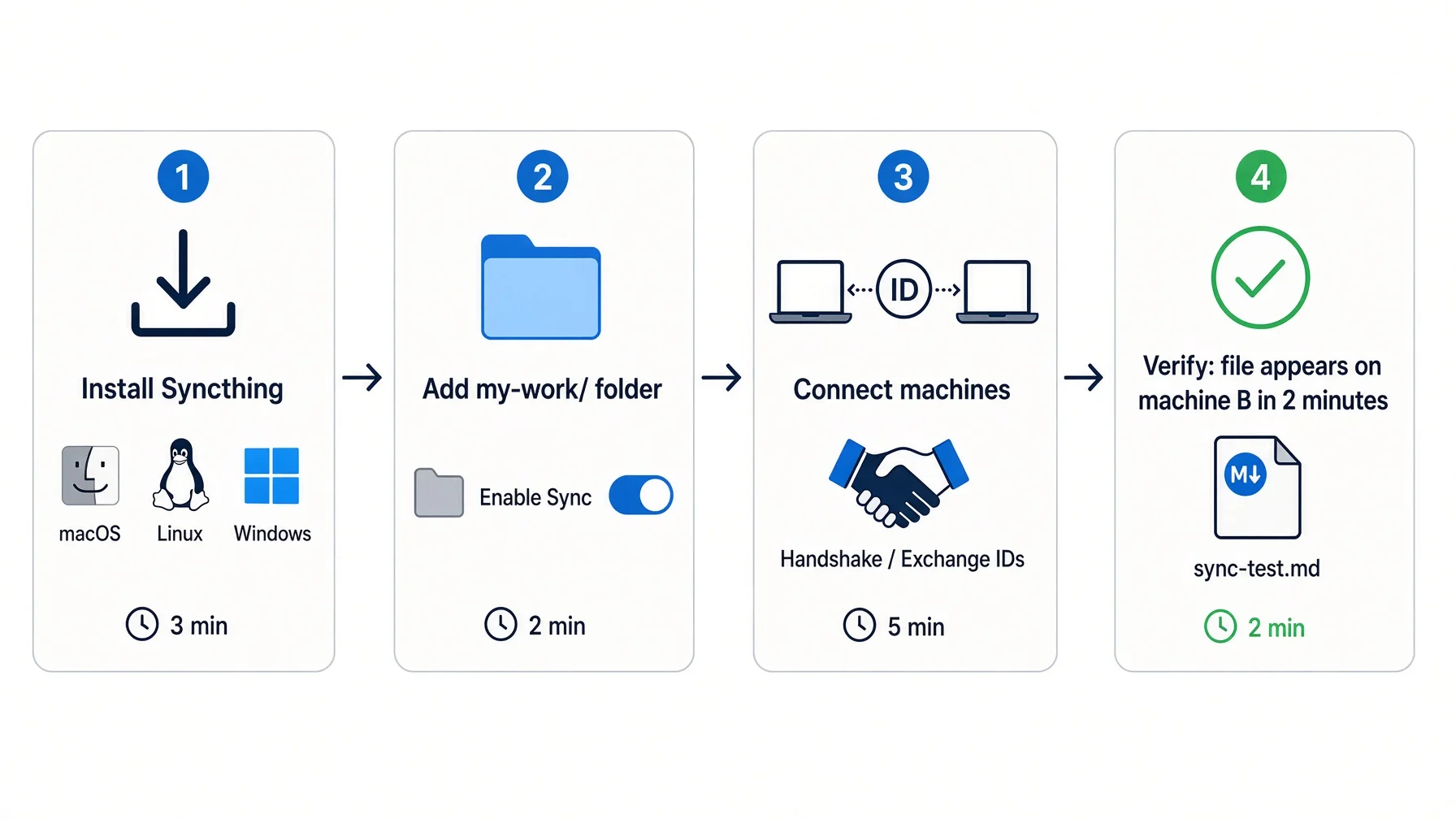
About thirty minutes for two machines. No account, no payment, no server. At the end of it, ChatGPT for business reads the same folder on whichever machine you sit down at.
Before you start. Syncing puts one folder on several machines, and every machine needs its own AI tool that reads local files — the folder arrives, the tool does not travel with it. Install the same tool everywhere, or mix and match; the folder is plain text and works with all of them. If you still need to choose, start here.
Linux and Windows packages are on the Syncthing downloads page. Then open the local admin page in a browser:
http://127.0.0.1:8384
Expected result: a web interface showing one device — this one — and a default folder. Set a username and password on that interface before you do anything else; it controls what leaves your machine.
The current stable release is v2.1.3, published 5 August 2026. Check the releases page rather than trusting that number in six months.
Step 2 — Repeat on the second machine, 3 minutes
Same two commands, same admin page. You now have two independent installs that have never heard of each other.
Step 3 — Introduce the machines to each other, 5 minutes
Each install has a long device identifier. On machine one, find it under Actions → Show ID. On machine two, choose Add Remote Device and paste it in.
Machine one will show a prompt asking whether to accept the connection. Accept it.
Expected result: both machines list the other as connected. If they do not, they are not on the same network, or a firewall is blocking port 22000. Fix that before continuing — nothing downstream works until this line is green.
Step 4 — Write the ignore file *before* you share the folder, 10 minutes
This is the step people do last and should do first. Once a folder is shared, whatever is in it starts moving, and files you did not want on the second machine have already been written to its disk. Deleting them afterwards does not undo the fact that they were written.
Create a file called .stignore inside the folder you are about to share. For a business knowledge base, the blacklist strategy is right — sync everything, name the exceptions:
// Build output and caches — large, regenerate themselves, never worth syncing
(?d)**/node_modules
(?d)**/node_modules/**
(?d)**/.venv
(?d)**/.venv/**
(?d)**/__pycache__
(?d)**/*.pyc

// Operating system clutter
(?d)**/.DS_Store
(?d)**/._*

// Anything that must never leave this machine
private/
Three notes on that file, each of which corresponds to a trap above:
The (?d) prefix lets Syncthing delete an ignored file when it is clearing a directory. Without it, a folder deleted on another machine cannot be removed here, and you get a permanent error. With it, adding a rule for a directory that is already synced will delete that directory everywhere. Add rules for build output before that output exists, not after.
Rules are evaluated top to bottom and the first match wins. If you ever add an exception with !, it must sit above the broader rule it is excepting.
The same .stignore must exist on every machine. It does not sync itself. Copy it across by hand and check it matches.
Expected result: a .stignore file present in the folder on both machines, with identical contents.
Step 5 — Share the folder, 3 minutes
On machine one, Add Folder, point it at your directory, give it a short folder ID, and under Sharing tick machine two. On machine two, accept the offered folder and choose where it should live locally — the path does not have to match, though life is simpler when it does.
Leave the folder type as Send & Receive on both. That is what you want for daily use.
Step 6 — Verify it actually synced, 3 minutes
Do not trust the status page alone. Count files on both sides:
# Run on each machine, compare the two numbers
find ~/my-work -type f | wc -l
Then make a change and time it:
# On machine one
echo "sync test $(date)" >> ~/my-work/README.md

# On machine two, about a minute later
tail -1 ~/my-work/README.md
Expected result: the same line appears on machine two within a minute or two. If the status page says "Up to Date" but the file counts differ by a large margin, you have an ignore file problem — that is the silent whitelist failure described earlier, and it looks exactly like success.
Step 7 — Point ChatGPT for business tools at the folder, 5 minutes
The folder now exists identically on both machines. Make each tool read it.
Tool
What to do
ChatGPT desktop app
Grant the app access to the folder when it asks; give it only the folder the task needs
ChatGPT web or mobile
Upload the key files into a Project — up to 40 files per project on the Business plan
Claude Code
Put a CLAUDE.md at the folder root; it is read automatically from the working directory upward
Codex
Put an AGENTS.md at the folder root
If you use both Claude Code and Codex, keep one real file and make the second name point at it rather than maintaining two. Two real instruction files agree for about a fortnight. The mechanics of doing that are covered in switching models without starting over.
Copy this prompt
One prompt, pasted into whichever AI tool you already use, run on machine A. It is the walkthrough above handed to a tool that can look at your actual folder — from empty directory to a verified sync that two AI tools can both read. It stops after every step, so a mistake in step two does not survive until step six.
I want one folder that stays identical on two computers I own, so that whichever
machine I sit down at, my AI tools read the same files. Walk me through it one
step at a time. Wait for me to confirm each step before you start the next one.

Machine A is the computer I use most. Machine B is my second computer.

Step 1 — the folder. On machine A, check whether a folder called my-work already
exists in my home directory. If it does, list what is in it. If it does not,
create it and tell me what belongs in it.

Step 2 — the ignore file. Inside my-work, create a file called .stignore. Use the
blacklist strategy: sync everything by default, exclude only what I name. Start
with these patterns and explain in one line each what they exclude:
  (?d)**/.DS_Store
  (?d)**/node_modules
  (?d)**/node_modules/**
  (?d)**/*.tmp
  **/.sync-conflict-*
Then look at what is actually in my-work and ask me about anything else that
looks like build output, a cache, or a credentials file. Put every exclusion
above any ! exception, because Syncthing stops at the first rule that matches.
Also tell me what ignoring .sync-conflict-* costs me: conflict copies then stay
on the machine that made them instead of appearing on all of them, so tell me
how I would go and find them later.

Step 3 — install. Give me the exact install command for my operating system, one
line each, for macOS with Homebrew, for Linux with the distribution package, and
for Windows with winget or the official installer.

Step 4 — configure. Talk me through these in order, and tell me what I should see
on screen after each one so I know whether it worked:
  a. Open the Syncthing web interface at http://127.0.0.1:8384 and set a
     username and password before touching anything else.
  b. Add my-work as a shared folder and give it a short folder ID.
  c. Install Syncthing on machine B the same way.
  d. Exchange device IDs — Actions then Show ID on one machine, Add Remote
     Device on the other.
  e. Accept the connection prompt on both sides, then share the folder.

Step 5 — prove the files move. Have me create a file called sync-test.md inside
my-work on machine A, with today's date written in it. Wait two minutes. Then
have me check machine B for that file. If it is missing, give me three things to
check in order, most likely cause first.

Step 6 — prove the AI tools read it. Have me open an AI tool on each machine,
point both at my-work, and ask both the same question about a file that lives in
that folder. Compare the two answers with me. If one machine answers from the
file and the other answers generically, tell me what that means and what to fix.

Do not skip ahead. One step, then stop and wait.
Two steps in there do more work than the rest. Step 2 asks the tool to look at what is actually in your folder rather than guess at it — a sync tool moves everything you tell it to move, including the credentials file you forgot was in there. And step 6 is the only step that tests what you came for. Files arriving on the second machine is plumbing; an AI tool on the second machine answering from those files is the result.
⚠️ Run step 6 on machine B specifically. Running it on machine A proves nothing — that is the one case where it works even when sync is broken.
Five ways this goes wrong
You share the folder before writing the ignore file. Then a credentials directory, or forty gigabytes of build output, is already on the second machine's disk. Removing it afterwards does not unwrite it. Ignore file first, always.
Your ignore files drift between machines. They do not sync themselves. Different rules on different machines produce conflict copies that look inexplicable, because each machine is enforcing a policy the other has never seen. Copy the file across by hand and compare it whenever you change it.
You add an ignore rule for something already synced. With the delete flag on, that removes the files everywhere within minutes. Check what a new rule matches before you save it.
You treat it as a backup. It is a replication system, and it replicates deletions faithfully and fast. The local version history does not cover files you change on your own machine. Keep a real backup.
You bulk-delete conflict copies to tidy up. Every one of them is the only surviving copy of a version that lost. Read them, or archive them somewhere dated, but do not sweep them away because the folder looks untidy.
Common questions
Is it worth getting ChatGPT for business?
For the admin controls and the training default, yes — OpenAI states business data is not used to train its models by default, and the plan adds shared workspaces, SSO and centralised billing. What it does not give you is a portable copy of your own context: OpenAI's help page states the settings export is "Not available for ChatGPT Business or Enterprise workspaces." ChatGPT for business is worth buying for the controls; keep the source of your instructions in a folder you own.
How much does ChatGPT cost for business use?
ChatGPT for business is priced per user. OpenAI's business pricing page lists ChatGPT Business at $20 per user per month billed annually, or $25 billed monthly, with a two-user minimum. Enterprise is quote-only. Checked 10 August 2026 — pricing pages change without notice, so verify before budgeting.
Can I use ChatGPT for my business if my files are on several computers?
Yes, and which version you use changes the answer. The desktop app can open a local folder once you grant access, so a synced folder works directly. Web and mobile, in OpenAI's own words, "cannot directly access files on your computer" — there you upload into a Project, which holds up to 40 files on the Business plan. Either way, one folder that is identical everywhere means it does not matter which machine you sit down at, or which flavour of ChatGPT for business you happen to be using.
Which AI is best for small business owners?
The one that reads your own files, which is a more durable test than any ranking. Claude Code reads CLAUDE.md from your working directory, Codex reads AGENTS.md, the ChatGPT desktop app opens a folder with permission. Build the folder first, then run the same real task on two tools — ChatGPT for business against Claude, say — with the folder attached, and keep whichever follows your instructions more faithfully. Re-run it in three months, because the answer changes.
Can I just use Dropbox or OneDrive instead?
For plain documents, yes. Two documented limits to know first: Microsoft states "OneDrive doesn't support syncing using symbolic links or junction points", and Dropbox syncs symbolic links as link files without syncing what they point to when the target sits outside your Dropbox folder — and not at all on Windows. Both enforce path length limits; Dropbox documents fewer than 260 characters. If your folder has links, deep paths or build output, expect friction.
What happens if I edit the same file on two machines at once?
Nothing is merged and nothing is silently chosen. The newer file keeps its name; the other becomes a conflict copy named filename.sync-conflict-date-time-modifiedBy.extension, which then syncs everywhere so you can see it. Review them by hand. They are the only record of the losing version.
Do I need a server or a NAS?
No. Devices connect to each other directly, so two switched-on laptops sync between themselves. An always-on machine is convenient rather than required — it lets a laptop that has been closed for a week catch up without waiting for another laptop to open. The setup here has no server in it.
Is Syncthing safe for confidential business files?
Its documentation states it "does not upload your data to the cloud but exchanges your data across your machines." Two defaults worth changing for sensitive work: global discovery and public relays are both on out of the box. Relays cannot read what they forward, but turning both off restricts your devices to your own network or a private tunnel. The larger risk is not the protocol — it is syncing a credentials folder onto a machine you do not control.
How long until a change appears on the other machines?
One to two minutes on the setup described here. Syncthing watches the filesystem and batches changes; the documented defaults are a 10-second delay, deletions held an extra minute, and an hourly full rescan as a backstop. A machine that has been offline catches up when it reconnects, which can take longer for a large backlog.
Before you call it done
[ ] Both machines show each other as connected in the admin interface
[ ] .stignore exists in the folder on both machines, with identical contents
[ ] The ignore file was written before the folder was shared
[ ] File counts on both machines are within a few of each other — checked with find, not by reading the status page
[ ] A test line written on machine one appeared on machine two within two minutes
[ ] No credentials, keys or tokens are inside the synced folder
[ ] Global discovery and relays are switched off if the folder holds business material
[ ] An instruction file (CLAUDE.md, AGENTS.md, or both) sits at the folder root
[ ] ChatGPT for business, or whichever tool you use, has been granted access to the folder on every machine
[ ] The final prompt step was run on machine B and the AI tool there answered from a file that lives in the folder
[ ] A real backup exists somewhere that is not one of these machines
What to do next
The whole method is four sentences. Put your business context in a folder. Keep that folder identical on every machine you own. Write the ignore file before you share it. Point each AI tool at the folder rather than typing your context into it.
None of that requires you to be technical, and none of it is clever. What it buys is that the question "is ChatGPT for business worth it" stops being expensive to answer wrong. You compare on price, on controls, on which one reads your rules properly this quarter — and when you change your mind, you change a setting rather than three months of accumulated context.
Smallest next action: pick the folder. Not the tool, not the sync software — the folder. Decide which directory on your main machine holds the material you would want an AI to have read, and give it a name. Everything in this article assumes that folder exists, and most people have never actually drawn the boundary.
Figures from the setup described here were measured on 10 August 2026 on the primary machine. Vendor pricing, plan features and documented sync behaviour were checked the same day and change frequently — verify against the linked sources before relying on any specific number.
Monitoring a competitor who publishes no feed is the case every RSS guide skips. Twenty-one platforms sorted by which of three jobs they do, and the finished setup is business process automation you own outright, with no seat licence to renew.
Blaming the content is the reflex when a post underperforms, and it is usually the wrong diagnosis. A second reader decides distribution before any human sees the post, and most of what it checks is mechanical enough to automate business processes around, on five platforms at once.
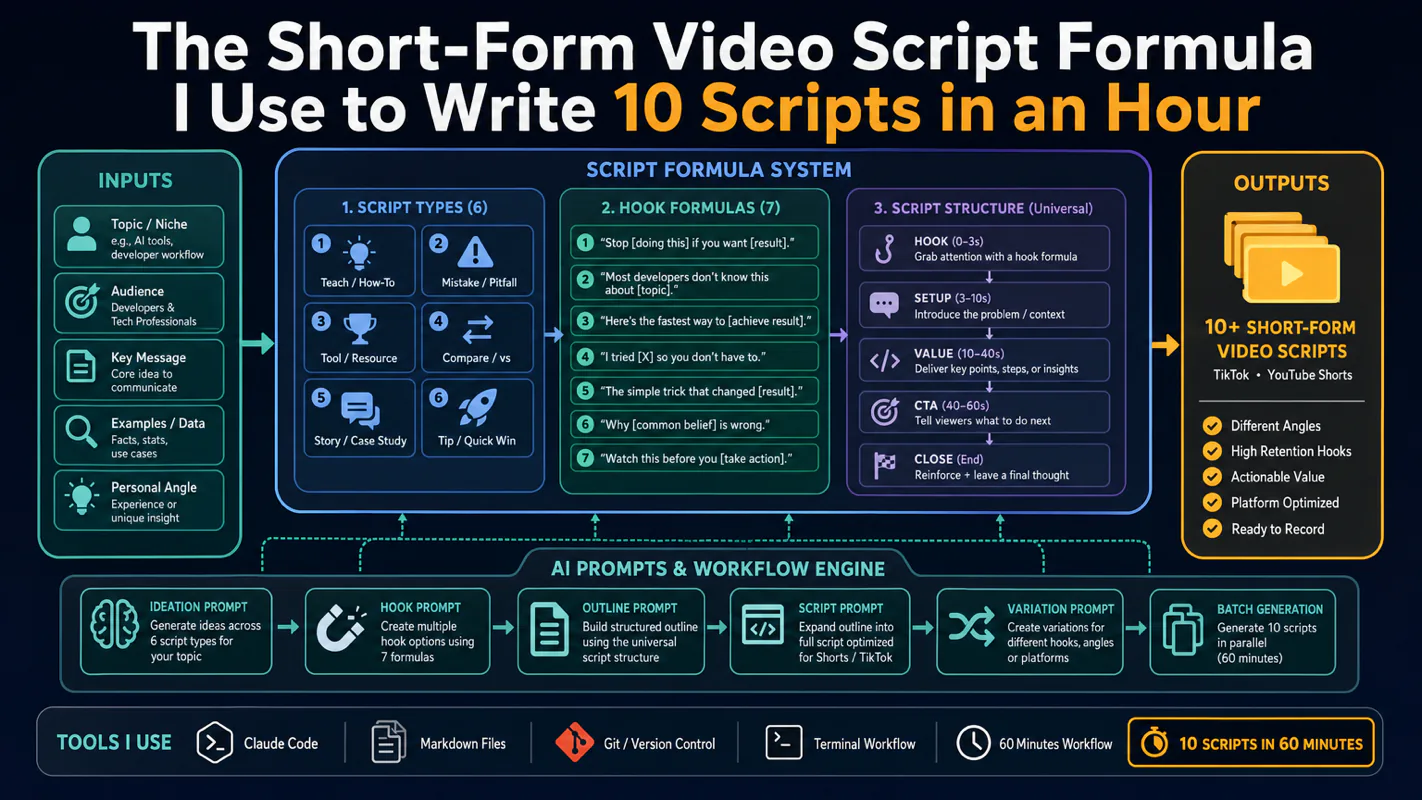
Thursday afternoon, fourteen product ideas, a Monday filming slot, no scripts. Six script shapes and seven hook formulas turn that hour into finished drafts — and the business rule stays: rewrite at least 30% before anything ships.
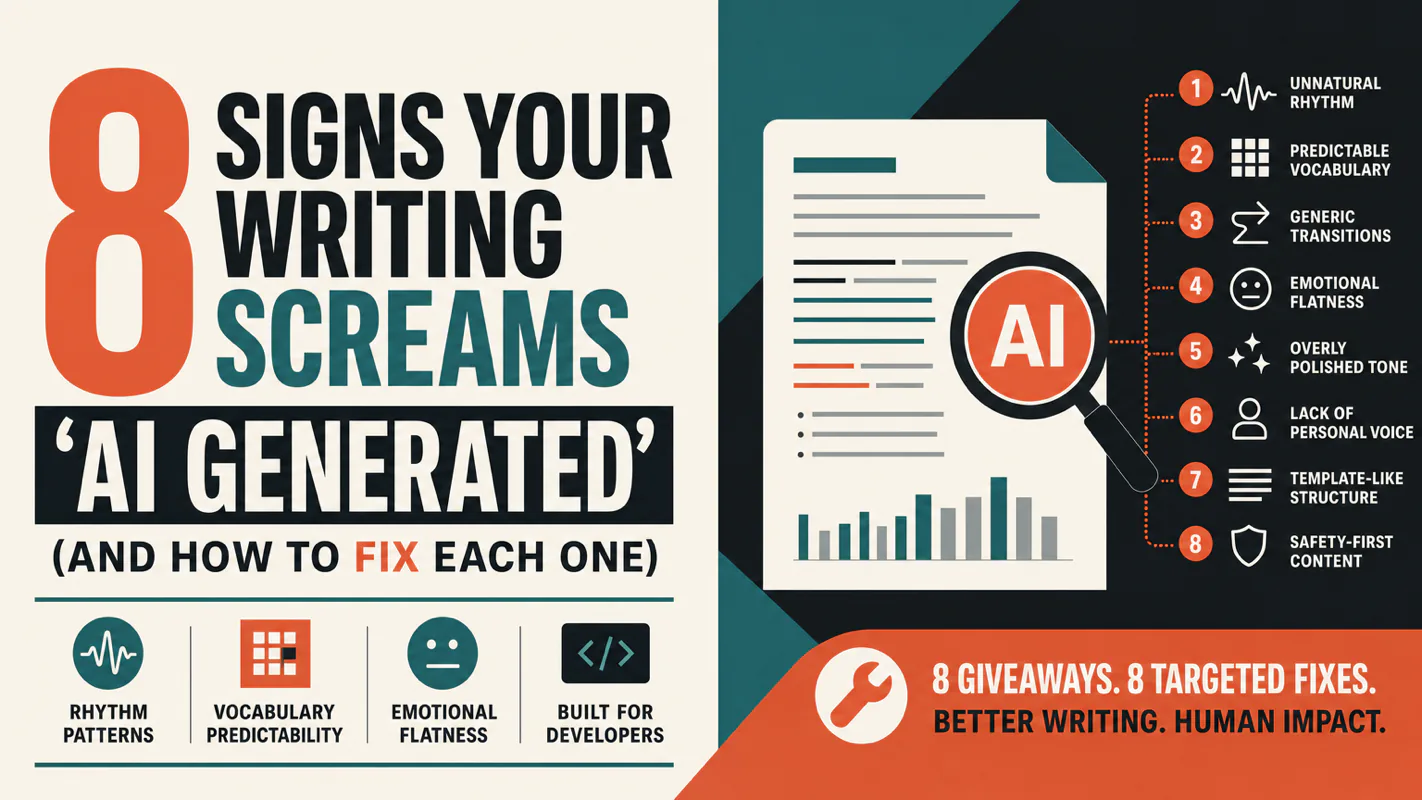
A detector score cannot survive a conversation with the freelancer it just cost three weeks of payment. What holds up is the specific thing on the page: rhythm, vocabulary, missing detail. Eight of them here, and the reason review stays human when you automate business processes.