Monitoring a competitor who publishes no feed is the case every RSS guide skips. Twenty-one platforms sorted by which of three jobs they do, and the finished setup is business process automation you own outright, with no seat licence to renew.
Blaming the content is the reflex when a post underperforms, and it is usually the wrong diagnosis. A second reader decides distribution before any human sees the post, and most of what it checks is mechanical enough to automate business processes around, on five platforms at once.
Gloves on, tape measure in hand — nobody types a query. Three voice surfaces for ai automation tools (terminal, Telegram, Discord), 10 TTS and 6 STT providers compared on cost and latency, plus a setup that costs nothing.
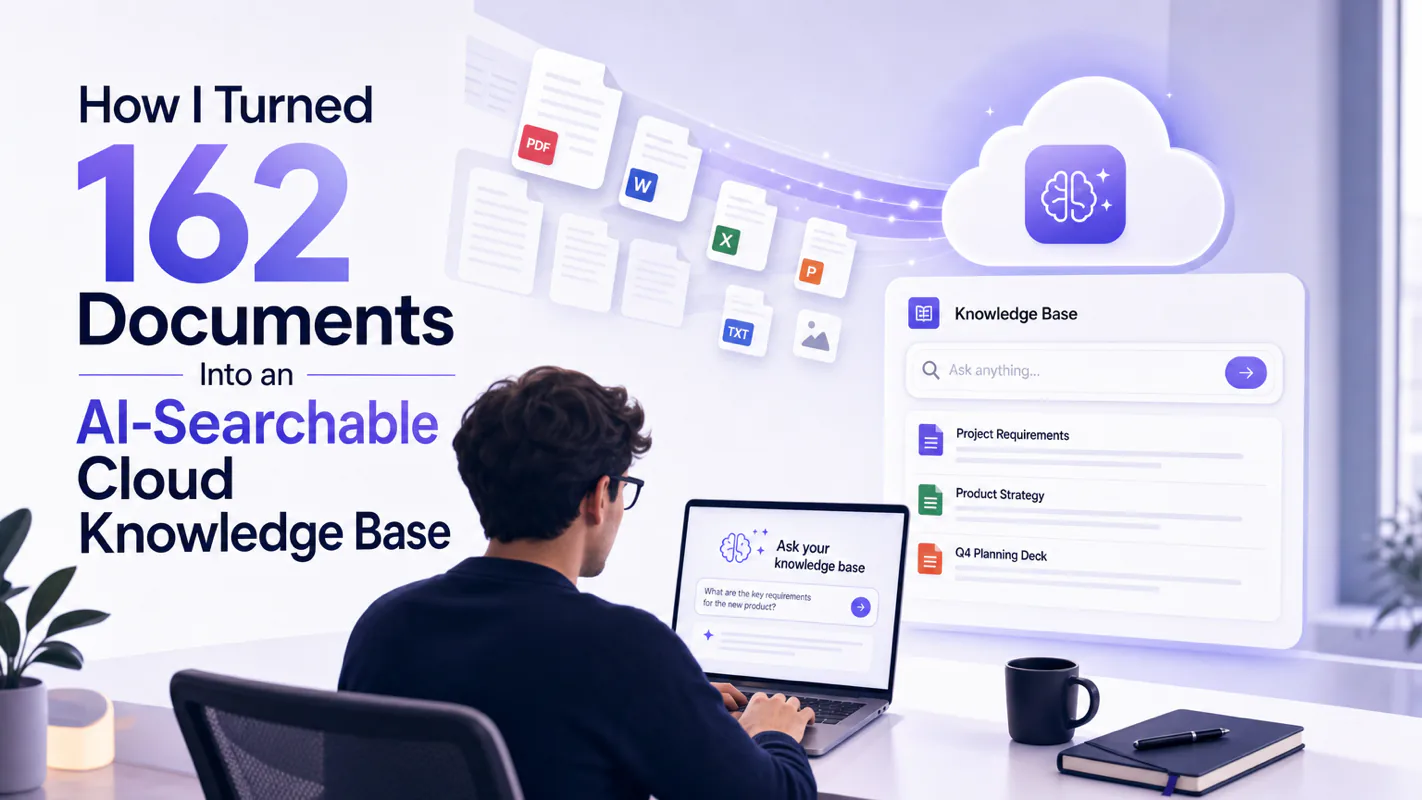
How I Turned 162 Documents Into an AI-Searchable Cloud Knowledge Base
162 Markdown documents, one cloud knowledge base, searchable by meaning from Claude Code, Cursor, or n8n — and by your teammates. One command deploys it. The payoff is that a written answer gets made once and reused, instead of re-litigated three times a quarter.
I spent two years building a personal knowledge base. 162 Markdown documents covering deployment guides, architecture decisions, project retrospectives, and technical notes I never wanted to lose.
Every AI tool I used could search those files — technically. But three problems kept getting in the way.
Keyword search is fragile. You have to remember the exact words you used three months ago. Was it "deployment guide" or "setup instructions" or "configuration steps"? Wrong keyword, zero results.
Every AI tool searches its own silo. I use Claude Code for coding, Cursor for editing, and n8n for automation. Each tool can only see what I manually feed it. Same knowledge base, three separate access points, three times the setup effort.
Nobody else can use it. Local files mean local access. When a colleague needed to search my documentation, the best I could do was copy-paste relevant sections into a chat window.
I wanted something different: ask a vague question and get a meaningful answer. Configure once and share across every AI tool. Put it in the cloud so my team can search it too.
So I built it. A single command turns a local Markdown folder into a cloud knowledge base that any MCP-compatible AI tool can search — by meaning, not just by keyword. Multi-tool, multi-user, zero vendor lock-in.
This article walks through the entire setup: what the system does, how the architecture works, real use cases across industries, and how to open it up to your team.
TL;DR: Turn your local Markdown documents into a cloud-hosted knowledge base searchable by any AI tool via MCP (Model Context Protocol). One command deploys everything. Semantic search plus keyword search. Built-in multi-user access with rate limiting. No platform lock-in.
How do we code a customer refund that straddles two periods? A bookkeeping team gets that question three times a quarter and answers it three slightly different ways, because last year's ruling sits in someone's sent folder, someone else's notebook, and a chat thread nobody can find. The cost is not the ten minutes of searching. It is the second and third answers being wrong. The system in this article exists for that failure: one store of written answers every tool and every teammate queries the same way, so a ruling gets made once and reused. Shared, searchable knowledge is the unglamorous floor under most business process automation.
What Is a Cloud Knowledge Base for AI Agents?
Before diving into the build, here is the concept in one sentence: your documents + MCP protocol = an AI memory layer that any tool can query.
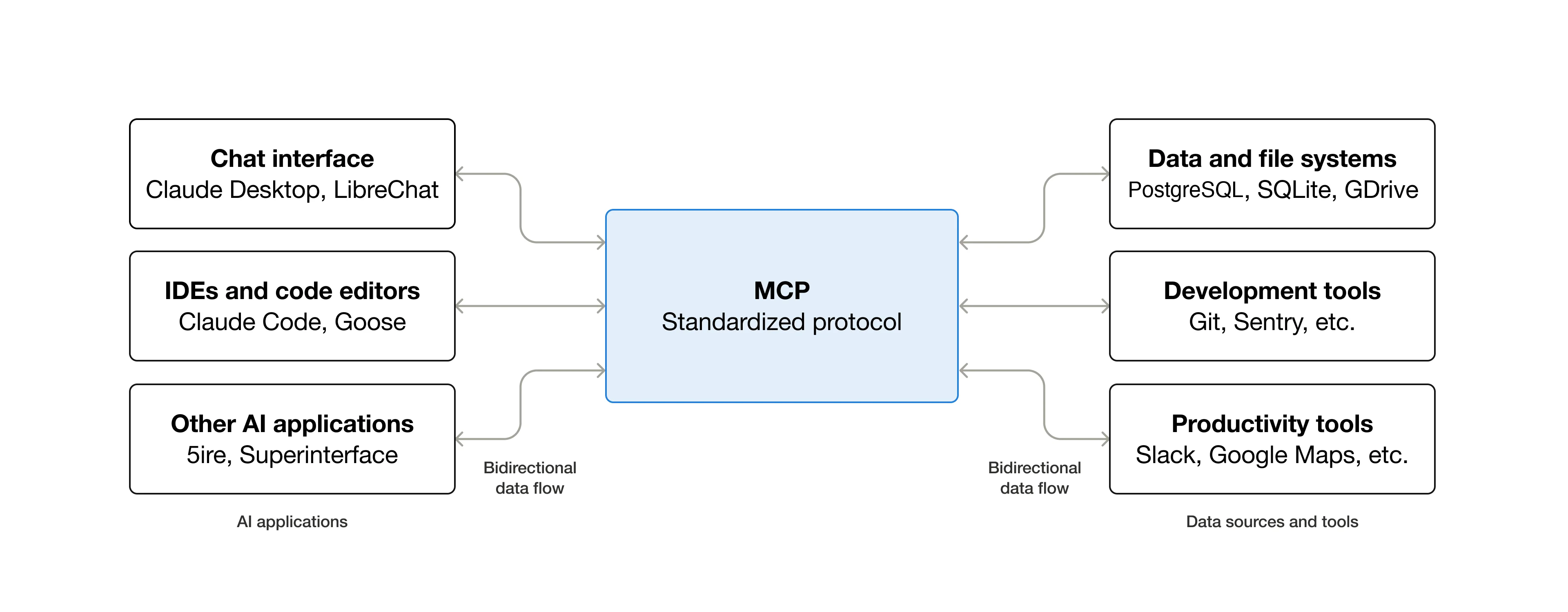
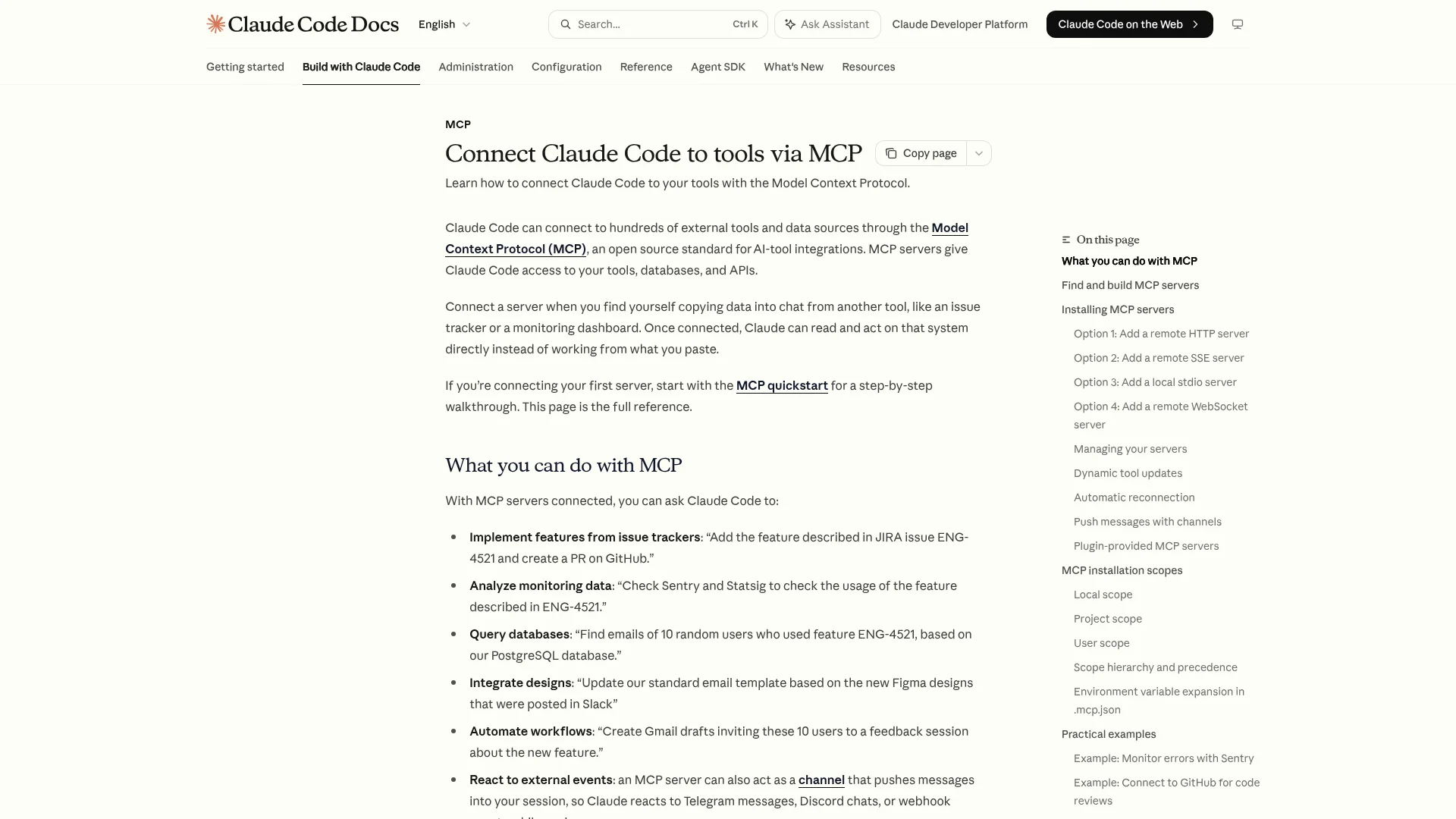
MCP (Model Context Protocol) is an open standard that defines how AI tools connect to external data sources. If you have used a Claude Code MCP setup before, you already understand the pattern — configure a server address and credentials, and your AI tool gains access to new capabilities.
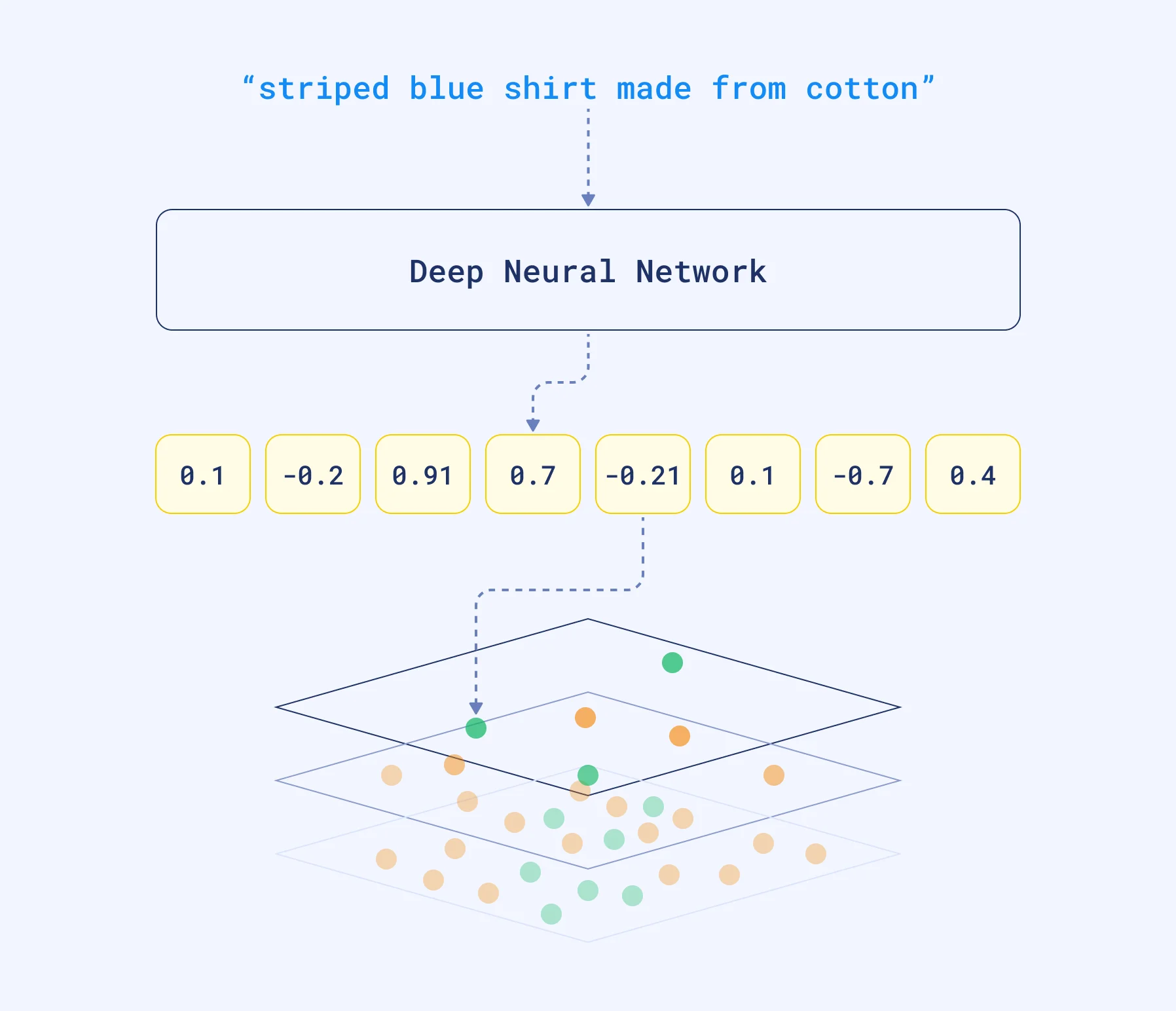
The cloud knowledge base I built works on this exact principle. You point it at a folder of Markdown files, run one command, and it handles everything automatically: scanning documents, splitting long articles into searchable chunks, generating semantic embeddings so AI understands what each chunk means, and uploading everything to a cloud-hosted service.
From that moment on, any MCP-compatible AI tool — Claude Code, Cursor, Cherry Studio, n8n — can search your entire knowledge base. No copy-pasting. No manual file sharing. No re-teaching the AI who you are every session.
What This Actually Feels Like in Practice
Before the cloud knowledge base:
Open a file manager. Search for a keyword. Hope you remember the right one. Find the document. Copy the relevant section. Paste it into the AI chat window. Get an answer. Close the window. Repeat the whole process next time. Just preparing the context takes ten minutes.
After:
Ask the AI: "How did I deploy Plex last time?" The AI searches your 162 documents on its own, finds the relevant paragraphs, and gives a precise answer with source citations. Zero manual steps. Zero waiting.
I was wrong about how long this would take to build. I expected weeks of infrastructure work — setting up vector databases, configuring embedding pipelines, writing API layers. The actual deployment took one command and about forty seconds. The hardest part was deciding which folder to point it at first.
Here is what "one command" looks like in practice:
# Point at your docs folder, deploy to cloud
knowledge-mcp sync ./my-docs --cloud --embed
That single line scans every Markdown file, chunks long documents into searchable paragraphs, generates vector embeddings using OpenAI's text-embedding-3-small model, and uploads everything to a hosted endpoint. The output gives you an MCP server URL and an admin API key. Paste both into your AI tool's configuration, and you are live.
How Does the Architecture Work?
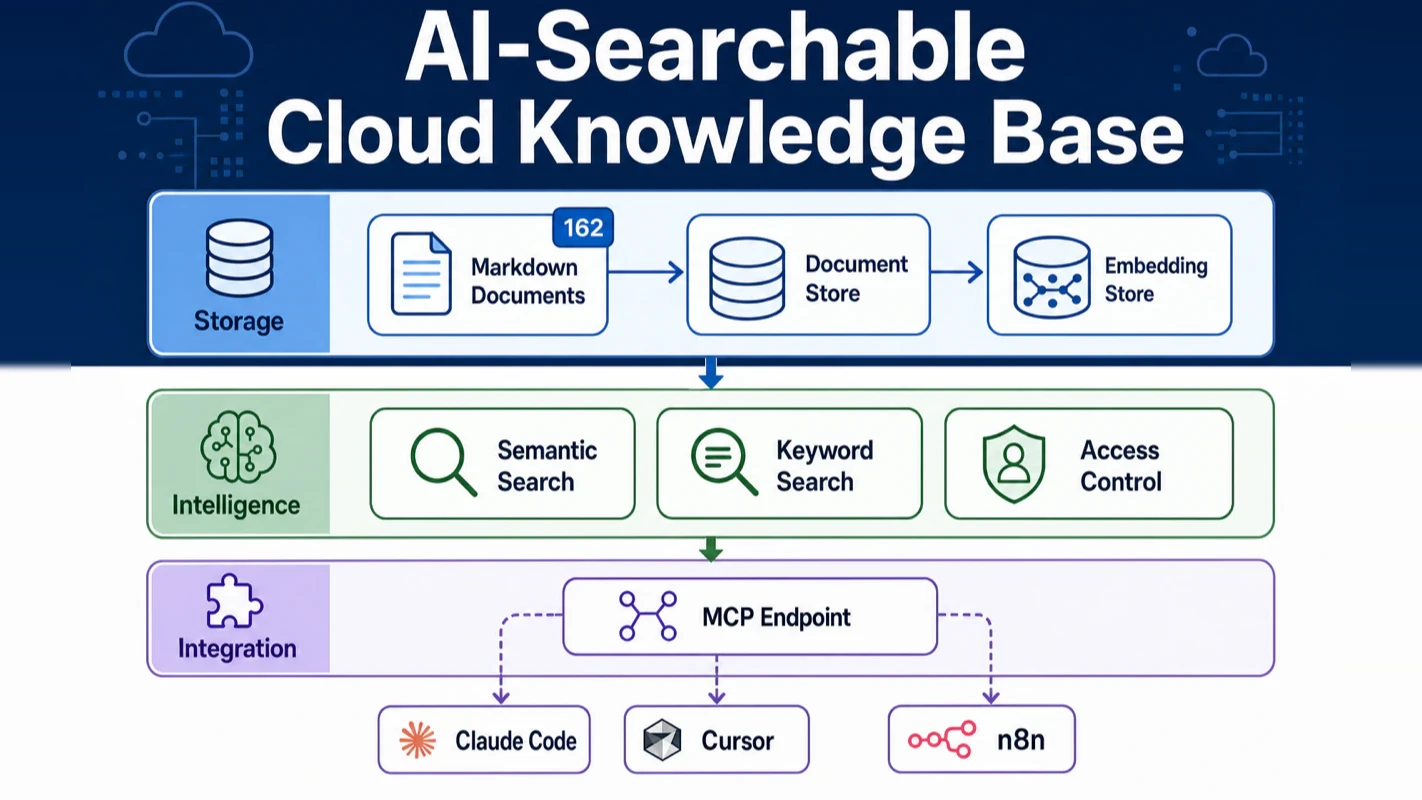
The system breaks down into three clean layers. If you have ever structured a web application, this will feel familiar.
Layer 1: Storage — Where Your Knowledge Lives
When your Markdown documents sync to the cloud, the content gets stored in two forms.
The first is a document store — your original text, preserved exactly as you wrote it. You can retrieve any full article at any time.
The second is an embedding store — each paragraph gets converted into a vector of numbers that represents its semantic meaning. This is what makes the system searchable by meaning rather than by exact keyword match. When you search for "deployment process," the system finds paragraphs about "setup instructions" and "installation workflow" too, because they mean the same thing.
Think of the document store as a library's bookshelves — every book is there. The embedding store is the librarian who has read every book. Describe what you are looking for in your own words, and the librarian knows exactly which shelf to check.
Layer 2: Intelligence — Search and Access Control
This layer handles two things.
Search combines two approaches: semantic search (find documents by meaning) and keyword search (find documents by exact term). They work together. Vague questions use semantic search. Precise lookups like a product name or error code use keyword search. Every query runs both and merges the results.
Access control manages who can search your knowledge base and how much they can use it. You define member tiers with daily search limits, and the system enforces rate limiting automatically — per minute, per day, per month. One user hitting their limit does not affect anyone else. More on this in the sharing section below.
Layer 3: Integration — How Your AI Tools Connect
The system exposes a standard MCP endpoint. Any AI tool that supports MCP can connect by providing a server URL and an API key.
Currently supported tools include Claude Code, Cursor, Cherry Studio, n8n, and any other application implementing the MCP specification. The list keeps growing — OpenAI, Anthropic, and Google all support MCP now, and the ecosystem has thousands of active servers.
The critical point: one knowledge base, all tools share it. You are not maintaining separate copies for each tool. Every tool queries the same cloud service. Update a document once, and every tool sees the change.
Layer 3 — Integration    Your AI tools (Claude Code / Cursor / Cherry Studio / n8n)
                                | Standard MCP interface
Layer 2 — Intelligence    Semantic search + Keyword search + Access control
                                |
Layer 1 — Storage         Document store (full text) + Embedding store (meaning vectors)
                                ^
                          Your Markdown files — one command to sync
The entire stack runs in the cloud. Fast access from anywhere in the world.
What Can You Actually Use a Cloud Knowledge Base For?
This pattern is not tool-specific. Swap out the documents, swap out the AI platform, and the system works the same way.
Here are four scenarios I have seen work. Focus on two things in each: what knowledge goes in, and which AI tool connects.
Legal: Case Law Library + Claude Code
A law firm organizes case rulings, legal statutes, and internal case analyses as Markdown documents and syncs them to the cloud knowledge base. Lawyers open Claude Code and ask questions like "What is the standard compensation for non-compete violations in employment arbitration?" The AI searches the case library and responds with specific rulings and statute references.
Setup: Configure the MCP server address and API key in Claude Code — one line of configuration. The lawyers never touch the technical side; the IT department sets it up once.
Finance and Tax: Methodology Library + n8n Automation
A tax consulting firm syncs their planning methodologies, policy interpretations, and industry case studies. They connect through n8n to build an automated pipeline — when a client submits a question, n8n calls the knowledge base, the AI generates a draft response citing specific policies, and a human consultant reviews before sending.
Setup: Add the MCP server address in n8n's AI node configuration. Clients ask "How do I handle VAT for cross-border e-commerce?" and the workflow pulls answers from the methodology library automatically. The consultant's job shifts from writing answers to reviewing them.
A research team syncs industry reports, company analyses, and macroeconomic commentary. Analysts connect through their preferred AI tool — some use Claude Code for writing, others use Cursor for data work, others use Cherry Studio for multi-model comparison. All query the same report library.
Setup: Each AI tool gets the same MCP server address. Basic accounts get 100 searches per day for routine work. Pro accounts get 500 for heavy research days.
Engineering Teams: Internal Docs + Full Platform Sharing
A development team exports their internal documentation, architecture decision records, and operations runbooks as Markdown. Every team member — whether they use Claude Code for coding, Cursor for projects, or n8n for CI/CD automation — shares the same knowledge base.
Setup: Configure the MCP address once in each tool using the same API key. When a new hire asks "What is our deployment process?", the AI answers from the team's actual documentation, regardless of which tool they are using.
Practical tip: Different teams can deploy separate knowledge base instances — one for legal, one for finance, one for engineering. Different API keys keep them isolated. Same infrastructure, different content, zero interference.
How Do You Share a Cloud Knowledge Base With Your Team?
A knowledge base that only you can use is just a notebook. A knowledge base others can search is a service.
The system includes a built-in membership model. One command creates a new member account and returns an API key. You send the key to your colleague, they configure it in their AI tool, and they can start searching immediately.
Access Tiers
Two tiers cover most scenarios:
Basic — 100 searches per day. Enough for regular team members who check documentation a few times during their workday.
Pro — 500 searches per day. Built for power users — researchers doing deep dives, developers debugging across multiple codebases, consultants preparing client deliverables. Pro users also get intelligent recommendations: tell the AI what you are working on, and it proactively suggests relevant documents.
Assign tiers based on usage patterns. Core team members get Pro. External collaborators get Basic. For client-facing scenarios, key accounts get Pro while general inquiries stay on Basic.
Usage Management
The system handles rate limiting automatically. Per-minute, per-day, and per-month caps prevent any single user from overwhelming the service. When someone hits their limit, they get a clear message — and nobody else is affected.
You do not need to monitor usage manually. The system enforces limits, logs access patterns, and lets you adjust tiers as needs change.
How to Set It Up
Creating a member takes one command. It returns an API key that is shown exactly once — save it before closing the terminal. Send the key to the new member along with the MCP server address. They add both to their AI tool's configuration, and they are connected.
This is not a nice-to-have feature. It is the difference between personal notes and a knowledge service. I was wrong about how complicated multi-user access would be. The membership system adds maybe five minutes of configuration and transforms the entire value proposition.
Can Every Knowledge Base Do This?
MCP is not experimental technology. OpenAI, Anthropic, and Google all support it. Thousands of MCP servers are running in production. It has become the industry standard for connecting AI tools to external data.
Your knowledge base — whether it lives in Obsidian, a GitHub repository, or a folder of project documents — can become a searchable cloud service. The pattern is always the same:
Organize your documents as Markdown files
Run one command to deploy to the cloud
Configure MCP access in your AI tools
Create member accounts for your team
Law firms use it for case libraries. Tax consultants use it for methodology services. Research teams use it for report databases. Engineering teams use it as their company brain. Connect through Claude Code, Cursor, Cherry Studio, n8n — whichever tool fits your workflow.
The same architecture, different industries, different platforms, different business models. Your documents already contain the knowledge. This system makes it accessible to every AI tool you use and every person you choose to share it with.
Ready-to-Use Prompt: Diagnose and Fix a Knowledge Base Across the 3 Friction Points
What this does: Scores a document set against the three KB friction points (fragile keyword search, tool silos, no sharing), applies semantic search to fix keywords, stands up an MCP-fronted cloud KB for cross-tool and team access, and runs a readiness check — so one vague query returns the right doc from any tool, for anyone. Based on: How I Turned 162 Documents Into an AI-Searchable Cloud Knowledge Base — https://aiworkflowpro.com/knowledge-base-cloud-tutorial/ Time to run: ~5 minutes
Copy this prompt into Claude Code, ChatGPT, or any AI assistant:
ROLE: You are a Cloud Knowledge Base Friction Diagnostician. Your job: find which of the three KB problems a doc set is hitting, and apply the matching cloud-KB fix — semantic search for fragile keywords, MCP for tool silos, cloud hosting for sharing.

CONTEXT — 3-PROBLEM CLOUD KB METHOD:
A pile of local docs fails three ways: (1) keyword search is fragile — you must remember the exact words from months ago, and a wrong keyword returns zero; (2) every AI tool searches its own silo — Claude Code, Cursor, and n8n each see only what you manually feed, so one KB means three access points and three times the setup; (3) nobody else can use it — local files mean local access, and helping a colleague means copy-pasting into chat. The fix is one cloud KB, MCP-fronted, that all three share: semantic/vector search solves fragile keywords (ask vague, get meaningful), an MCP front solves tool silos (every MCP-aware tool queries the same KB), and cloud hosting plus multi-user sharing solves local-only access. Diagnose which problems you hit, then apply the matching fix.

INPUTS (fill in before running):
- DOCS: [The document set — count, format, topics]
- TOOLS: [Which AI tools need to search it — Claude Code, Cursor, n8n, other]
- TEAM: [solo / colleagues need access]
- CURRENT_SEARCH: [How search works today — keyword / manual / none]

METHOD — 4 STEPS:

Step 1 — Diagnose the 3 Problems (0–2 each)
Score each against CURRENT_SEARCH and TEAM: (1) fragile keyword search — wrong keywords return zero; (2) tool silos — your TOOLS each need separate feeding; (3) no sharing — colleagues cannot search the docs. A 2 means that friction is active.

Step 2 — Fix Fragile Search With Semantic Retrieval
Replace keyword matching with semantic/vector search over DOCS so a vague question returns the meaningful doc. Define chunking and embedding, and the test: a paraphrased query must surface the right doc where the old keyword search returned nothing.

Step 3 — Fix Silos and Sharing With an MCP-Fronted Cloud KB
Host the KB in the cloud and front it with MCP so every tool in TOOLS queries one source (not three), and TEAM colleagues get their own access — no copy-paste. One install line per tool.

Step 4 — Use Cases and Readiness Check
Name three concrete uses (ask-vague-get-meaningful, cross-tool, team search) and run the readiness check: return the right doc for a paraphrase, answer from every tool, and serve a colleague — if any is no, that fix isn't done.

RULES:
- Never keep keyword-only search if paraphrased queries fail — semantic retrieval is the fix for fragile keywords.
- Never feed the same KB into each tool separately — one MCP front serves all tools.
- Never call the KB shared if a colleague still has to copy-paste — real multi-user access is the bar.

OUTPUT FORMAT:
Output a markdown report with:
1. 3-Problem Diagnosis — markdown table, columns: Problem | Score (0–2) | Active?
2. Semantic Search Fix — chunking + embedding + the paraphrase test
3. MCP Cloud KB Plan — hosting + MCP front + per-tool install + team access
4. Readiness Check — the three uses + pass/fail per fix
Save as @templates/knowledge-base-cloud-tutorial.md and run when local docs are hard to search, siloed across tools, or unshareable.
Frequently Asked Questions
What is MCP and how does it connect AI tools to a knowledge base?
MCP (Model Context Protocol) is an open standard that lets AI tools like Claude Code, Cursor, and n8n connect to external data sources through a unified interface. Think of it as a USB port for AI — once your knowledge base exposes an MCP endpoint, any compatible tool can search it without custom integration work. The protocol handles authentication, query formatting, and response delivery so each tool does not need its own connector.
Can multiple AI tools share the same cloud knowledge base?
Yes, and this is the primary advantage over local setups. A cloud knowledge base built on MCP exposes a single endpoint. You configure the server URL and API key in each tool — Claude Code for coding, Cursor for editing, n8n for automation — and they all search the same knowledge. No duplication, no synchronization issues, no maintaining separate copies. Update a document once, and every connected tool sees the change immediately.
How do I share my cloud knowledge base with team members?
Create member accounts using a single command. The system returns an API key for each member. Send them the server address and their personal key, and they configure it in their preferred AI tool. You control access through tiers — Basic for regular use (100 searches/day) or Pro for heavy research (500 searches/day). Rate limiting is automatic, so one person's heavy usage never degrades service for others.
What types of documents work with this setup?
The system processes Markdown files natively, which covers Obsidian notes, GitHub documentation, Jekyll/Hugo content, and most developer documentation. For PDFs, Word documents, and Notion exports, convert them to Markdown first — tools like Pandoc handle this in seconds. The key requirement is plain text content that can be chunked and embedded for semantic search. Binary files like images and videos are not searchable, but the text surrounding them is.
How is this different from RAG platforms like Pinecone or LangChain?
RAG (Retrieval-Augmented Generation) platforms give you components — a vector database, an embedding pipeline, a retrieval API — that you assemble yourself. A cloud knowledge base built on MCP gives you the complete stack: document ingestion, chunking, embedding, cloud hosting, multi-tool access, and multi-user management in one system. The tradeoff is flexibility versus speed. If you need custom retrieval logic or want to fine-tune embeddings, use a RAG platform. If you want your documents searchable by every AI tool in under a minute, use this approach.
Monitoring a competitor who publishes no feed is the case every RSS guide skips. Twenty-one platforms sorted by which of three jobs they do, and the finished setup is business process automation you own outright, with no seat licence to renew.
Blaming the content is the reflex when a post underperforms, and it is usually the wrong diagnosis. A second reader decides distribution before any human sees the post, and most of what it checks is mechanical enough to automate business processes around, on five platforms at once.
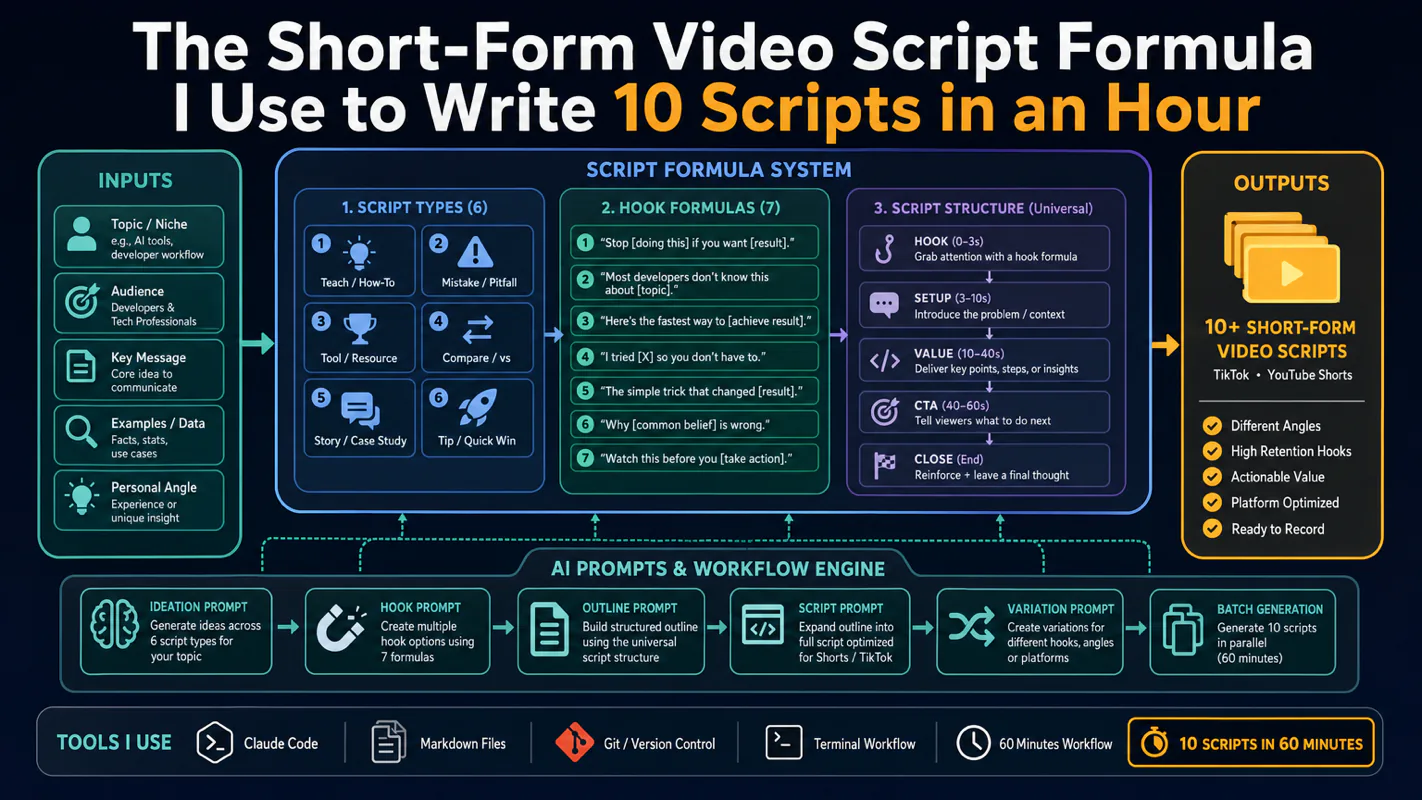
Thursday afternoon, fourteen product ideas, a Monday filming slot, no scripts. Six script shapes and seven hook formulas turn that hour into finished drafts — and the business rule stays: rewrite at least 30% before anything ships.
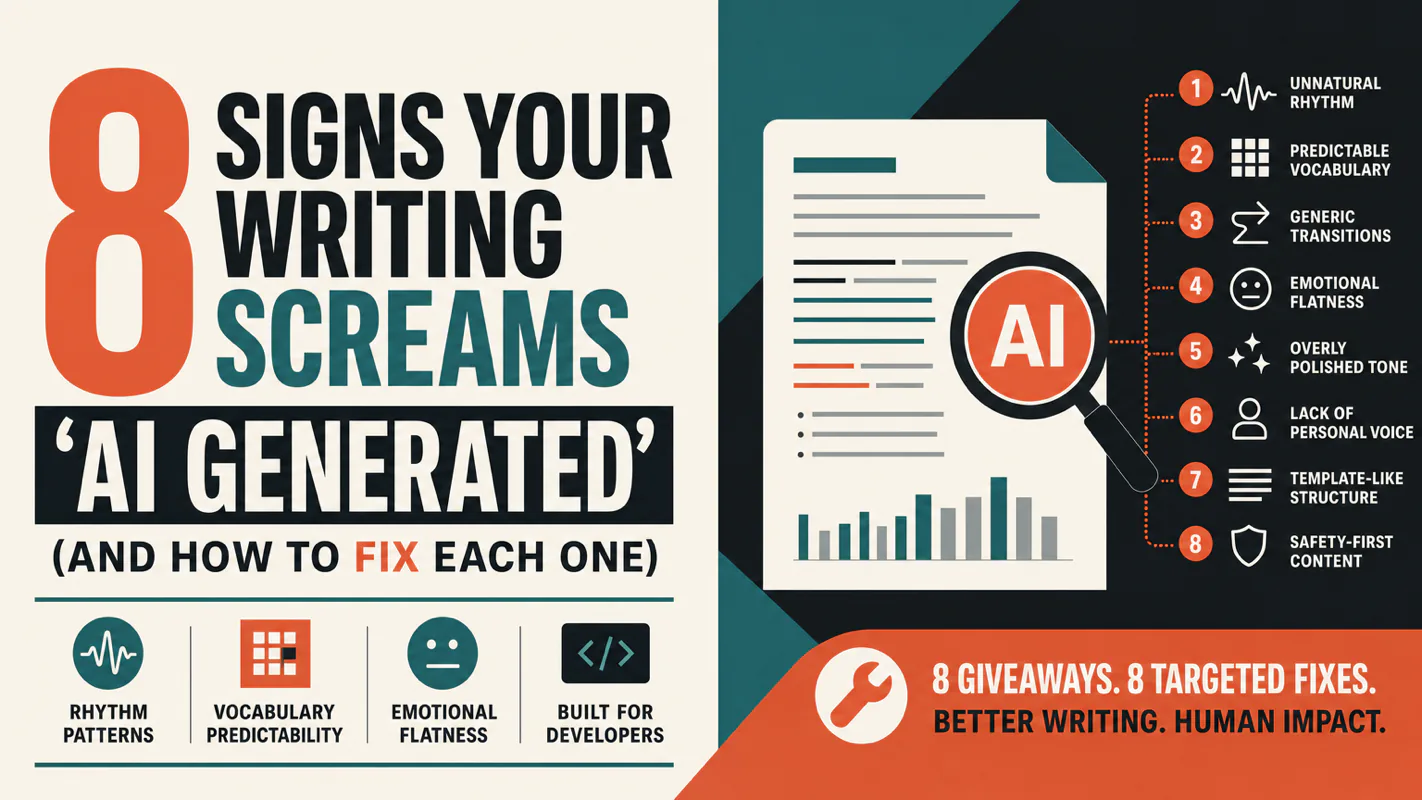
A detector score cannot survive a conversation with the freelancer it just cost three weeks of payment. What holds up is the specific thing on the page: rhythm, vocabulary, missing detail. Eight of them here, and the reason review stays human when you automate business processes.