A 30-minute video is too long for one conversation. This guide walks the 8-step Skill that locks the narration and one look, then gives each 3-minute segment to a fresh sub-agent, five at a time, and polishes the cut in an empty-context session.
The folder structure behind my AI agent team, the Herdr setup where Grok Build, Claude Code and Kimi Code work side by side, and the two live tasks from the video: an article published by voice and a three-model front-end test.
Eight folders of plain Markdown, a CLAUDE.md index in each, and seven prompts that make your agent interview you. Every prompt, template and command from the video, in order.
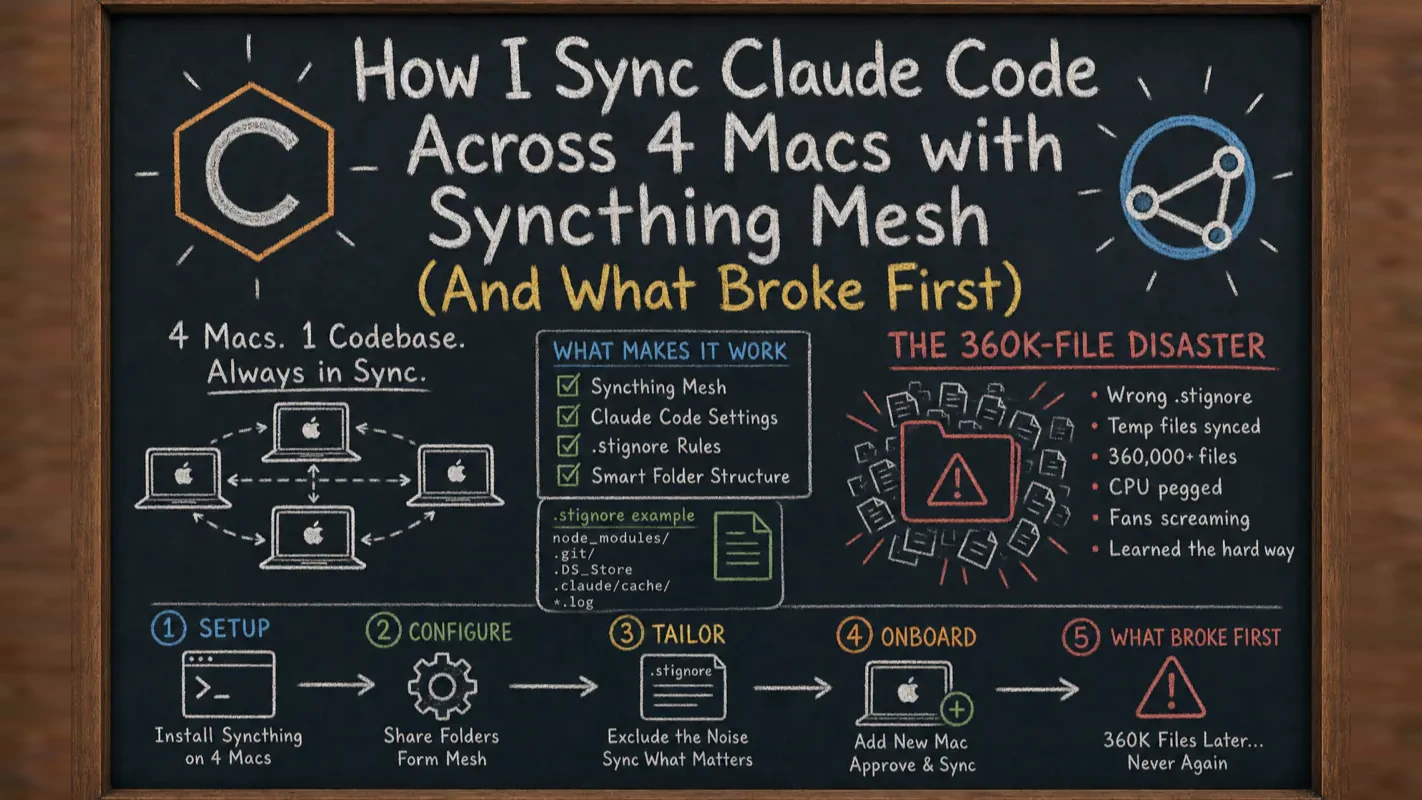
How I Sync Claude Code Across 4 Macs with Syncthing Mesh (And What Broke First)
Built a skill Wednesday night, opened a different Mac Thursday morning, and it was gone. The full-mesh Syncthing setup that keeps the config behind my workflow automation software identical on 4 machines - .stignore rules for 360,000 files, an onboarding SOP, and the mistakes I made.
I built a new Claude Code skill on my Mac mini Wednesday night. Thursday morning I grabbed my MacBook, opened Claude Code, and the skill was gone. My CLAUDE.md was a week old. Half my knowledge base was missing.
That was the day I stopped tolerating my sync setup and rebuilt it from scratch.
TL;DR: I run Syncthing in a full mesh across 4 Macs. Every config change propagates in under 5 seconds. Any machine can go offline without breaking anything. The whole setup took 2 hours and has run untouched for months. Below is the complete architecture, the .stignore rules that prevent disaster, and every mistake I made along the way.
Ask a five-person practice to list what it owns and you get laptops, licences, a domain name. What never makes the list is the folder of accumulated instructions: the quoting rules, the file-naming conventions, the phrasing that took eight months of corrections to get right. It sits on one machine, in a hidden directory, and it is the part that would actually hurt to lose. Teams adopting workflow automation software discover this the first morning somebody opens a different laptop and the work starts from zero again. This article is about keeping that folder identical on every machine you sit at.
After reading this guide, you will have:
A tested 4-machine sync architecture — Syncthing mesh topology where any device going offline does not affect the rest
A .stignore strategy that keeps 360,000 runtime files from destroying your setup
A step-by-step new device onboarding process that avoids the conflict storms most guides ignore
Why Your ~/.claude Directory Is Worth Protecting
The deeper you go with Claude Code, the more valuable ~/.claude becomes.
Mine contains 50+ custom skills, CLI tool scripts for 11 platforms, custom hooks, agent configurations, a global CLAUDE.md with months of accumulated context, and project-level memory files that encode how I work with every codebase. That directory represents six months of compounding knowledge.
Naval Ravikant calls this kind of thing "specific knowledge" — the skills you cannot be trained for, only built through doing. Your ~/.claude configuration is specific knowledge in file form. It encodes how you work with AI. Lose it, and you cannot just "set it up again." The context is gone.
Now here is the problem. I have four Macs:
Machine
Role
Availability
home-server
Authority source, always-on
24/7
dev-mini
Primary development (Mac mini)
Daily
air-macbook
Portable, travel laptop
On-the-go
pro-macbook
Long-running tasks, testing
Occasional
Four machines. One configuration. Something had to give.
Why I Ditched My NAS (And You Might Want to, Too)
I did not start with Syncthing. I spent six months on Synology Drive — my NAS was already running, and the client seemed like a natural fit for bidirectional sync.
I was wrong about Synology Drive being "good enough."
The NAS is a bottleneck. My Synology runs mechanical drives. A knowledge base full of thousands of small files — scripts, configs, markdown documents — turns random I/O into a crawl. Every full sync felt like waiting for an elevator that stops at every floor.
The NAS is a single point of failure. NAS reboots, disk hibernation, a network hiccup — sync stops completely. Two Macs sitting on the same desk, both online, unable to sync because the middleman is asleep.
Hidden directories are not supported.~/.claude starts with a dot. Synology Drive on macOS will not sync hidden folders. I ended up writing wrapper scripts to copy the hidden directory into a visible location before syncing, then copy it back. Maintenance cost kept climbing.
Working directory pollution. Synology Drive drops its own hidden metadata inside synced folders. Claude Code might index those files. I was debugging phantom references to .SynologyDrive artifacts inside my sessions.
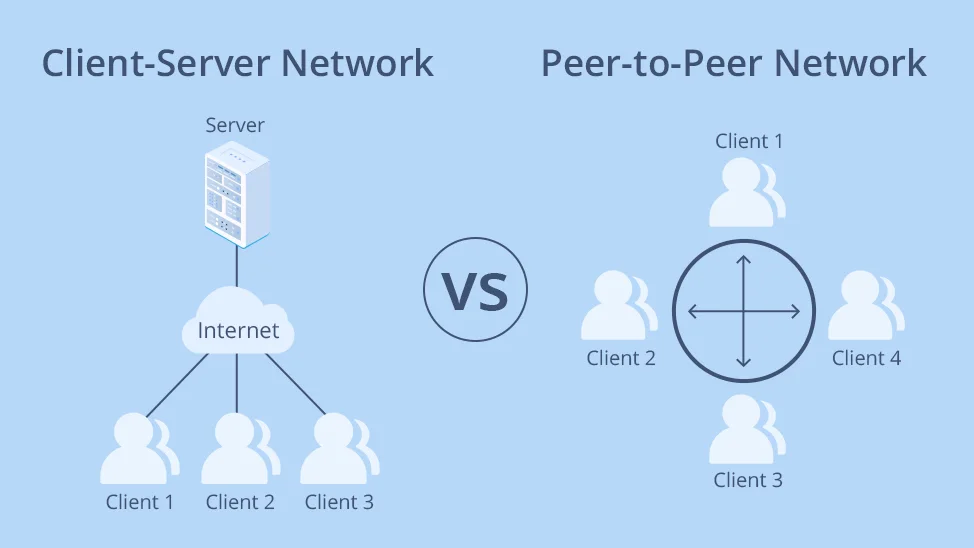
The architecture was the problem, not the tool. Centralized sync has an inherent single point of failure. I needed something decentralized.
What Is Syncthing? (30-Second Primer)
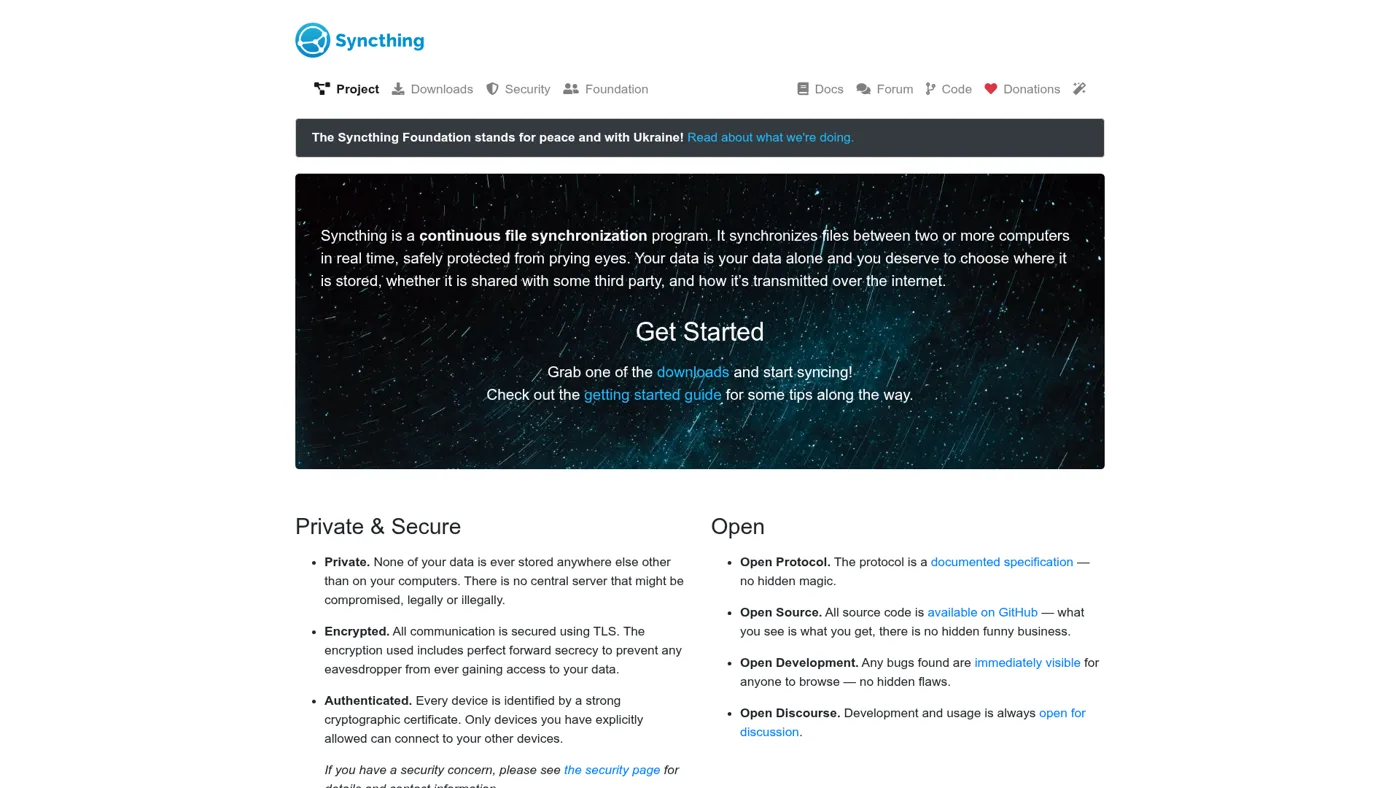
Syncthing is an open-source, peer-to-peer file sync tool. 70,000+ stars on GitHub. Written in Go. Completely free.
One sentence: devices sync directly with each other, no cloud server involved.
Where Dropbox routes your files through a warehouse and back, Syncthing hands files directly between your machines. Faster. More private. No storage limits. No subscription tiers.
Here is what matters for this use case:
Peer-to-peer — every device is both client and server
End-to-end encrypted — all transfers use TLS, devices authenticate by unique ID
Real-time — file changes trigger sync within 5 seconds
Built-in versioning — I keep 5 historical versions of every file
Handles hidden directories — .claude syncs like any other folder
One more thing tipped the decision. I gave Claude Code a single prompt: "Install and configure Syncthing on this Mac." It did — install, folder setup, ignore rules, device pairing. The entire process, automated. If your sync tool cannot be set up and maintained by an AI agent, you are leaving leverage on the table.
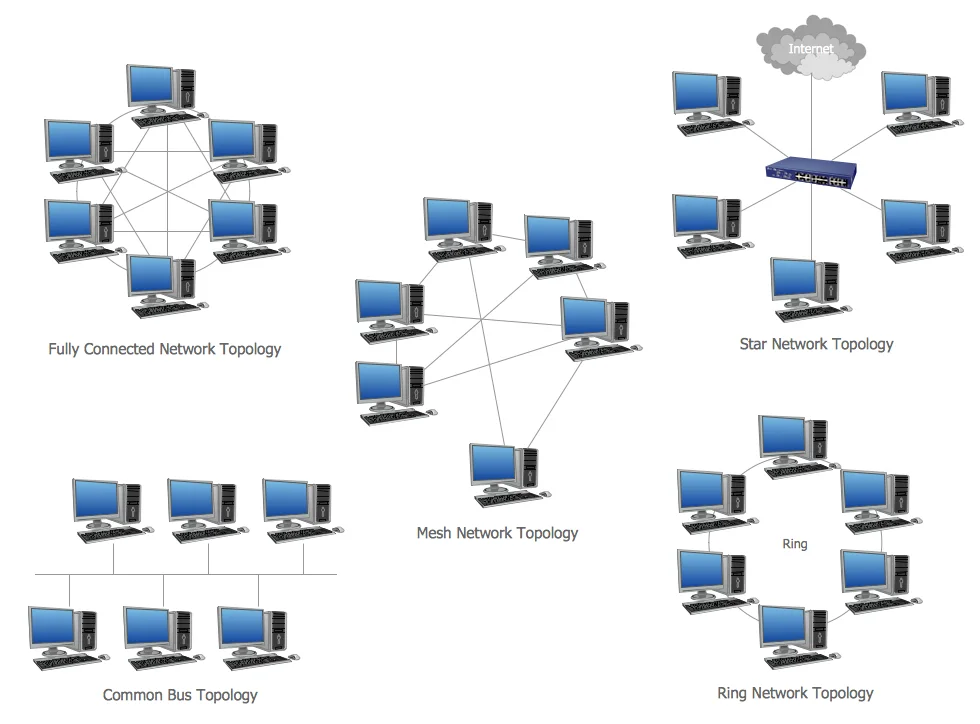
Full Mesh Topology: 4 Machines, 6 Connections
My four Macs use a full mesh topology — every device connects directly to every other device. That is 6 bidirectional connections total.
Why this matters:
Maximum fault tolerance. Take any one machine offline. The remaining three still have 3 connections between them. Take two offline. The surviving pair still has a direct link. No single failure — or even two simultaneous failures — can break the mesh.
Maximum speed. Changes propagate from the nearest available node. Edit a file on my MacBook, and the Mac mini grabs it directly — no server relay.
Minimal overhead. Each machine maintains 3 connections. On a local network, this is invisible. I measured less than 1% CPU and about 30 MB of RAM per device.
Compare this to a star topology where one central server connects to all devices. The center goes down, everything stops. That is exactly the problem I had with Synology Drive.
Quick math: A full mesh of N devices has N(N-1)/2 connections. At 4 devices, that is 6. At 5, it is 10. The overhead scales quadratically, but for a home or small-office setup under 6 devices, it is negligible.
Installation and Core Configuration
On macOS, one command installs Syncthing with Homebrew, and it runs as a background service with automatic startup:
Open http://localhost:8384 in your browser. First thing: set a password. The default has no authentication, which means anyone on your local network can access the admin panel.
Since all four of my machines share the same LAN, I disabled every external network feature:
Global discovery: off
Relay servers: off
NAT traversal: off
Local discovery: on
This is not just about saving bandwidth. With external features disabled, Syncthing does not attempt to contact any outside server. Startup is faster. Logs are cleaner. Attack surface is smaller.
For file monitoring, I use filesystem watching with a 5-second buffer and a 60-second fallback full scan. These values have not changed since day one. Good configuration is configuration you never touch again.
Note for Linux users: The same Homebrew commands work on macOS. On Linux, use apt install syncthing or your package manager, and enable the systemd user service with systemctl --user enable --now syncthing. The web UI and all configuration steps are identical across platforms.
The .stignore That Manages 360,000 Files
Stop here. Everything before this section was setup. This section is where most people's sync setups silently fail.
Syncthing uses a .stignore file to decide what gets synced and what stays local. Get this wrong, and your setup will melt down.
I learned this the hard way. My first Syncthing deployment had no ignore rules at all. The ~/.claude directory contained 360,000 runtime files — session logs, debug output, terminal snapshots, telemetry. All four machines started scanning every one of them simultaneously. CPUs hit 100%. Fans screamed. The admin UI froze completely. It took nearly 50 minutes before I could even access the interface to stop the sync.
Here is a subtlety that cost me data. In .stignore, a path prefix changes the scope of the rule:
cache/ excludes only the cache/ directory at the root level
/cache anchors to root explicitly
**/cache excludes cache at every directory level
I wrote my first version with bare names. A useful data directory inside a skill happened to match an exclude pattern. It got silently dropped from sync across all machines. Gone.
The consistency rule
Every machine must use the exact same .stignore file. If Machine A ignores a file but Machine B does not, you get a deletion loop: A deletes the file locally (it is ignored), B detects the deletion and syncs it back, A sees a new file and ignores it again, B sees the deletion again. Around and around.
My production .stignore is 30 lines. Those 30 lines keep 360,000 files from ever entering the sync pipeline.
Sync Modes and New Device Onboarding
Day-to-day, I run bidirectional sync — any change on any machine propagates everywhere.
But there is one scenario where bidirectional sync will hurt you: large-scale restructuring. If I reorganize my knowledge base on the server — moving dozens of directories, renaming files, deleting old structures — bidirectional sync means the other machines might "rescue" deleted files by syncing their old copies back.
Syncthing does not support atomic moves. A move operation equals a create plus a delete. Under bidirectional sync, the old directory can reappear because another machine still has it and helpfully sends it back.
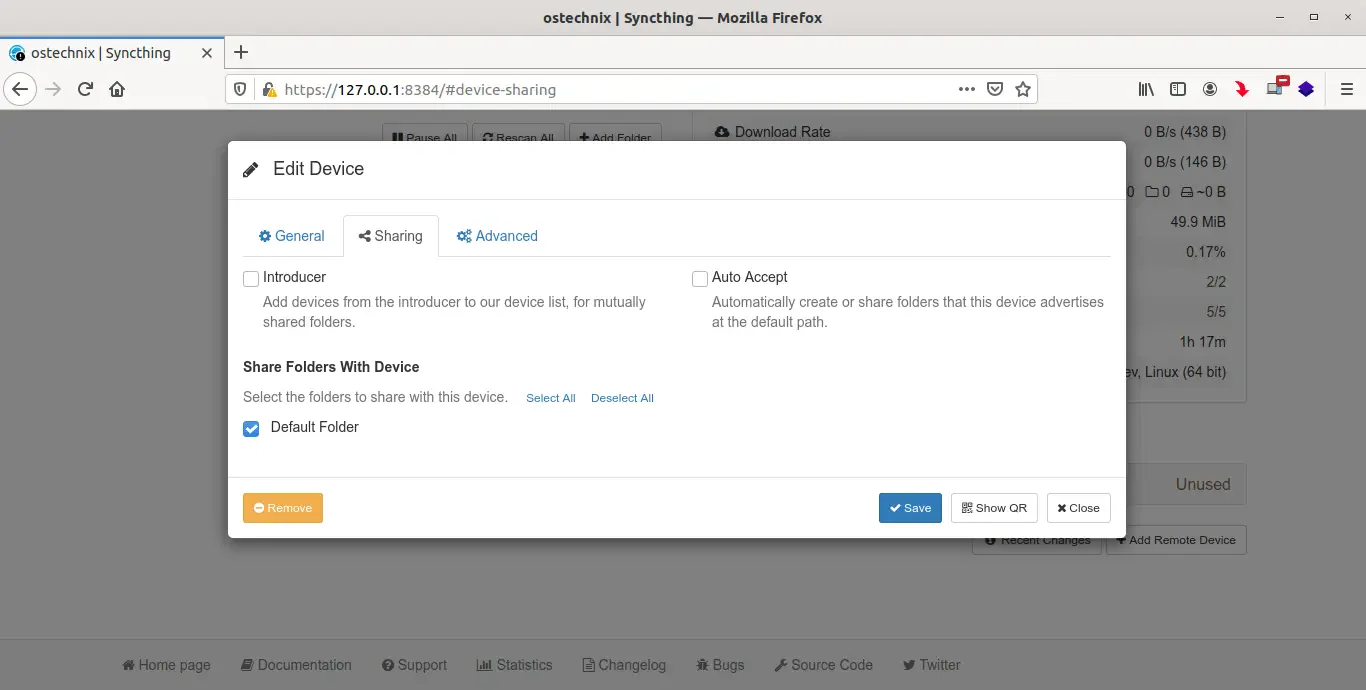
The fix: temporarily switch to one-way push. Set the source machine to "Send Only" and all others to "Receive Only." Push the changes. Then switch back to bidirectional.
New device onboarding (7 steps)
Adding a new machine to the mesh is like onboarding a new team member — hand them everything from one source first, then let them join the daily workflow.
Set the admin password — immediately, before anything else
Clear ignore rules on both sides — temporarily remove .stignore on the source and destination to ensure no files are missed during initial sync
Pair with one machine only — connect the new device to your primary machine. Do not connect to all devices simultaneously during first sync
One-way full push — set the primary to "Send Only," the new device to "Receive Only." Wait for the complete transfer
Restore ignore rules — put the production .stignore back on both machines
Switch to bidirectional and join the mesh — add connections to the remaining devices, switch all to "Send & Receive"
Why not skip straight to mesh? Because three machines sending different versions of the same files to a new device at the same time creates conflict storms. One authoritative source, one clean transfer, then open the floodgates.
4 Real Mistakes I Made (So You Don't Have To)
Mistake 1: No ignore rules on first sync. 360,000 runtime files spread across four machines. Four CPUs at 100% for 50 minutes. The admin interface was completely unresponsive. Recovery: stop Syncthing on all devices, write the .stignore on the primary machine, restart one machine at a time.
Mistake 2: Running Synology Drive and Syncthing simultaneously. During migration, I forgot to disable the Synology Drive client. Two sync tools fighting over the same directory created an infinite loop — one writes a file, the other detects the change and syncs it, the first detects that change, and the cycle continues.
Mistake 3: Moving directories without switching to one-way sync. I relocated a subdirectory in my knowledge base. On other machines, a virtual environment inside the old directory was excluded by .stignore, which meant Syncthing could not delete the parent directory cleanly. The old directory persisted as a ghost.
Mistake 4: Conflict file buildup after new device onboarding. When I added a new machine to the mesh too quickly (connecting to all devices at once instead of one-way push first), it generated hundreds of .sync-conflict files. Cleanup was a one-liner, but the mess was avoidable.
Every one of these mistakes cost hours, not minutes. I share them because every other guide I found on syncing Claude Code covers the happy path and stops. Real production setups break in predictable ways, and knowing the failure modes in advance is worth more than the setup instructions themselves.
What It Feels Like After 6 Months
The best description of this setup after half a year is: I forgot it exists.
I build a new skill on my Mac mini. Five seconds later it appears on my MacBook. My backup laptop runs test workloads with the exact same knowledge base and skills as my primary machine. Four devices, one config, real-time sync.
The ideal state for any sync tool is complete invisibility. You should never think about it. This setup delivers that.
Three takeaways:
Your ~/.claude is irreplaceable. It is not files. It is the accumulated knowledge of how you and your AI agent work together. Protect it.
Decentralized beats centralized. Mesh topology has no single point of failure. Any machine can disappear without affecting the rest.
Exclude rules are the core skill. 30 lines of .stignore manage 360,000 files. Get them right once, and the system runs itself. Get them wrong, and four machines crash together.
Ready-to-Use Prompt: Design a Syncthing Full-Mesh Sync for Your Claude Code Config Across Machines
What this does: Designs a Syncthing full-mesh that syncs your Claude Code directory across N machines so any device can go offline without breaking the rest — with a .stignore that stops runtime files from wrecking it, safe new-device onboarding, a non-destructive conflict rule, and a resilience check. Based on: How I Sync Claude Code Across 4 Macs with Syncthing Mesh (And What Broke First) — https://aiworkflowpro.com/claude-code-syncthing-mesh/ Time to run: ~5 minutes
Copy this prompt into Claude Code, ChatGPT, or any AI assistant:
ROLE: You are a multi-machine sync architect. Your job: design a Syncthing full-mesh that syncs a Claude Code config directory across N machines so any device can go offline without breaking the rest, with a .stignore that stops runtime files from wrecking it.

CONTEXT — SYNCTHING MESH SYNC DESIGN:
Syncthing is peer-to-peer sync with no central server, so a full mesh lets any machine go offline without affecting the rest — unlike a NAS hub, which is a single point of failure and must stay always-on. For N machines a full mesh has N×(N-1)/2 connections (4 machines = 6); every config change propagates in under ~5 seconds. The setup fails not from sync itself but from syncing the wrong files: a Claude Code directory holds hundreds of thousands of transient runtime files, so a strict .stignore that syncs only source-of-truth config (CLAUDE.md, skills, settings, knowledge) is what keeps the mesh alive. New-device onboarding must avoid the conflict storm that breaks most setups.

INPUTS (fill in before running):
- MACHINE_COUNT: YOUR_DEVICE_NUMBER_HERE (how many machines to sync — 2 / 3 / 4 / more)
- SYNC_TARGET: YOUR_DIRECTORY_HERE (the directory to sync — e.g., ~/.claude, a knowledge base)
- CONTENT_MIX: YOUR_FILES_HERE (roughly what is in it — config + skills + runtime + caches, or "not sure")
- NEW_DEVICE_SOON: YOUR_ANSWER_HERE (are you adding a device now? yes/no)

METHOD — 6 STEPS:

Step 1 — Confirm mesh over hub
Confirm full mesh fits: any device offline must not break others, and no always-on hub is wanted. Compute the connection count: MACHINE_COUNT × (MACHINE_COUNT-1) / 2.

Step 2 — Build the .stignore
From CONTENT_MIX, ignore everything transient that regenerates: caches, node_modules, logs, temp/lock files, large binary artifacts. Sync only source-of-truth: CLAUDE.md, skills, settings, knowledge/docs. Rule: if a file regenerates on first run, it goes in .stignore. This is what keeps hundreds of thousands of runtime files from destroying the setup.

Step 3 — Configure sync mode and folders
Set send/receive on every device for the SYNC_TARGET folder, identical folder ID across all machines, file-versioning on so deletions are recoverable. State the folder ID and versioning policy.

Step 4 — Onboard new devices safely
For NEW_DEVICE_SOON = yes: add the device, share the folder, let it receive first and resolve conflicts before treating it as a full peer — do not blast a full bidirectional sync on first connect, which causes conflict storms. Sequence: introduce → receive → resolve conflicts → go bidirectional.

Step 5 — Handle conflicts and the 4 mistakes
Conflict rule: `.sync-conflict-*` files mean two devices edited the same file — never auto-delete; surface both sides with timestamps, merge manually. Run the mistake check: (1) syncing without .stignore? (2) onboarding with a full blast? (3) ignoring conflict files? (4) relying on a hub instead of full mesh? Fix any.

Step 6 — Validate resilience
Check: (1) does any single device going offline leave the rest synced? (2) does .stignore cover every transient file type? (3) is versioning on? (4) does a change propagate in seconds? (5) is the conflict rule non-destructive? Fail any → fix.

RULES:
- Full mesh, no hub — any device offline must not break the others.
- .stignore excludes every file that regenerates; only source-of-truth config syncs.
- Never auto-delete `.sync-conflict-*` files — surface both sides and merge.
- Onboard new devices receive-first; never blast a full bidirectional sync on first connect.

OUTPUT FORMAT:
Output six sections:
1. **Topology** — mesh confirmed + connection count + the device list.
2. **.stignore** — markdown table with columns: Pattern | Why excluded (transient type).
3. **Sync config** — folder ID + sync mode per device + versioning policy.
4. **Onboarding** — the receive-first sequence (if NEW_DEVICE_SOON = yes) or "n/a."
5. **Conflict rule + mistake check** — the `.sync-conflict-*` rule + markdown table with columns: Mistake | Present? (Y/N) | Fix.
6. **Resilience validation** — markdown table with columns: Check | Pass? (Y/N).
Save as @templates/claude-code-syncthing-mesh.md and run when you first set up multi-machine sync, then re-run when you add or remove a device or change what syncs.
Frequently Asked Questions
How do I sync Claude Code settings across multiple machines?
Install Syncthing on each machine, share your ~/.claude directory, and configure .stignore rules to exclude runtime files. Syncthing provides peer-to-peer sync with no cloud dependency. On macOS, brew install syncthing && brew services start syncthing gets you running in under a minute.
What files in ~/.claude should I exclude from sync?
Exclude session logs (*.jsonl), cache/, debug/, sessions/, shell-snapshots/, telemetry/, tasks/, .credentials.json, settings.local.json, virtual environments, and compiled artifacts. These runtime files can number over 300,000 and will crash your sync if included.
Is Syncthing better than Git dotfiles for Claude Code sync?
For Claude Code specifically, Syncthing excels at real-time sync (5 seconds versus manual commits), handles binary files and hidden directories natively, requires no commit discipline, and works peer-to-peer without a central repository. Git dotfiles work well for two machines with infrequent changes but become cumbersome at three or more devices with daily modifications.
Can Syncthing sync hidden directories like ~/.claude?
Yes. Syncthing treats directories starting with a dot identically to any other directory. This is a significant advantage over tools like Synology Drive, which cannot sync hidden folders on macOS without workaround scripts.
A 30-minute video is too long for one conversation. This guide walks the 8-step Skill that locks the narration and one look, then gives each 3-minute segment to a fresh sub-agent, five at a time, and polishes the cut in an empty-context session.
The folder structure behind my AI agent team, the Herdr setup where Grok Build, Claude Code and Kimi Code work side by side, and the two live tasks from the video: an article published by voice and a three-model front-end test.
Eight folders of plain Markdown, a CLAUDE.md index in each, and seven prompts that make your agent interview you. Every prompt, template and command from the video, in order.
Nothing about month four is harder than month three. It is simply the month an unpaid channel starts to feel like proof of failure. Surviving it takes a cadence you can hold while earning nothing, which is a better reason to automate business processes than speed ever was.