Monitoring a competitor who publishes no feed is the case every RSS guide skips. Twenty-one platforms sorted by which of three jobs they do, and the finished setup is business process automation you own outright, with no seat licence to renew.
Blaming the content is the reflex when a post underperforms, and it is usually the wrong diagnosis. A second reader decides distribution before any human sees the post, and most of what it checks is mechanical enough to automate business processes around, on five platforms at once.
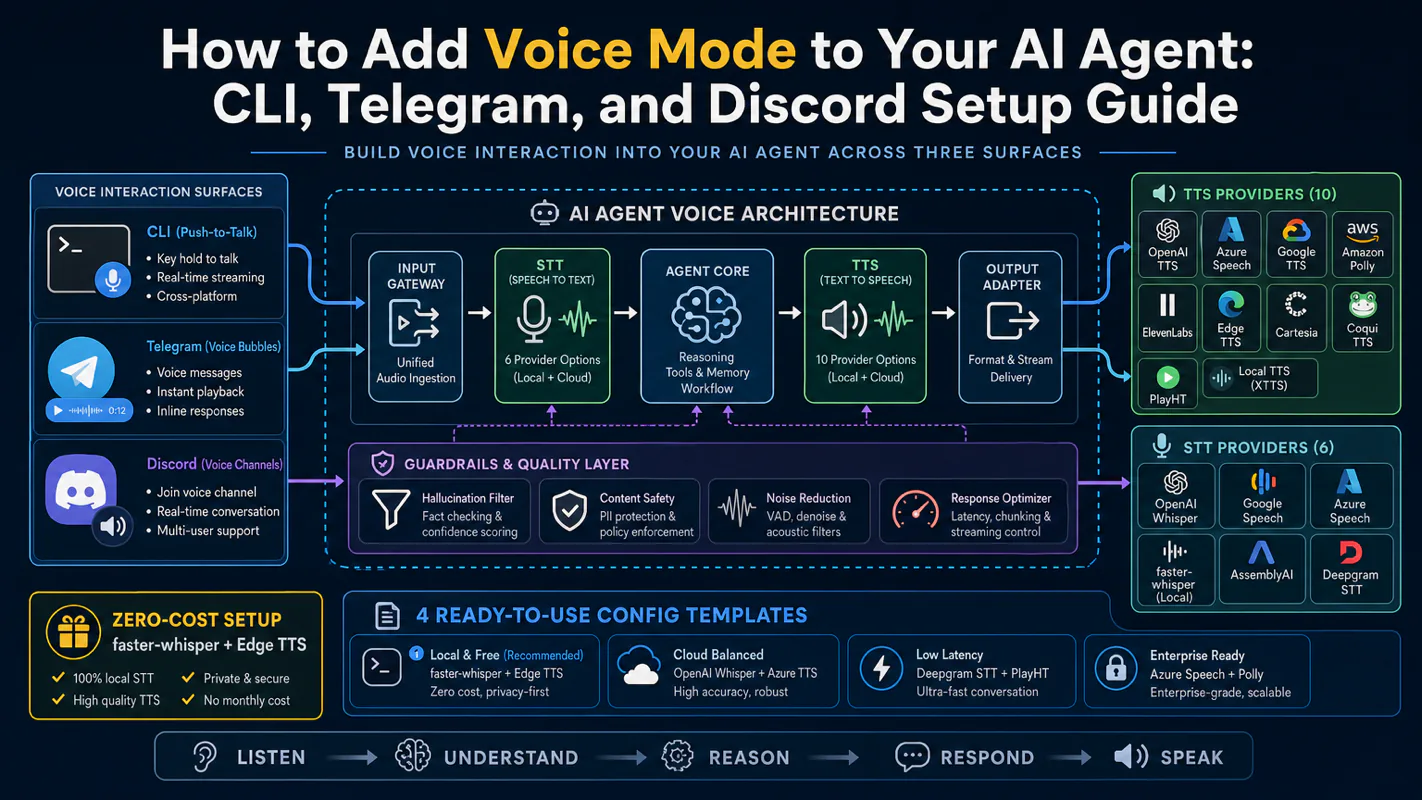
Gloves on, tape measure in hand — nobody types a query. Three voice surfaces for ai automation tools (terminal, Telegram, Discord), 10 TTS and 6 STT providers compared on cost and latency, plus a setup that costs nothing.
AI Workflow Automation: One File That Defines Your Whole Setup
Every AI workflow automation guide covers the flow and skips the question you actually hit: which agent runs where. More than thirty windows across three computers, and not one of their names appears anywhere in the code. Here is the one file that answers it, and the two bugs it caused.
Most writing about AI workflow automation is about the flow — the trigger, the steps, the branch, the thing that happens at the end. Pick a builder, draw the boxes, press run.
None of it covers the question you hit once more than one agent is involved: which agent runs where?
That question turns out to have six parts, and you will ask it hundreds of times a day. In my setup all six are answered by one plain text file. More than thirty AI agent windows spread across three computers, and not one of their names appears anywhere in the code that starts them.
Key takeaways
A fleet roster is one file that declares every agent window: which machine, which project, which model, which folder, and whether automation is allowed to use it.
Because the roster is machine-readable, three daily questions become lookups instead of guesses: which machine am I on, what exists here, and which window is free right now.
The design goal is blunt: no window names in any script. Changing the setup becomes editing a text file, not editing a program.
Group your windows by which project they work in, not by how important they are. Naming by importance broke silently, and left two windows declared as belonging to a project they were not running in.
Two real bugs came out of this file, and both are the same shape: never hardcode a number the roster already knows, and never treat a missing name as a missing thing.
If you have more than one machine, the roster holds the layout for all of them. A copy that is current on one machine and stale on two is worse than no roster at all.
Why AI workflow automation stops being about flows
Two agents you keep track of in your head. Five you keep in a note. Thirty across three computers and you need something the machine can read, because the question is not asked once — it is asked every time you hand out work.
Unpack "which agent runs where" and it is really six questions:
Which computer am I on right now?
Which windows exist on this computer?
What kind of AI is running in each one?
Which folder is each one working in?
Which windows are mine to hand work to, and which are reserved?
What order should the tabs appear in?
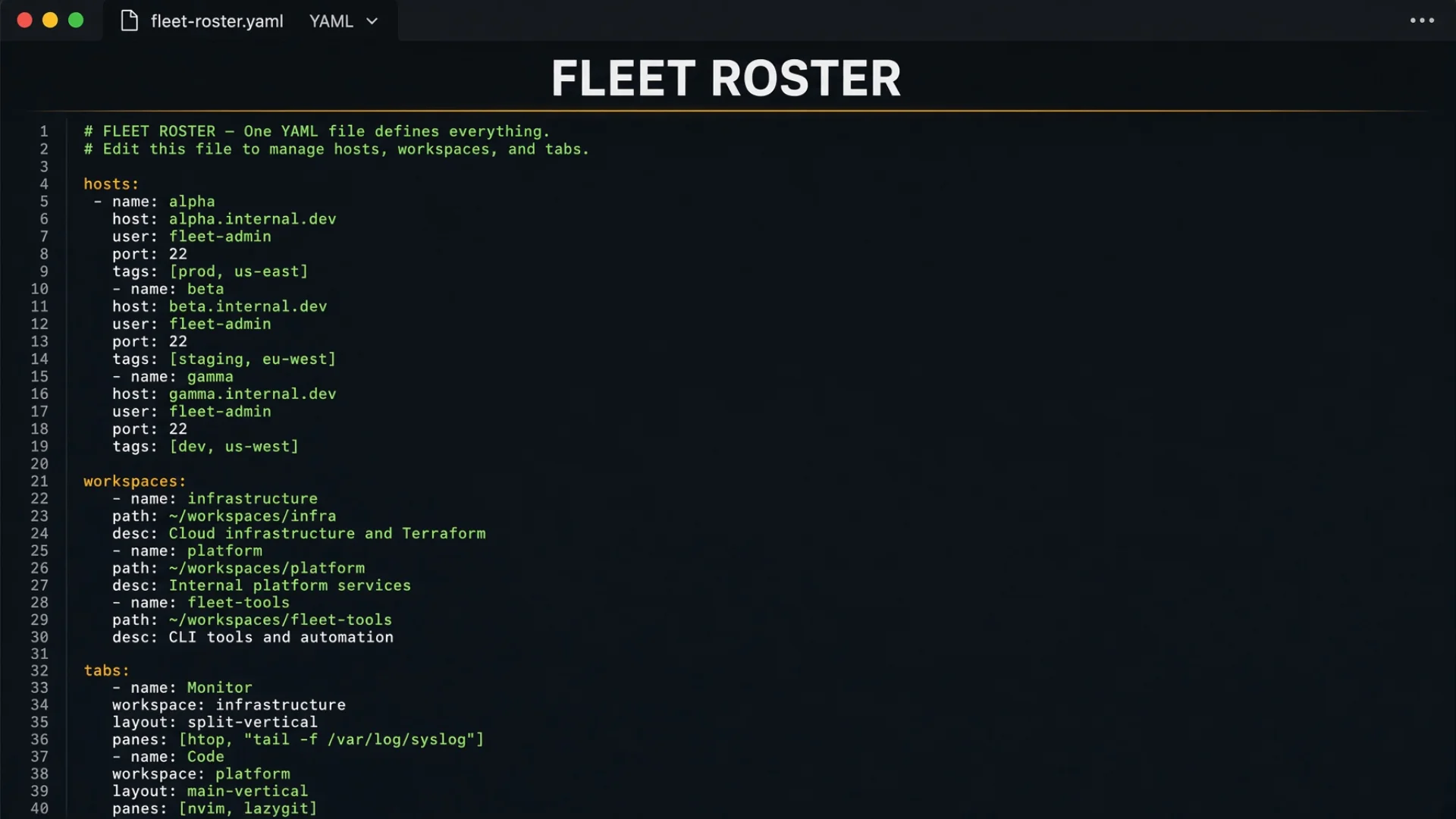
A fleet roster answers all six. In my setup it is a single YAML file called hosts.yaml.
💡 YAML in one paragraph. YAML is a plain text format for structured lists. Indentation shows what belongs to what — no brackets, no commas, no punctuation to get wrong. If you can read a bulleted outline, you can read a YAML configuration file. It is the same format most deployment tools and CI systems use, so learning it once pays off in several places.
Think of it as a seating chart for an office. The chart does no work. It says: this desk belongs to this person, that desk is a shared hot desk, this row is the finance team, the conference room is off limits to walk-ins. Every question about who sits where is answered by reading the chart rather than by walking the floor and looking.
What is actually inside the fleet roster
The file has one top-level key, hosts, and under it one block per computer. Each computer's block goes four levels deep.
Level
What it holds
Why it's there
Machine
Hostnames, an SSH alias, a working directory, a default project
So the tool can recognise which machine it is running on, and how to reach the others
Workspaces
Named groups of tabs, each with a display label and a working folder
One group per project, so windows in different projects do not get mixed up
Tabs
A flat list of window names, in display order
This is the display order — the tab bar gets sorted to match
Seats
Three sub-lists: roles, pools, shells
Three kinds of window that get treated differently
The seats section is where it gets interesting, because the three kinds of seat have three different shapes.
Roles are objects with four fields each: which window, which AI backend, which project, which folder. A role seat is a named position — the general manager sits in this window, the content manager in that one — and the folder matters because the agent reads its own instructions from the folder it starts in. Point the window at the general manager's folder and it wakes up as the general manager, with no prompt required. That mechanism is the subject of the previous article in this series.
Pools are flat lists of window names. That is all — no fields at all. A pool is a set of interchangeable workers: several windows running the same AI, all pointed at the same project, any of which will do. You do not care which one you get. You want an idle one.
Shells are a flat list too. Plain command-line tabs with no AI in them. They exist so I have somewhere to run a command without interrupting an agent.
Below the seats sit two more keys. protected_pools marks pools that automation must never dispatch into — those windows are mine, for interactive work. And canonical_order is the full flat list of window names in the order the tab bar should show them, which a sort command reads when things drift.
Stripped down to its skeleton, one machine's block looks like this:
Read it top to bottom and every question from the list above has an answer. Which machine: workstation. What exists here: the six names in tabs, in the order the tab bar shows them. What runs in each: claude, declared per role and per pool. Which folder: cwd. Which ones are off limits to automation: the one pool named under protected_pools.
Before I had this, the same six facts lived in a startup script as six hard-coded lines, and the tab order lived in a seventh place — whatever order I happened to write the commands in. Renaming w3 meant finding every one of them. Now it means editing one line, and the tab bar sorts itself to match.
Why three seat shapes instead of one
It would be tidier to give roles, pools and shells the same structure. It would also be wrong, because they get asked different questions.
A role seat gets asked "where does the content manager live?" That is a lookup by name returning exactly one window. It needs four fields, because the answer has to include the folder or the agent will not load the right instructions.
A pool gets asked "give me any idle Grok window in the knowledge base project." That is a search returning whichever one is free. It needs no fields, because every member is equivalent by definition.
A shell gets asked nothing. It only needs to be excluded from the agent count, which is the entire reason it is a separate list — and that turned out to matter more than I expected. There is a bug about it further down.
Role seat
Pool
Shell
Shape in the file
Object, four fields
Flat list of names
Flat list of names
The question it answers
"Where does this specific job live?"
"Give me any free one"
"Don't count me"
Lookup returns
Exactly one window
Whichever is idle
Nothing
Why it has that shape
The answer must include a folder, or the wrong instructions load
Every member is equal by definition — fields would break that
Its only job is to be excluded from the head count
The pool row is the one worth pausing on. Adding fields to pool members would create the temptation to make them slightly different from each other, and the moment they differ you no longer have a pool — you have a set of under-documented role seats.
The point: no window names in the code
Here is the design decision that makes the roster worth having: there are no window names in the code.
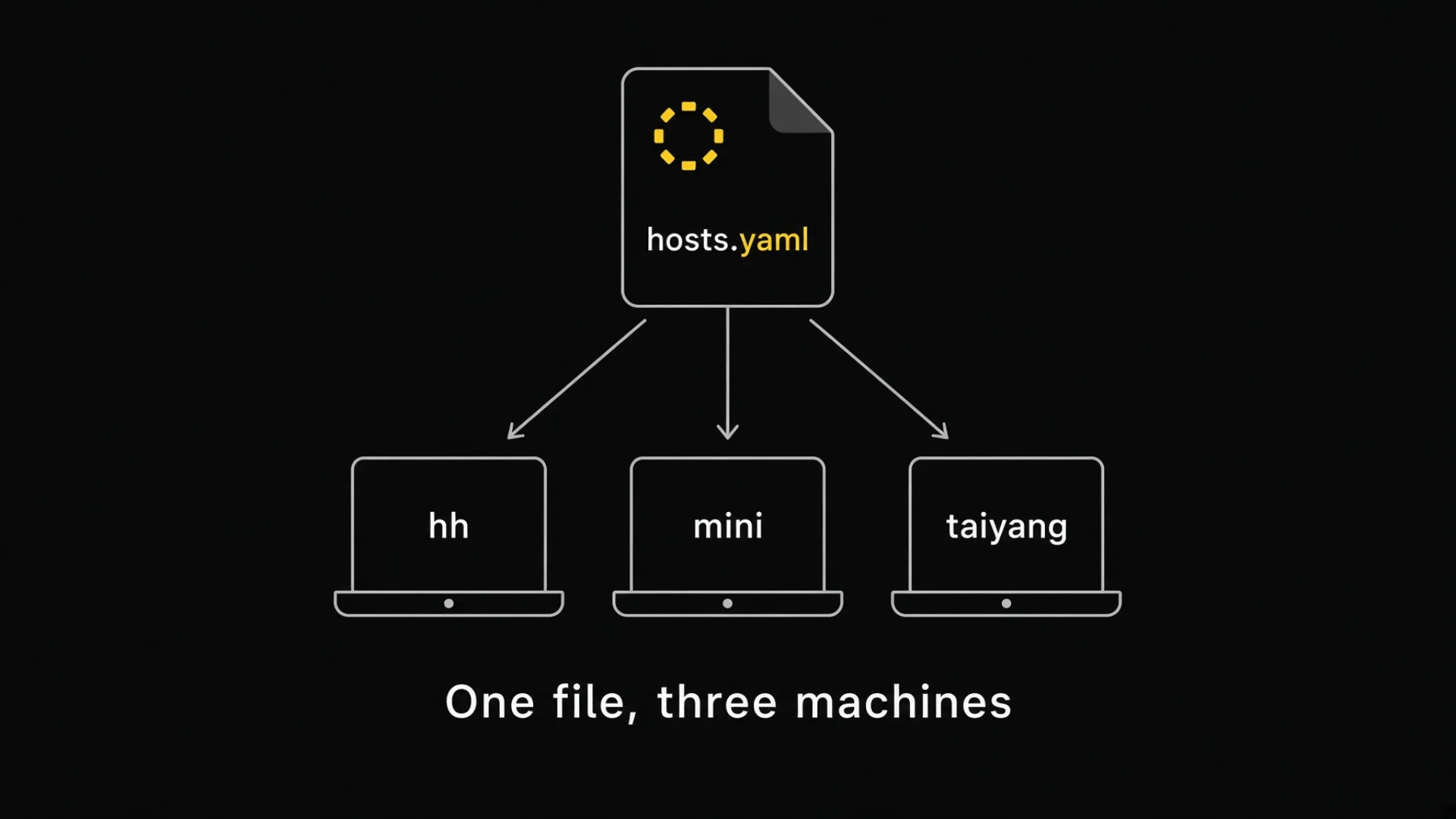
Not one. The startup program that builds all the windows on my main machine is the same program that builds a smaller set on a second machine and a different set on a third. It has no branches for "if this is machine A, create these tabs." It reads the roster, finds the block for whichever machine it is running on, and does what the block says.
That means changing my setup is editing a text file, not editing a program. Add a window: add a line. Move a role to a different machine: move a block. Retire a window: delete the line. Nothing gets recompiled, nothing gets reviewed, nothing gets tested.
🔍 The same principle scales all the way down. You do not need thirty windows for this to pay off. The moment any instruction of yours contains a specific name — a tab, a folder, a client, a filename — you have put a fact into a place that will not be updated when the fact changes. Move it into a list you can read, and point at the list. That is the whole idea, and it is older than AI by about forty years.
Three questions, three commands
Because the roster is machine-readable, three short commands answer the three questions you actually ask during a workday.
Who am I? Before dispatching anything across machines you have to know which machine you are standing on. Getting this wrong sends work into a window on a computer you were not thinking about.
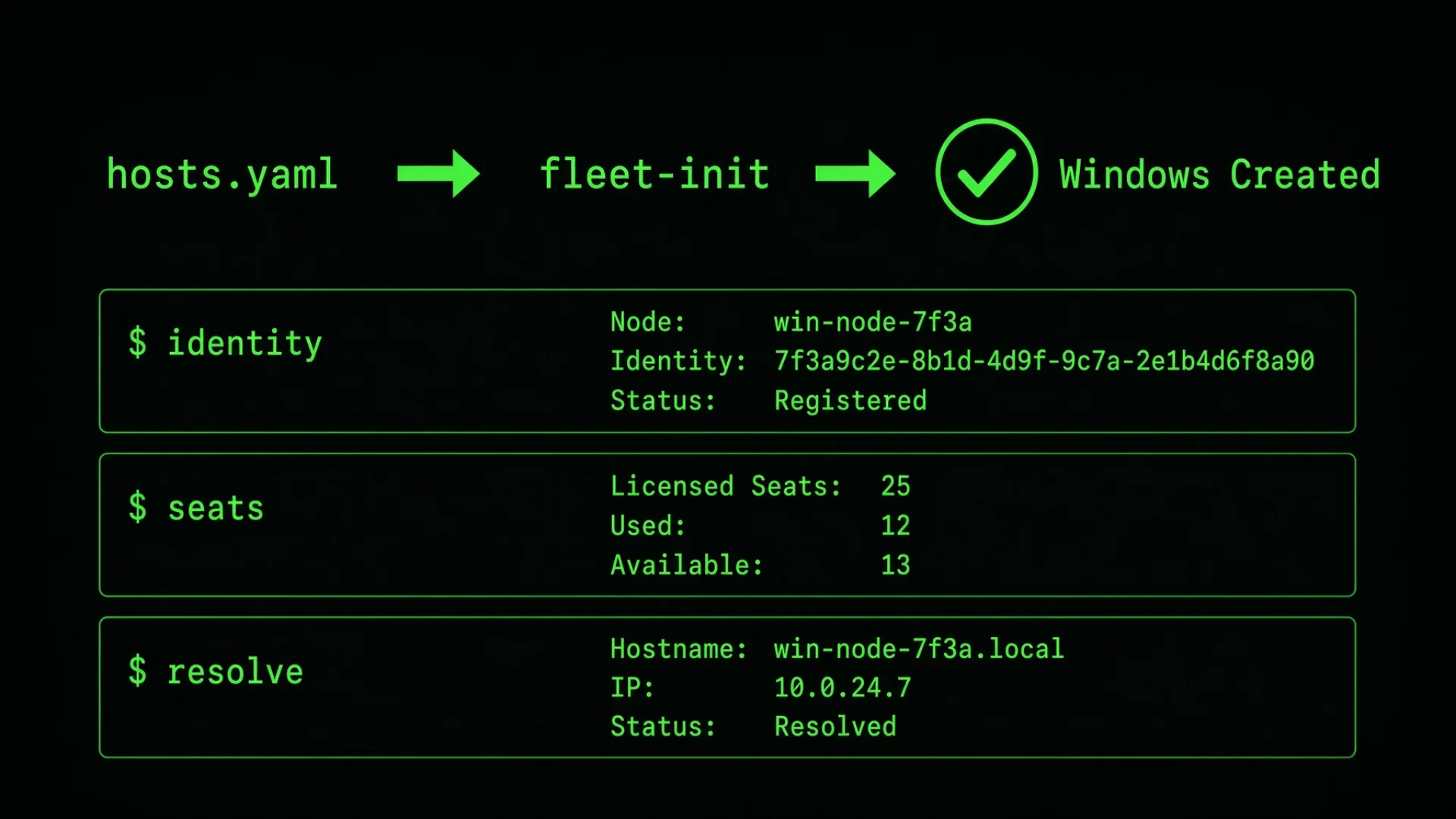
fleet-cli identity
Which window should I use right now? This one takes a capability and a project and hands back a window that is genuinely available — it already filters out role seats, protected pools, busy windows and temporary windows.
fleet-cli resolve --pool grok --repo kb
That second command is the one that matters most in daily use, and it only works because the roster exists. Without it you are guessing a window name from memory, and memory is wrong more often than you would like. There is a third command that lists the role seats, pools and shells declared for the current machine, which I use mostly when something looks wrong.
fleet-cli is a wrapper I wrote for my own setup, not something you can install. The point is the shape of the question, not the tool: give me something that can do X, in project Y, that is free now. Any script that reads your own roster can answer that in ten lines.
What names in your head actually cost
Skip the roster and keep the window names in memory. Here is the bill, in the order it arrives.
Names in scripts rot silently. In July I renamed five windows for an unrelated reason — my phone's voice input kept confusing the letters g and j, so the window names containing g had to go. Five renames, one afternoon. With a roster that is five lines edited in one file. Without one it is a hunt through every startup script, every shell alias, every automation that references a window by name — and the ones you miss do not throw errors. They quietly stop working until you notice a task went nowhere.
The same name means different things on different machines. On my main machine, the window rk1 works in my knowledge base. On my demo machine, rk1 works in a completely different project. Same name, different job. Write rk1 into a script and run that script on the wrong machine and you do not get an error — you get work done in the wrong folder. The roster is what makes "give me a Grok window in the knowledge base" a safe question and rk1 an unsafe assumption.
Naming by importance instead of by location breaks. My first workspace names were "core" and "extra", grouped by how important the windows were. Both groups actually pointed at the same folder. In several places "extra" ended up being read as "the other project", and two windows were declared as belonging to a project they were not actually running in. Nobody made a mistake. The names just did not describe the thing that mattered. Renaming them to machine-project fixed it permanently, because now the name answers the question people were actually asking.
Cross-machine dispatch reads a stale file. This is the expensive one. The roster holds the setup for all machines, not just the local one. When I send a task from machine A to machine B, machine A reads its own copy of the roster to work out what exists on B.
Update the roster on one machine and not the others, and the other two are now dispatching against an old map. Tasks go to windows that were retired. Tasks land in the wrong project. And because a dispatched task that vanishes produces no error message anywhere, you find out when you go looking for a result that never arrived.
Put a number on that last one. At a dozen or so tasks in flight, a single wrong dispatch costs the round trip of noticing, investigating and re-dispatching — call it fifteen minutes of your attention plus however long the task takes to redo. Twice a week and you have spent two hours a month on a problem a text file solves.
What the roster looks like in a multi machine AI setup
Three Macs, one roster file, three copies of it kept identical.
My main machine declares more than thirty tabs across two workspaces: most of them in the knowledge base project, two in the English content project. The knowledge base workspace holds the role seats, a general-purpose Claude pool, a Grok pool, and small pools of Codex, Kimi, Pi and GLM windows, plus scheduled autonomous agents and one plain shell. The second machine runs a smaller layout aimed at demos. The third is mostly a worker farm for bulk jobs.
Eight different AI command-line tools run across the fleet — Claude and Grok do most of the volume, plus Codex, Kimi, Pi and GLM, plus the one the scheduled roles run on, plus one more I keep around for a job the others do badly. One roster describes all of them.
Naming that survives voice input
Every window name is a two-letter prefix plus an optional number. The prefix says what kind of seat it is; the number distinguishes multiple windows of the same kind. Fixed single-occupancy roles get no number. Roles that need several windows get numbers. Interchangeable pools always get numbers. And window names avoid the letter g, because a name I cannot reliably say out loud is a name I cannot use from my phone. Two names still have one, left over from a rename that moved the g rather than removing it — the rule is real and it has exactly two exceptions, both of which I have chosen to live with.
Projects are distinguished by number range, not by prefix. On my main machine, Grok windows 1 through 4 work in the knowledge base and 5 through 6 in the English content project. On the demo machine the ranges are reversed, because that machine's primary project is the other one.
That looked like an odd choice when I made it and it was the right one. Adding a letter to the prefix to encode the project would have collided with the two-letter rule and produced names that were harder to say and harder to sort. Number ranges cost nothing and sort correctly for free.
⚠️ The ranges being reversed between machines is a real trap and I keep it on purpose. It is the most concrete possible reminder that a window name is only meaningful relative to a machine. If both machines used the same ranges I would eventually start trusting the name on its own, and the first time I dispatched across machines from memory it would land somewhere I did not intend and never tell me.
Two bugs this file caused, and what fixed them
Building the roster introduced two failures worth describing, because anyone building something similar will hit both.
The counting bug
The startup program has a flag that reports how many tabs the roster declares, and a second flag that reports how many of those will register an AI agent — total tabs minus the plain shells. The shell login script uses the second number to decide whether the fleet is intact or needs rebuilding.
The obvious shortcut is to take the tab count and subtract one, since every machine has a shell. Except one machine has two shells, one per workspace. Hardcode "minus one" and that machine reports itself one agent short on every single login, and rebuilds a perfectly healthy fleet every time you connect.
The fix is to never hardcode it. Ask the roster. If you find yourself writing a number that the roster already knows, that is the bug, not a shortcut.
There is a second version of the same mistake in the same check. It compares the expected count against the number of agents the system reports as running. My first version counted only agents that had names. That number is almost always lower than reality, for the reason below.
Windows that exist but have no name
This is the subtlest thing in the whole setup, and it will bite anyone who builds something like it.
When a window gets started by a launcher script, the multiplexer can tell what kind of AI is running in it — it recognises the process. But it often does not get around to giving the window a name. And the function that lists live agents is indexed by name. No name means no entry. No entry means the startup program concludes the window is absent.
So on every run it would try to start an agent that was already running. That attempt would get rejected — the pane is busy, something is already there — and the cycle repeated on the next run. For weeks my main machine reported five to eight windows as "not running the declared agent" while every single one of them was working perfectly.
The name was not lost. It was never set. The pane knows which tab it belongs to, and the roster knows what that tab should be called. All the information was there; nothing was connecting it.
The fix is a step called claim unnamed, and the important detail is when it runs: before the startup loop, not during it. It walks the panes, matches them to tabs, and writes the missing names back. Panes the roster does not mention — temporary windows I opened by hand — are never touched.
While fixing that I removed a related hack. New windows used to sleep a fixed 0.6 seconds before being renamed, on the theory that the agent would have registered by then. Sometimes it had not. Now it waits for the agent to actually register, then renames. A fixed sleep is a guess about someone else's timing, and guesses about timing are how you get bugs that only appear when the machine is busy.
🔍 Both bugs are the same bug wearing different clothes. In each case the code substituted something convenient for the thing it actually wanted to know — a hardcoded number instead of the declared count, a name lookup instead of a process check. The roster held the true answer both times. This is the same failure that gave four anonymous windows a job title in the previous article: the declaration was right there and something guessed instead.
The one rule people skip
Changing one machine's setup means editing that machine's block in the roster, then pushing the updated file to all three machines, then updating the documentation.
Not "edit the machine you are sitting at." All of them. Because the roster is the full map of every machine, and every machine uses it to reason about the others. A roster that is current on one machine and stale on two is worse than no roster, because now you have a map you trust and it is wrong. If your machines are kept in sync by a file-sync tool, this is nearly free — how that sync works is its own article.
What happens when a machine restarts
Two background services run in sequence: one keeps the multiplexer server alive, and a second polls every 120 seconds, runs the startup program, and rebuilds any windows that are not there.
The startup program reads two things: which machine it is on, and the roster. That is the entire input. Everything else — how many windows, what runs in them, what order they appear in, which folder each one starts in — comes out of the file.
Which is the whole point. The roster is not documentation of the setup. The roster is the setup.
Every piece of AI workflow automation I run sits on top of that sentence. The batch pipeline, the cross-machine dispatch, the health check that runs on login — none of them contain a single window name. They ask the file.
Do this tonight
You do not need three computers or thirty windows. You need a file. Twenty minutes, no code.
[ ] List your machines. Even if there is one. For each: what you call it, how you would reach it from another machine if you had to, and the main folder you work in.
[ ] List your windows. One line each: a short name, what is running in it, which folder it works in. Do not reorganise yet — write down what exists.
[ ] Sort them into three buckets.Fixed role (always the same job, builds up context — your writer, your reviewer), tool pool (interchangeable, grab whichever is free), plain shell (no AI). If one does not clearly fit, it is probably a fixed role you have been using as a pool. Pick one.
[ ] Fix the names before you write them down. Keep them short and consistent in shape, and say each one out loud. If two sound the same when spoken, change one. You will eventually want to drive this from your phone.
[ ] Write the file. Hand your list to any AI agent and ask it to turn it into a YAML file with the structure above: machines at the top, then workspaces, then a tab list, then three seat groups. Ask it to explain each level as it writes. Save it somewhere stable and note the path.
[ ] Use it once. Next time you are about to open a window and cannot remember which one, open the roster instead of guessing. That is the entire habit. Everything else is built on a file you can already read.
The prompt that builds your roster
Copy everything below into any AI agent — Claude, ChatGPT, Grok, Gemini, whichever you use. It will walk you through building your own fleet roster from scratch.
I want to build a "fleet roster" — a single configuration file that defines every AI agent window across all my computers. I'm a complete beginner with YAML and with multi-machine setups. Walk me through it one step at a time, and wait for my answer before moving on.
Background: I run several AI agent sessions, possibly across more than one computer, and right now I track which agent is where in my head. I want one file that is the single source of truth, so any script or any AI can answer "which window should I use for this task" by reading it instead of guessing.
Step 1 — Inventory. Ask me to list my computers. For each: a short name, how I connect to it from another machine (or "local only"), and the main folder I work in. Then ask me to list every AI window I currently run, with a short name, what AI is in it, and which folder it works in. Don't design anything yet — just collect.
Step 2 — Classify. Sort my windows into exactly three categories and explain the difference in plain language:
Role seats — one window that is always the same job and accumulates context over time. Each needs four pieces of information: window name, which AI, which project, which folder.
Tool pools — sets of interchangeable windows running the same AI in the same folder. These need only a flat list of names, because any member will do.
Shells — plain terminals with no AI. Just a flat list.
If I've put something in the wrong category, tell me why and suggest the right one. A window I always use for the same job is a role seat, not a pool, even if I've been treating it casually.
Step 3 — Fix the names. Review my window names against three rules and propose fixes:
Short and consistently shaped — a two-letter prefix plus an optional number works well.
Say each one out loud. If two sound alike, or if a letter is commonly misheard by voice input, change it.
If the same short name will exist on more than one machine, distinguish them by number range rather than by adding letters. Explain why number ranges beat longer prefixes.
Step 4 — Write the file. Produce a YAML file with this structure, explaining each level as you write it:
Top-level key hosts, one block per machine
Each machine: recognisable hostnames, a connection alias, a working directory, a default project
workspaces — one per project — each with a display label, a folder, and a flat ordered list of tab names
seats with three sub-keys: roles (objects with four fields), pools (flat name lists), shells (flat list)
Optionally protected_pools (pools automation must never touch) and canonical_order (all window names in tab bar order)
Step 5 — Tell me the three questions. Explain how three questions become lookups instead of guesses: (a) which machine am I on, (b) what windows exist here, (c) which window is free for this kind of work right now. Explain why the third must exclude role seats, protected pools and busy windows.
Step 6 — Give me the maintenance rule. State clearly: with more than one machine, the roster holds the layout for all of them, so changing one machine's section means updating the copy on every machine. Explain what breaks otherwise — cross-machine dispatch reads the local copy to reason about remote machines, so a stale copy sends work to windows that no longer exist, silently and with no error.
Constraints:
Explain every term the first time you use it. Assume I don't know what YAML, a workspace, a pool or a multiplexer is.
Never show me more than 10 lines of file content at once.
Where a design choice could go two ways, give me both, then your recommendation and why.
End with a five-item checklist to verify my roster is correct.
Start with Step 1.
Frequently asked questions
Is a roster the same thing as an AI workflow automation platform?
No, and they solve different halves. A platform decides what happens — the trigger, the steps, the result. A roster decides where it happens. You can use both, and if you only run agents inside one hosted platform you already have a roster; it just belongs to the vendor and you cannot read it.
Does a fleet roster only make sense with many agents?
No, but the payoff scales. With two agents the roster is a note to yourself. With ten it is the only reliable answer to "which one is free." The threshold where it stops being optional is roughly the point where you have started guessing.
Why YAML rather than JSON or a spreadsheet?
Because you will read it far more often than any program will. YAML has no brackets or quotes to trip over, it diffs cleanly in version control, and every AI agent can already write it. A spreadsheet works too if nothing needs to parse it — the format matters much less than having exactly one of them.
What if I only have one computer?
Then your roster has one block and you skip the sync rule entirely. Everything else applies unchanged. Write it anyway — the day you add a second machine, the file is already the right shape.
Do I need to build a tool to read it?
No. The first version of mine was a file I opened by hand before dispatching anything, and that alone removed most of the guessing. Automate reading it only after you have caught yourself opening it for the tenth time.
What is a protected pool for?
Windows that are mine to type in directly. Automation must never dispatch into them, or I come back to a window mid-conversation with something I did not start. Marking them in the roster means the "which window is free" lookup excludes them automatically, so I cannot forget.
How does this relate to AI agent management tools I could buy?
Most of them manage agents inside their own platform, which means the roster is theirs and invisible. That is fine until you run agents in more than one place. A file you own works across every tool you use, including the ones you have not adopted yet.
Monitoring a competitor who publishes no feed is the case every RSS guide skips. Twenty-one platforms sorted by which of three jobs they do, and the finished setup is business process automation you own outright, with no seat licence to renew.
Gloves on, tape measure in hand — nobody types a query. Three voice surfaces for ai automation tools (terminal, Telegram, Discord), 10 TTS and 6 STT providers compared on cost and latency, plus a setup that costs nothing.
Two of the three fixes can be undone the same afternoon. The third cannot, and it is the one people reach for first. LoRA cut costs tenfold, which made the expensive option tempting rather than correct. In business process automation, the order you try things in is the whole decision.
Fine tuning turns a generalist into a specialist - skip the baseline and you can never prove it worked. Five steps on Google Cloud: baseline, data prep, instruction design, hyperparameters, evaluation. Plus the finding that surprises business process automation buyers: 100 good samples beat 1,000.