Most lists of AI productivity tools are lists of apps to add. This one is about removing two.
If you run AI agents, you spend your day in a terminal. That is fine for the conversation — agents are text. It stops being fine the moment you need to look at a rendered Markdown file, or check whether the page you just built actually looks right. Then you leave, and you come back, and you find your place again, thirty times a day.
Two plugins close that gap: a terminal file browser and a real Chrome rendered as pixels in a pane. This article covers what a plugin is in this context, the two we run, the single configuration choice that matters more than all the others, what it costs to skip the whole thing, and a half-hour version you can try tonight on one machine.
Key takeaways
- A plugin here is just a directory with a manifest file. The host program loads it and runs the command the manifest declares. The command line is the plugin interface — no separate development kit, so a plugin can't break in a way you can't reproduce by typing.
- Pin the version. One text file lists every plugin as
owner/repo@ref. That file, not any machine, is the source of truth. Three machines following a main branch means three different programs wearing the same name.
- Pin the viewport. The browser's viewport is fixed at 1920×1080 through an environment variable, not by however big your terminal window is. Agent screenshots are only comparable across days and machines if their size is a constant.
- A sync script that can't remove things doesn't converge. Ours actively uninstalls the retired browser plugin. Without that, two browser plugins coexist and you get half-block characters instead of an error message.
- The environment your background services run in is not the environment your shell runs in. One symbolic link and three absolute paths in a config file are what stand between "works when I type it" and "silently degrades when a service runs it."
What a Plugin Actually Is
A plugin is an add-on. You install it, and a program you already use gains a capability it didn't ship with. Browser extensions are plugins. So are the things you install into a code editor to teach it a new language.
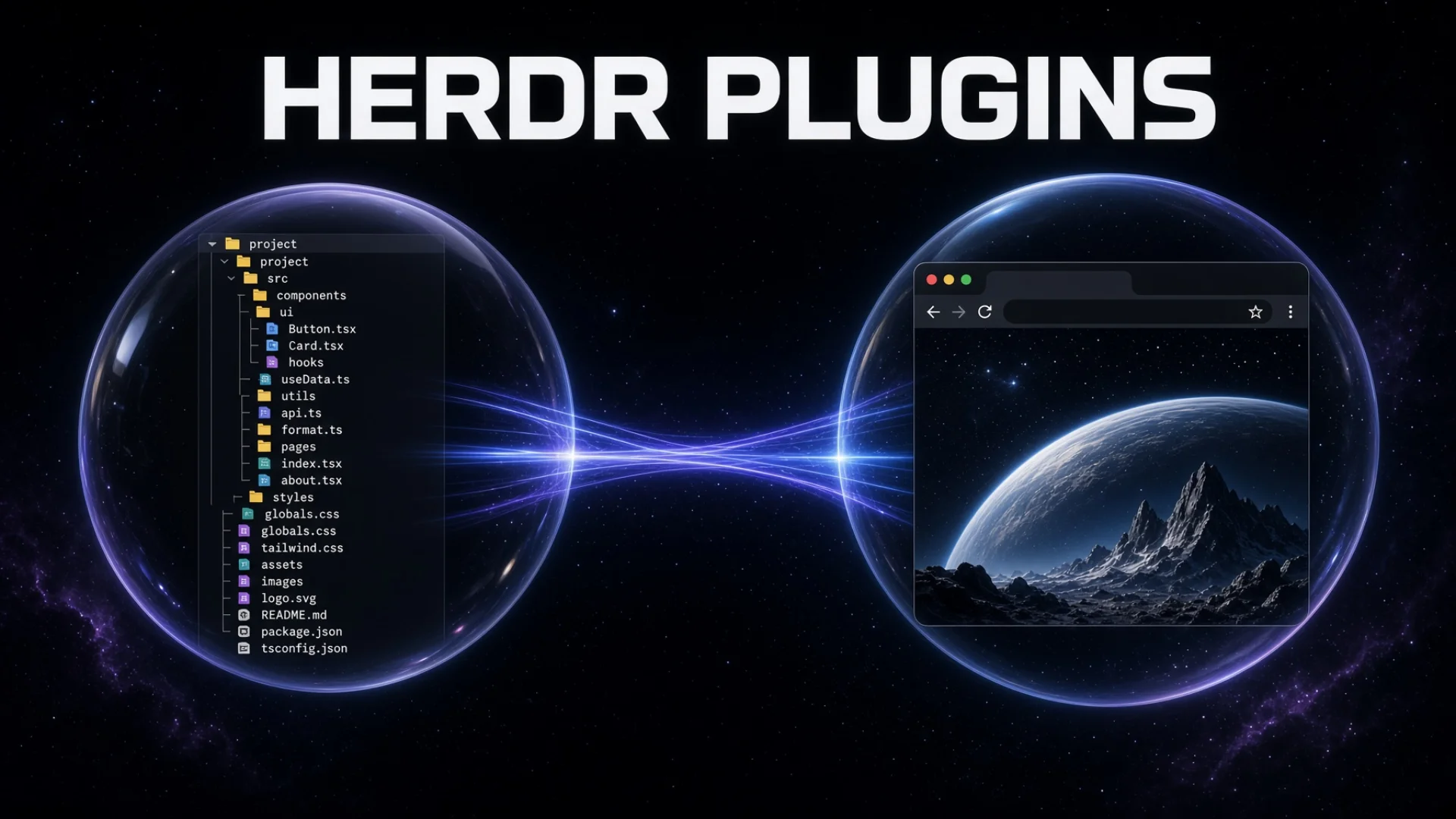
Herdr is the session multiplexer we run our AI agent fleet on: the program that keeps dozens of terminal windows alive on one machine, whether or not anyone is looking at them. It takes the plugin idea further than most. The core program does four things and nothing else. It manages terminal workspaces, it splits them into panes, it tracks which AI agent is running in each one, and it exposes a stable command line. Everything past that is a plugin.
A Herdr plugin is a directory with a manifest file in it (herdr-plugin.toml). The manifest declares what the plugin is called and what command to run. Herdr loads the directory, injects the runtime environment, and starts that command. The plugin picks its own language — one of ours is a compiled Rust binary, the other is TypeScript running on a JavaScript runtime called bun.
One design decision here is worth pausing on: the Herdr command line is the plugin interface. There is no separate development kit, no plugin API library to import, no version-matched SDK to keep in step. If a plugin wants to open a pane, it runs the same command you would run by hand. That sounds like a small thing. What it means is that a plugin cannot break in a way you can't reproduce by typing.
Here is the practical problem. Real work is not only conversation:
- You need to see a file tree. Which directories exist, what's in them, what a Markdown file looks like rendered instead of raw, what changed between two versions.
- You need to see a web page. Not a description of a web page. The actual page, with actual layout, because you're checking whether the thing you built looks right.
You have two ways to get those. Switch to Finder and Chrome, or bring them into the terminal.
Switching sounds obviously easier, and for one lookup it is. The cost shows up in aggregate, and I'll put numbers on it in the next section.
The two Herdr plugins we deployed
A terminal file browser (herdr-file-viewer, from smarzban/herdr-file-viewer). A read-only directory tree that lives in a terminal pane. It renders Markdown properly — headings look like headings — by handing the file to a program called glow. It shows differences between file versions through delta, and syntax-highlighted source through bat. Read-only is deliberate: editing files is what your editor is for, and a viewer that can also delete things is a viewer you have to be careful with.
A browser in the terminal (official.browser, from the repository ogulcancelik/herdr-browser). This one surprises people. It runs a real Chrome in the background with no window of its own, captures the frames, and streams them into a terminal pane as actual pixels, using a terminal graphics protocol that modern terminals support. Not ASCII art. Not coloured half-block characters approximating an image. The real page, in the terminal, clickable and scrollable.
We retired an earlier browser plugin that worked by taking screenshots and converting them to block characters. It looked like a mosaic of a web page. That difference matters more than aesthetics, and I'll come back to why.
|
File browser (fl) |
Browser (br) |
| Repository |
smarzban/herdr-file-viewer |
ogulcancelik/herdr-browser |
| Plugin id |
herdr-file-viewer |
official.browser |
| Job |
Read-only tree, Markdown, diffs |
Real-pixel web pages |
| Runtime |
Precompiled binary |
bun + headless Chrome |
| Drawing |
Text interface |
Pane graphics protocol |
| Viewport |
Not applicable |
1920×1080, pinned by environment variable |
| Pinned to |
A version tag |
A full 40-character commit hash |
| Extra dependencies |
glow, delta, bat |
bun on the service PATH, Chrome, graphics enabled |
| Entry point |
fl launcher, or prefix+f |
br launcher, or prefix+b |
Fixed seats
The concept that makes these useful rather than novel is what we call a fixed seat: a tab that always exists, always sits in the same position in the tab bar, and always opens rooted at the same directory.
On our demonstration machine, the tab order starts like this:
- position 0 —
ch, the chairman agent
- position 1 —
fl, the file browser, rooted at the knowledge base
- position 2 —
br, the browser
- position 3 —
gm, the general manager agent
fl and br are just two-letter labels. They're short because you type them a lot, and because voice input mangles long names.
The important property is that these two tabs are not agents. Nothing is thinking inside them. They're shell seats holding a plugin pane. That distinction sounds pedantic and turns out to cause an entire class of bug, which is in the practice section below.
Why the browser viewport is pinned to 1920×1080
The browser plugin's viewport — the page area Chrome renders into — is fixed at 1920 by 1080 pixels, set through an environment variable. It has no window of its own, so nothing about your terminal's size feeds into it.
This is the single most important configuration choice in the whole setup, and the reason is agents.
When an agent takes a screenshot of a page to check its work, that screenshot has a size. When an agent is told "the submit button is 1,600 pixels across and 240 down," that instruction has a coordinate system. If the viewport is whatever the terminal window happened to be when you opened the tab, then every screenshot is a different size, every coordinate is meaningless the next day, and no screenshot-driven task is reproducible.
The specific number matters less than the fact that it never moves. We picked 1920×1080 because it's the desktop size most people already have a mental picture of; any fixed value would do, and no value works if it drifts. Pinning it means a screenshot taken today is comparable to one taken next month, on a different machine, with a different terminal window. Our acceptance test for the whole browser seat is one command: take a screenshot from the plugin's own command line, then ask the operating system what size the file is. If it doesn't say 1920 by 1080, something in the chain is wrong.
💡 Terminal size still affects one thing: how much of that fixed frame you can see, and at what scale. Making the terminal window bigger shows you more of the same 1920×1080 page. It does not make the page wider. Beginners get this backwards constantly.
Suppose you skip all of it and just alt-tab.
The switching cost. Do the arithmetic with your own numbers. Say you leave the terminal to look at a file or a page 30 times in a working day, and each round trip costs 20 seconds — not the switch itself, which is instant, but finding your place again when you come back. That's 10 minutes a day. Over 240 working days that's 40 hours. Whether your real number is half that or double it, it isn't zero, and it's the kind of cost that never appears on any list because no single instance of it is noticeable.
The reproducibility cost, which is worse. This one isn't measured in minutes. If your agent's screenshots come out at whatever size the window was, then a bug report that says "the layout breaks" can't be checked by anyone else, including you tomorrow. You end up re-taking screenshots and re-describing the same problem, and you can't tell whether a fix worked or the window was just a different size. Pinning the viewport is what converts "it looked wrong" into a claim someone can verify.
The drift cost, if you run more than one machine. We run three Macs. Without a pinned version list, each machine installs whatever the plugin's main branch happened to be on the day you ran the install. Three machines, three different commits.
The failure mode is nasty because nothing breaks visibly. You debug a problem on machine A, fix it, and the fix does nothing on machine B, because machine B is running different code. You conclude the problem is intermittent. It isn't — you're comparing two different programs and calling them the same one. The beginner version of this mistake is written in our own notes as: "don't pin the version, just follow main."
The half-measure cost. The retired browser plugin — the one that rendered pages as block characters — technically worked. You could see that a page had loaded. You could not see whether a button was misaligned by four pixels, whether a font had fallen back, or whether a colour was slightly off. It answered the wrong question, well. Tools that answer the wrong question well are more expensive than tools that obviously don't work, because you keep using them.
How We Actually Run It
This is the part that took the longest to get right, so it's the longest part of the article. Most AI productivity tools get judged on their first hour; these two earned their place by surviving three machines and two upgrades. Almost every line below is defending against something specific that happened.
One file is the source of truth
The whole plugin setup on three machines is defined by an array at the top of a single shell script. The array lists each plugin as owner/repo@ref:
"smarzban/[email protected]"
"ogulcancelik/herdr-browser@be6888b71cf4eb5939ee79a746bd1a1c22ade046"
That's the source of truth. Not the machines. Not anyone's memory.
Adding a plugin is: add a line to the array, commit, run the script on each machine. Time cost: about 15 minutes for the first machine, about 35 minutes for all three.
The script does seven things in order. It installs the rendering helpers (glow, delta, bat) and the JavaScript runtime; makes a symbolic link so a background service can find that runtime; installs the two pinned plugins and uninstalls the retired one; writes the browser's configuration file; writes the keybindings and the graphics setting; reloads the server; then prints the plugin list so you can see what you got.
Almost every one of those steps is defending against something specific. Here is what.
There is no update command
Herdr has no plugin update. That isn't an oversight I've worked around — I've come to think it's correct. Upgrading is: change the @ref in the array, run the script, which reinstalls at the new reference.
The consequence is that the installed version is always exactly what one text file says it is. There's no state where a machine is "on the latest" and you have to go find out what latest meant on the day it ran.
Notice the two @ref values above are different shapes. We pin the file browser to a version tag and the browser to a full 40-character commit hash, because the browser repository moves fast enough that a tag isn't precise enough for us.
⚠️ One caveat before your first upgrade. Reinstalling replaces the plugin's directory while the old pane is still pointing at the previous path. The pane goes blank, or lands in a temporary install directory with nothing in it. After any upgrade, close the tab and open it again.
The uninstall line matters as much as the install lines
The script actively removes the retired browser plugin. Not "doesn't install it" — actively removes it.
If a sync script only ever adds, machines accumulate. And when both browser plugins are present, what you get isn't an error message — it's a pane full of half-block characters. You then conclude that the new plugin is broken, and go debug the wrong program. Our own troubleshooting table has this as its own row: "still seeing half-blocks → the old plugin is still installed."
General rule: a sync script that can't remove things doesn't converge. It only ever moves toward "everything anyone has ever installed."
Fixed seats are opened idempotently
Both seats have a launcher command — fl and br — and both accept --ensure.
Plain fl means "open it and give me focus." fl --ensure means "make sure it exists, but don't steal my focus." That second form is idempotent — running it ten times leaves you in the same state as running it once — which is why it can be called from three independent places: the fleet initialiser, a boot service that runs every 120 seconds, and the shell login script.
Three callers for the same thing sounds like sloppiness. It's deliberate, and the reason is the not-an-agent property from earlier.
The old login check asked: are there as many agents running as the roster says there should be? The file browser is a shell seat, not an agent. So closing it didn't change the agent count, the check passed, and nothing rebuilt it. The seat could stay closed for days. The fix was to stop inferring and just ask directly — three times, from three places, because each call is cheap and idempotent.
There's a second half to "idempotent" that took us a rewrite to get right. The first launcher opened a fresh tab, renamed it, and closed the temporary one it had started from. That works, and it looks exactly like the seat being destroyed and rebuilt every time you touch it. The launcher now opens the viewer as a split inside the tab that already exists and closes only the leftover shell pane. Same end state, no flicker, and nothing that resembles a bug.
New tabs always land at the far right
Every time a plugin opens a new tab, that tab is appended to the end of the tab bar. Always. So both launchers end with an explicit move: put fl at position 1, put br at position 2.
Without that line, the symptom is: you type fl, nothing appears to happen, and the tab is actually sitting at the far right past every agent window. Our notes record the complaint as "I opened it and can't find it."
The keybinding is not the entry point
Herdr has keyboard shortcuts that open the file browser — one for a split, one for a whole tab. They are toggles: press once to open, press again to close.
A toggle is a bad way to guarantee something exists. Worse, if the pane it closes was the only pane in that tab, Herdr closes the now-empty tab too. So the shortcut that felt like "open my file viewer" was occasionally destroying the fixed seat.
The seat's entry point is the launcher. The keybinding is for quick temporary splits. Two different jobs that looked like one job.
Don't create a private session for it
Herdr can run named sessions, each with its own socket — its own private channel. Running herdr --session fl gets you a working file browser in a session the fleet sidebar cannot see.
The symptom: it's open, and it's nowhere. We lost real time to this. The whole fleet lives in the default session. Anything that isn't in default doesn't exist as far as the fleet is concerned.
The graphics chain has exactly one weak link
For the browser to draw real pixels, the terminal attached to Herdr must report how many pixels one text cell occupies. Our measurement on the demo machine: 17 pixels wide, 37 tall.
When that number is zero, you get a browser pane with a toolbar and an empty middle, and an error code saying the host cell size is unavailable.
The subtle part: it's the client actually attached to the socket that has to report it — not the terminal you feel like you're using. We spent time on a case where the connection was going through a mobile session layer that reported zero, while a perfectly capable terminal sat on the same desk. The rule we wrote down: check the cell size in the server log for the client that's attached, and believe that number over your intuition about which program you're in.
The service has a different environment than you do
The browser plugin runs on bun. Bun installs to a directory inside your home folder, and your interactive shell knows about it because your shell configuration says so.
The Herdr server is started by the system's background service manager, which gives it a minimal environment. It has never read your shell configuration. It cannot find bun. So the plugin works when you test it by hand and silently fails when the service starts it.
The fix is one symbolic link — a pointer that makes a file reachable from a second location — from bun into a directory the service already searches. The lesson generalises far past this plugin, and it's the first entry in our fleet crash log: the environment your background services run in is not the environment your shell runs in. Test in the environment that will actually run the thing.
Absolute paths, and one banner that cost an afternoon
The file browser's configuration names glow, delta, and bat by full path, not by name. Same reason as the bun symlink: the server's search path isn't your shell's. With relative names, Markdown quietly degrades to plain text. No error. It just looks worse and you assume that's how it looks.
Two smaller settings in the same file, both filed under "things that aren't problems."
The viewer used to show a banner at the bottom saying a newer version was available. It was read as "this tool needs something installed before it will work properly." It didn't. One configuration line turns the banner off. And one more line hides dotfiles, so the tree opens on your actual project instead of a wall of .git and tool directories.
Worth knowing that some of what looks like a broken setup is a tool being chatty. Worth knowing too that this config file is read once, at startup — change it and the running viewer keeps the old values until you close the tab and reopen it.
Three things we're careful never to do
Never sync the Herdr configuration directory between machines. It contains live sockets and session state. Copying it between machines doesn't produce consistency, it produces corruption. Consistency comes from running the same manifest three times.
Never pipe the install script into a remote shell. Copy the file over, then run it as a file. Piping it means the script arrives on standard input — and one of the installers it calls also reads standard input, and eats the rest of the script. The symptom is bizarre: the script dies halfway through with a "command not found" for one of its own functions.
Never hand the plugin a working directory as a flag. Opening the file browser with an explicit directory argument makes Herdr join that directory to the plugin's own relative program path, and you get an error saying it can't spawn a binary at a path that never existed. The root directory comes from the pane the viewer opens in. Set the tab's directory first; don't pass it later.
The eight rows we actually check
Every symptom below has cost us at least one session. The right-hand column is the first thing to look at, not the fix.
| Symptom |
Likely cause |
First check |
| Script dies halfway, "command not found" for its own function |
Piped into a remote shell; an installer ate the rest of the script |
Copy the file over and run it as a file |
| Browser pane has a toolbar and an empty middle |
The attached client reports a cell size of zero |
Server log, cell_width_px, for the client that is attached |
| Pane full of half-block characters |
The retired browser plugin is still installed |
Plugin list |
| "I opened it and can't find it" |
New tabs are appended at the far right |
Tab list, then move it to its pinned position |
| Markdown renders as plain text, no error |
Renderers named by name instead of absolute path |
The plugin's config file |
| Browser viewer fails only when the service starts it |
bun is not on the background service's search path |
The symbolic link |
| Three machines behave differently |
Version drift from an unpinned reference |
Compare the plugin list on each machine |
| Keybinding does nothing after install |
Config written but not reloaded |
Config check, then reload the server |
Replicate This Tonight
You don't need a fleet, three machines, or a browser in the terminal. Start with the file browser on one machine. If you haven't got a persistent AI agent workspace yet, that comes first — one laptop is enough for everything below.
Step 1 — See what's installed. Inside Herdr, list the plugins.
herdr plugin list
An empty list is the expected starting point.
Step 2 — Install a file browser. Use Herdr's plugin install command with the file viewer's repository, and pin a version — write the version tag explicitly rather than taking whatever the default is. You will not remember which day you installed it.
Step 3 — Install the rendering helpers. Three small programs: glow for Markdown, delta for differences, bat for source code. Then write their absolute paths into the plugin's configuration file, not their names. Ask your AI agent to find the config directory and write the file — this is exactly the kind of five-line task worth delegating.
Step 4 — Open it and pin its position. Open the file browser as a tab. Note where it lands: the far right. Move it to position 1. Do that move by hand once, so you understand why every launcher script we have ends with the same move.
Step 5 — Close it on purpose. Then reopen it. Notice that nothing brought it back automatically. That's the gap the --ensure calls fill. If a tab matters, something has to be responsible for its existence, and "I'll notice" is not that something.
Step 6 — Write down your version list. One file. One line per plugin, with an exact version. Even with one plugin on one machine, start the file. It's the artefact that stops drift before you have anything to drift.
Total time: under half an hour. The four concepts you just used — pin the version, pin the position, make the ensure operation idempotent, test in the environment that will really run it — are the same four at every scale above this one.
The Prompt That Gets You There
Copy this into any AI agent — Claude, ChatGPT, Gemini, Grok. It walks you through installing your first terminal plugin and, more importantly, through the design decisions that make it survive a week.
Prompt (paste this into your AI):
I want to add a file browser and, later, a real browser into my terminal workspace so I stop switching to Finder and Chrome all day. I'm using Herdr, a session multiplexer built for AI agents. I'm a complete beginner — I don't know what a plugin manifest, a symbolic link, or a graphics protocol is. Explain each term in plain language, and go one step at a time, waiting for me to confirm each step worked.
Step 1 — Show me what I have. Help me list currently installed Herdr plugins, and explain what the output means, including an empty list. Then explain in two sentences what a plugin is here: a directory with a manifest file that the host program loads and runs.
Step 2 — Install a file viewer, pinned. Help me install the herdr-file-viewer plugin, and pin an exact version tag rather than taking the default branch. Explain why pinning matters — on a second machine, an unpinned install produces a different program with the same name, and that difference stays invisible until it wastes an afternoon.
Step 3 — Install the rendering helpers and configure absolute paths. The file viewer hands files to three external programs: glow for Markdown, delta for differences, bat for source code. Help me install all three, find the plugin's configuration directory, and write a config file that names each program by its full absolute path. Explain why: a background service has a different search path than my interactive shell, so a name that works when I type it can silently fail when a service runs it — and the failure looks like "Markdown renders as plain text," not like an error.
Step 4 — Open it and pin its position. Help me open the file viewer as a tab, rooted at a project directory of my choosing. Note that new tabs are appended at the far right of the tab bar. Help me move it to a fixed position near the front, and explain why that move belongs in a launcher script rather than in my memory.
Step 5 — Understand the toggle trap. Explain that the keyboard shortcut which opens the file viewer is a toggle: pressing it again closes the pane, and if that pane was the only one in its tab, the tab closes too. So the shortcut cannot guarantee the tab exists. Help me write a tiny launcher command with two behaviours: plain invocation opens and focuses it, and an --ensure flag makes sure it exists without stealing focus. Explain what "idempotent" means and why the --ensure form is safe to call from several places at once.
Step 6 — Write my version list. Help me create a single file recording every plugin I've installed with its exact pinned version. Explain that this file, not any machine, is the source of truth, and that upgrading means editing this file and re-running the install — because there is no update command, and that's a feature, not a gap.
Constraints:
- No configuration file longer than 6 lines. No scripts longer than 10 lines.
- Explain every technical term the first time you use it.
- If a step fails, give me the three most likely causes ranked by probability, and one specific command to check each.
- Do not suggest syncing my Herdr configuration directory between machines. It contains live sockets and session state, and copying it corrupts rather than synchronises.
Start with Step 1.
Frequently Asked Questions
Do I need Herdr specifically, or will this work on tmux?
The pinning and idempotence ideas transfer to anything. The two plugins don't — tmux has no plugin manifest and no pane graphics protocol, so there is no way to get real pixels into a pane. If you're on tmux and only want the file tree, run a terminal file browser as an ordinary program in a split. You lose the fixed-seat behaviour and keep everything else.
Is a browser in the terminal a replacement for Chrome?
No, and it shouldn't be. It's for checking. You look at a page, confirm the layout is right, click through two states, and go back to work. Anything involving a password manager, many tabs, or long reading is better in a real window. What you gain is that an agent and a human can be looking at the same page, at the same fixed size, without either of them leaving the workspace.
Why is the file browser read-only? That seems like a limitation.
It's the point. Editing is what your editor is for. A viewer that can also rename and delete is a viewer you have to be careful in, which means you use it more slowly. Read-only makes it a glance tool. It hands files to glow, delta and bat for display and does nothing else.
Won't running a headless Chrome in the background eat memory?
It's one Chrome process with its own separate profile, not attached to your daily browser, started when the seat opens. If that matters on your machine, the plugin's config file has a capture-scale setting: dropping it to 0.75 cuts the captured pixels by roughly 44%. The viewport stays 1920×1080 — only the frame you capture gets cheaper.
My terminal doesn't support the graphics protocol. What do I get?
A toolbar and an empty middle, plus an error saying the host cell size is unavailable. That's the honest failure. Check the cell size the attached client reports, not the terminal you think you're using — a session layer in between can report zero while a perfectly capable terminal sits on your desk. Fix the attachment before touching the plugin.
Do I need three machines for any of this to make sense?
No. On one machine, the version file feels like paperwork. It becomes load-bearing the day you add a second machine, and by then writing it retroactively means auditing what's already installed. Six lines tonight beats an audit later.
Further Reading
Related tutorials
This is part of the Knowledge Base and Fleet tutorial series. Previous: AI Agent for Business — The General Manager Pattern. Next: AI Assistant for Business — Running Your Fleet From a Phone.
— Leo