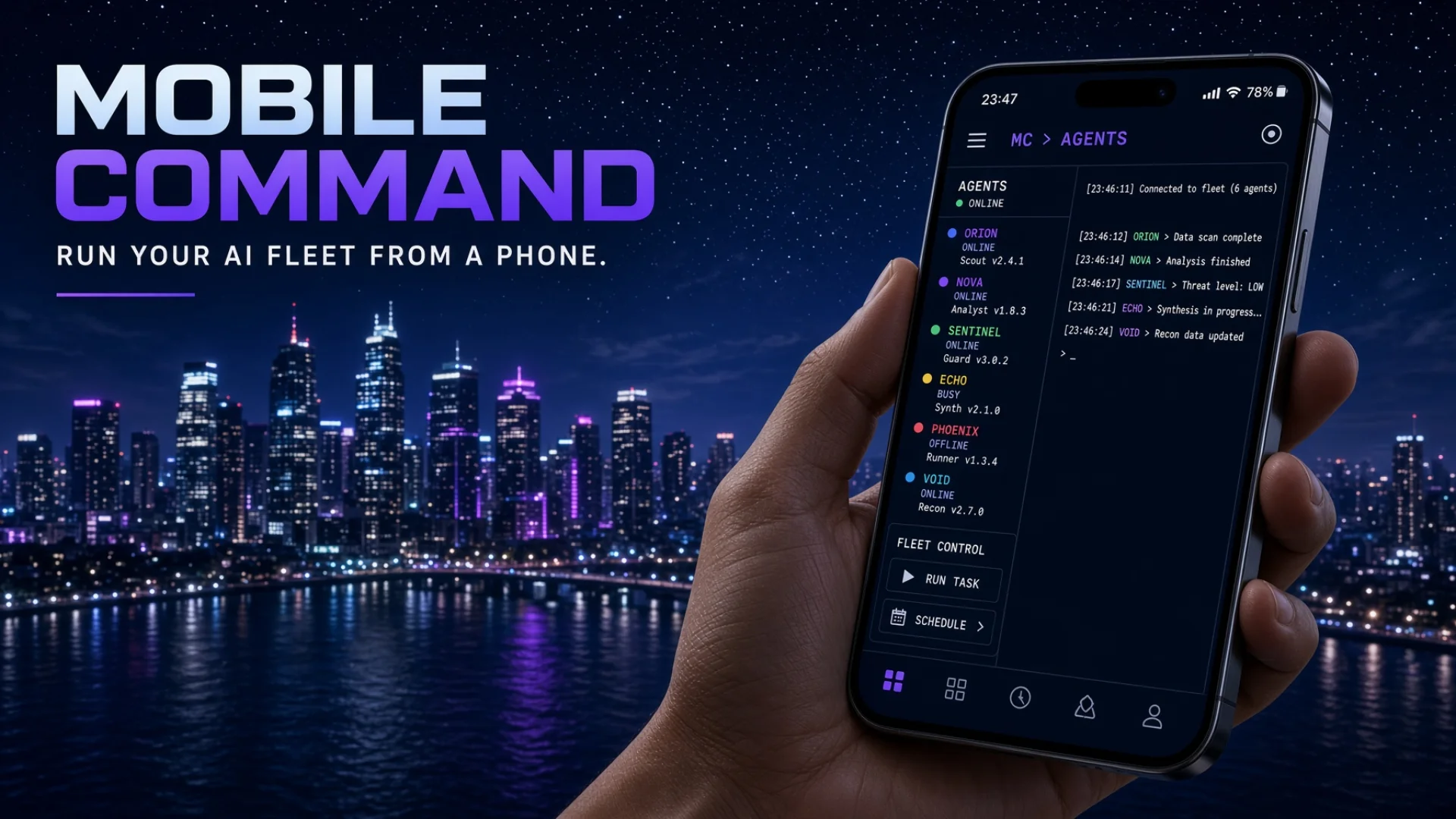
Search for an AI assistant for business and you get products that answer your email. This article is about the other half of the job: what happens when the assistant needs to ask you something, and you're standing on a train platform.
Thirty-odd agent windows run on a Mac at home. I'm not at home. Our agents stop and wait for approval on anything consequential, which is the correct design — an agent with a real job should not be spending money or publishing things unsupervised. But it means a blocked agent is a parked agent until a human answers, and if the only place you can answer from is your desk, the parked time is as long as your day away from it.
So the phone stops being a convenience. It's the thing that makes approval gates affordable.
Key takeaways
- The hard part of running remote AI agents from a phone is not screen size. Terminals are text and text reflows. The hard part is what happens to your work when the connection drops or you exit.
- Three layers stack up: SSH gets you a command line, mosh survives network changes and screen locks, and a session multiplexer holds the workspace whether anyone is connected or not. When something breaks, you need to know which layer to look at.
- Two ways in, opposite exits. The app's picker launches the multiplexer as the connection's last process — detach and the connection dies. Landing in a shell first and running the multiplexer as a child means detaching returns you to a live prompt. The difference is one word:
exec.
- Auto-attach needs five guard conditions, all of them, or it swallows your automation. The debugging tool that matters is a dry-run mode that prints which guard failed.
- The strangest bug we've hit: a phone client attached in the background froze scrolling on the desktop. At 24 rows, and only 24 rows. A probe found it; reasoning never would have.
The Real Problem With Phones
Most people assume the difficulty of controlling a computer from a phone is the screen size. It isn't. Terminals are text, text reflows, and a phone shows plenty of text.
The difficulty is connection semantics — what happens to your work when the connection is interrupted, and what happens when you exit.
Here's the shape of the problem. Your phone's network is unstable by design — you walk into a lift, you switch from wifi to cellular, the screen locks and the system suspends the app to save battery.
Every one of those events kills a plain SSH connection, and killing the connection kills whatever was running inside it.
Three pieces of technology stack up to solve this, and it's worth knowing what each one does, because when something breaks you need to know which layer to look at.
SSH, mosh, and the multiplexer
SSH is the standard way to get a command line on a remote machine. It's a single TCP connection. Change networks and it dies.
Mosh — short for "mobile shell" — replaces the transport underneath. Instead of one fragile connection, it sends small state updates over UDP and reconciles what your screen should look like. Change from wifi to cellular and mosh doesn't notice. Lock your phone for six hours and a mosh session picks up where it left off.
The session multiplexer — Herdr, in our case — is what actually holds the workspace. More than thirty tabs, nearly all with an AI agent in them, living on the Mac whether anyone is connected or not. Mosh gets you a window onto it. The multiplexer is what's on the other side of that window.
| Layer |
What it gives you |
What kills it |
| SSH |
A command line on the remote machine |
Any network change, lock, or app suspend |
| Mosh |
A screen that survives all three |
Ending the session explicitly, or a reboot |
| Multiplexer |
The workspace itself, running unattended |
Stopping the server |
The phone app we use, Moshi, wires all three together and adds one more thing: a picker.
What actually happens when you tap connect
This part is worth walking through slowly, because everything else here depends on it.
When you tap a saved connection in the app, before showing you anything, it runs a non-interactive SSH preflight. That's a formal name for something simple: it opens a quick mobile terminal SSH connection, runs a couple of commands, reads the output, and hangs up. The commands ask two questions — which multiplexers are installed on this machine? and which sessions are currently running?
The answers come back as structured data. The app now knows there's a Herdr session called default running, and that it contains two workspaces. It shows you a picker with those workspaces as choices.
You tap one. The app opens a mosh session and hands the server an explicit command to run: focus that workspace, then attach to the session. Your fleet appears on your phone.
Two things about this are worth naming, because both cause confusion later.
First, the preflight is a completely separate channel from everything that comes after. The picker's ability to find your fleet depends on three things and nothing else: can SSH reach the machine, is the multiplexer on the search path for a non-interactive connection, and is the session running. Later in this article there's a helper program that also talks about Herdr and also breaks in interesting ways — and it has nothing to do with the picker. Confusing those two cost us hours.
Second, the workspace has an ID, and we never hardcode it. We look it up fresh each time. Workspace IDs are a runtime detail. Writing one into a config file is the kind of thing that works for three weeks.
The two paths, and the one word that separates them
Here is the core of this article.
There are two ways to end up inside the fleet from a phone. They look identical once you're in, and they behave in opposite ways when you exit.
Path one — the picker. You tapped a workspace in the picker. The app told the server to run Herdr as the command for this connection. Herdr is now the last process on that connection. When you detach — the keyboard shortcut is Ctrl-B q — there's nothing underneath it. The connection ends. You're back at the app's home screen, and you reconnect through the picker.
Path two — auto-attach. You tapped Skip in the picker, or connected with plain SSH, or used bare mosh. You land in an ordinary shell — a command prompt. Your shell startup file notices you're on a remote interactive login, waits a second and a half, and then runs Herdr for you. When you exit Herdr, you land back at the command prompt. The connection is still alive. Type herdr and you're back in.
The difference is one word in the startup file: we call herdr, not exec herdr.
For anyone who hasn't met exec: normally, when a shell runs a program, the shell stays alive underneath and the program runs as its child. When the program finishes, control returns to the shell. exec says replace me with this program — the shell is gone, the new program takes over its place entirely. Same command, same visible result, opposite consequence when it exits.
|
Path one — picker |
Path two — auto-attach |
| How you got in |
Tapped a workspace in the picker |
Skip, plain SSH, or bare mosh |
| What runs the multiplexer |
The app, as the connection's command |
Your shell startup file, as a child |
Detach with Ctrl-B q |
Connection ends |
Back at a live prompt |
| Getting back in |
Reconnect through the picker |
Type herdr |
| Changeable from the server |
No — it never reads your startup file |
Yes |
exec herdr means Herdr becomes the connection. Exit Herdr, lose the connection. Plain herdr means Herdr is a guest inside a shell that outlives it.
We tried exec once, in July, as a fallback while the app's picker was misbehaving. It worked, and it broke two things: it hid the fact that the picker was actually broken, and it destroyed what Skip is supposed to mean. If you tap Skip, you asked for a plain command line, and exec took that option away permanently. We removed it and rebuilt the auto-attach without exec, with escape hatches.
And path one can't be changed from the server. The app hands the command directly to the mosh server. It never reads your shell startup file. So the "exit kills the connection" behaviour of the picker path is not something a configuration change fixes.
There is one way to intervene, and we deliberately didn't take it: put a wrapper script named herdr earlier on the search path than the real one, and have it start a login shell after the real program exits. It would work. It also means every future problem involving that command now has an extra program in the middle of it, on three machines. If you want to detach without dropping the connection, use the other path. That's the whole answer.
Five conditions, all required
Auto-attach is dangerous if it fires at the wrong time. Imagine a backup script that connects over SSH to run one command and gets swallowed into an interactive AI workspace instead. So the check has five conditions, and every one must hold:
- This is a remote connection. Not a terminal window on the machine itself.
- This is an interactive login shell. A human is typing.
- This is not a command execution.
ssh host 'some command' runs the command and nothing else.
- We are not already inside Herdr. Herdr panes contain shells too. Without this check, opening a shell inside the fleet would open the fleet inside itself, forever.
- The escape variable isn't set. Setting
NO_HERDR=1 opts out explicitly, for any script that needs a plain shell.
Two implementation details from condition one are worth stealing.
Mosh sessions don't always carry the environment variables that mark an SSH connection. So when those are missing, the check walks up to five levels of parent processes looking for the mosh server. That's the fallback.
And it compares against the executable name only, not the full command line. We learned that the hard way: a process whose command line happened to contain the words "mosh server" got classified as a remote connection and pulled into the fleet. Matching on a full command line means matching on anything anyone typed.
Two escape hatches sit on top of that: press any key within a second and a half of connecting to stay at the prompt, and a dry-run variable that prints the decision the check would make without acting on it. That last one is the debugging tool. When someone reports "my automation got captured," you reproduce it in dry-run mode and read which condition failed to hold.
What It Costs When Your AI Assistant for Business Is Desk-Only
Three scenarios, with the arithmetic.
An agent blocks and nobody notices. A blocked agent isn't failing — it's parked. If your only way to see a parked agent is to sit at a desk, the parked time is bounded by how often you sit at a desk. Check once in the morning and once at night, and the worst case is roughly twelve hours of an agent doing nothing while a pipeline behind it waits. Being able to glance at a sidebar from a phone at a bus stop cuts that to minutes. If you run agents that block — and you should — this is the whole argument.
You carry a laptop for a two-minute task. The thing you actually need to do from outside the house is usually tiny: approve one action, read one result, kill one runaway job, dispatch one task. Carrying a laptop so you can perform two minutes of work is a bad trade you make repeatedly, because the alternative is nothing.
You reach for remote desktop instead. This is the trap that looks like a solution. Screen-sharing software will show you the Mac's screen on your phone. It's technically remote access. In practice, controlling a terminal through a scaled-down mirror of a 27-inch display on a 6-inch screen, with a pointer you drag around with your thumb, is worse than not trying. Text-native remote access is a different category of tool, not a lesser version of the same one.
There's a fourth cost that's harder to see, and it's structural. An AI assistant for business that you can only supervise from a desk quietly changes what you are willing to build: without a stable phone path, you design your system around the assumption that you'll always be at that desk. You skip approval gates, because approvals need a human and the human is only sometimes present. You build things that run to completion unattended, because attended is expensive. That's a worse system, and the phone is what buys you back the option.
How We Actually Run It
Everything above is the design. This section is what actually happens on three machines, including the two failures that took the longest to explain.
The shape of what's on the phone
The fleet on the primary machine is more than thirty tabs split across two workspaces: one rooted at the Chinese knowledge base, one at the English one. Seven AI model backends between them. The other two machines run their own fleets over the same shared files.
The phone shows this in two places. A left-hand list of agents, and a top row of tabs you swipe horizontally.
Two things about that display are worth knowing before they confuse you.
Each row in the agent list has two parts: workspace name, then window name. So if the workspace name ever changes, every row appears to change at once. The first time that happened we thought every window had been renamed. It was one name repeated thirty times.
The plain shell tab doesn't appear in the agent list at all. That list only shows tabs with an agent process in them. Our shell tab is the last one in its workspace, at the far right of the top row, and you swipe all the way over to find it. It's not missing. It's just not an agent.
⚠️ One measurement caveat. On a phone screen the pane is narrow. Herdr detects agent states by matching patterns against what's on screen — and in a narrow pane, the "waiting for approval" prompt wraps onto several lines and stops matching. The agent shows as idle when it's actually blocked. Nothing is wrong; the display is just too narrow to hold the evidence on one line. So: trust the fleet status command's readout, not the colour you see on a phone. This is the same underlying issue as the narrow-pane detection failure in our crash log — pattern matching against a screen depends on the screen.
The crash that taught us where the boundary is
Our phone app installs a small background helper that runs on the Mac. It's what makes the swipe-between-tabs gesture work and what delivers notifications when an agent finishes.
One day, swiping stopped working. Notifications stopped. The app could still connect fine — the picker worked, the fleet appeared — but everything interactive after connecting was dead.
The cause was our network proxy. The helper syncs usage data to its vendor's server once a minute. The proxy's unauthorised-access detection decided that a process making that many requests was misbehaving, and banned the entire process from all network access. Not the one endpoint. Everything.
The fix was two direct-connection rules at the head of the proxy's rule list — one matching the process by name, one matching the vendor's domain — then reloading, then clearing the ban in the event log. The clearing step matters: adding the rules doesn't lift an existing ban.
Two lessons came out of this, and the second is the valuable one.
Your proxy has opinions about your tools. Any traffic-shaping layer — a corporate proxy, a VPN with rules, an ad blocker at the DNS level — is a program with its own model of what normal traffic looks like. A polite background service that phones home on a timer can look exactly like something abusive.
Know which channel each symptom lives on. The helper serves live context and notifications. The picker uses SSH preflight. They are separate channels. So when the picker fails, checking the helper's diagnostics tells you nothing — and that is precisely what we did for a while, chasing helper logs while the real cause was a client version we hadn't upgraded. We now write this boundary explicitly at the top of the troubleshooting table: don't substitute hook logs for a preflight check.
The crash where the phone froze the desktop
This is the strangest bug we have hit on this setup, and it's the one I'd tell someone about first.
Symptom: on the desktop, the scroll wheel stopped working in Herdr's left-hand agent list. Not in an agent's output — in Herdr's own sidebar, the interface element that has nothing to do with any agent. It just wouldn't scroll.
We suspected the terminal's mouse reporting. We suspected one particular agent's terminal handling. We suspected a configuration file. We compared two machines that were running identical versions, connected identically, and behaved differently.
What actually found it was a probe, not reasoning. We wrote a script that starts a Herdr client inside a fake terminal, injects the exact bytes a scroll wheel produces, and reads the resulting screen with a terminal emulator library. That removes the human, the terminal app, and the network from the experiment. Just the program and the input.
The answer: the second machine had a phone client attached in the background. Mosh sessions don't die when you lock your phone, so the phone had been quietly attached for days. With the phone attached, the desktop's sidebar wouldn't scroll. Kill the phone client and it scrolled immediately. The healthy machine had never had a phone connect to it.
Then it got stranger. We scanned client sizes:
| Phone client size |
Desktop sidebar |
| 22 rows |
scrolls fine |
| 24 rows |
frozen |
| 26 rows |
scrolls fine |
| 28 rows |
scrolls fine |
Column count made no difference at all. Only 24 rows. Both neighbours fine.
That's not a threshold — "too short breaks it" would show every value below some number failing. That's a boundary error at one specific value: when several clients share the sidebar's scroll state, that particular height computed the scroll limit as zero. And phone row count depends on font size and screen orientation, which is exactly why the bug looked random and intermittent for weeks. Rotate the phone, get a different row count, and the desktop starts or stops working.
We filed it upstream, with a single script that reproduces all four cases. On the next Herdr release it was not fixed and the trigger got wider — any second client of any size now freezes the sidebar. The size rule is gone; the rule now is simply "a phone attached in the background breaks desktop scrolling."
Three calibration points from writing that probe, all learned by getting them wrong first:
- Wait long enough for the first render. Five seconds wasn't enough. Nine was. Sample too early and "the event got dropped" reads as "it can't scroll," which sends you somewhere else entirely.
- Only the first round counts. Eight scroll events reach the bottom of a short list. Rounds two and three showing no movement is correct behaviour, not evidence.
- Vary more than one dimension. Our first scan held the row count fixed at a value that doesn't trigger it, and we concluded the bug couldn't be reproduced synthetically. It could.
Finding the accidental fingerprint
Since the workaround is "disconnect the phone," we needed a command that disconnects the phone and only the phone — not the desktop client, and definitely not the server.
The problem: at the protocol level, both clients are identical. Both are mosh sessions attached to the same socket. There's no field that says "this one is a phone."
The signal we found was environmental. The phone app passes LANG=C.UTF-8 when it starts its mosh server. A desktop terminal running mosh by hand passes LANG=en_US.UTF-8. Neither app chose that value to distinguish itself — it's an accident of how each one was built. But it's a reliable accident, so our detach command walks up to the ancestor mosh server process, reads that variable, and disconnects only the matches.
The command has a dry-run flag that lists every attached client with its transport and its phone-or-not verdict, so you can check before you cut. Cost of running it: the next time you open your phone you land at a shell prompt and type herdr. The server and every window are untouched.
The general lesson: when two things are identical in the dimension you're looking at, look at an adjacent dimension. The distinguishing signal is often something neither party chose deliberately.
Mosh sessions don't clean up after themselves
Every time you connect in a way that doesn't reuse an existing session, the Mac keeps another mosh server process. They don't die when you lock the phone — that's the whole point of mosh — and they don't die when you switch apps, or lose signal, or close the app. They die when you explicitly end the session card in the app, or when the machine reboots.
So they accumulate. We found one that had been alive for 8 days and 20 hours.
Cleanup is manual and needs care: list the processes with their start times, look at what each one's child process is, and only kill the ones whose child is an idle shell with no Herdr client under it. Blanket-killing by pattern match will take out live sessions along with dead ones.
Two small behaviours that look like faults
The picker only appears when there's nothing to reuse. If a session card is still alive on the app's home screen, tapping it goes straight back in. No picker. People read that as the picker being broken. It's the opposite — it's the session having survived.
Deep links restore, they don't launch. The app supports links of the form moshi://herdr?workspace=<id>. Useful, with one limitation people trip on: a deep link only restores a session card that's already active or minimised in the app. It cannot cold-start a saved connection or pick a host. No card, no restore — you go through the normal connect flow.
Replicate This Tonight
You need one computer that stays on and one phone. No fleet required.
Step 1 — Get a persistent session on the computer. Install a session multiplexer and start it. Open two tabs. Close the terminal window entirely. Reopen and reattach. Both tabs should still be there with their contents. Until this works, nothing else is worth trying.
Step 2 — Confirm the non-interactive path. From another machine — or from a second terminal window — run a single SSH command that asks whether the multiplexer is findable:
ssh yourmachine 'command -v herdr'
If that prints nothing, your phone app will not find your fleet either, and no amount of configuring the app will help. A non-interactive connection uses a minimal search path that doesn't include your shell customisations. This single check is the most common root cause of "the picker doesn't show anything."
Step 3 — Install a mobile terminal app that speaks mosh. Connect once and confirm you get a prompt. Then lock your phone for five minutes, unlock it, and confirm your session is still there. That test is the difference between a mosh session and an SSH one, and it's the reason this whole setup works.
Step 4 — Feel the difference between the two paths. Connect through the picker and attach to your session, then detach with Ctrl-B q. Note what happens to the connection. Then connect again, skip the picker to land at a plain shell, type the multiplexer's command by hand, and detach again. Note what happens this time. That contrast is the article in ten seconds of experience.
Step 5 — Add auto-attach, guarded. In your shell startup file, add a check that runs the multiplexer when — and only when — all five conditions from earlier hold: this is a remote connection, it's an interactive login shell, it isn't a one-off command execution, you're not already inside the multiplexer, and the opt-out variable isn't set. Call it directly, not with exec. Add a short wait with a "press any key to stay here" message.
Have an AI agent write this for you. Insist on all five guards — the third one is the one people drop, and it's the one that stops your automation getting swallowed. Then test exactly that case: run a one-off remote command and confirm it still runs the command and exits, instead of dropping you into a workspace.
Step 6 — Write down which path you're on. When something misbehaves at exit time, the first question is always "which path did I come in on?" Put the answer in a note before you need it.
The Prompt That Gets You There
Copy this into any AI agent. It sets up phone access to a persistent workspace, in the right order, with the guards that keep it from breaking your automation.
Prompt (paste this into your AI):
I want to control a persistent terminal workspace on my always-on computer from my phone, so I can check on long-running jobs and approve things while I'm away from my desk. I'm a complete beginner: I don't know what mosh, a session multiplexer, a login shell, or exec is. Explain each term the first time it comes up. Go one step at a time and wait for me to confirm.
Step 1 — Persistent session first. Help me install a session multiplexer and confirm a session survives closing the terminal window entirely. Explain why this must work before anything mobile is worth attempting: the phone is a window onto the session, and with no session there's nothing to look at.
Step 2 — Test the non-interactive search path. Help me run a single SSH command from another machine that checks whether the multiplexer binary is findable on a non-interactive connection. Explain the difference between an interactive shell (which reads my customisations) and a non-interactive one (which does not), and why a mobile app's discovery step uses the non-interactive path. Tell me what to do if it prints nothing.
Step 3 — Mobile client. Help me set up a phone terminal app that supports mosh. Explain what mosh does differently from SSH: it survives network changes, screen locks and app suspension, because it syncs screen state over UDP instead of holding one fragile connection. Have me verify by locking the phone for five minutes and confirming the session is intact.
Step 4 — The two connection paths. Explain that there are two ways into the workspace and they behave in opposite ways when I exit:
- The app launches the multiplexer as the connection's last process. Exiting ends the connection.
- I land in a shell first, and something runs the multiplexer as a child of it. Exiting returns me to the shell, connection intact.
Explain what exec does and why using it in a startup file converts the second behaviour into the first. Have me try both.
Step 5 — Guarded auto-attach. Help me write a short block for my shell startup file that runs the multiplexer automatically, but only when all of these hold: it's a remote connection; it's an interactive login shell; it is not a one-off command execution; I am not already inside the multiplexer; and an opt-out environment variable is not set. Call the multiplexer directly, never with exec. Add a brief pause with a "press any key to stay at the shell" message.
Then test the case that breaks people: run a one-off remote command and confirm it still executes and exits normally rather than being captured. If it gets captured, tell me which guard is missing.
Step 6 — Escape hatches and debugging. Help me add an environment variable that skips auto-attach entirely, and a dry-run variable that prints which guard passed or failed without acting. Explain why dry-run is the right tool when someone reports "my script got captured."
Constraints:
- The startup block must be under 20 lines, each guard explained in one sentence.
- Do not hardcode any session or workspace identifier. Look them up at runtime and explain why.
- If my phone app has a background helper process, tell me it serves live-context features only, not discovery — a broken helper is not evidence that discovery is broken.
- Warn me that mosh sessions accumulate on the server and are not garbage collected, and show me a safe way to identify dead ones before killing anything.
Start with Step 1.
Frequently Asked Questions
Do I have to run remote AI agents on a Mac at home? What about a cloud server?
A cloud server works and is arguably easier — always on, always reachable, no home network to traverse. We keep the fleet on machines we own because the agents read a knowledge base full of credentials and personal files, and we're not putting that on a rented host. If your agents only touch public repositories, a small server is a perfectly good place to run them.
Isn't a phone terminal a security problem?
It's the same exposure as any mobile terminal SSH setup: key-based authentication, no passwords, the key held in the phone's secure storage behind biometrics. What changes with agents is the blast radius of one approval tap, which is exactly why the four things that need explicit permission — spending, publishing, direction changes, deletion — are written down in the role definitions rather than left to judgment in the moment.
Can I approve things without reading the whole screen on a phone?
Yes, and this is the main daily use. A blocked agent shows the question and a short list of choices. You read three lines and answer. The long output you scroll through at a desk later. The phone is for unblocking, not for reviewing.
Why not just use a chat app or a web dashboard as the interface?
Because then you're maintaining a translation layer between the agent's real interface and a nicer one, and every new agent tool needs new translation. A terminal is the interface these tools already speak. The phone showing a terminal is doing zero translation, which is why it never falls behind the tools.
What breaks first when I try to run AI agents from phone?
The non-interactive search path, by a wide margin. Your multiplexer is findable when you type its name because your shell configuration put it there; a discovery connection reads none of that. One SSH command tells you in two seconds, and it explains most cases of "the picker shows nothing."
Do I need mosh, or is SSH good enough?
SSH alone is fine if you never lock your phone, never change networks, and never switch apps. In practice the session dies within a minute of putting the phone in your pocket, and you reconnect every single time. A mosh session removes that entirely — and because the multiplexer holds the workspace independently, losing a connection was never going to cost you work. Mosh just removes the friction of getting back.
Further Reading
Related tutorials
This is part of the Knowledge Base and Fleet tutorial series. Previous: AI Productivity Tools — Put a File Viewer and a Real Browser in Your Terminal. Next: Generative AI Tools — Eighteen Things That Broke, and the Rules They Left.
— Leo