Monitoring a competitor who publishes no feed is the case every RSS guide skips. Twenty-one platforms sorted by which of three jobs they do, and the finished setup is business process automation you own outright, with no seat licence to renew.
Blaming the content is the reflex when a post underperforms, and it is usually the wrong diagnosis. A second reader decides distribution before any human sees the post, and most of what it checks is mechanical enough to automate business processes around, on five platforms at once.
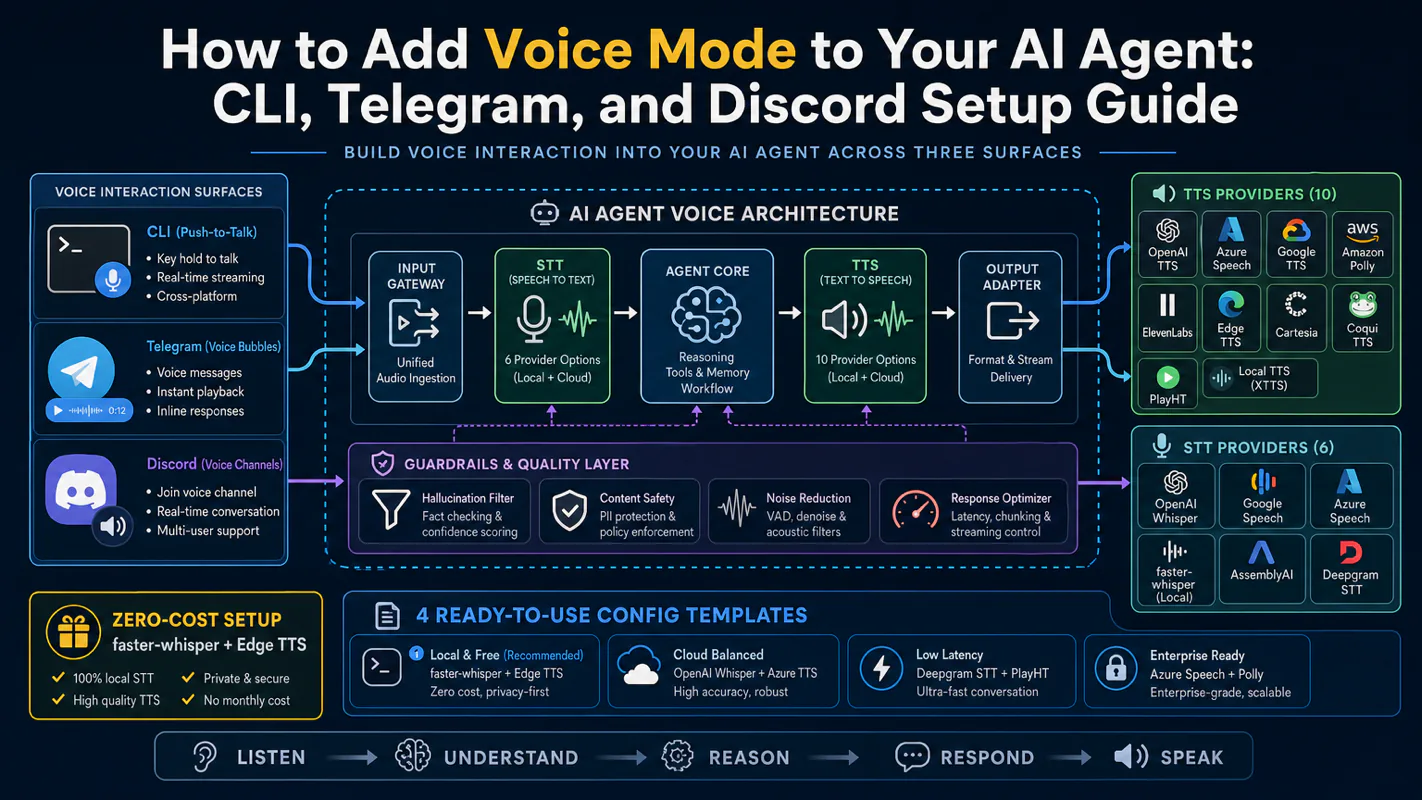
Gloves on, tape measure in hand — nobody types a query. Three voice surfaces for ai automation tools (terminal, Telegram, Discord), 10 TTS and 6 STT providers compared on cost and latency, plus a setup that costs nothing.
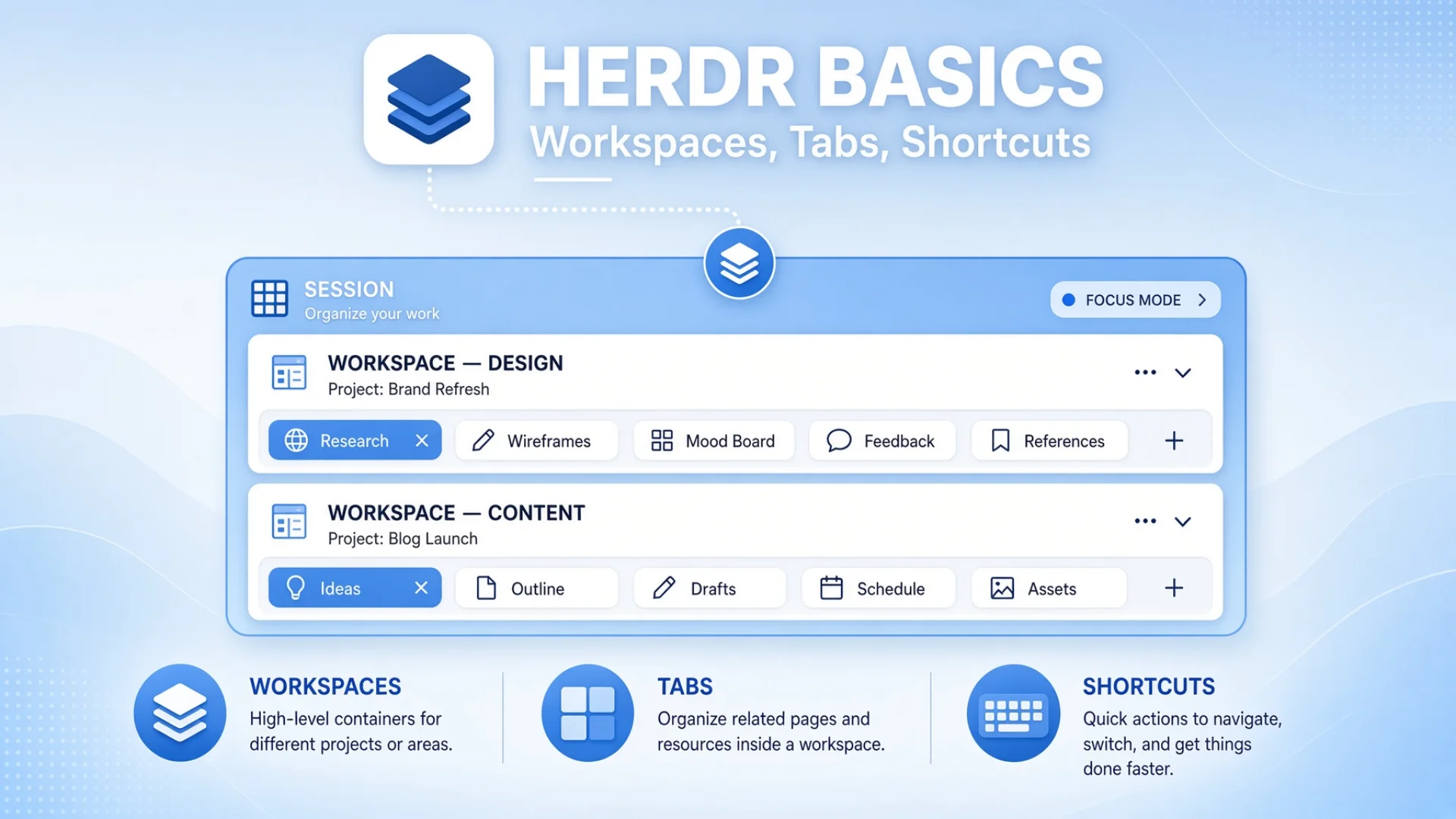
AI Automation Platform Basics: Workspaces, Tabs and Shortcuts
Most people organise AI agents with one flat list of windows. That works until about eight. An AI automation platform needs three nested layers — session, workspace, tab — and exactly one prefix key. Here is how I use them, plus the naming mistake that made my entire fleet look broken from a phone.
Most people organising AI agents reach for one layer: a list of windows. That works until about eight. Past eight, you are scrolling — and scrolling is how a blocked agent sits unnoticed overnight.
Any AI automation platform that expects to hold more than a handful of agents needs nesting. Herdr gives you three layers. They sound like bureaucracy until you have enough agents to need them, at which point they stop feeling like structure and start feeling like the only reason you can find anything.
This article covers all three, the six keyboard shortcuts actually worth memorising, and one naming behaviour that made my entire fleet look broken from a phone.
Key takeaways
Three nested layers: a session holds everything and survives the window closing, a workspace groups tabs for one body of work, a tab is exactly one agent.
Run one session, named on purpose. Named sessions cost me phone access twice before I gave up on them.
Group workspaces by body of work, never by importance. "core" and "misc" are judgments, and judgments get reinterpreted differently by you and by your tools six weeks later.
Name every workspace explicitly. If you do not, the name follows a folder — and that is a live binding, not a one-time default.
Six shortcuts cover a fleet of any size. The searchable jump list matters most past nine tabs, because number keys stop there.
Keyboard configuration is read by the client, not the server. Reloading the server changes nothing for a client that is already attached.
Three layers, and why you need all three
Layer one: the session
A session is everything. One machine, one session, every agent inside it.
You can create multiple named sessions. I do not. I run exactly one, called default, on all three machines. That is deliberate and it took two false starts to get there.
My first attempt used two named sessions, one per project. It looked clean. It failed for a boring reason: my phone client at the time only offered the default session in its connection picker, so my named sessions were invisible from the phone. I could see them from a laptop but not from a phone, which is the wrong way round — the phone is when I most need to check on things.
The current answer: one session, kept running permanently by a background service that restarts it if it dies.
Note: If you take one thing from this section — a session is a container that outlives your terminal window. Close the window, the session keeps running. Open a new window, type the command, everything is exactly where you left it. That is the entire point of the layer, and it is covered in depth in the session multiplexer article.
Layer two: the workspace
A workspace is a group of tabs that belong together — a terminal workspace scoped to one body of work. This is the layer people skip, and it is the one that makes a large fleet navigable.
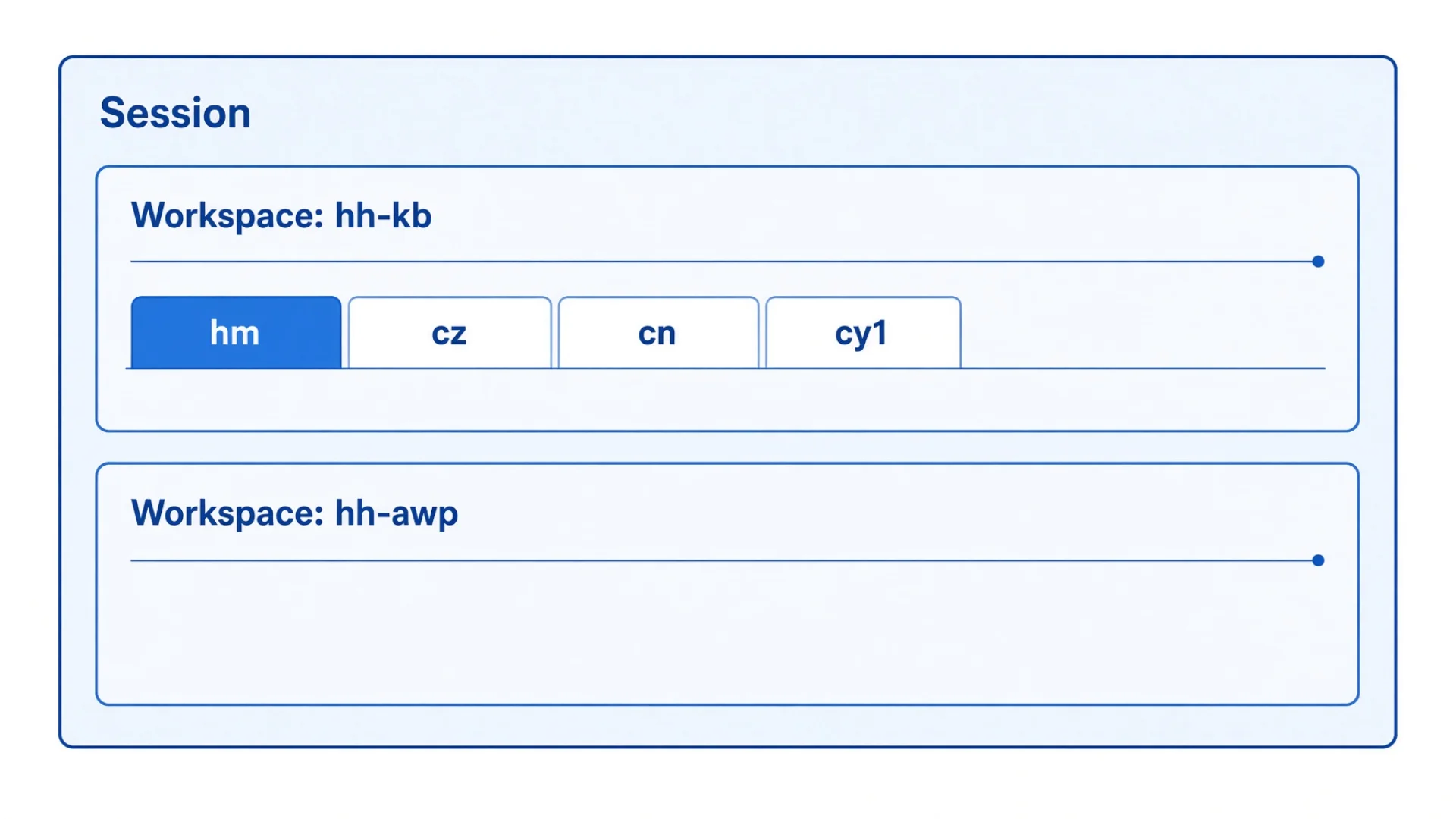
I run two:
hh-kb — the big one, thirty-odd tabs, working inside my Chinese-language knowledge base
hh-awp — two tabs, working inside the English library
One shortcut moves between them. That is the whole interaction: the tab row changes, the sidebar changes, and everything in the group you left keeps running.
Notice the asymmetry: thirty-odd tabs in one, two in the other. Workspaces are not meant to be balanced. They answer one question — which body of work am I in. Most of my work is in one place. The two tabs in the other workspace exist so that when I need them, they are already running in the right directory with the right context, instead of being something I set up each time.
There is a second reason to use this layer that is not about navigation at all. State rolls upward. A blocked agent makes its tab look blocked, and its whole workspace look blocked. So a group you are not currently looking at can still raise its hand. Without the workspace layer that signal has nowhere to aggregate, and you are back to scanning thirty rows.
Splitting by repository rather than by importance is the second thing I got wrong, and I will get to it below, because the naming is where the damage happened.
Layer three: the tab
A tab is one agent. One AI, one working directory, one name.
The previous article covered why one agent per tab is a hard rule rather than a preference: state detection reads the screen, and split panes make screens narrow enough to break it. Here is the organisational half of the same rule — a tab is the unit you address. When I send a task, I send it to a tab name. When I check status, I read a list of tab names. When something breaks, the error names a tab.
Splitting a tab into panes breaks that one-to-one mapping, and every tool downstream has to start asking "which pane." I do not split.
Exactly one tab in my fleet is not an agent: a plain shell, named sh1, sitting at the end of the tab row. It is where I run ordinary commands. It is interesting for one reason — it does not appear in the agent sidebar at all. The sidebar only lists tabs with a registered agent process. The plain shell exists only in the top tab row.
That is a small detail with a real consequence: the sidebar and the tab row show different things, and neither is complete. The sidebar is "agents." The tab row is "everything." When you are looking for something and cannot find it, check whether you are looking at the wrong list.
In practice: one thing runs forever, two things you move between, more than thirty things you address by name.
The sidebar is the entire AI agent dashboard, and reading it comes down to reading a two-part label. Every row shows the workspace name, then the tab name: hh-kb · cn, hh-kb · rk1, hh-awp · rk5. First half tells you which body of work, second half tells you which agent. Two glances, no ambiguity.
Remember that two-part label. It is why the naming crash below was so confusing.
What it costs to skip a layer
Nothing here is theoretical. Each layer you skip has a specific bill, and an AI automation platform without all three eventually presents you with every one of them.
Skipped
What happens
What it costs
Session
Everything dies with the terminal window
One stray keystroke loses every conversation in it
Workspace
One flat row of thirty-plus tabs
~5 seconds per lookup, dozens of times a day — and eventually you stop looking
One agent per tab
Panes get narrow; a tab name points at several things
Blocked agents reported as idle, plus an extra coordinate in every automation you build
Explicit naming
The workspace name follows a folder name
Every row in the sidebar changes at once and looks like total collapse
The workspace row is the one people underestimate, so here it is in full.
At more than thirty tabs in one row, the tab row does not fit on a laptop screen. It certainly does not fit on a phone. Every navigation becomes a scroll — swipe, look, swipe, look. On my phone the plain shell tab is last in its group; even with workspaces, reaching it means swiping to the end. Without workspaces it would be last of more than thirty, and I would have given up on phone access entirely.
Five seconds per lookup sounds trivial. I check the fleet dozens of times a day. That is the kind of tax you do not notice paying and never stop paying.
The bigger cost is the one you cannot measure: you stop checking. When looking is annoying, you look less, and looking less is exactly what a fleet of autonomous agents makes expensive. The agent that sat blocked overnight in the last article sat there because I did not look.
How I actually do it
This is the longest section on purpose. Everything below is running today, including the parts that went wrong first.
The crash: workspaces rename themselves
This one cost me the most confused hours of any item in this series.
What I saw: the workspace name in my sidebar said General Manager. It should have said hh-kb. I had not renamed anything.
What was happening: when Herdr creates a workspace and you never explicitly name it, it takes the name from the working directory of the first agent in it. One of my tabs is a role seat whose working directory is a folder named for that role. So the workspace named itself after the role.
That much I could have worked out. Two things made it much worse.
First: it is not a one-time decision. I assumed the name was picked once at creation. It is not. A workspace that has never been explicitly named keeps following the directory. I reproduced it on a second machine a week later: I pointed a role's working directory at a folder called general-manager and the entire workspace label changed on the spot. Not at next restart — immediately.
So the failure is not "it got named wrong once." It is "the name is a live reflection of whatever directory a tab happens to be in," and every time you move a role or rename a folder, the workspace label moves with it.
Second: on a phone, one drift looks like total collapse. Remember the two-part label — every sidebar row reads workspace · tab. The first half is the same string on every row. So when the workspace name drifts, every row in the list changes at once.
I opened my phone and saw thirty-odd rows all saying something different from that morning. My honest first read was that every window in the fleet had been renamed. It took me an embarrassing amount of time to notice that only the first half of each label had changed and the tab names were all intact.
The fix is one command, and the important part is that you have to run it deliberately.
herdr workspace rename <workspace-id> hh-kb
Once a workspace has been explicitly named, the name is pinned. It stops following directories. Both my rebuild tooling and my fleet manager now pin the labels on every run, so the drift cannot come back.
Warning: The general lesson is bigger than one tool. If something offers to name a thing for you based on context, that convenience is a live binding, not a one-time default. Anything you care about, name explicitly. Anything you do not name explicitly is subject to change without notice.
The naming rule, and the earlier rule that was wrong
My workspaces are hh-kb and hh-awp. Two other machines use mini-kb, mini-awp, taiyang-kb and taiyang-awp. The pattern is {machine}-{repository} with no exceptions — including for the machine I sit at most, which used to have a special case.
The earlier scheme was hh-core and hh-ext. Those grouped tabs by how important the window was, not by which body of work it operated on. It seemed reasonable at eight windows.
It broke in a specific and instructive way. Both workspaces actually pointed at the same directory. But ext reads like "the external one," and over a few weeks several separate pieces of tooling independently started treating ext as "the English-library one." None of them were told to. It is just what the name suggested.
The result: two tabs declared themselves as belonging to the English library while actually running in the Chinese knowledge base. They had been that way for weeks. Nothing errored. They quietly did work in the wrong place.
Names are load-bearing. A name describing a judgment — "core", "important", "misc" — invites everyone who reads it, human or code, to apply their own judgment. A name describing a fact — this machine, this repository — does not.
The rename to {machine}-{repository} also let me delete every machine-specific branch in the tooling, because now all three machines follow one rule. That was not the goal. It was the reward for picking a name that states a fact.
The keyboard shortcuts, and the one worth memorising
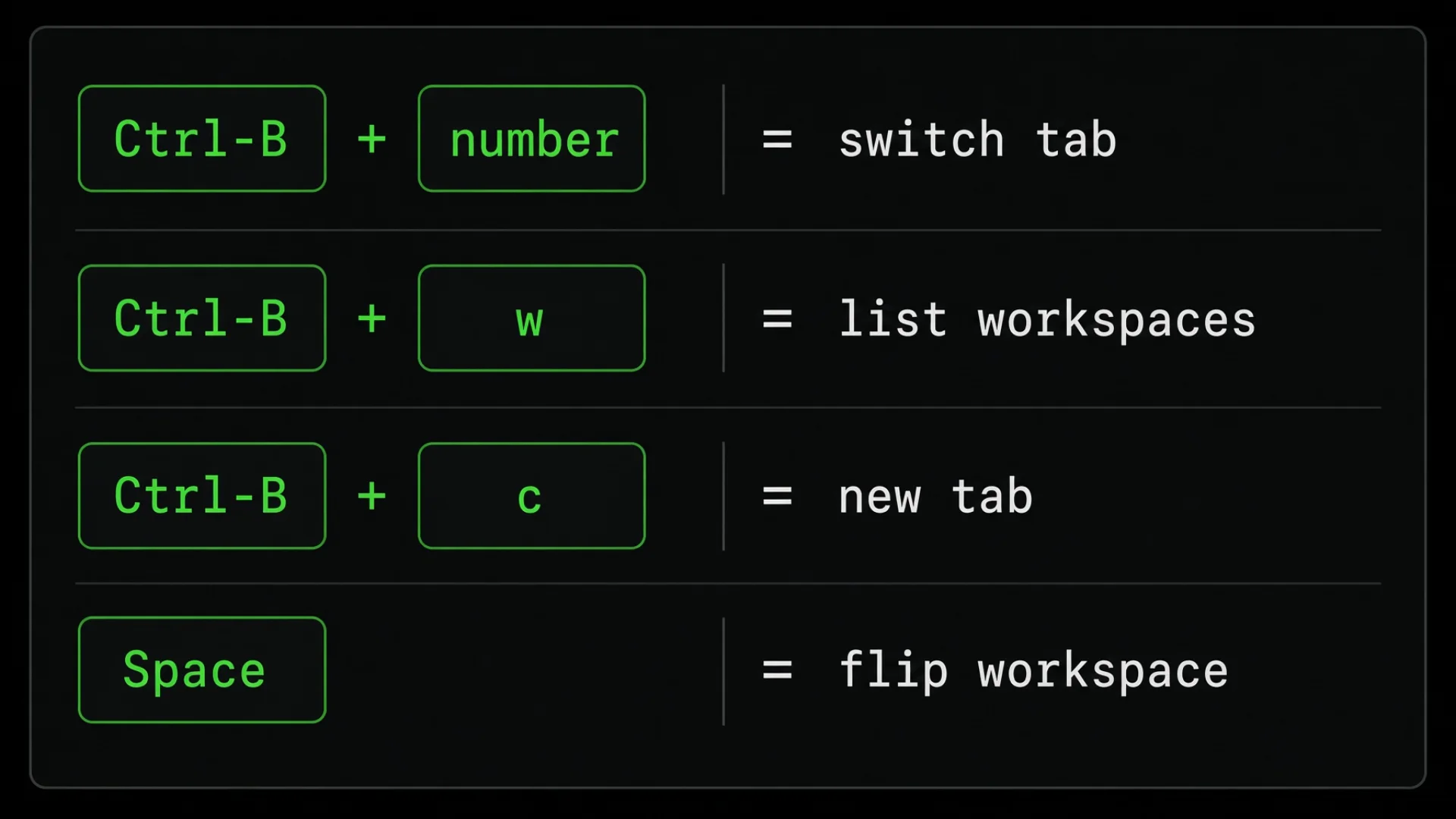
Herdr uses a prefix key. Press Ctrl-B, release it, then press the command key. This is standard for terminal multiplexers and it exists so that normal keystrokes reach your agent instead of being intercepted. Everything is also clickable — the sidebar, the tabs, pane borders — so the keyboard is a speed layer, not a requirement.
Most published lists of keyboard shortcuts for AI agents are somebody's complete keymap. The set actually worth learning is small.
Keys
Does
When you need it
Ctrl-B then c
New tab
Adding an agent
Ctrl-B then a number
Jump to that tab (1 through 9)
Your first nine tabs only
Ctrl-B then w
Move between workspaces
Switching bodies of work
Ctrl-B then n / p
Next tab / previous tab
Walking a group in order
Ctrl-B then g
Searchable jump list of every tab
Past nine tabs; also when the sidebar misbehaves
Ctrl-B then q
Detach — leave the fleet running
Walking away
Most published starter sets are a little longer than this, because they include splitting panes and moving between them. I have dropped those on purpose: I do not split, for the state-detection reason from the last article. If you ever want the full list, the built-in help key shows every active binding.
Ctrl-B g is the one I actually use most. Numbers only reach the first nine tabs. With more than thirty, the searchable jump list beats everything else, and it is the one navigation path that keeps working when the sidebar misbehaves.
Ctrl-B q has a wrinkle worth knowing before you press it. Whether detaching disconnects you depends on how you connected. If you started the fleet from a shell, detaching drops you back to that shell and your connection stays up. If your client launched the fleet as the connection's only process, detaching ends the connection, because there is nothing left to fall back to. Same keystroke, two outcomes, decided entirely by how you got in.
On a phone you mostly do not use keys at all — you tap tabs directly and pinch to zoom a pane. Touch is the better interface for checking status. Keys are better for doing work.
Keybindings are read by the client, not the server
This one cost me an evening and it is the least obvious thing in this article.
I added a keybinding to my config file. It worked on my laptop and did nothing on my phone. Same server, same fleet, same config file.
The reason: key configuration is read by the client when the client starts. Reloading the server does not reload the keys of clients that are already attached.
The timestamps told the story. I wrote the config at 22:11. The phone's client process had started at 21:51 — twenty minutes earlier — so it was running the keybindings that existed at 21:51. My laptop client had started at 22:37, after the change, so it had them.
The genuinely counterintuitive part: closing the phone app does not help. My phone connects over a protocol designed to survive disconnection — screen lock, app switch, network loss, none of them kill the session. That is normally the feature I like most about it. Here it means the client process I am trying to restart is precisely the process that refuses to die.
The fix, in escalating order: press the reload shortcut first; if that does not take, detach from the fleet and re-enter. Re-entering starts a fresh client, which reads the current config.
Note: To check whether a client is stale, compare when the client process started against when you last edited the config. If the process is older than the file, it has not read the file. That one comparison replaces a lot of guessing, and it applies to any tool that splits itself into a server and a client.
Sidebar sorting
One configuration choice worth copying: sort the agent sidebar by workspace grouping, not by activity.
The activity-based sort seems helpful — busy agents rise to the top. In practice it means the list reorders itself while you are reading it. You look for a window in the position you remember, it is not there, and you spend a second re-scanning. Every time.
A stable sort makes position into memory. cn is always in the same place. I stopped reading names and started reaching for positions, which is faster, and only works if things do not move.
Same caveat as keybindings: after changing this, reload the server and re-enter the fleet from any attached client.
One related choice I made the other way. By default each agent takes two rows in the sidebar, so a couple of dozen agents need something like fifty rows and no phone screen shows them all. You can compress each agent to a single row and fit the whole fleet on one screen. I tried it and went back to two rows, because the taller layout is easier to read at a glance and I would rather scroll than squint. That is a preference, not a rule — but it is worth knowing the option exists before you conclude your fleet is too big for the sidebar.
The numbers
1 session, kept alive permanently by a background service
2 workspaces: hh-kb (nearly the whole fleet) and hh-awp (two tabs)
{machine}-{repository} naming, identical on all three machines, no special cases
1 prefix key (Ctrl-B), six shortcuts worth memorising
1 tab that is not an agent — the plain shell, visible in the tab row but not the sidebar
2 rows per agent in the sidebar, kept at the default on purpose
Do this tonight
You can build these three layers with any multiplexer, including tmux. The structure is the valuable part, not the tool.
[ ] Name your session on purpose. Find out what your session is currently called. If it is a default or a directory name, rename it to something you chose. Five seconds, and it stops being subject to change.
[ ] Draw your workspace split on paper before touching anything. Ask one question: which bodies of work do I move between? Not "which things are important" — importance changes hourly and makes a bad grouping. Bodies of work are stable. For most people the answer is two or three: personal and client, or writing and code, or one per major project.
[ ] Write the names using the pattern {where}-{what}. Boring is correct. A name that states a fact cannot be reinterpreted by you or your tools six weeks later.
[ ] Put every agent in exactly one tab. If you are running two agents in a split window, separate them. The last article covered the state-detection reason. The organisational reason is that a tab name should point at exactly one thing.
[ ] Learn four shortcuts, not forty. Jump to a tab by number, move between workspaces, next and previous tab, and the searchable jump list. That is enough to navigate any fleet size. Look up the rest when you need them.
[ ] Test the drift. Change the working directory of one agent to a differently-named folder, then look at your workspace name. If it changed, your workspace was never explicitly named, and it will keep changing. Name it explicitly and try again.
That last step is the one that teaches you something. It takes two minutes, and it is the difference between a setup that stays where you put it and one that quietly reorganises itself. Do it tonight even if you skip the rest.
The prompt that gets you started
Copy this into any agent. It walks you through designing your own three-layer structure.
I want to organise my AI agent windows into a structure I can navigate quickly, instead of one long list of tabs to scroll through. Help me design it, step by step.
Context about me: I am a beginner with terminal tools. I do not know what a session, a workspace, a pane, or a prefix key is. Explain each term the first time you use it, and ask questions instead of assuming.
Step 1 — Explain the three layers. Describe how session, workspace and tab nest: session = everything, and it survives closing my terminal window; workspace = a group of tabs I move between with one shortcut; tab = one agent, one directory, one name. Explain what each layer solves and at what fleet size each starts to matter.
Step 2 — Find my workspace split. Ask what bodies of work I move between in a week — projects, clients, languages, repositories — then group them into two or three workspaces. Enforce one rule: group by body of work, not by importance. If I suggest names like "main," "core," or "misc," push back: judgment-based names get reinterpreted over time, fact-based names do not.
Step 3 — Name them with a pattern. Help me pick a naming pattern of the form {where}-{what} — laptop-writing, laptop-clientwork. Enforce it with no exceptions, including on the machine I use most, and explain why one special case causes problems later.
Step 4 — Warn me about auto-naming. Explain this failure: some tools name a workspace from the working directory of the first thing in it, and that name is a live binding — it keeps following the directory, not just at creation. Tell me to name every workspace explicitly even if the automatic name looks right today, then confirm mine are.
Step 5 — Pick my shortcuts. Ask what tool I use, then give me only the four or five shortcuts worth memorising: jump to a tab by number, move between workspaces, next and previous tab, and a searchable jump list. Do not give me a full keybinding reference; tell me how to display it on demand. Warn me that number keys usually only reach the first nine tabs.
Step 6 — Check my sidebar sort order. If my tool sorts its agent list by activity, explain why a stable sort is better: a list that reorders itself while you read it destroys positional memory, the thing that makes a large fleet fast to scan. Help me find the setting.
Step 7 — Warn me about stale clients. Explain that in tools split into a background server and a viewing client, the keyboard configuration is read by the client at startup. Reloading the server changes nothing for a client already attached, and on connections built to survive disconnection, closing the app does not restart the client either. To check: compare when the client process started against when I last edited the config.
Step 8 — Test it. Design a two-minute test that proves the structure holds: create the workspaces, put a couple of tabs in each, close my terminal window, reopen it, and confirm everything is where I left it under the names I chose. Add one step that deliberately tries to make a workspace rename itself, so I can see whether mine is pinned.
Constraints:
No configuration files. No scripts longer than one line.
If I propose something that will cause a problem later, say so and name the specific failure.
Do all eight steps in order, waiting for my answer before moving on.
Start with Step 1.
Frequently asked questions
Do I need three layers if I only run four agents?
No. At four agents the session layer alone is enough — that is the one that stops your work dying with the window. Add workspaces at about eight, which is where a single tab row stops fitting on a screen. Adding structure before you feel the pain is how people end up maintaining a filing system for four files.
Is this specific to Herdr, or does it apply to any AI automation platform?
The three layers are generic. Any tool that holds long-running agent sessions ends up needing a container that survives the window, a way to group related work, and a unit you can address by name. Herdr happens to give you all three with names attached. If your tool only gives you two of them, the missing one is the thing you will end up building by hand.
Can I do this with tmux instead?
Yes, for the session and tab layers. tmux has sessions and windows, and you can group work by using multiple sessions. What you will not get is the agent sidebar, because tmux does not know what is inside a pane. The structure in this article is the transferable part; the dashboard is what changes.
Why one session instead of one session per project?
Because tooling and phone clients tend to treat the default session as the real one, and anything outside it becomes invisible from somewhere. I lost phone access to named sessions twice before accepting this. One session, several workspaces inside it, gets the same separation without the discovery problem.
What is the difference between a workspace and a tab group?
Nothing conceptual — a workspace is a named group of tabs. What makes it more than cosmetic is that status rolls up to it, so a group you are not looking at can still signal that something inside it needs you.
My sidebar and my tab row show different things. Is that a bug?
No, and it catches everyone. The sidebar lists tabs that have a registered agent. The tab row lists every tab, including plain shells with no agent in them. When you cannot find something, check the other list before you conclude it is gone.
I changed a setting and nothing happened. What did I miss?
Almost certainly the client. Server-side settings need a server reload; client-side settings, including keybindings, need the client to restart. Compare the client process start time against the config file's modified time, and if the process is older, re-enter the fleet.
Monitoring a competitor who publishes no feed is the case every RSS guide skips. Twenty-one platforms sorted by which of three jobs they do, and the finished setup is business process automation you own outright, with no seat licence to renew.
Blaming the content is the reflex when a post underperforms, and it is usually the wrong diagnosis. A second reader decides distribution before any human sees the post, and most of what it checks is mechanical enough to automate business processes around, on five platforms at once.
Gloves on, tape measure in hand — nobody types a query. Three voice surfaces for ai automation tools (terminal, Telegram, Discord), 10 TTS and 6 STT providers compared on cost and latency, plus a setup that costs nothing.
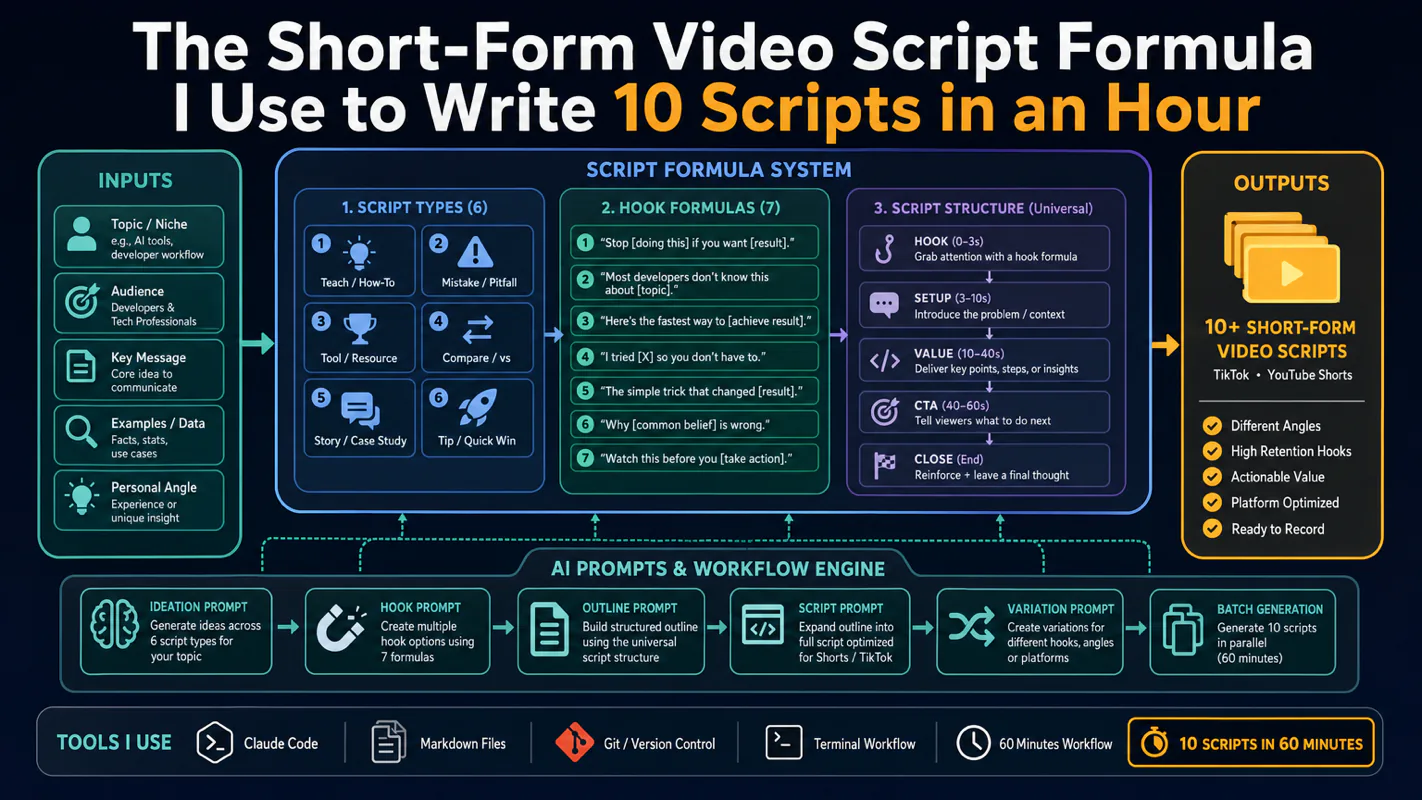
Thursday afternoon, fourteen product ideas, a Monday filming slot, no scripts. Six script shapes and seven hook formulas turn that hour into finished drafts — and the business rule stays: rewrite at least 30% before anything ships.