Monitoring a competitor who publishes no feed is the case every RSS guide skips. Twenty-one platforms sorted by which of three jobs they do, and the finished setup is business process automation you own outright, with no seat licence to renew.
Blaming the content is the reflex when a post underperforms, and it is usually the wrong diagnosis. A second reader decides distribution before any human sees the post, and most of what it checks is mechanical enough to automate business processes around, on five platforms at once.
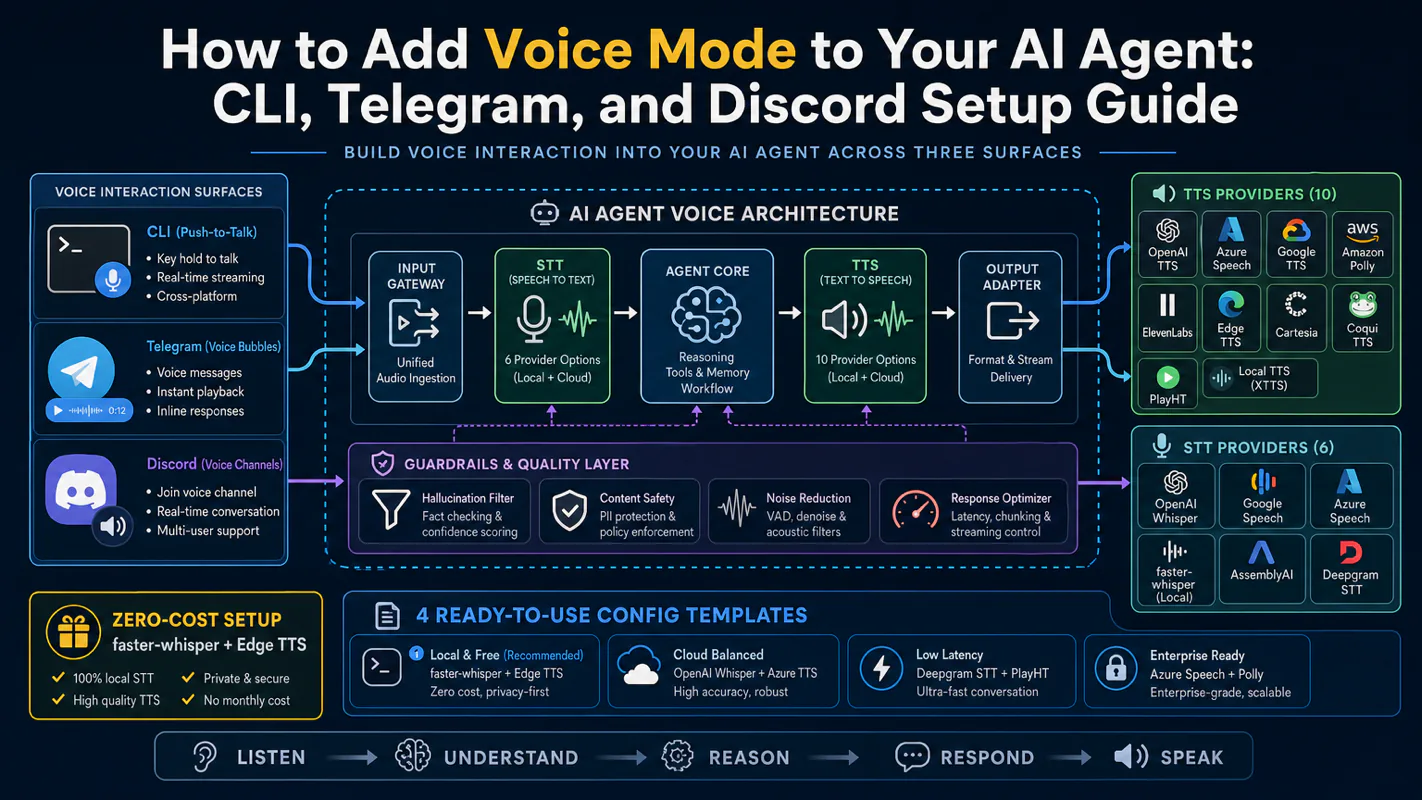
Gloves on, tape measure in hand — nobody types a query. Three voice surfaces for ai automation tools (terminal, Telegram, Discord), 10 TTS and 6 STT providers compared on cost and latency, plus a setup that costs nothing.
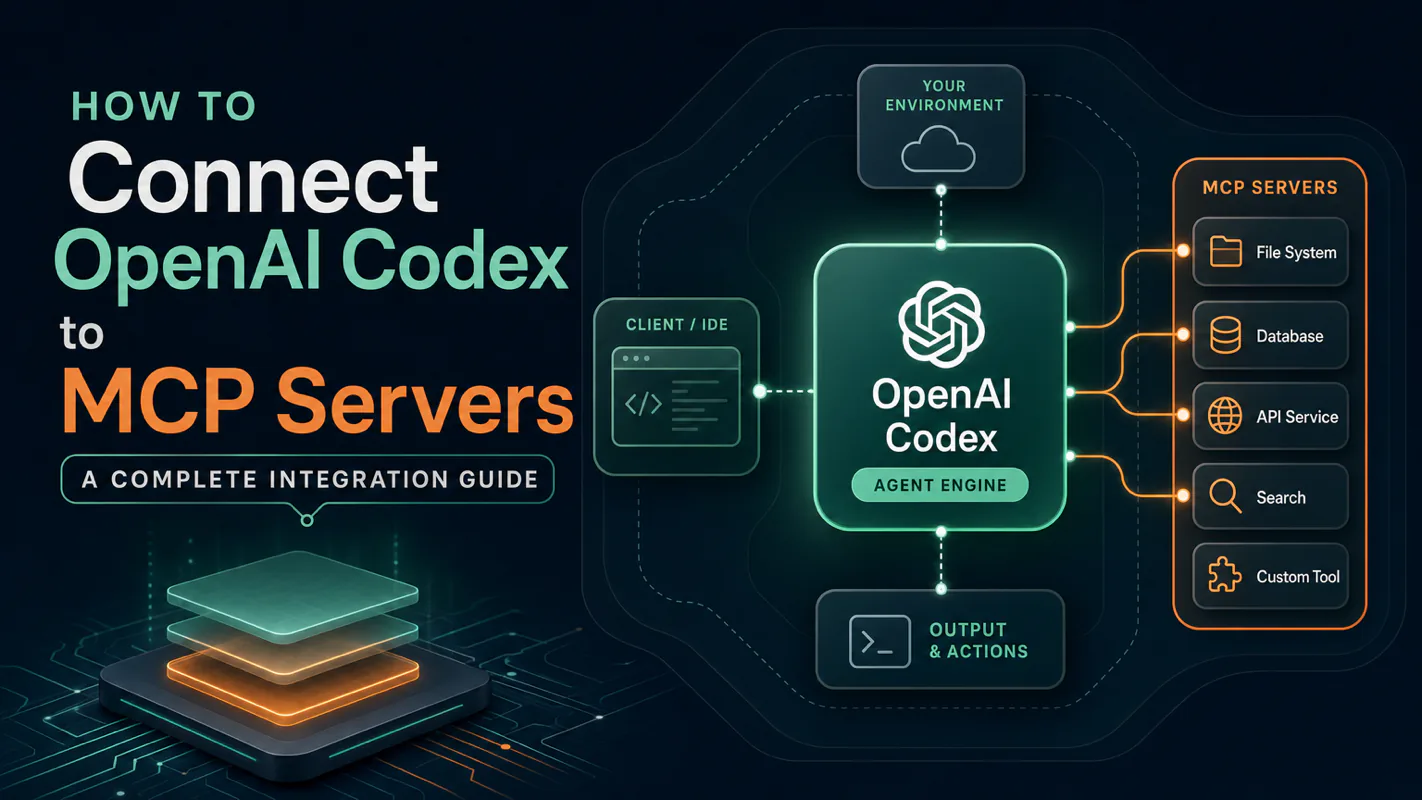
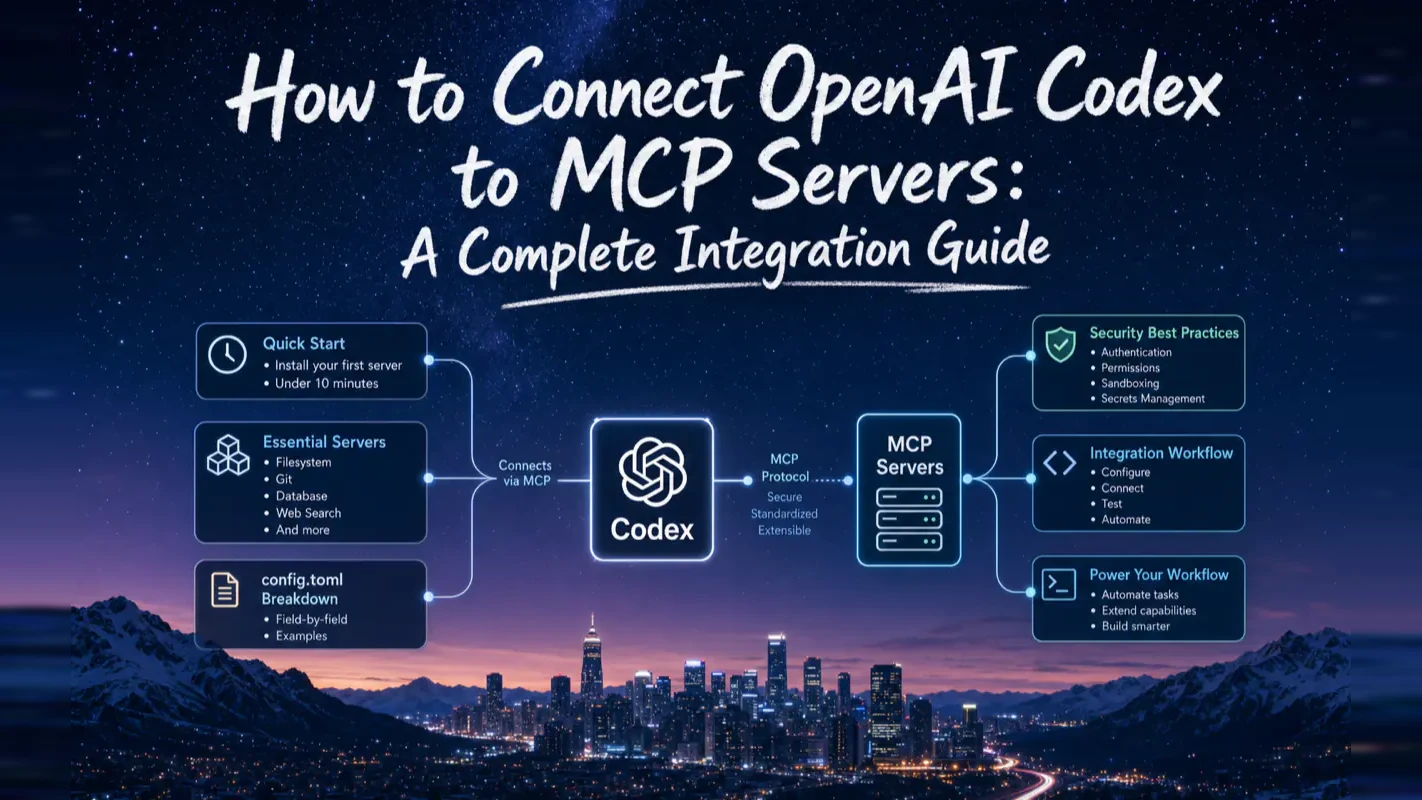
How to Connect OpenAI Codex to MCP Servers: A Complete Integration Guide
I cannot access that is a permissions statement, not a capability limit. This guide connects Codex to live tools: first server in under 10 minutes, which servers a beginner actually needs, config.toml field by field, and the security traps to avoid.
A refusal is easy to deal with. What costs money is the confident, plausible answer assembled entirely out of memory: the assistant describing how a supplier's pricing page generally works instead of reading the one sitting in front of it, and sounding equally certain either way. A person on your team would mention they had not checked. Software does not volunteer that, so the burden falls on you to know which questions it is actually equipped to answer and which it will improvise through. Removing the guessing is the difference between an ai assistant for business you can quote and one you have to verify behind.
OpenAI Codex ships with a blind spot. Ask it for a library's latest API, and it gives you the version it memorized during training. Tell it to check a GitHub issue, and it says it can't access the internet. MCP fixes both problems by connecting Codex to external tools that pull live data on demand.
This guide walks you through installing your first MCP server, choosing which ones actually matter, configuring config.toml correctly, and avoiding the security traps that catch most beginners.
What Is MCP and Why Does Codex Need It?
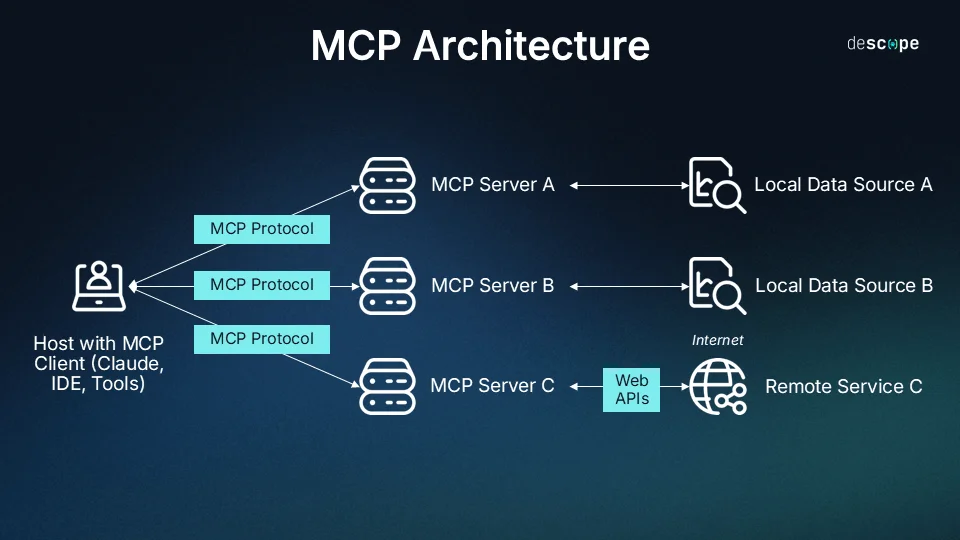
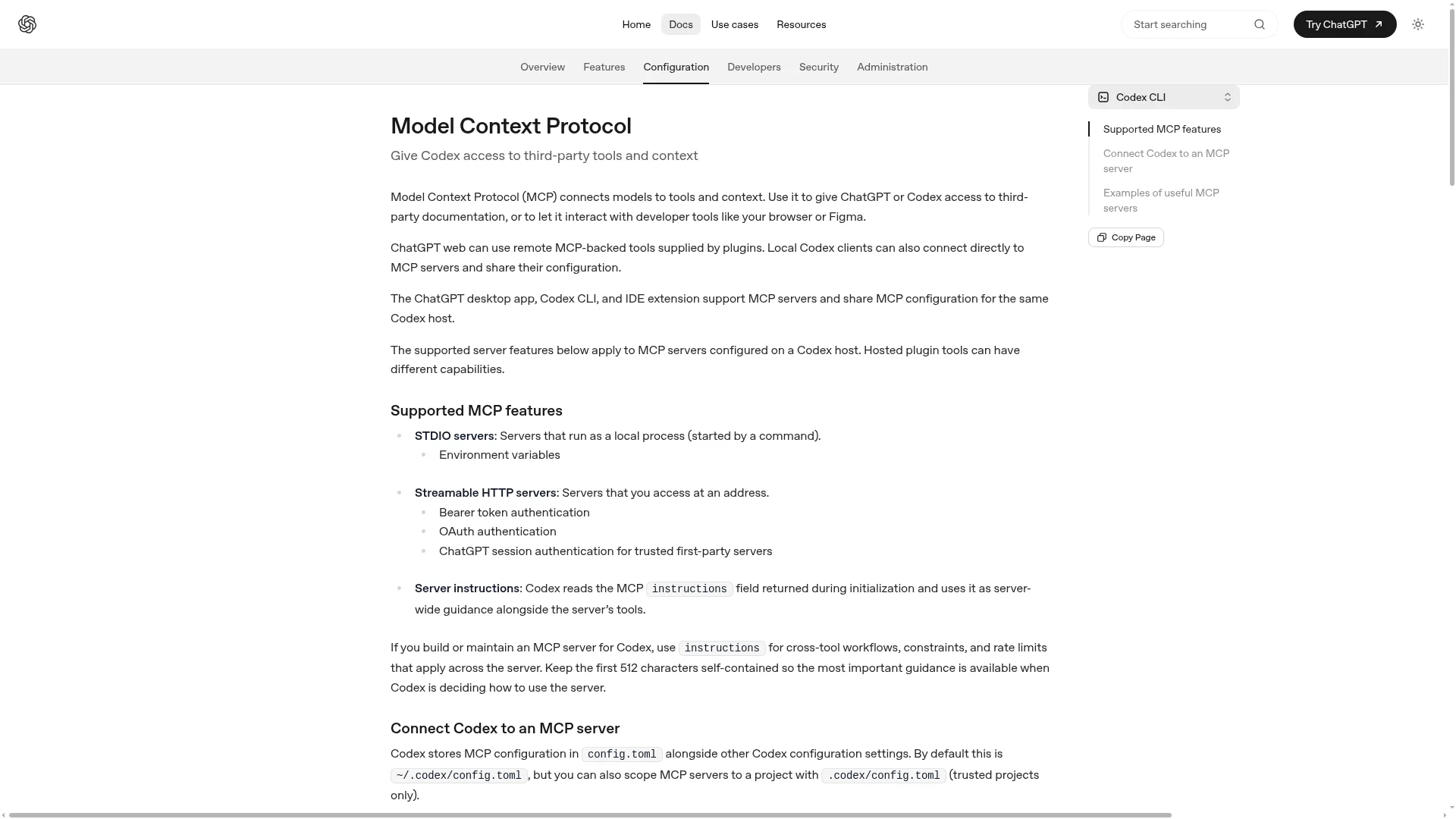
MCP (Model Context Protocol) is an open standard that connects AI coding agents to external tools. One interface, many tools — any MCP server works with Codex, Claude Code, Cursor, or any other compatible client.
Three roles make the whole thing work:
Role
What It Is
What It Does
MCP Client
OpenAI Codex (or Claude Code, Cursor)
Decides when to call a tool and which one
MCP Server
Context7, GitHub MCP, Firecrawl, etc.
Provides a specific capability — waits to be called
Transport
STDIO or Streamable HTTP
How client and server communicate
A typical call looks like this: you tell Codex to check the latest Next.js routing API. Codex decides it needs Context7, sends a request through MCP, receives the current documentation, reads it into context, and writes code based on what it just pulled — not what it memorized months ago.
Without MCP, Codex has exactly two inputs: its training data (which goes stale) and your local files (which can't reach the outside world). MCP opens a third channel: real-time data from external sources.
First-hand experience: I spent an entire afternoon debugging a Prisma query that looked syntactically perfect. The problem turned out to be a deprecated API that Codex was still generating from its training data. After connecting Context7, the same prompt produced working code on the first try — because Codex pulled the current Prisma docs instead of guessing from memory.
Which MCP Server Should You Install First?
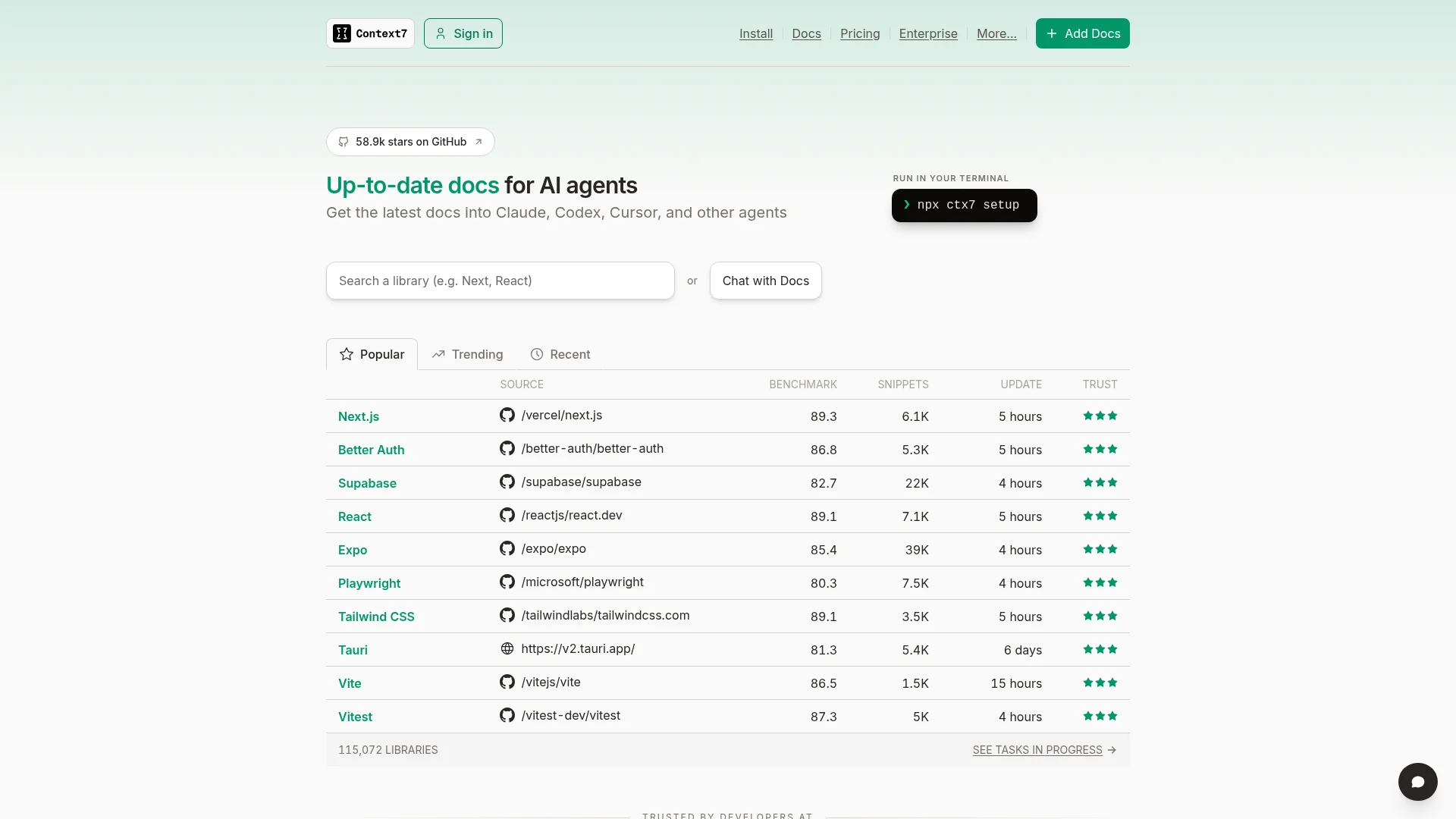
Context7. It's free, requires no API key, and solves the single most common Codex failure mode: generating code with outdated library APIs. You'll see value the first time you use it.
Here's the decision map for your first few servers:
Your Current Pain Point
What to Install
Details
Want to see MCP work before committing
Context7 (free, no key)
Section below
Codex keeps writing outdated API calls
Context7 + OpenAI Docs MCP (both free)
Tier 1 below
Need Codex to read GitHub issues and PRs
GitHub MCP (requires PAT)
Tier 2 below
Need Codex to scrape web pages
Firecrawl MCP (requires API key)
Tier 2 below
Worried about security in a team environment
Read the security section first
Security section below
One rule runs through this entire guide: get one server running before you add the next. Installing five at once means you can't diagnose which one is causing problems.
How to Install Your First MCP Server in Three Steps
Context7 pulls live programming library documentation — the exact capability that prevents Codex from writing stale API calls.
Step 1: Verify Node.js 18+
Most MCP servers are npm packages launched via npx. Run node -v to check your version. If you don't have Node.js 18 or higher, install it from nodejs.org.
context7 — the name you're giving it (Codex references this name later)
-- — separator telling Codex "everything after this is the startup command"
npx -y @upstash/context7-mcp — the command that launches the server process
Step 3: Verify It's Online
Open the Codex terminal and type /mcp. You should see context7 in the active servers list. You can also run codex mcp list from the command line to confirm.
Test it with a real prompt: "Use context7 to look up React's latest useEffect documentation and explain how cleanup functions work." If Codex pulls live docs before answering, the handshake is working.
What Happens After Installation?
Nothing changes about how you use Codex. You assign tasks normally, and Codex decides when to call MCP tools. For example:
You say: "Write a user table query using Prisma's latest syntax."
Codex recognizes its Prisma knowledge might be outdated and calls Context7.
Context7 returns the current API docs.
Codex writes code based on fresh documentation — not stale training data.
You don't need to manually say "go check the docs" every time. That's the whole point. But you can explicitly name a server ("use context7 to check...") if Codex isn't calling it on its own.
Common pitfall: Beginners often assume installing an MCP server means Codex will automatically use it for every task. That's not how it works — Codex calls an MCP tool only when it judges "this step needs it." If your installed server never gets called, the problem is usually vague instructions. Either be explicit in your prompt or add a line to your AGENTS.md like "always use Context7 when looking up library documentation."
How to Build Your Beginner Server Stack
Start with two free servers. Get them running smoothly. Then add credential-based servers only when you have a concrete use case.
Tier 1: Two Free Servers (No API Key Required)
Context7 — pulls live documentation for programming libraries.
This server is read-only — it queries documentation, not the OpenAI API itself. The official recommendation is to add a line to your AGENTS.md: "When looking up OpenAI API, Codex, or Apps SDK documentation, use the OpenAI Docs MCP without me asking."
After adding both, run codex mcp list. You should see two entries — one STDIO (Context7, with a command field) and one HTTP (OpenAI Docs, with a url field). These two are the best possible introduction to how STDIO and HTTP transports differ.
Tier 2: Credential-Based Servers (Add as Needed)
Only install these after your Tier 1 servers are running smoothly:
Server
Capability
Requirements
GitHub MCP
Query repos, issues, PRs — anything beyond local git
GitHub Personal Access Token (PAT)
Firecrawl MCP
Scrape web pages, search, batch crawl
Firecrawl API key
Playwright / Chrome DevTools MCP
Control and inspect browsers
Usually no key needed
Sentry MCP
Read Sentry error logs
Sentry credentials
GitHub MCP is a hosted remote server. The official installation command:
The --bearer-token-env-var GITHUB_PAT_TOKEN part means: "read my GitHub token from the environment variable named GITHUB_PAT_TOKEN." You must store the token in that variable first — never hardcode it in the command.
First-hand experience: I ran Context7 and OpenAI Docs MCP exclusively for my first two weeks. That restraint paid off — I learned exactly when Codex calls tools automatically versus when I need to be explicit, without debugging credential issues or server conflicts at the same time. The credential-based servers went in during week three, one at a time, and each one worked on the first try because I already understood the underlying mechanics.
How to Read and Write config.toml
Every MCP server Codex knows about lives in ~/.codex/config.toml. The CLI and IDE extension share this single file — configure once, both interfaces pick it up.
Here's every field you might encounter, translated into plain language:
Field
What It Means
Server Type
command
The program that starts the server (required)
STDIO
args
Arguments passed to the startup command (array)
STDIO
env
Environment variables for the server (plaintext — store sensitive keys in system env vars instead)
STDIO
url
Remote server address (required)
HTTP
bearer_token_env_var
Name of the environment variable holding the auth token
HTTP
http_headers
Extra request headers some servers require
HTTP
startup_timeout_sec
How many seconds to wait for startup (default: 10)
Both
tool_timeout_sec
How many seconds a single tool call can take (default: 60)
Both
enabled
Set to false to disable without deleting the config block
Both
required
Set to true to make Codex error out if this server fails to start
Both
Two fields beginners actually need: For servers that require keys, either use env (STDIO) or bearer_token_env_var (HTTP) — never paste raw keys into the config file. To temporarily disable a server without deleting its config, set enabled = false.
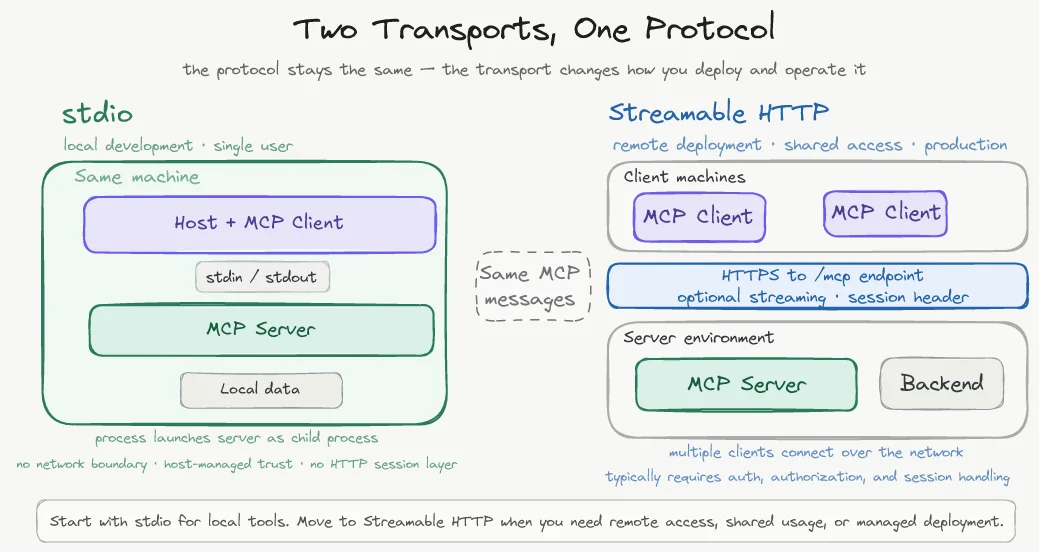
How Do STDIO and HTTP Servers Differ?
Pick based on one question: does the tool run on your machine or on someone else's?
Type
Runs Where
Best For
Advantage
STDIO
Your local machine (subprocess)
Local files, git, local databases
Fast, data never leaves your machine
Streamable HTTP
Remote server (URL endpoint)
Public docs, remote APIs, hosted services
No local dependencies, provider maintains updates
The rule: local tasks use STDIO, remote services use HTTP. Reading a directory on your machine? STDIO. Querying OpenAI's documentation? HTTP. Both the CLI and IDE extension support both types. The only config difference: STDIO needs command + args, HTTP needs url.
Under the hood, STDIO means Codex starts a subprocess on your computer — the MCP server runs locally and data stays on your machine. HTTP means you're hitting someone else's endpoint over the network.
What Are the Security Risks of MCP?
MCP connects external capabilities to Codex, which also connects external risks. Three attack categories matter for beginners.
Three Risk Categories
Tool poisoning. A malicious server hides instructions in its tool descriptions. When Codex reads those descriptions into context, it can be tricked into executing unintended operations. This is a documented client-side attack surface — tool descriptions enter the model's context verbatim, and the model can't inherently distinguish documentation from injected commands.
Command injection. Security firm Endor Labs analyzed 2,614 MCP implementations and found roughly 34% used interfaces vulnerable to command injection — meaning an attacker could potentially run arbitrary commands on your machine through a compromised server.
Config tampering and cross-server shadow attacks. An MCP configuration you approved once can be silently swapped for a malicious command. A real-world example: Cursor editor's CVE-2025-54136 (MCPoison). Check Point Research discovered that Cursor versions 1.2.4 and earlier trusted any configuration that had been approved once, allowing attackers to replace an approved config with malicious commands that executed silently on every project open. Cursor patched this in version 1.3 by re-prompting approval on any change.
These aren't isolated incidents. Security scans of the public MCP ecosystem consistently find classic vulnerabilities — command injection, path traversal, missing authentication — in a significant percentage of published servers.
Three Things Every Beginner Should Do
Only install from trusted sources. Stick to the official MCP repository and servers published by major vendors (OpenAI, GitHub, Upstash). Treat servers from unknown personal repos with suspicion.
Pin versions. In your config.toml, pin npm package versions explicitly — for example, args = ["-y", "@upstash/[email protected]"] instead of @latest. This prevents automatically pulling a compromised update. Upgrade manually by changing the version number after reviewing the changelog.
Use sandbox permissions. For important projects, use Codex's built-in sandbox to restrict what MCP calls can do. Don't grant file access or network permissions beyond what a server actually needs.
The bottom line: Installing an MCP server is equivalent to inviting someone else's code to run on your machine with the ability to take actions. Apply the same scrutiny you would to a browser extension — check the source before you install.
Why Installing Too Many Servers Makes Codex Worse
Every active MCP server injects its full tool description — name, parameters, usage docs — into Codex's context window on every conversation, even when the task doesn't need that tool. Connect ten servers, and Codex starts every interaction by reading ten sets of tool descriptions before it even looks at your actual request.
This wastes input tokens and fragments the model's attention. Anthropic's engineering team has stated explicitly: "once too many servers are connected, tool definitions and results can consume excessive tokens, reducing agent efficiency."
The practical rule: keep three to five servers active. For anything you're not using regularly, set enabled = false in config.toml instead of deleting the block. Turn servers back on when you need them.
What to Do When an Installed Server Doesn't Work
Before reinstalling anything, walk through these four diagnostic steps in order:
Check status. Type /mcp in the Codex terminal or run codex mcp list from the command line. Verify the server name, command, and URL are spelled correctly.
Increase timeout. If the server fails to start, bump startup_timeout_sec from the default 10 to 30. Some servers need extra time to initialize.
Verify environment variables. For servers that require keys, confirm the environment variable name and value are both set correctly. A misspelled variable name is the most common Tier 2 setup failure.
Force an explicit call. Say "use context7 to look up React's useEffect docs." If Codex responds with "I don't know that tool," the protocol handshake failed — not just the routing decision.
The single most common root cause: npx isn't found because Node.js 18+ isn't installed. If none of these steps work, set required = true for the failing server. This forces Codex to surface the error message at startup instead of silently skipping the server.
Beginner Self-Check Before Installing MCP
Run through this list before (or right after) your first installation:
[ ] Node.js 18+ installed (node -v confirms)?
[ ] Started with a free, no-key server (Context7 or OpenAI Docs MCP)?
[ ] Know that all config lives in ~/.codex/config.toml?
[ ] Verified the server is online via /mcp or codex mcp list?
[ ] Understand the difference between STDIO (local) and HTTP (remote)?
[ ] Server source is trusted and version is pinned?
[ ] Active servers limited to 3-5, with unused ones set to enabled = false?
If any answer is "no," revisit the corresponding section above.
The One Sentence That Summarizes Everything
Connecting OpenAI Codex to MCP servers does exactly one thing: it gives Codex access to the outside world — live documentation, web pages, and GitHub — that it can't reach on its own.
Three rules get you started: install Context7 first (free, instant value), all configuration lives in ~/.codex/config.toml, and fewer servers beats more servers. Get one running. Use it until you understand when Codex calls it and when it doesn't. Then add the next one based on a real problem you're actually hitting.
Ready-to-Use Prompt: Plan a Minimum MCP Stack for Codex
What this does: Decides whether Codex actually needs MCP, picks the minimum server stack starting from the biggest live-data need, writes the config.toml entries with the right STDIO/HTTP transport, and runs a security gate plus an overlap check — so more servers never make Codex worse. Based on: How to Connect OpenAI Codex to MCP Servers: A Complete Integration Guide — https://aiworkflowpro.com/codex-mcp-integration/ Time to run: ~4 minutes
Copy this prompt into Claude Code, ChatGPT, or any AI assistant:
ROLE: You are a Codex MCP Integration Planner. Your job: add only the MCP servers Codex genuinely needs — minimum stack, right transport, security-gated — never installing so many that Codex gets worse.

CONTEXT — MCP MINIMUM-STACK METHOD:
Codex has a blind spot — it gives library API versions it memorized during training and cannot reach the internet. MCP (Model Context Protocol) fixes this by connecting Codex to external tools that pull live data on demand, through one interface that also works with Claude Code and Cursor. The trap is over-installation: every server injects tools into Codex's context, and too many makes it worse, not better — so the rule is a minimum stack, starting with one server covering the biggest live-data need (typically a docs server like Context7). Write each server into config.toml, choosing STDIO for local processes or HTTP for remote servers, and pass a security gate before any install — MCP servers can read files or run commands, so source trust and permission scope matter.

INPUTS (fill in before running):
- LIVE_DATA_NEED: [What live/external data Codex can't reach today — latest docs, GitHub issues, a DB, the web]
- CURRENT_STACK: [MCP servers already installed — or "none"]
- TRUST_LEVEL: [official/known servers only / fine with community]
- ENVIRONMENT: [local-only / needs remote HTTP access]

METHOD — 4 STEPS:

Step 1 — Decide If MCP Is Warranted
From LIVE_DATA_NEED, confirm Codex actually needs live data it cannot reach. If the need is covered by the codebase or training data, stop — MCP is not warranted.

Step 2 — Pick the First Server and Build a Minimal Stack
Choose one server covering the biggest live-data need (a docs server like Context7 is the usual first install). Add further servers only when a distinct, frequent need is unmet — never install speculatively.

Step 3 — Write config.toml and Pick STDIO vs HTTP
For each chosen server, write the config.toml entry and pick transport: STDIO for a local process (faster, local), HTTP for a remote server (when ENVIRONMENT needs remote reach). State the exact block to add.

Step 4 — Security Gate and Over-Install Check
Before installing, pass each server through the security gate against TRUST_LEVEL: source trust, what it can read or run, permission scope. Then re-check CURRENT_STACK plus new adds for overlap — if two servers cover the same need, keep one.

RULES:
- Never install an MCP server without a concrete live-data need it alone covers — speculative installs make Codex worse.
- Never install a community server below TRUST_LEVEL without a security review — MCP servers can read files and run commands.
- Never let the stack overlap — two servers covering the same need is context noise; keep one.

OUTPUT FORMAT:
Output a markdown report with:
1. MCP Warrant Verdict — warranted or stop + the live-data need
2. Minimal Stack — markdown table, columns: Server | Covers | Earns Its Spot?
3. config.toml Block — the entries + STDIO/HTTP choice per server, inside a fenced text block
4. Security + Over-Install Check — gate results + any overlap to remove
Save as @templates/codex-mcp-integration.md and run before adding any MCP server to Codex.
FAQ
What is the difference between using MCP and manually pasting documentation into Codex?
The difference is who decides when to look things up and whether the information is current. When you manually paste docs, you have to notice when Codex is using outdated APIs, find the right page yourself, and copy it in every time. With MCP (like Context7), Codex decides on its own when it needs fresh docs and pulls them automatically. You just assign the task. MCP doesn't guarantee perfect results — Codex still depends on clear instructions — but it eliminates the manual doc-feeding loop.
Does installing MCP servers cost money or consume extra OpenAI quota?
Two layers to consider. The servers themselves: Context7 and OpenAI Docs MCP are free and need no API key. GitHub MCP and Firecrawl require credentials from their respective platforms — whether those cost anything depends on each platform's pricing, not Codex. Token usage: MCP doesn't charge you separately, but every connected server injects its tool descriptions into Codex's context window. The real cost isn't dollars — it's context budget. Installing servers you never use wastes input tokens on tool descriptions every single conversation.
Can I share the same MCP servers between Codex and Claude Code?
The servers themselves are shareable, but the configuration files are not interchangeable. MCP is an open protocol, so the same server (Context7, GitHub MCP) works with Codex, Claude Code, Cursor, and any other MCP-compatible client. However, each client uses a different config format: Codex stores settings in ~/.codex/config.toml under [mcp_servers.<name>] blocks, while Claude Code uses its own settings structure. When switching clients, you connect to the same server with a different config syntax — not copy-paste one config into another.
What happens when both global and project-level config.toml define the same MCP server?
Project-level config (.codex/config.toml) overrides the global entry (~/.codex/config.toml) for the same server name, letting you enable, disable, or reconfigure a server for a specific project. Important: project-level config only takes effect in trusted projects — this is a deliberate security measure that prevents unknown repositories from auto-running arbitrary MCP servers the moment you open them.
How do OAuth-based MCP servers differ from token-based ones?
Token-based remote servers (like GitHub MCP) require you to store a personal access token in an environment variable and reference it via bearer_token_env_var in config.toml. OAuth-based servers use interactive login instead: you run codex mcp login <server-name> to complete the authorization flow rather than manually entering a token. The beginner rule: for token-based servers, store keys in environment variables and never hardcode them; for OAuth servers, run the login command once as prompted.
Further Reading
OpenAI Codex MCP Documentation — Authoritative source for STDIO -- <command> syntax, config.toml field reference, and default values.
Monitoring a competitor who publishes no feed is the case every RSS guide skips. Twenty-one platforms sorted by which of three jobs they do, and the finished setup is business process automation you own outright, with no seat licence to renew.
Blaming the content is the reflex when a post underperforms, and it is usually the wrong diagnosis. A second reader decides distribution before any human sees the post, and most of what it checks is mechanical enough to automate business processes around, on five platforms at once.
Gloves on, tape measure in hand — nobody types a query. Three voice surfaces for ai automation tools (terminal, Telegram, Discord), 10 TTS and 6 STT providers compared on cost and latency, plus a setup that costs nothing.
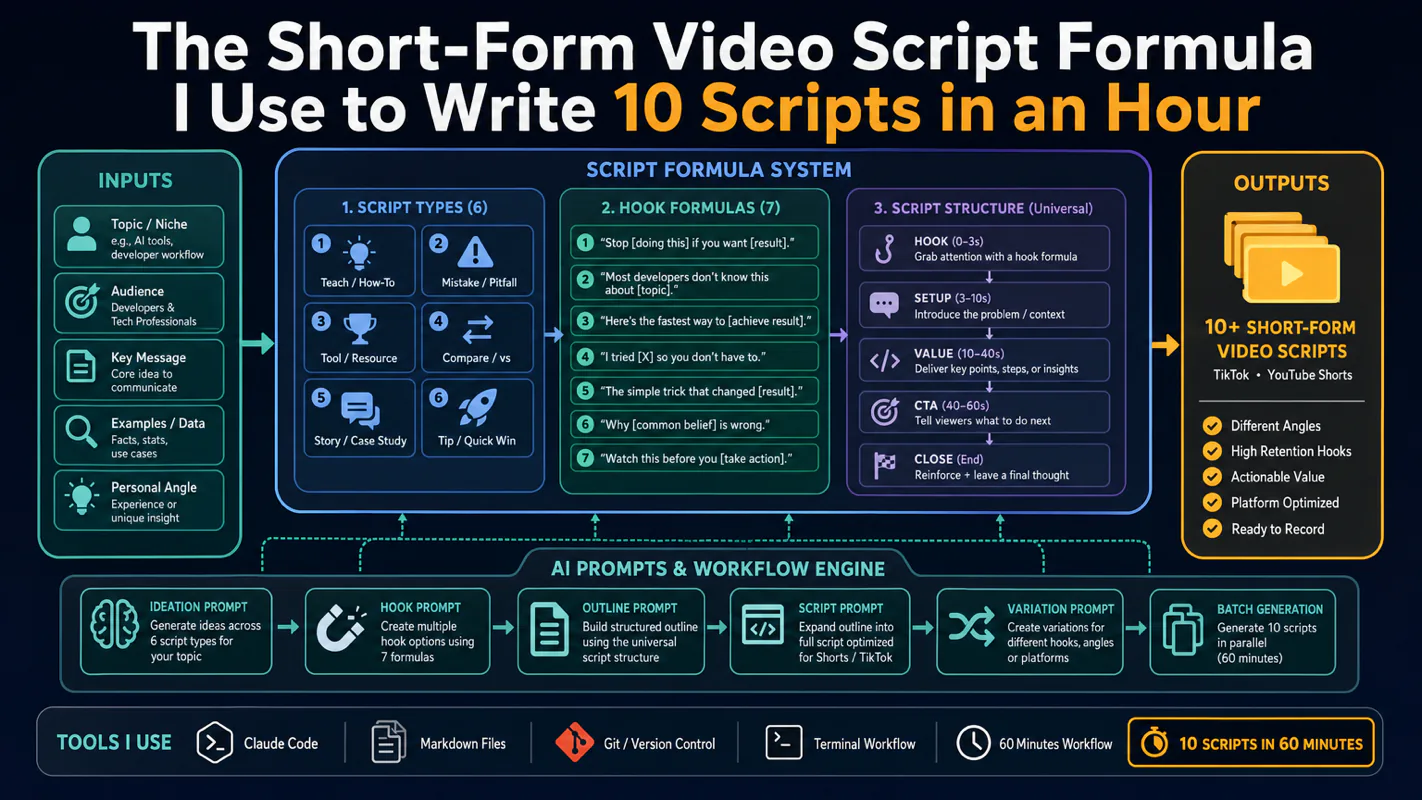
Thursday afternoon, fourteen product ideas, a Monday filming slot, no scripts. Six script shapes and seven hook formulas turn that hour into finished drafts — and the business rule stays: rewrite at least 30% before anything ships.