A 30-minute video is too long for one conversation. This guide walks the 8-step Skill that locks the narration and one look, then gives each 3-minute segment to a fresh sub-agent, five at a time, and polishes the cut in an empty-context session.
The folder structure behind my AI agent team, the Herdr setup where Grok Build, Claude Code and Kimi Code work side by side, and the two live tasks from the video: an article published by voice and a three-model front-end test.
Eight folders of plain Markdown, a CLAUDE.md index in each, and seven prompts that make your agent interview you. Every prompt, template and command from the video, in order.
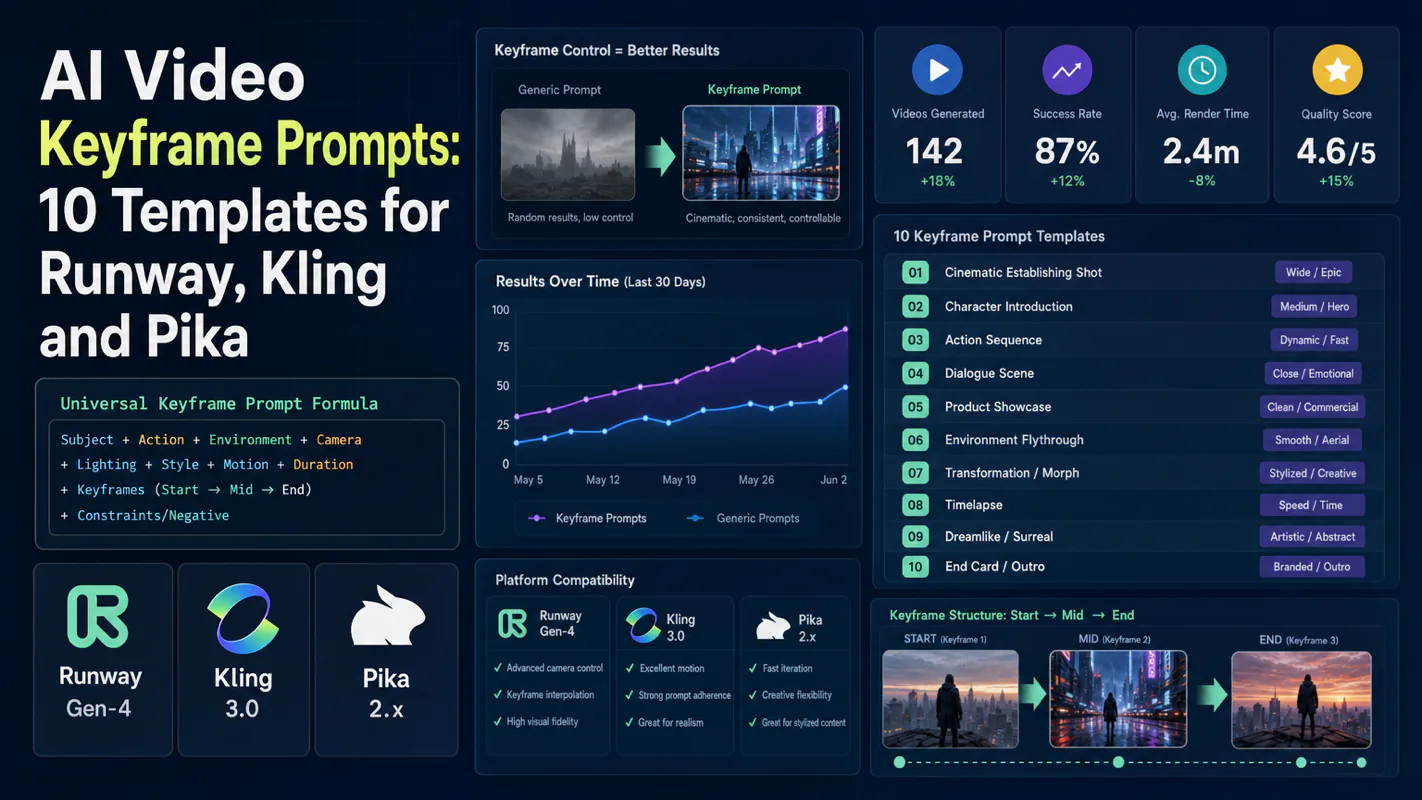
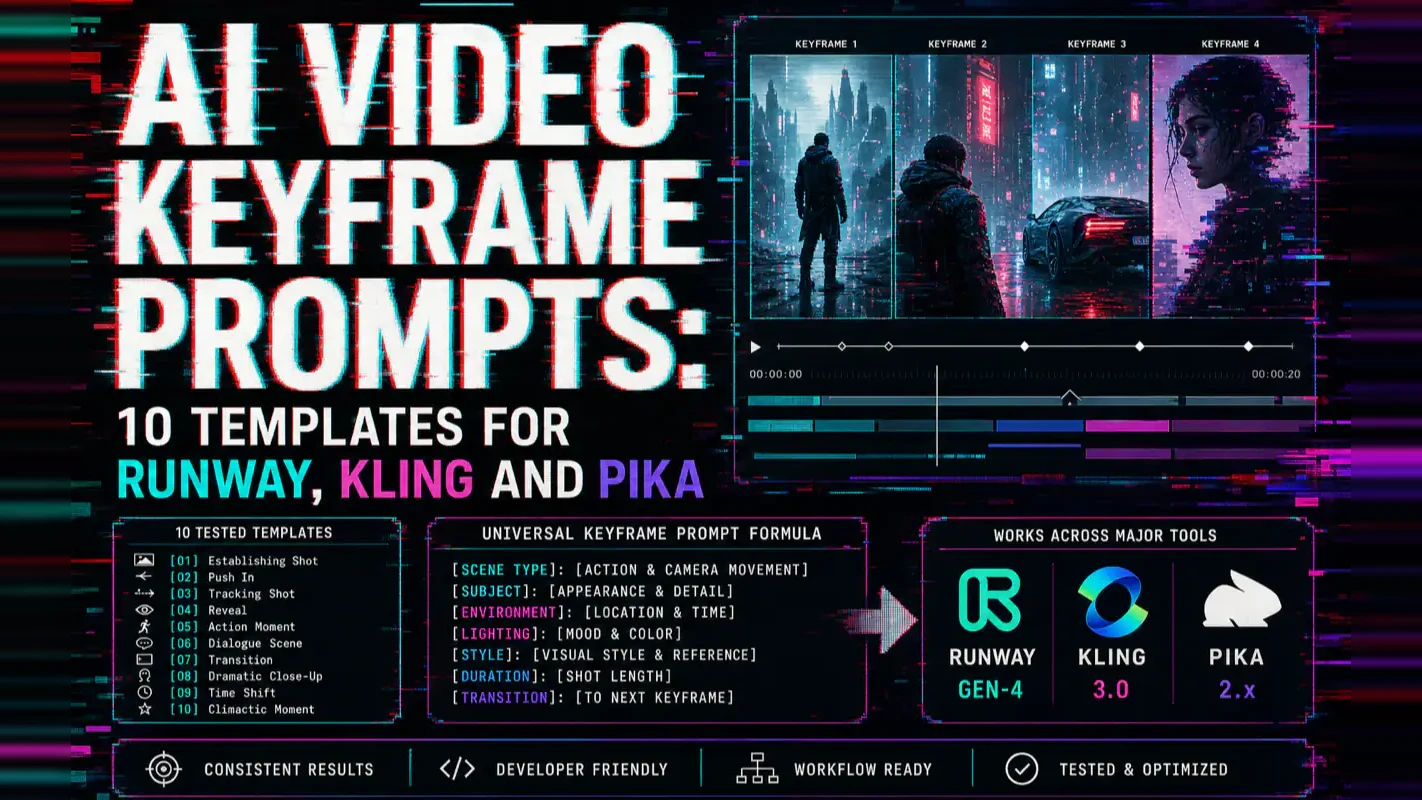
AI Video Keyframe Prompts: 10 Templates for Runway, Kling and Pika
Revisions eat the schedule because text-only generation hands back a middle nobody chose and ends that wander off the board. Ten keyframe prompt templates lock both endpoints up front, so what lands in between is a decision instead of a surprise.
A campaign brief usually specifies the first frame and the last frame, because those are the two the client signs off on. Everything in between is the agency's problem. Text-only generation inverts that: you describe a feeling and receive a middle you did not choose, with endpoints that drift. Keyframe prompts put the approved frames back where they belong, as anchors, so the middle becomes something you specified rather than something you received. The templates below take that shape. Locking the endpoints and automating the span between them is the safest way to automate business processes, creative work included.
You typed a 40-word prompt into Runway. The AI generated four seconds of... something. A blurry figure drifting across an undefined space. No control over the opening shot, no control over the ending, no control over how the camera moved between them.
That is what happens when you rely on text-to-video prompts alone. Keyframe prompts solve this problem by anchoring your generation to specific reference images -- giving you frame-level control over what the AI produces.
I tested keyframe workflows across Runway Gen-4, Kling 3.0, and Pika 2.x over the past three months. The difference between generic prompts and keyframe-anchored prompts was stark: keyframe prompts produced usable footage on the first try roughly 70% of the time, compared to about 20% with text-only prompts.
This guide covers the universal prompt formula, platform-specific techniques, and 10 ready-to-use templates you can adapt today.
The Universal Keyframe Prompt Formula
Every effective keyframe prompt follows the same five-part structure:
Subject + Action + Scene + Camera + Style
For keyframe-specific prompts, add a sixth element: Transition -- describing how the scene changes between your start and end frames.
Here is how each part works:
Component
What It Controls
Example
Subject
Who or what appears
"A woman in a red jacket"
Action
Movement or change
"turns to face the camera and smiles"
Scene
Environment and lighting
"standing on a rain-soaked city street at dusk, neon reflections on wet pavement"
Camera
Angle and movement
"slow dolly-in (camera moves forward) from medium shot to close-up"
Style
Visual treatment
"cinematic color grading, shallow depth of field, 24fps film grain"
Transition
Change between keyframes
"smooth morph from wide establishing shot to tight portrait framing"
One mistake I kept making early on: cramming multiple actions into a single prompt. AI video models process one coherent motion at a time. Ask for "a dog runs through a park then jumps into a lake then shakes off water" and you get a confused mess. One clip, one motion. Break complex sequences into separate generations.
How Each Platform Handles Keyframes
Not every tool interprets keyframe prompts the same way. Here is what actually works on each major platform in mid-2026.
Runway Gen-4 / Gen-4.5
Runway's official documentation covers the full parameter set for Gen-4 and Gen-4.5. Runway treats the input image as a start frame. You upload one image, then write a prompt describing the motion you want. Gen-4.5 added reference image support for maintaining visual consistency across multiple clips.
What works: Short, precise prompts under 50 words. Specify camera direction explicitly ("slow pan left", "static shot", "orbital movement clockwise"). Runway responds well to cinematography language.
What breaks: Abstract or poetic descriptions. "The feeling of autumn melancholy sweeps through the frame" produces nothing useful. Say "orange leaves fall slowly across the frame, soft backlight, gentle breeze" instead.
Duration sweet spot: 5 seconds for simple motions, 10 seconds for complex multi-stage movements.
Kling 3.0
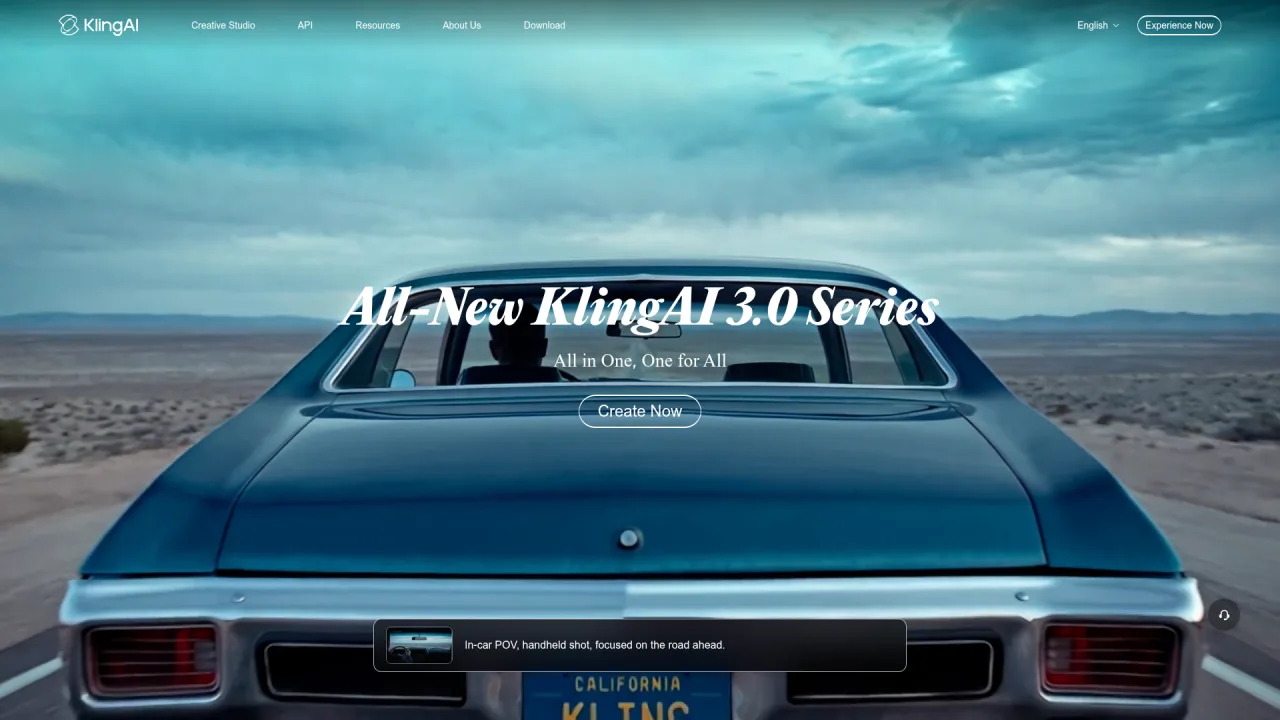
Kling AI's official platform provides the dual-keyframe interface. Kling accepts both a start frame and an end frame. This dual-keyframe input is its standout feature -- you define exactly where the clip begins and ends, and the AI fills in the motion between them.
What works: Detailed descriptions of lighting, color tone, and motion direction. Kling excels at realistic human motion. Multi-shot prompting (describing consecutive shots in one prompt) is supported.
What breaks: Rapid camera movement combined with complex subject motion. Pick one or the other. If the camera pans fast, keep the subject motion simple.
Pika 2.x (Pikaframes)
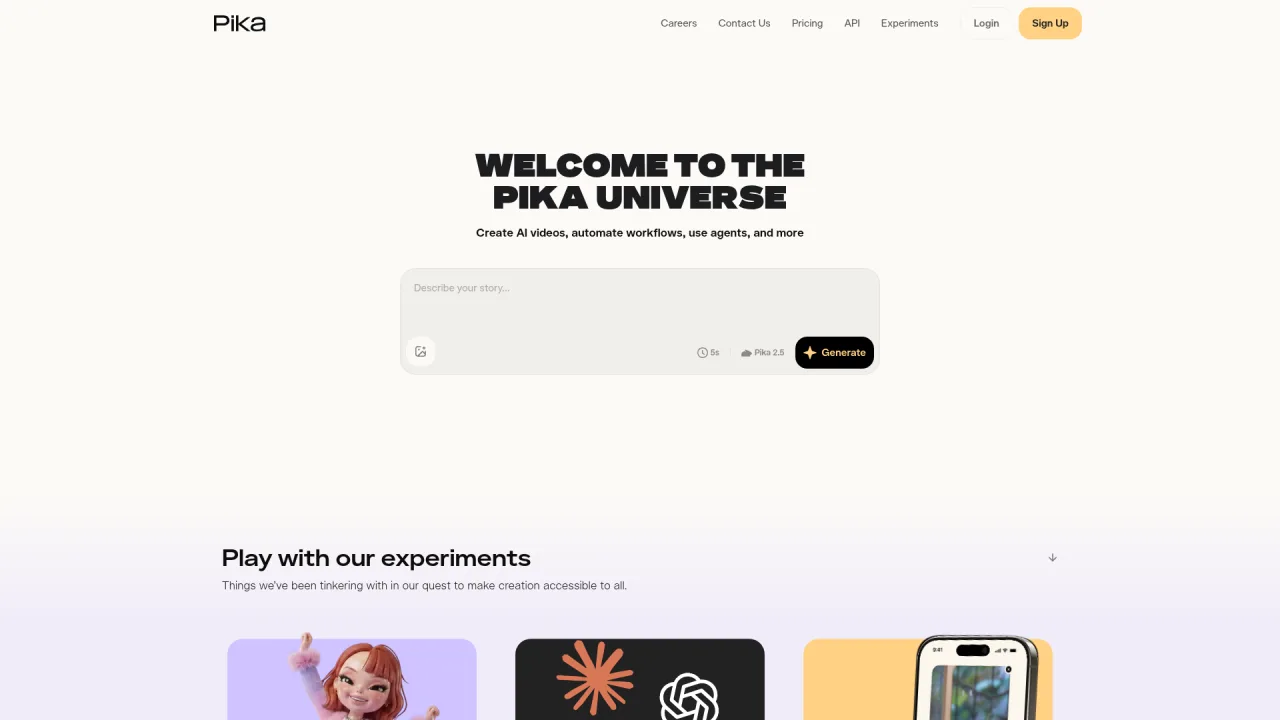
Pikaframes lets you set first-frame and last-frame images, then generates the transition between them. It is strongest for stylized content -- stop-motion effects, creative transitions, and social media clips.
What works: Style-forward prompts. "Paper craft stop-motion style", "glitch transition effect", "watercolor dissolve". Pika interprets artistic direction better than literal scene descriptions.
What breaks: Photorealistic human faces over long durations. Pika drifts on facial features after about 4 seconds. Keep face-centric clips short.
10 Keyframe Prompt Templates by Content Type
Each template below follows the universal formula. Swap the bracketed sections with your specifics.
1. Product Reveal
Start frame: Product in packaging, studio lighting, white background. Prompt: "[Product] slowly emerges from [packaging], rotating 180 degrees to reveal [key feature]. Soft studio lighting, seamless white background, gentle shadow beneath. Slow orbital camera movement, clockwise. Clean commercial aesthetic."
2. Landscape Time-Lapse
Start frame: Dawn scene, low sun angle. End frame: Same composition, golden hour lighting. Prompt: "Time-lapse transition from dawn to golden hour. Clouds move rapidly across the sky, shadows shift across [landscape feature]. Static tripod shot. Hyperlapse feel, saturated color grading."
3. Portrait Close-Up
Start frame: Subject facing slightly away from camera. Prompt: "[Person description] slowly turns toward camera, expression shifts from neutral to [target emotion]. Shallow depth of field, soft key light from camera-left. Slow push-in from medium close-up to tight close-up. Cinematic, 24fps."
4. Tutorial Before/After
Start frame: "Before" state of [subject]. End frame: "After" state of [subject]. Prompt: "Smooth morph from unedited state to polished result. [Specific changes: color correction, background cleanup, detail enhancement]. Split-screen wipe transition from left to right. Clean, modern look, bright lighting."
5. Food Preparation
Start frame: Raw ingredients arranged on cutting board. Prompt: "[Ingredient] being sliced with [knife type], overhead camera angle, shallow depth of field. Steam rises gently. Warm kitchen lighting, wooden cutting board texture visible. Slow motion at 0.5x speed."
6. Urban Street Scene
Start frame: Empty street corner at blue hour. Prompt: "City comes alive as pedestrians enter frame from multiple directions. Neon signs flicker on. Camera slowly tilts up from street level to reveal skyline. Cinematic teal-and-orange color grading, anamorphic lens flare."
7. Tech Interface Demo
Start frame: Clean screenshot of app interface. Prompt: "Cursor enters frame from bottom-right, clicks [specific button], interface animates to reveal [feature]. Screen recording aesthetic with subtle motion blur on transitions. Flat design, brand colors [specify hex or description]."
8. Fashion Lookbook
Start frame: Model in full outfit, studio setting. Prompt: "[Model description] walks toward camera with confident stride, fabric [describe movement -- flowing, crisp, catching light]. Full-body to waist-up framing transition. Soft diffused lighting, neutral background. Editorial fashion photography style."
9. Nature Macro
Start frame: Extreme close-up of [natural subject -- dewdrop, flower petal, insect wing]. Prompt: "Macro lens perspective. [Subject] catches light as camera pulls back slowly to reveal surrounding environment. Rack focus from foreground detail to background context. Natural lighting, high detail, shallow depth of field."
10. Explainer Animation
Start frame: Simple icon or diagram on solid background. End frame: Completed infographic or visual explanation. Prompt: "Animated diagram builds element by element. [First element] appears, then [second element] connects via [line/arrow/highlight]. Smooth easing on each element entry. Flat design, [brand color] palette, white background."
Five Mistakes That Waste Your Credits
After burning through roughly 200 generations across three platforms, patterns emerged.
Overloading a single prompt. Each prompt should describe one coherent clip. Two actions? Two separate generations. I wasted dozens of credits early on trying to pack entire sequences into single prompts.
Forgetting camera direction. If you do not specify camera movement, the model picks one randomly. "Static shot" is a valid and useful instruction. Specify it when you want the camera to hold still.
Ignoring aspect ratio. Vertical (9:16) for TikTok and Reels. Horizontal (16:9) for YouTube. Set this before generating -- resizing after the fact kills quality. Every platform has UI elements that overlap specific zones (progress bars at the bottom, interaction buttons on the right side). Keep important visual elements in the center third of the frame.
Using vague style descriptors. "Make it look professional" means nothing to an AI model. "Cinematic color grading, shallow depth of field, 24fps film grain, anamorphic lens characteristics" gives the model specific targets.
Skipping negative prompts. On platforms that support them, negative prompts save significant rework. --no text, watermark, blurry, low quality, distorted faces eliminates the most common failure modes.
How to Build a Keyframe Reference Library
I was wrong about one thing when I started: I thought you could skip the reference library and just prompt from imagination. You cannot. At least not consistently.
Here is what actually works. Save every AI-generated clip that came out well. Organize them by content type and platform. After about 50 saved examples, patterns become obvious -- which prompt structures produce reliable results, which camera movements each platform handles best, which styles each tool renders most naturally.
The reference library compounds. Three months in, I can write a prompt for a specific look by pulling up a reference clip, noting what worked, and adapting the prompt structure. First-try success rate went from roughly 20% to 70%.
Thumbnail Prompts Are a Separate Discipline
Do not confuse video keyframe prompts with thumbnail generation prompts. They optimize for different outcomes.
Video keyframe prompts optimize for smooth motion, temporal consistency, and narrative coherence across frames.
Thumbnail prompts optimize for a single static image that stops someone from scrolling. The visual language differs entirely:
Dimension
Video Keyframe
Thumbnail
Goal
Smooth motion between frames
Maximum visual impact in one frame
Color
Natural, scene-appropriate
High contrast, saturated, attention-grabbing
Composition
Cinematic framing rules
Subject fills 60%+ of frame, minimal dead space
Text
None (added in post)
3-6 words, large bold sans-serif, high contrast against background
Emotion
Subtle, narrative-appropriate
Exaggerated -- wide eyes, big smiles, dramatic expressions
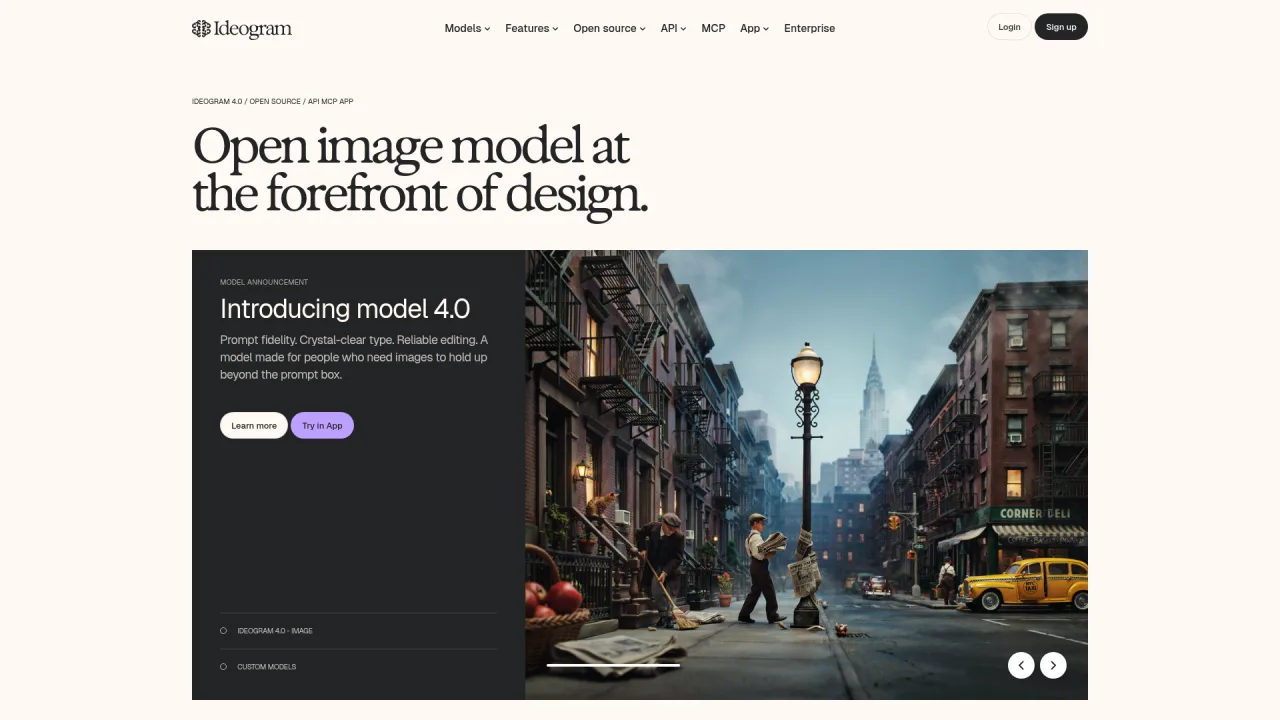
For thumbnails specifically, tools like Midjourney v7 and Ideogram (best for text rendering accuracy) outperform video-focused models. A dedicated thumbnail prompt follows its own formula: Subject (60%+ frame) + Exaggerated Expression + Bold Color Contrast + Space for Text Overlay. See our AI YouTube thumbnail prompt templates guide for detailed thumbnail-specific prompt engineering.
Ready-to-Use Prompt: Generate a Frame-Level Keyframe Video Prompt for Runway, Kling, or Pika
What this does: Turns one shot description into a platform-ready keyframe prompt — universal formula filled, content-type template matched, platform keyframe mode applied, single camera move locked, credit-waste checked — for first-try usable footage instead of drift. Based on: AI Video Keyframe Prompts: 10 Templates for Runway, Kling and Pika — https://aiworkflowpro.com/ai-short-video-keyframe-prompts-guide/ Time to run: ~4 minutes
Copy this prompt into Claude Code, ChatGPT, or any AI assistant:
ROLE: You are an AI-video prompt engineer specializing in keyframe-anchored generation. Your job: turn one shot description into a platform-ready keyframe prompt that gives frame-level control on Runway, Kling, or Pika — using the universal formula and the right content-type template.

CONTEXT — UNIVERSAL KEYFRAME PROMPT FORMULA:
Text-to-video alone gives no control over the opening shot, the ending, or camera movement between them — usable footage lands first try only about 20% of the time. Keyframe prompts fix this by anchoring generation to reference images, giving frame-level control and pushing first-try usable footage to about 70%. The universal formula chains: [START KEYFRAME IMAGE] → [SUBJECT + ACTION] → [CAMERA MOTION] → [DURATION] → [STYLE/MOOD] → [optional END KEYFRAME]. Each platform handles keyframes differently (Runway Gen-4 first+last frame with strong motion; Kling 3.0 start-frame with strong character/physics consistency; Pika 2.x image-to-video with lighter motion), so the prompt must match the platform's keyframe mode.

INPUTS (fill in before running):
- SHOT: YOUR_SHOT_DESCRIPTION_HERE (what happens in the clip, one or two sentences)
- KEYFRAME: YOUR_REFERENCE_SITUATION_HERE (do you have a start image? an end image? or must the prompt describe them?)
- PLATFORM: YOUR_PLATFORM_HERE (Runway Gen-4 / Kling 3.0 / Pika 2.x)
- CONTENT_TYPE: YOUR_TYPE_HERE (e.g., product demo, talking head, landscape reveal, logo reveal, action, food, fashion, explainer, cinematic b-roll)

METHOD — 6 STEPS:

Step 1 — Apply the universal formula
Fill every slot: start keyframe (image or vivid description) · subject + action · camera motion (one primary move: pan/tilt/zoom/dolly/static — never two conflicting) · duration (target 4-10s) · style/mood · optional end keyframe. Mark any slot left vague and propose a concrete fill.

Step 2 — Select the content-type template
Match CONTENT_TYPE to its template and note its signature element (e.g., product demo → hero product + clean background + slow orbit; talking head → stable framing + subtle motion; landscape reveal → slow dolly/pan + depth layers; logo reveal → dark bg + light sweep + end on lockup). State the template + signature element.

Step 3 — Adapt to platform keyframe handling
Rewrite for PLATFORM: Runway Gen-4 → supply first-frame and last-frame images with motion between; Kling 3.0 → supply a start-frame image and lean on character/physics consistency; Pika 2.x → image-to-video with a single lighter motion cue. State the keyframe mode used.

Step 4 — Lock camera motion
Pick exactly one primary move and state its direction and speed (e.g., "slow dolly-in, 3s"). Reject any second conflicting move — over-specified motion is the top cause of drift and wasted credits.

Step 5 — Credit-waste check
Run five checks: (a) is there a keyframe anchor (no anchor = text-only, reject)? (b) only one camera move? (c) aspect ratio matches the publish platform? (d) prompt uses the platform's native keyframe mode? (e) an end frame or end state is set so the clip does not wander? Flag any fail and fix it.

Step 6 — Output the ready-to-paste prompt
Produce the final keyframe prompt as a single copy-paste block in the platform's expected format, plus the keyframe images/states to attach.

RULES:
- Always anchor to a keyframe — never ship a text-only prompt.
- Exactly one primary camera move per clip; conflicting moves are rejected.
- Match the platform's native keyframe handling; do not use a Runway-style two-frame prompt on Pika.
- Specify an end frame or end state so the clip resolves instead of drifting.

OUTPUT FORMAT:
Output six sections:
1. **Formula fill** — markdown table with columns: Slot | Content.
2. **Content-type template** — template name + its signature element.
3. **Platform adaptation** — the platform keyframe mode used + the rewritten prompt body.
4. **Camera motion** — the single chosen move, direction, and speed.
5. **Credit-waste check** — markdown table with columns: Check | Pass? (Y/N) | Fix if fail.
6. **Ready-to-paste prompt** — the final keyframe prompt in a ```text block, plus the keyframe image/state to attach.
Save as @templates/ai-short-video-keyframe-prompts-guide.md and run before every keyframe video generation on Runway, Kling, or Pika — re-run whenever the shot, platform, or content type changes.
Frequently Asked Questions
What is a keyframe in AI video generation?
A keyframe is a reference image that anchors the start or end of an AI-generated video clip. You upload one or two images, then write a prompt describing the motion between them. Tools like Runway Gen-4, Kling 3.0, and Pika 2.x use these keyframes to interpolate smooth movement while preserving visual consistency.
How do keyframe prompts differ from regular AI video prompts?
Regular text-to-video prompts describe an entire scene from scratch and give the AI full creative control. Keyframe prompts anchor the generation to specific reference images, so you control the visual style, character appearance, and scene composition. The prompt then focuses only on describing motion, camera movement, and transitions between frames.
Can I control specific frames in Runway and Kling?
Yes. Runway Gen-4 supports image-to-video with a single start frame and optional reference images for style consistency. Kling 3.0 accepts both start and end frame inputs, letting you define the beginning and end states of your video clip. Pika 2.x introduced Pikaframes for first-and-last frame control over transitions.
What is the best AI video prompt structure?
The most reliable structure follows this formula: Subject + Action + Scene + Camera + Style. For keyframe prompts specifically, add Transition (how the scene changes between your start and end frames). Keep prompts under 75 words, focus on one coherent motion per clip, and specify camera direction explicitly.
Which AI video tool is best for keyframe control in 2026?
Runway Gen-4.5 offers the tightest creative control with reference images and camera presets. Kling 3.0 handles complex human motion and dual-keyframe interpolation well. Pika 2.x Pikaframes excel at stylized transitions between two frames. For most creators, Runway provides the best balance of control and output quality.
A 30-minute video is too long for one conversation. This guide walks the 8-step Skill that locks the narration and one look, then gives each 3-minute segment to a fresh sub-agent, five at a time, and polishes the cut in an empty-context session.
The folder structure behind my AI agent team, the Herdr setup where Grok Build, Claude Code and Kimi Code work side by side, and the two live tasks from the video: an article published by voice and a three-model front-end test.
The same request gives a different answer every run because the agent fills every gap with the average of its training data. Three Markdown standards fix that: a meta standard, an eight-part prompt standard and a Skill standard. Free repo, one-prompt install.
Blaming the content is the reflex when a post underperforms, and it is usually the wrong diagnosis. A second reader decides distribution before any human sees the post, and most of what it checks is mechanical enough to automate business processes around, on five platforms at once.