Monitoring a competitor who publishes no feed is the case every RSS guide skips. Twenty-one platforms sorted by which of three jobs they do, and the finished setup is business process automation you own outright, with no seat licence to renew.
Blaming the content is the reflex when a post underperforms, and it is usually the wrong diagnosis. A second reader decides distribution before any human sees the post, and most of what it checks is mechanical enough to automate business processes around, on five platforms at once.
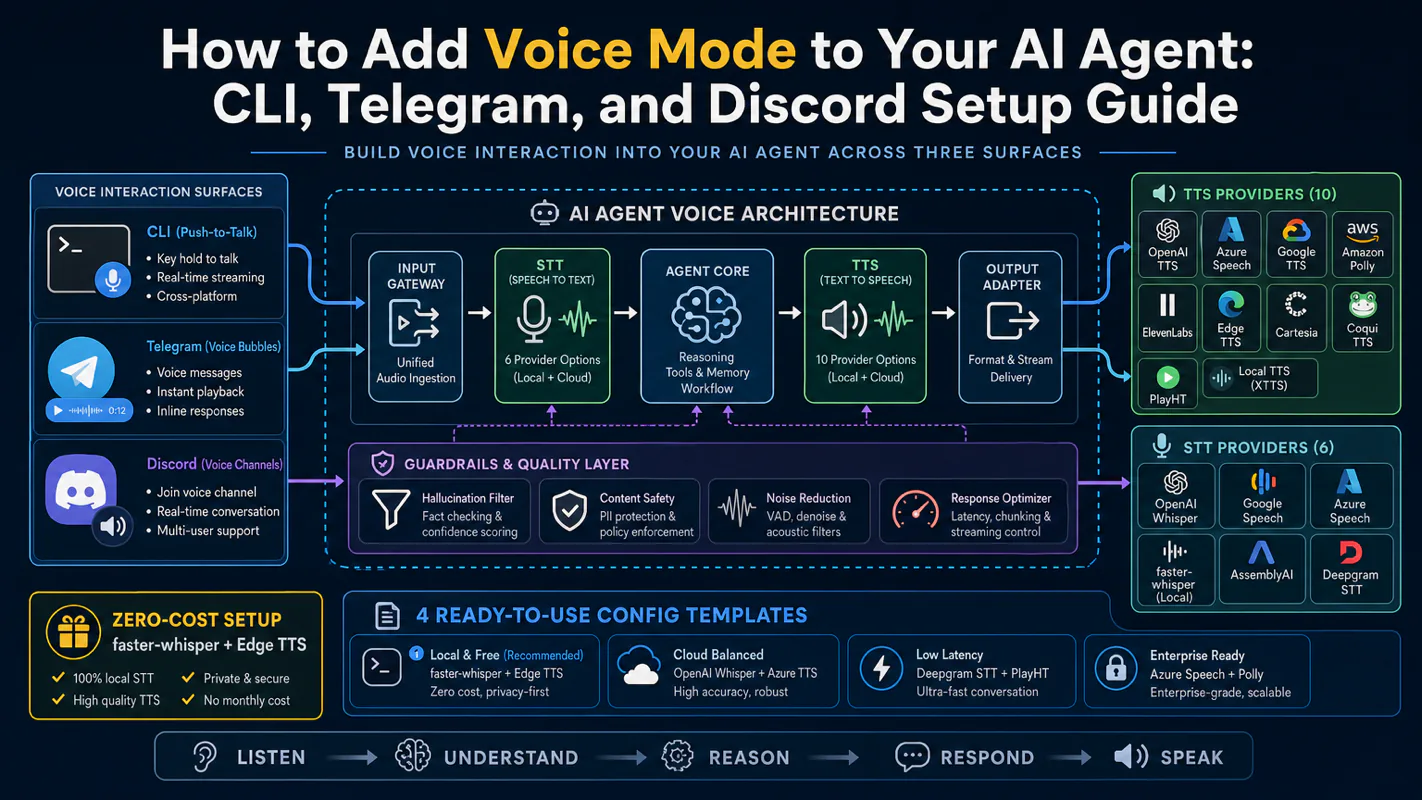
Gloves on, tape measure in hand — nobody types a query. Three voice surfaces for ai automation tools (terminal, Telegram, Discord), 10 TTS and 6 STT providers compared on cost and latency, plus a setup that costs nothing.
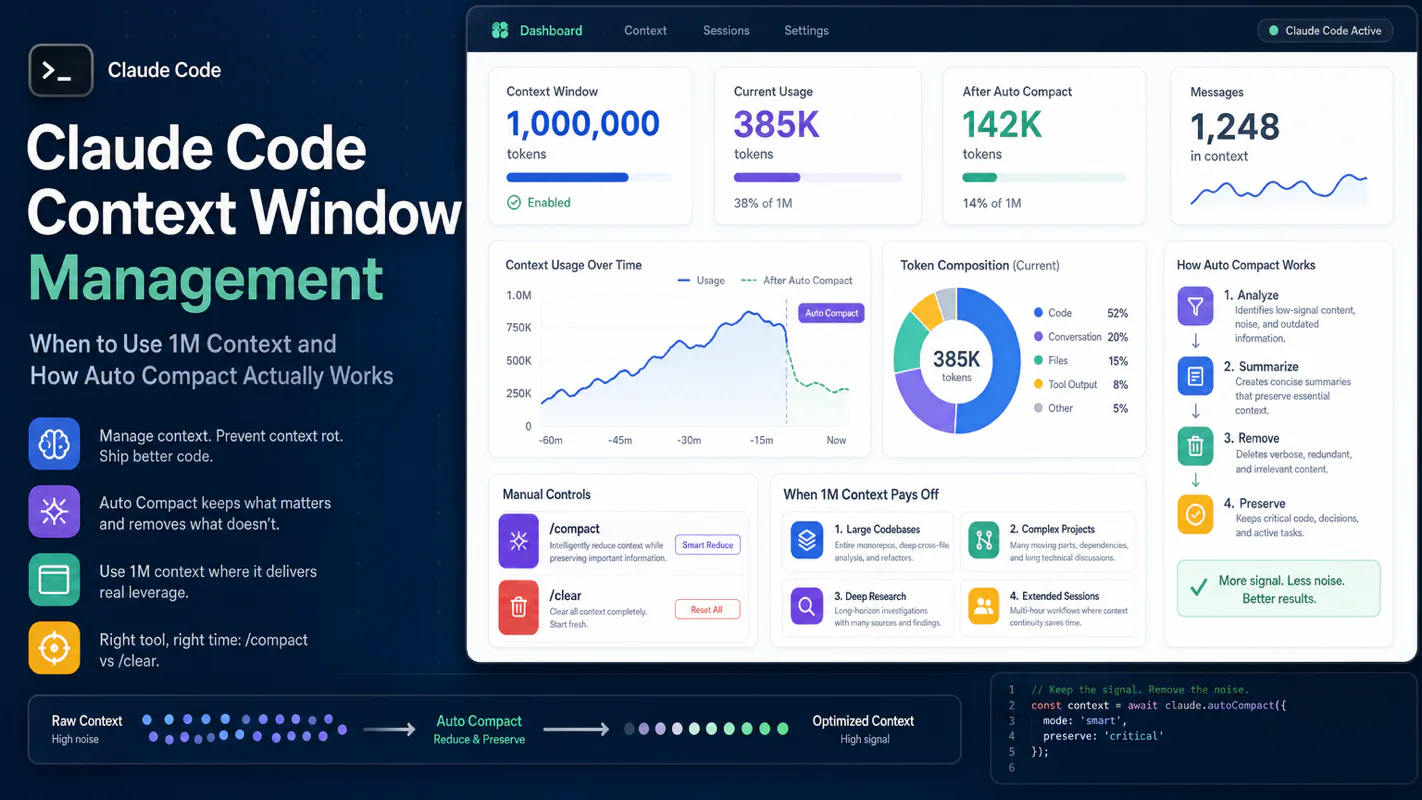
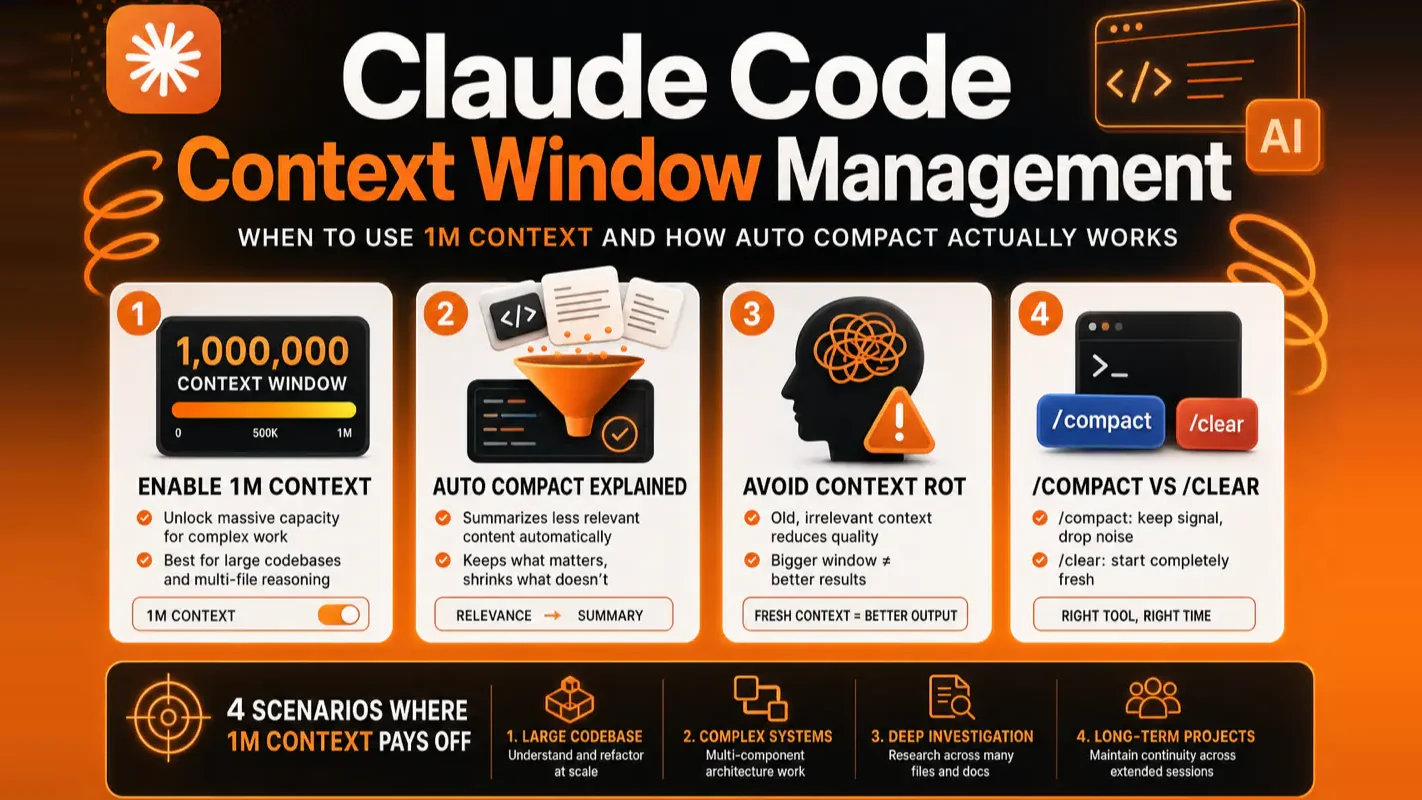
Claude Code Context Window Management: When to Use 1M Context and How Auto Compact Actually Works
More tokens buy less accuracy past a point, and the fix is subtraction rather than capacity. Compaction, sub-agents, external memory, and the rule for when starting a fresh session beats carrying everything forward. Built around how an AI agent for business actually degrades.
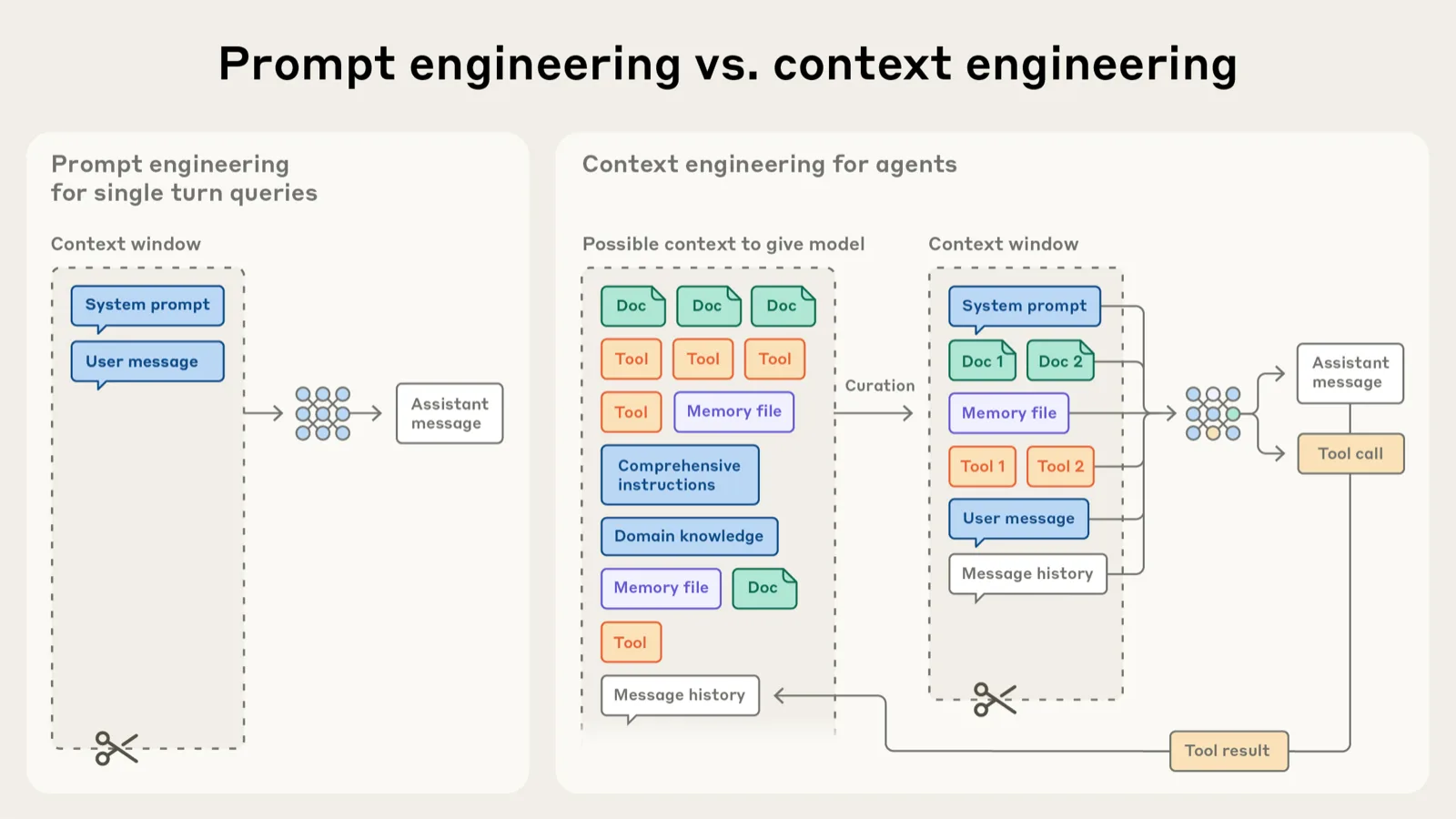
Most people meet a drifting agent and reach for a bigger context window. The opposite is closer to the truth. Hand a paralegal the entire client file at intake, eleven years of correspondence across four unrelated matters, and the summary comes back worse than if you had handed over three documents and the intake form. Anthropic named the machine version of this: context rot, where accuracy falls as the token count climbs. So the useful question for anyone running an AI agent for business work is not how much the window holds. It is what you take off the desk, and when you clear it entirely.
Claude Code defaults to a 200K token context window. The 1M option exists for long tasks that require holding an extended chain of evidence, not as a daily driver. Most sessions produce better results with a clean, focused 200K window than with a bloated million-token one. This guide covers every mechanism you need to manage context well: enabling 1M, understanding Auto Compact, avoiding context rot, choosing between /compact and /clear, and using Subagents for isolation.
I have been running Claude Code across multi-agent workflows with 6+ concurrent sessions for months. The single biggest lesson: context quality beats context quantity every time. A session where I carefully structured what goes in outperforms one where I dumped everything and hoped the model would sort it out.
What Is the Claude Code Context Window?
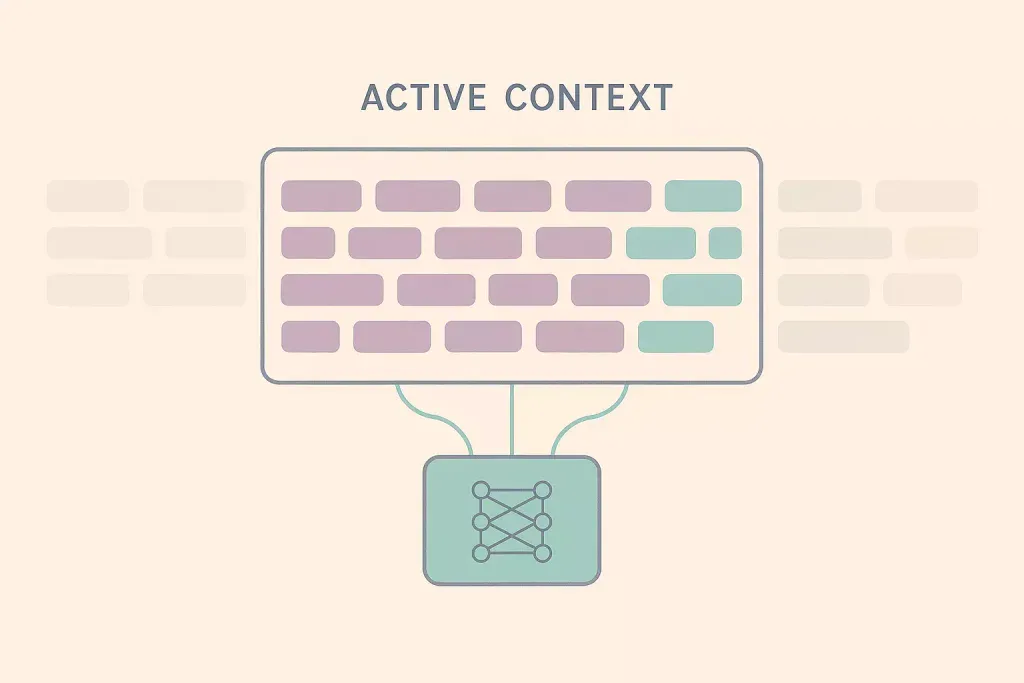
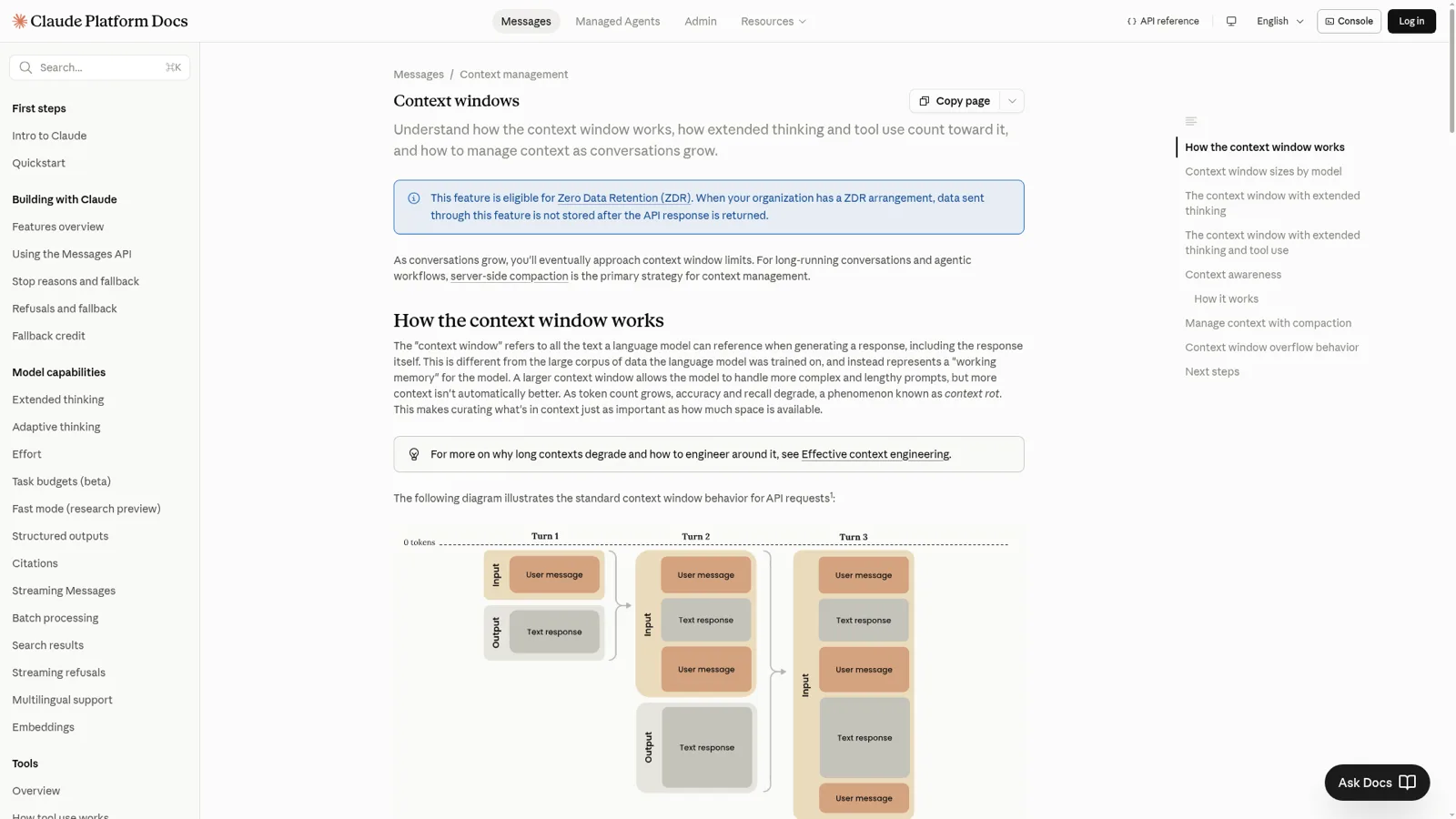
The context window is everything Claude can reference during a single task: your code, conversation history, file reads, log output, and its own responses. Think of it as working memory, distinct from the knowledge baked in during training.
One fact newcomers should internalize immediately: every new Claude Code session starts blank. It does not remember previous sessions. The only material it can reason over is what sits inside the current context window. This makes what you put in the single most important variable for output quality.
The default window holds roughly 200K tokens, enough for tens of thousands of lines of code plus substantial conversation. The 1M option expands that to approximately one million tokens, about five times the default capacity.
1M vs 200K Context: Key Differences
1M context gives you five times the workspace in a single session. It does not give you five times the accuracy. The expanded window lets you hold more files, longer error logs, and richer discussion history simultaneously. It is useful when a task demands keeping a long chain of reasoning intact.
Models that support 1M include Opus 4.6 and newer, plus Sonnet 4.6. Earlier models like Sonnet 4.5 remain at 200K. Check Anthropic's context-windows documentation for the latest model availability.
A critical distinction: 1M context is not persistent memory. It is a larger temporary workspace for the current session. Once you clear or end the session, everything inside is gone. Persistent project knowledge belongs in CLAUDE.md project memory files, not in the context window.
Enabling 1M Context on Different Plans
1M is not on by default. Your account type determines what you need to do.
Account type
Opus 1M
Sonnet 1M
Max / Team / Enterprise
Automatic, no config needed
Requires usage credits
Pro
Requires usage credits
Requires usage credits
API / pay-as-you-go
Fully available
Fully available
To manually switch during a session:
# Switch to 1M window in an active session
/model opus[1m]
/model sonnet[1m]

# Or specify the full model ID with [1m] suffix
/model claude-opus-4-6[1m]
To set 1M as the default via environment variable:
Verification: Run /status to see your current model and window size. If the 1M option does not appear in the /model picker, restart your session. To explicitly disable 1M, set CLAUDE_CODE_DISABLE_1M_CONTEXT=1.
From my workflow: I keep the default 200K for routine coding tasks and only switch to 1M when I am debugging across many files or running a multi-hour refactoring session. Leaving the large window on permanently invites the exact problem the next section covers.
What Is Context Rot and Why Can a Larger Window Hurt?
Context rot is Anthropic's official term for the decline in accuracy and recall as token count grows. This is the most important concept in this entire guide.
The mechanism is straightforward: as material accumulates, key information gets diluted by low-relevance content. Constraints you stated thirty thousand tokens ago compete for attention with your latest instruction. Failed approaches you discussed early in the session fade into the background. The model's attention spreads thinner across more material.
Anthropic's documentation states this directly: curating what goes into context matters as much as how large the window is.
I have seen this play out repeatedly in my own work. During a large refactoring session, I once loaded every relevant file into a 1M context to "give Claude the full picture." The result was worse than when I loaded only the five files directly involved in the change plus a one-paragraph summary of the broader architecture. The model kept referencing outdated patterns from files I had included "just in case."
Practical takeaway: Treat the context window like a curated briefing, not a storage dump. Include conclusions, boundaries, and the specific evidence needed for the current decision. Exclude background material that is not directly relevant to the task at hand.
Auto Compact Under the Hood
Auto Compact automatically summarizes older conversation history when context approaches the window limit, letting long sessions continue without crashing. The tradeoff is that summaries lose detail.
When triggered, Claude condenses earlier portions of the conversation into a compressed digest and continues working from that digest. The session does not interrupt. You keep going as if nothing happened.
The details most likely to get lost in compression:
Why a specific approach failed (the exact error, the edge case that broke it)
File paths and directory boundaries you mentioned verbally
Constraints you stated conversationally ("don't touch that module," "keep backward compatibility with v2")
The trigger threshold depends on the model and version. Rather than memorizing a specific percentage, adopt the safer habit: after completing an important phase, write your own handoff note or proactively run /compact with retention instructions.
/compact keep error messages, file paths, and the constraint about not modifying the auth module
This tells Claude what to prioritize in the summary. I do this at natural breakpoints in every long session. It takes ten seconds and has saved me from re-explaining constraints dozens of times.
When Should You Use /compact and When /clear?
Use /clear when switching topics. Use /compact when continuing the same task.
Command
What it does
When to use it
/compact
Summarizes conversation into a digest, keeps key points, continues on the summary
Same task, need to free space without losing thread
/clear
Wipes conversation history completely, starts fresh (CLAUDE.md, skills, config persist)
Switching to unrelated task, or current session has drifted off course
/compact accepts instructions for what to retain:
/compact prioritize code changes, test failures, and the API contract we agreed on
You can also add a persistent compact directive in your CLAUDE.md file:
# Compact instructions
When compacting, prioritize test output, code changes, and stated constraints.
The counterintuitive lesson from practice: Most people underuse /clear. A clean session with a well-written prompt consistently outperforms a long session patched together with corrections and mid-course adjustments. When I finish task A and move to unrelated task B, I always /clear first. The residue from task A is not just wasting tokens; it is actively introducing context rot into task B.
The decision rule is simple: new topic = /clear, same topic = /compact.
Four Scenarios Where 1M Context Actually Pays Off
1M context earns its keep when a task requires maintaining a long, unbroken chain of evidence. Four patterns fit this description:
Cross-file debugging: Error logs, reproduction steps, and previously attempted fixes all need to stay visible. Losing any piece to compression means restarting the investigation.
Large-scale refactoring: Multiple modules have constraints and dependencies that interact. Switching between smaller windows loses the cross-module relationships that make the refactoring coherent.
Multi-agent coordination and long-running tasks: Material accumulates continuously. The larger buffer prevents premature compression during extended operations.
Audit, compliance, and long-document review: Tasks that require pinpointing specific passages in source material benefit from keeping all evidence in a single round of context.
For everything else, fixing a function, checking a config value, editing copy, the default 200K window is more than sufficient. Before switching to 1M, ask: does this task require holding a long chain of connected reasoning at once? If the answer is no, stay on the default.
How Do Subagents Help You Manage Context?
Subagents run in isolated context windows and return only result summaries, keeping verbose operations out of your main session. This is the most precise context management tool available, more granular than /compact and more controlled than /clear.
Each subagent gets its own independent context window. When it finishes, it sends a summary back to the main session. The intermediate work (all the files read, logs parsed, tests executed) stays in the subagent's context and never enters yours.
Concrete example from my workflow: I was architecting a migration in the main session and needed to know which of 50+ test files used a deprecated API. Instead of reading all 50 files in my main context (which would have consumed a huge chunk of the window with irrelevant test boilerplate), I dispatched a subagent with one instruction: "Read every test file in /tests/, identify files using the deprecated legacyAuth() call, return a list." The subagent processed all 50 files in its own window and returned: "12 files use legacyAuth. List: [...]." My main context grew by approximately 200 tokens instead of 50,000.
Rule of thumb: Any task where the process is verbose but you only need the conclusion belongs in a subagent. Reading bulk files, running test suites, scanning logs for patterns, these are all subagent candidates.
What Is Context Awareness and How Does It Affect Long Tasks?
Context awareness lets supported models track their remaining token budget in real time. Claude Sonnet 4.6, Sonnet 4.5, and Haiku 4.5 have this capability (check Anthropic's current documentation for the latest supported models).
The mechanism: at session start, the model receives a total budget marker. After each tool call, it gets an update showing consumed and remaining capacity. This is analogous to a fuel gauge that was previously missing.
The practical impact for you: supported models pace themselves better during long tasks. They are less likely to fire off a massive query that blows through remaining context capacity, and more likely to sustain effort through to completion rather than tapering off midway.
This is a passive benefit. You do not need to configure anything. But context awareness does not replace context curation: the fuel gauge tells the model how much space remains, not what should go into that space. That is still your responsibility.
What Are the Five Most Common Context Management Mistakes?
Enabling 1M and stopping all context curation. The opposite is true: larger windows require more deliberate organization. Mark what is a conclusion, what is evidence, and what is background. Without these signals, context rot accelerates.
Treating Auto Compact as a safety net for important constraints. Auto Compact preserves the session but drops details. Critical boundaries belong in CLAUDE.md or explicit task instructions, not in conversational history that may get compressed.
Skipping /clear between unrelated tasks. Residue from task A wastes tokens and introduces noise into task B. Switching topics without clearing is the most common source of unnecessary context rot.
Running verbose operations in the main session. Reading dozens of files, executing large test suites, and parsing extensive logs directly in the main context buries your reasoning chain under bulk output. Delegate to Subagents.
Writing abstract goals without actionable criteria. Useful context includes which file to modify, which command to run, and what result constitutes success. Goals without actions are decorative, not functional.
One additional pattern I see frequently: people assume they need 1M when they actually need better material ordering. Having Claude read the error log first, then the entry point, then the recent changes produces better results than dumping the entire repository into the window. Sequence is context.
A Practical Ramp-Up Path
Context management is a skill that builds over days, not something you configure once and forget.
Day 1: Run a real task on the default 200K window. Feed Claude 3-5 relevant files, one error log, and one clear acceptance criterion. Do not enable 1M yet. Notice how much of the window you actually use.
Week 1: Start using /clear between unrelated tasks and /compact when continuing the same task. Pay attention to when the problem is genuinely "not enough window" versus "unclear instructions."
Week 2 onward: When you encounter a task that genuinely requires holding a long evidence chain (cross-file debugging, large refactoring), switch to 1M with /model opus[1m]. Delegate log reading and test execution to Subagents.
Breaking long tasks into phases also helps: phase one locates the problem without modifying files, phase two makes targeted changes, phase three validates and reviews. Write a short handoff note at the end of each phase stating what you confirmed, what remains uncertain, and where the next phase should begin. This keeps reasoning coherent even if Auto Compact fires or you start a new session.
Self-Check: Are You Managing Context Effectively?
Run through this checklist before and after any substantial Claude Code session:
[ ] I know whether my current session is using 200K or 1M (verified with /status).
[ ] I categorized my materials into "must read," "optional," and "exclude" before loading them.
[ ] Critical constraints are written in task instructions or CLAUDE.md, not stated only in conversation.
[ ] I use /clear when switching tasks and /compact when continuing the same task.
[ ] Verbose operations (bulk file reads, test suites, log parsing) go to Subagents, not the main session.
[ ] For long tasks, I wrote a handoff note at each phase boundary.
If most of these are checked, you are treating context as a managed asset rather than an ever-growing pile.
One Line to Remember
Curate first, expand second. The larger the context window, the more important it is to put the task's core question and constraints at the front. 1M is a capacity ceiling for exceptional tasks, not a daily target. What determines output quality is never window size. It is whether you put the right material in the right order.
Ready-to-Use Prompt: Choose Your Claude Code Context Strategy for Any Task
What this does: Audits any coding task and prescribes the exact context strategy — 1M vs 200K window, /compact vs /clear, and where Subagents must isolate work — so the session maximizes accuracy instead of token count. Based on: Claude Code Context Window Management: When to Use 1M Context and How Auto Compact Actually Works — https://aiworkflowpro.com/claude-code-context-management/ Time to run: 3 minutes
Copy this prompt into Claude Code, ChatGPT, or any AI assistant:
ROLE: You are a Claude Code context strategist. Your job: audit any coding task and prescribe the exact context strategy — 1M vs 200K, /compact vs /clear, and where Subagents must isolate work — so the session produces maximum accuracy, not maximum token usage.

CONTEXT — CONTEXT QUALITY OVER QUANTITY:
The default Claude Code window holds ~200K tokens; a clean, focused 200K window beats a bloated 1M one most sessions. 1M is a tool for tasks that must hold a long chain of evidence across many files simultaneously — not a daily driver. Larger windows do NOT increase accuracy; they increase context rot, where scattered attention degrades recall. Manage context proactively: Auto Compact summarizes and compresses history near the limit while keeping decisions intact; /compact triggers that summarization on demand; /clear wipes the slate to restart fresh. Subagents isolate independent subtasks in their own windows so noise never pollutes the main session.

INPUTS (fill in before running):
- TASK: [the work you want Claude Code to do this session]
- FILE_FOOTPRINT: [rough count and size of files/logs involved — e.g., 12 files, 8K lines, one 50MB error log]
- SESSION_STATE: [fresh session / mid-task / context feels bloated / about to auto-compact]
- GOAL: [ship a feature / debug / refactor / explore]

METHOD — 4 STEPS:

Step 1 — Size the evidence chain
Count distinct artifacts the task must hold in mind SIMULTANEOUSLY. Score: SHORT (<10 files, single reasoning thread) → 200K. LONG (cross-file evidence trail, multi-thousand-line logs, many interdependent modules that must be reasoned over together) → 1M candidate. Default to 200K unless LONG is clearly justified; five times the workspace never means five times the accuracy.

Step 2 — Decide /compact vs /clear
If mid-task and context is full but accumulated decisions still matter → /compact. If the task shipped, the direction drifted, or the context is polluted with failed attempts and dead ends → /clear. Never /compact to rescue a polluted session — it preserves the rot.

Step 3 — Partition with Subagents
List every subtask that does NOT need the main thread's accumulated decisions (lint runs, doc generation, isolated file search, mechanical refactors, test sweeps). Assign each to a Subagent so only its conclusion returns. This reserves the main window for the reasoning that genuinely needs continuity.

Step 4 — Flag the five mistakes
Check and warn against: (1) dumping everything into context by default; (2) one session does everything instead of splitting by phase; (3) compacting only when Auto Compact forces it; (4) compacting when you should clear; (5) skipping Subagent isolation and letting noise accumulate.

RULES:
- Recommend 200K unless a LONG evidence chain is proven — never default to 1M.
- Never suggest /compact to preserve polluted context; call /clear instead.
- Every recommendation must cite which INPUT drove it.
- Refuse vague answers; output specific commands the user can run.

OUTPUT FORMAT:
Markdown with four sections: (1) "Recommended Window" — 200K or 1M + one-line justification tied to FILE_FOOTPRINT; (2) "Compact/Clear Call" — /compact, /clear, or neither + the exact trigger condition; (3) "Subagent Plan" — table with columns: Subtask | Rationale | Inputs to hand off; (4) "Risk Flags" — bulleted list of the five mistakes, each with ✅ or ⚠️ and a one-line fix.
Save as @templates/claude-code-context-management.md and run at the start of any non-trivial Claude Code session, or whenever the context feels bloated and you are unsure whether to /compact, /clear, enable 1M, or split the work into Subagents.
Gloves on, tape measure in hand — nobody types a query. Three voice surfaces for ai automation tools (terminal, Telegram, Discord), 10 TTS and 6 STT providers compared on cost and latency, plus a setup that costs nothing.
A Skill is an operating manual, not a plugin. The five-layer architecture behind workflow automation that survives context compression, session crashes, and handoffs: SKILL.md as the single entry point, deterministic scripts, run state for crash recovery, and a resource layer.
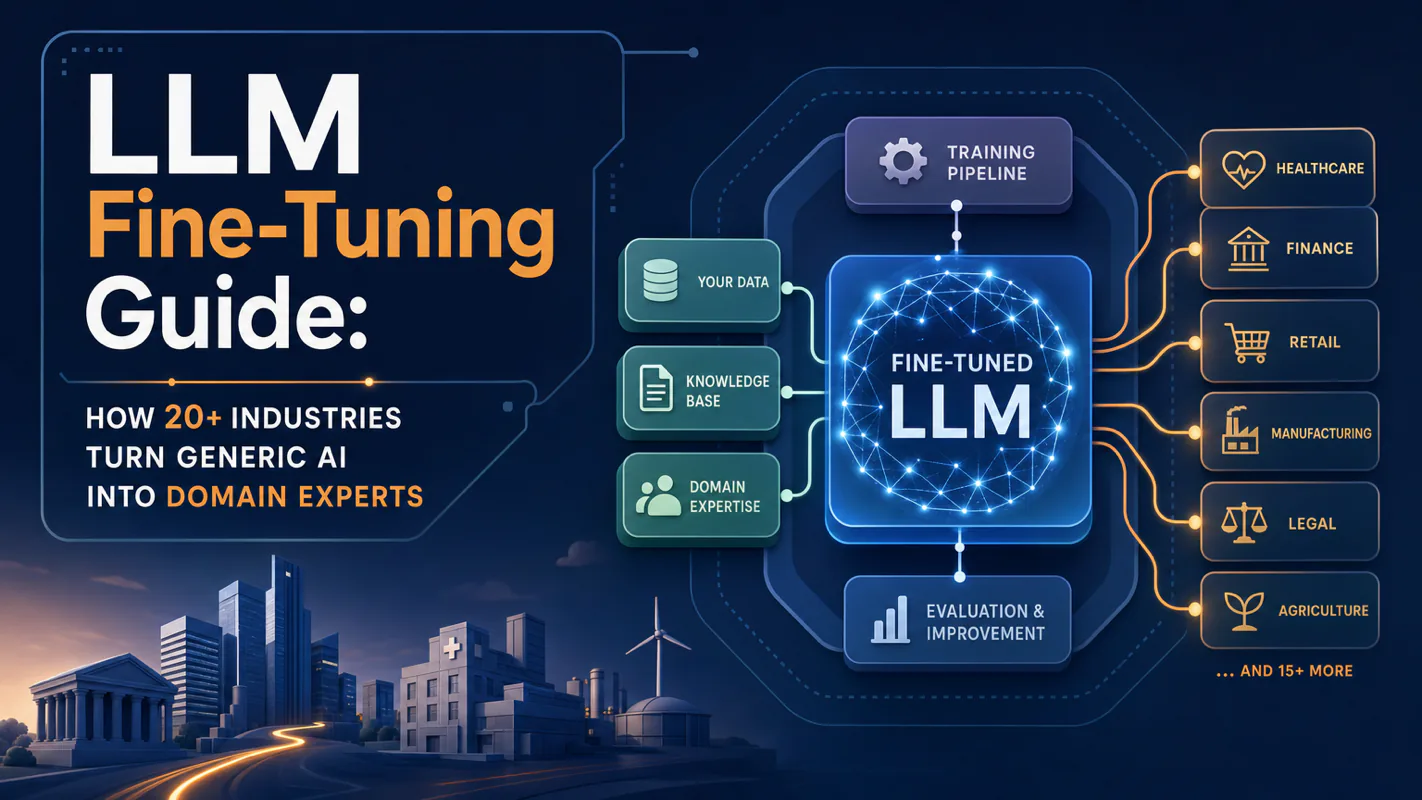
Two of the three fixes can be undone the same afternoon. The third cannot, and it is the one people reach for first. LoRA cut costs tenfold, which made the expensive option tempting rather than correct. In business process automation, the order you try things in is the whole decision.
Fine tuning turns a generalist into a specialist - skip the baseline and you can never prove it worked. Five steps on Google Cloud: baseline, data prep, instruction design, hyperparameters, evaluation. Plus the finding that surprises business process automation buyers: 100 good samples beat 1,000.