Monitoring a competitor who publishes no feed is the case every RSS guide skips. Twenty-one platforms sorted by which of three jobs they do, and the finished setup is business process automation you own outright, with no seat licence to renew.
Blaming the content is the reflex when a post underperforms, and it is usually the wrong diagnosis. A second reader decides distribution before any human sees the post, and most of what it checks is mechanical enough to automate business processes around, on five platforms at once.
Gloves on, tape measure in hand — nobody types a query. Three voice surfaces for ai automation tools (terminal, Telegram, Discord), 10 TTS and 6 STT providers compared on cost and latency, plus a setup that costs nothing.
Your First AI Assistant: Pick One and Install in 10 Minutes
The mistake is not picking the wrong assistant. It is reading comparisons for three months and installing none. Four questions, ninety seconds, one install, then four prompts that make ai for small business useful the same afternoon.
The mistake most beginners make is reading comparison articles for three months and never installing one. The cure is the opposite move: pick fast, install fast, run a real conversation today
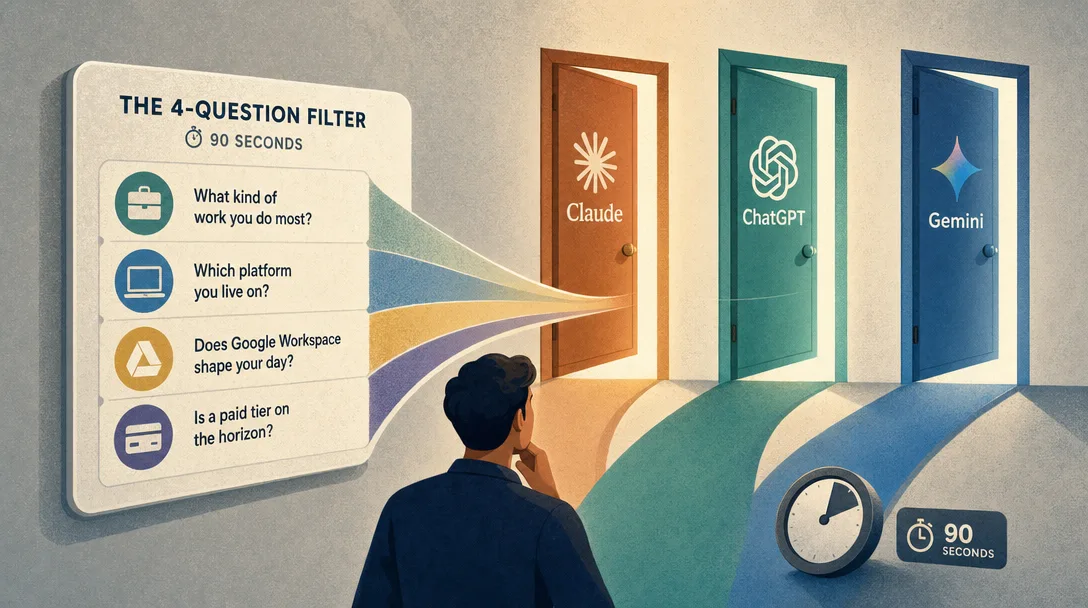
In 2026 the three serious starter options are Claude, ChatGPT, and Gemini. A 4-question filter resolves the choice in about 90 seconds
Mobile install + web login + first prompt = under 10 minutes, no credit card required, real value on day one
The four starter prompts at the end turn a blank app into a daily tool, not a curiosity
A travel agency owner got the same question from her booking coordinator three Mondays running: could she use one of these AI things to rewrite the itinerary emails? Each time the answer was let me look into it, and each time nothing followed, because looking into it meant reading comparison articles and the comparisons never resolved into a choice. What breaks the loop is not more comparison. It is accepting that the first choice is reversible — the account is free, the setup is ten minutes, and switching later costs almost nothing. Getting started with ai for small business is one decision made quickly, not the right decision made eventually.
The single most common question I get from non-technical readers is "AI is everywhere — where do I actually start?" I've been asked it more than a hundred times. The answer is short and almost rude: install one and use it today. Don't read a fourth comparison article. Don't watch a fifth YouTube review. Pick the option that fits your situation in ninety seconds, install it in ten minutes, and have a useful first conversation by lunch.
Most people stuck at the start aren't stuck on a knowledge gap. They're stuck in research mode. The fix isn't more research. It's a forced action — and that's exactly what this post is.
By the end you'll have:
A 4-question filter that picks Claude, ChatGPT, or Gemini for your situation in ninety seconds
Install paths for mobile and desktop on the option you picked
Four starter prompts that turn day one into a real tool, not a tech-demo curiosity
Who Is This For
You've never installed an AI assistant before, or you tried once and bounced
You've heard about ChatGPT but found the "which model do I pick" choice paralyzing
You want a free, low-friction tool you can use today, not a six-month research project
You'd rather have an "okay" assistant up and running this afternoon than the "perfect" one a quarter from now
If you've already been using AI assistants for months, the prompting art post is the next read — this one is about getting past day zero.
Why "Install One" Beats "Analyze Them All"
Here's the dirty secret about beginner AI choice. The differences between Claude, ChatGPT, and Gemini at the free tier are smaller than the cost of a wrong choice. Most beginners can't tell which they prefer until they've put a hundred queries through one of them. The fastest way to get to a hundred queries is to stop comparing and start using.
There's a second, sneakier reason. Reading comparison articles produces an illusion of progress. You feel like you're doing the work — researching, evaluating, weighing trade-offs. In reality, you're rehearsing a decision instead of making one. Three months in, you know more about the comparison than someone who actually picked one in ten minutes, but they're three months ahead of you in actual skill.
Treat your first AI assistant like a first car, not a forever car. The first one is a learning device, not a marriage. You'll switch later if you need to, and switching is cheap because the prompting skill transfers between tools cleanly.
The three serious 2026 options for beginners are Claude (Anthropic), ChatGPT (OpenAI), and Gemini (Google). Grok (xAI) is sometimes mentioned alongside them, but its rough edges are real and it doesn't add much for a non-technical first user, so it's left out of this decision.
The 4-Question Filter
Run these four questions in order. Each one shrinks the candidate list. Most people land on a single answer by question three.
Question 1: What kind of work do you do most?
Daily work
Best first pick
Why
Writing, editing, long documents
Claude
Strongest for long-form, nuanced writing — also the most "human" tone by default
General conversation, image generation, broad daily use
ChatGPT
Largest free-tier feature surface, very forgiving for beginners
Living inside Google Docs / Gmail / Drive
Gemini
Deep native integration with the Google productivity stack
Coding (any kind)
Claude
Strongest coding model in 2026 free-tier head-to-heads
If two columns apply (writer who lives in Gmail), the tiebreaker is the next question.
Question 2: Which platform do you spend most of your day on?
Mac/iPhone heavy? Claude and ChatGPT both ship excellent native desktop apps. Either fits.
Windows/Android heavy? ChatGPT's desktop app is more polished on Windows; Gemini integrates with Android keyboard system-wide.
Web browser only, anywhere? All three are equal — pick by Question 1.
Question 3: Do you already use Google Workspace at work?
If yes, Gemini has an advantage you can't replicate elsewhere — it reads your Drive files, drafts emails inside Gmail, and lives in the side panel of every Google app. The other two assistants need explicit copy-paste; Gemini doesn't.
If no, Gemini's unique value largely evaporates. Default to Claude or ChatGPT from Question 1.
Question 4: Do you want a paid tier eventually?
For most beginners the answer is "not yet" — and all three free tiers are excellent in 2026. But if you know you'll go paid:
Claude Pro ($20/month): best writing and coding ceiling, larger context window, includes Claude Code access
ChatGPT Plus ($20/month): largest tool ecosystem, GPTs, image generation, advanced data analysis
Gemini Advanced ($20/month): deepest Google Workspace integration, longest context window in the category
The pricing is identical, so this is a feature question, not a price question. Most readers don't need to answer Question 4 in ninety seconds — defer it for thirty days, after the free tier has shown you which feature ceiling you actually hit first.
Install Path: Mobile (5 Minutes)
Mobile is the right place to start for a beginner — it's the device you'll have on you when curiosity strikes, and the apps are built for low-friction first use.
Claude
Open the App Store / Google Play and search "Claude" (publisher: Anthropic)
Install the app — the icon is an orange asterisk on white
Open it; sign up with email or Google sign-in (no credit card needed)
The first conversation screen appears immediately
ChatGPT
App Store / Google Play, search "ChatGPT" (publisher: OpenAI)
Install — the icon is a black circular swirl
Open and sign up with email, Apple, or Google
Skip the optional "premium" upsell screen if it appears
You're at the chat screen
Gemini
App Store / Google Play, search "Gemini" (publisher: Google)
Install — the icon is a four-point colorful star
Open and sign in with your existing Google account (no extra signup)
Approve the data permissions you're comfortable with
You're at the chat screen
All three apps are free to install and free to use at the basic tier. None requires a credit card up front. If a screen asks for one, you've gone past the basic tier — back out and stay on the free path for the first month.
Install Path: Desktop (5 More Minutes)
The desktop app is where the assistant becomes a daily reflex rather than a curiosity. Two features make it worth the second install:
Global keyboard shortcut — usually Option+Space or Cmd+Shift+Space — pops the assistant from anywhere, even when its window is hidden
Screenshot input — drag a screenshot into the prompt and ask questions about what's in it (a chart, an error, a UI element)
Claude desktop
Visit claude.ai/download and grab the macOS or Windows installer. Install, sign in with the same account you used on mobile, and set the global shortcut in Preferences → General.
ChatGPT desktop
Visit openai.com/chatgpt/download for macOS or Windows. Install, sign in, and enable the menu-bar / system-tray icon for quick access.
Gemini desktop
Gemini doesn't ship a standalone desktop app in the same way. The "desktop" experience lives inside the side panel of Google Docs, Sheets, Slides, and Gmail. If your work is inside those apps, that's already the desktop experience.
The 30-second rule: if you don't pin the assistant to your dock or taskbar, it'll fade out of your daily use inside a week. Pin the icon. Set the global shortcut. Then it becomes muscle memory, the same way Cmd+Space did for Spotlight.
What These Assistants Can Actually Do
Here's the seven-capability map most beginners are missing on day one. Knowing this changes which prompts you reach for.
1. Conversation and explanation
The basic move. Ask anything you'd ask a smart, well-read friend who happens to have read every textbook. Ask about a concept, ask for a summary, ask for the tradeoffs of a decision.
2. Writing first drafts
Reports, emails, social-media captions, memos, meeting summaries, leave requests, thank-you notes, course outlines, reading notes. The trick is being specific about audience, length, tone, and format — vague asks get vague writing.
3. Translation and language work
Modern AI translation is meaning translation, not word-for-word. Drop in a paragraph and ask "translate to English in a casual tone." Drop in a foreign-language webpage URL and ask for the gist.
4. Research and synthesis
Instead of getting ten links from a search engine, you get one synthesized answer with sources. The skill is asking for citations and treating the synthesis as a starting point, not the final answer.
5. Image generation
Type a description, get an image. ChatGPT's image generation is the most polished for beginners; Claude doesn't generate images natively (yet); Gemini generates via the same prompt flow.
6. Document analysis
Drop in a PDF, Word doc, or spreadsheet and ask questions about it. "What's the central argument of this paper?", "Summarize this contract in 10 bullets,""Find the inconsistency between these two reports."
7. Image and screenshot understanding
Paste a screenshot and ask questions. "What does this error mean?", "What's wrong with this chart?", "Describe what's in this picture."
Most beginners only use #1 and #2 in the first month and miss #4 through #7. The four starter prompts in the next section pull you through the full menu so you discover the surface area on day one.
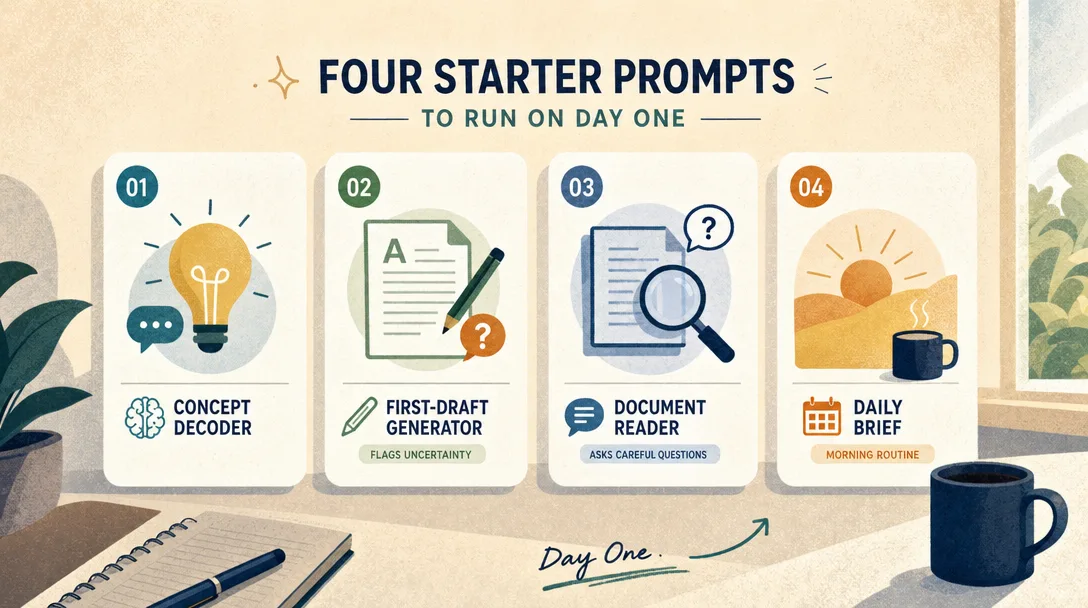
Four Starter Prompts to Run on Day One
Run these in order, on whichever assistant you installed. Each one trains a different muscle.
Prompt 1: The Concept Decoder
Explain [X] like I'm a smart 10-year-old.
Use a real-world analogy I'd recognize.
Then add one example a working adult would care about.
End with three follow-up questions I should ask if I want to go deeper.
Replace [X] with anything you've heard about and don't fully understand. "Explain prompt engineering like I'm a smart 10-year-old.""Explain the difference between machine learning and deep learning.""Explain what an API actually is." The "follow-up questions" line is the secret — it teaches you the next thing to ask, and starts building your own mental map of the topic.
Prompt 2: The First-Draft Generator
I need to write a [TYPE OF DOCUMENT] for [AUDIENCE].
Length: about [N] words.
Tone: [DESCRIBE THE FEEL — matter-of-fact, warm, formal, etc].
Must include: [3-5 specific points or facts you want covered].
Avoid: [things you don't want, like jargon, salesy language, etc].

Generate a full draft. After the draft, list 3 things you weren't sure about that I should review.
The "3 things you weren't sure about" line is the upgrade most first-draft prompts miss — it makes the assistant flag its own uncertainty, which means you don't have to hunt for the bad sentences.
Prompt 3: The Document Reader
I'm pasting in a [DOCUMENT TYPE — report / contract / paper / email thread] below.
Read it and answer:
1. What is the central argument or key decision?
2. What are the 3 most important details?
3. What's missing or unclear?
4. What would a careful reviewer push back on?

[PASTE THE DOCUMENT HERE]
This prompt teaches you the meta-move: you're not just summarizing, you're getting the assistant to do the same kind of careful reading a senior colleague would. The "what's missing" question is what separates a useful summary from a generated wall of text.
Prompt 4: The Daily Brief
Help me set up a 15-minute daily brief routine.
Each morning I'll paste: my calendar for today, my top 3 priorities, and any urgent emails.
You will respond with:
1. The single most important thing to do first
2. Three risks I should watch for today
3. One thing I should NOT do today, even if it's tempting
4. A 2-sentence end-of-day check-in question

Keep the format consistent. Today is [DATE]. Here's my data:
[PASTE YOUR DAY'S DATA]
This is where the assistant stops being a Q&A toy and starts being a daily co-pilot. Run it for a week and the muscle of "ask the assistant first" gets built.
Power Moves That Make the Tool Feel Different
Once you're past day one, the productivity gap between casual users and power users comes from a small set of habits. None require technical skill; all of them just require knowing they exist.
Use voice on mobile
The mobile apps all support voice input. Speak your prompt while walking, in traffic, between meetings. The transcription quality is excellent, and the slight imprecision of voice often produces better prompts because you're more conversational than when you type.
Paste screenshots, not retyped text
Don't retype an error message; screenshot it and paste. Don't summarize a chart; screenshot it and ask. The vision capabilities of all three apps are strong enough in 2026 that screenshot-first is faster than describe-first about 80% of the time.
Save prompts you reuse
Every assistant has some form of "saved prompts" or "GPTs" or "Gems." Don't keep retyping. The first day you write a great prompt and reach for it tomorrow, save it. By month three you'll have ten saved prompts you reach for daily.
Open a fresh conversation per topic
Long, mixed conversations confuse the assistant. New conversation = new context. The "save and start fresh" cost is near zero; the quality bump is significant.
Keep one conversation as your "daily" thread
Counterpoint to the above: have one ongoing conversation that's your daily journal / planning thread. It builds context over time and the assistant gets noticeably better at suggesting next steps because it knows what you've been working on. Most assistants now persist context between conversations if you let them.
The single biggest day-30 upgrade: stop typing prompts as if they were Google searches. A search engine wants three keywords. An AI assistant wants two sentences with audience, format, and constraints. The size of the prompt is correlated with the quality of the output more strongly than most beginners realize.
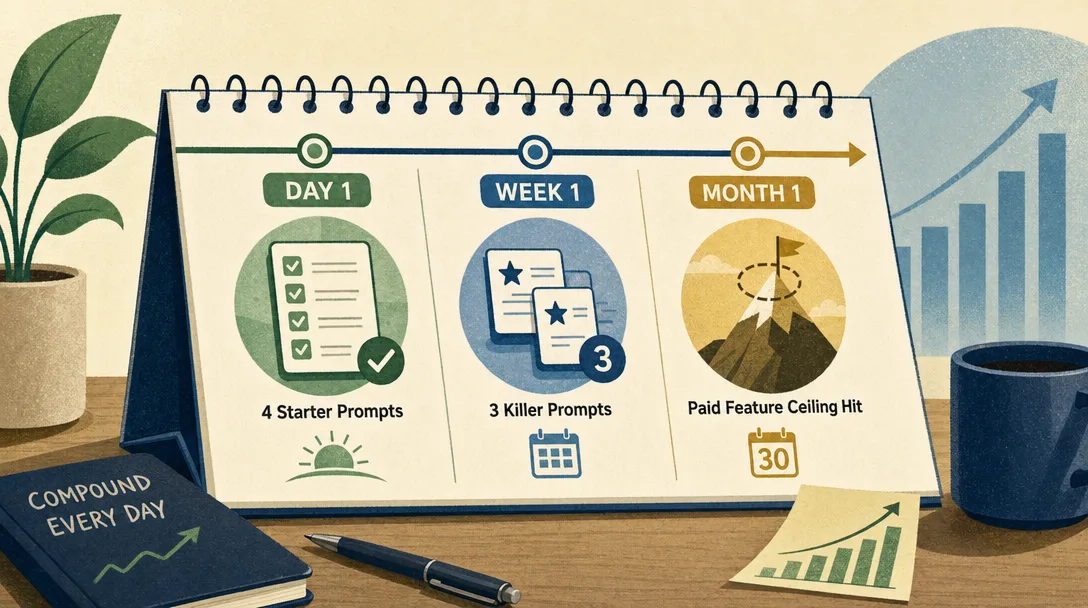
Day 1, Week 1, Month 1: The Compounding Path
The four starter prompts above get you through day one. The bigger question is: what does the next thirty days actually look like, and how do you keep momentum after the novelty fades?
Day 1 — Get the four starter prompts on the board
The single thing that separates beginners who stick from beginners who drift is finishing all four starter prompts on the day you install the app. Not three out of four. Not "I'll do the rest tomorrow." All four, on day one. Block 25 minutes after dinner. Run them in order. Save the ones whose output you liked.
The reason this matters has nothing to do with the assistant. It's about pattern installation in your own head. The brain treats day-one experiences as templates — if your day one is "I asked one casual question and closed the app," that's the muscle memory you're installing. If your day one is "I ran a structured prompt, got a useful first draft, and saved a daily-brief routine," that's the muscle memory you're installing instead. Same time investment, vastly different downstream behavior.
Week 1 — Find your three killer prompts
By the end of the first week, you should have at least three prompts that you reach for repeatedly without thinking. Not three you used once and thought were clever. Three you've already re-run, edited, and re-run again. These will not be the four starter prompts — those teach the format. Your real killer prompts emerge from your actual work.
The pattern to watch for is a prompt that you find yourself rewriting from scratch on Wednesday because you forgot to save Monday's version. That moment of frustration is the signal — save the prompt the third time you write it. Not the first (it might be a one-off), not the fifth (you've already wasted the time savings). Third time is the right cutover.
A practical heuristic: by Friday of week one, scroll back through your conversation history and look for three patterns that re-occurred. Those are your seeds. Save them with names that future-you can recognize: not prompt-1 but weekly-engineering-status or meeting-debrief-template or email-rewrite-shorter.
Month 1 — Notice what your free tier hits and what it doesn't
A month in, you'll have two pieces of information that didn't exist on day one. The first: which paid feature ceiling you actually hit. Maybe you ran out of file uploads. Maybe you hit the daily message cap on the smartest model. Maybe neither — you stayed inside the free tier all month and never noticed. The ceiling you hit is the only honest signal of which paid plan, if any, is worth the $20.
The second piece: which capabilities of the assistant you ignored. Most month-one users have used capabilities #1 (chat) and #2 (writing) heavily, dabbled in #6 (document analysis), and never touched #4 (research synthesis), #5 (image generation), or #7 (screenshot understanding). The capabilities you didn't touch are the ones where the biggest week-one upgrades hide. Spend the first hour of month two deliberately exercising the three capabilities you avoided in month one. That single hour usually triples your effective use of the tool.
The compounding here is real and underrated. A daily user at month three is roughly 5x as productive with the assistant as a daily user at week one — same tool, same model. The delta is entirely habit and prompt library, both of which compound for free.
What to Do When the Assistant Is Wrong
It will be wrong sometimes. The right reaction isn't "AI is unreliable, I should stop using it" — it's a calibration habit. Three moves cover most of the failure modes.
Move 1: ask for sources."Cite the source for the date you just gave." Most modern assistants will either cite a real source or admit they were inferring. Either is useful.
Move 2: paste the document instead of trusting recall. Don't ask "what does the GDPR say about X?" — paste the relevant article and ask "based on the text I pasted, what does it say about X?" Memory-based questions hallucinate; document-based questions don't.
Move 3: do a third-party check on anything load-bearing. Anything affecting money, health, legal status, or a relationship — verify against an authoritative source before acting. Treat the assistant as a brilliant intern: fast, well-read, occasionally wrong, never the final source for high-stakes decisions.
For the broader question of how to ask in a way that gets reliable answers in the first place, the prompting art post is the next read.
The Three Most Common Beginner Traps
Beyond the wrong-answer reflex, three other failure modes catch most beginners during the first month. Naming them makes them easier to dodge.
Trap 1: treating the assistant like a search engine. The reflex from a decade of Google trains you to type three or four keywords and skim results. AI assistants reward the opposite — long, specific prompts with audience and constraints. Beginners who keep typing search-engine-shaped prompts get search-engine-shaped answers and conclude "AI isn't that great." The fix is the four-starter-prompt format above; once you've internalized the structure, search-engine reflex goes away inside a week.
Trap 2: using one tool for everything. When the first AI assistant works for the first three problems, beginners keep stretching it for everything — coding, agent orchestration, image manipulation, voice generation. Most assistants are great at chat, drafting, and document work and weak at the specialized stuff. The fix isn't to abandon the assistant; it's to pair it with a second tool when the friction shows up. For coding, that's Claude Code. For deeper agent workflows, the OpenClaw multi-agent guide shows what comes next. For image work specifically, ChatGPT's native generation is the simplest add-on.
Trap 3: not telling the assistant what you already know. The biggest unforced error is omitting context. "Write me a proposal" gets a generic proposal. "Write me a 600-word proposal — the audience is a CTO of a 50-person startup, the offer is a 6-week consulting engagement on agent infrastructure, the budget is $20K, the tone is collegial not salesy, and the proposal needs to address the three risks of getting locked into a vendor" gets something usable. You are not being verbose; you are being specific. Specificity is the single highest-impact prompt skill, and it costs nothing.
Key Takeaways
Don't analyze, install. The first AI assistant is a learning device, not a forever choice. Pick fast, switch later if you need to
The 4-question filter resolves the choice in 90 seconds. Daily work × platform × Workspace use × paid tier intent — Claude or ChatGPT or Gemini falls out
Install both mobile and desktop. Mobile for capture, desktop for daily reflex — and pin the desktop icon or it fades from use
Run the four starter prompts on day one. Concept Decoder, First-Draft Generator, Document Reader, Daily Brief — pulls you through 4 of the 7 capabilities so you don't get stuck only chatting
Calibrate, don't trust blindly. Ask for sources, paste the document, third-party-verify load-bearing claims
The first ninety seconds beats three months of comparisons. The skill lives downstream of the install, not upstream of it
Ready-to-Use Prompt: Pick and Install Your First AI Assistant Today
What this does: Runs the four-question filter to pick Claude, ChatGPT, or Gemini in ninety seconds, gives the under-ten-minute install path, hands over four day-one starter prompts, and sets the compounding path with the beginner-trap list — so you stop researching and start using today. Based on: Your First AI Assistant: Pick One and Install in 10 Minutes — https://aiworkflowpro.com/first-ai-assistant/ Time to run: ~3 minutes
Copy this prompt into Claude Code, ChatGPT, or any AI assistant:
ROLE: You are a First AI Assistant Picker. Your job: get a non-technical beginner from "which one should I use?" to one installed assistant with a useful first conversation — today, not after three more months of research.

CONTEXT — 4-QUESTION PICK-ONE METHOD:
The biggest beginner mistake is reading comparison articles for three months and never installing — the cure is the opposite: pick fast, install fast, run a real conversation today. In 2026 the three serious starter options are Claude, ChatGPT, and Gemini, and a four-question filter resolves the choice in about ninety seconds: ecosystem/devices, primary use, what you already pay into, and privacy/vendor trust. Claude leads for writing and long-document analysis; ChatGPT is the broadest general-purpose ecosystem with the most plugins; Gemini wins inside a Google (Gmail/Docs/Android) setup. Install is mobile (five minutes) plus web/desktop login (five more), no credit card, real value on day one. Four starter prompts turn the blank app into a daily tool.

INPUTS (fill in before running):
- ECOSYSTEM: [Your phone + computer — iPhone/Mac, Android/Windows, Google workspace, etc.]
- MAIN_USE: [What you mostly want it for — writing, general Q&A, search, coding, analysis]
- ALREADY_PAY: [free only / Google One / ChatGPT Plus / Claude Pro / none]
- PRIVACY_PREF: [Any vendor trust preference — or "no preference"]

METHOD — 4 STEPS:

Step 1 — Run the 4-Question Filter
From ECOSYSTEM, MAIN_USE, ALREADY_PAY, and PRIVACY_PREF, pick exactly one: Claude (writing/long-doc analysis), ChatGPT (broadest general-purpose + plugins), or Gemini (Google-integrated). Give one line why and a runner-up. Do not recommend analyzing further.

Step 2 — Give the Install Path
Mobile install first (the app, five minutes), then web/desktop login (five more minutes). Confirm the free tier needs no credit card and name the one first setting to enable (sync, voice, or web access).

Step 3 — Hand Over the Four Day-One Starter Prompts
Produce four concrete starter prompts that deliver real value on day one and map to MAIN_USE — e.g. summarize a long doc, draft an email reply, explain a decision, plan a task. Each must feel useful, not a curiosity test.

Step 4 — Set the Compounding Path and Trap List
Lay out Day 1 / Week 1 / Month 1 milestones (daily use → customizing → a workflow). List the three common beginner traps and the one-line fix when the assistant is wrong — inspect, correct with specifics, re-ask; never accept vague output.

RULES:
- Never recommend more research — the method's whole point is pick-and-install today, not analyze for months.
- Never pick two assistants at once — one tool, installed and used, beats three half-tried.
- Never leave the user with a blank app — always hand over the four starter prompts so day one produces real value.

OUTPUT FORMAT:
Output a markdown report with:
1. Pick — the chosen assistant + one-line why + runner-up
2. Install Path — mobile + web/desktop steps + free-tier note
3. Four Starter Prompts — markdown table, columns: Prompt | What It Proves
4. Compounding Path + Traps — Day1/Week1/Month1 + the three traps + the wrong-answer fix
Save as @templates/first-ai-assistant.md and run the moment you are wondering which AI assistant to start with.
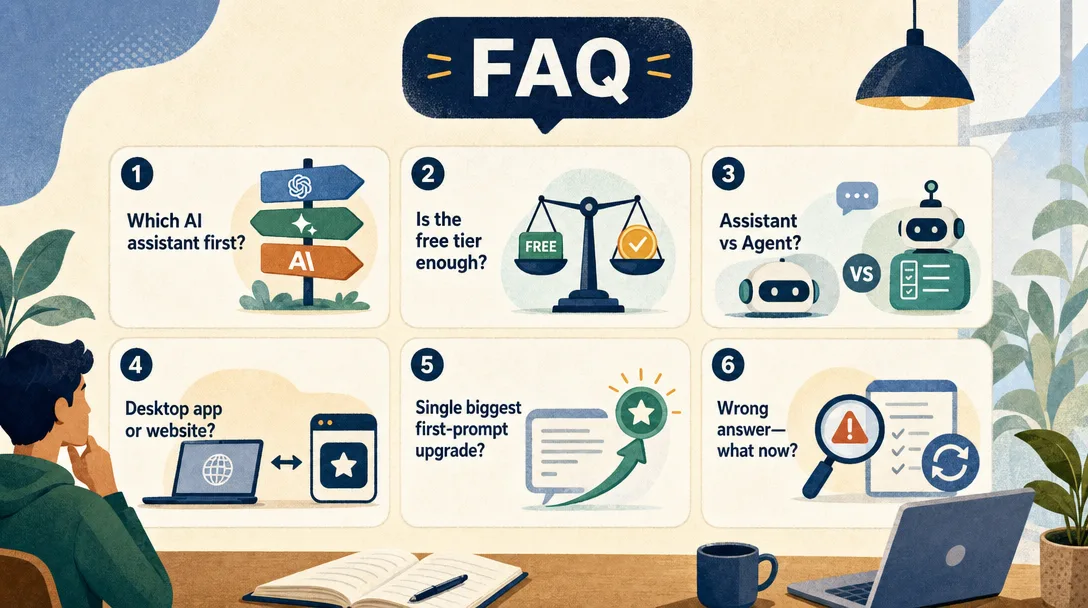
Frequently Asked Questions
Which AI assistant should a beginner install first?
For most non-technical beginners in 2026, ChatGPT (the iOS or Android app) is the path of least resistance — broadest install base, simplest onboarding, very forgiving. If you write a lot or work with long documents, Claude is a better daily driver. If you live inside Google Docs, Gmail, or Drive, Gemini integrates the deepest with that stack. The right answer is whichever one you'll actually use today; trying to pick the perfect one is what keeps people stuck for three months.
Do I need to pay to start?
No. Claude (claude.ai), ChatGPT, and Gemini all have free tiers that are more than enough for the first month of daily use. The free tiers cap how often you can use the most powerful model, but the fallback model is still strong enough for everything a beginner does. Pay only after you've hit a free-tier ceiling at least three times in one week — that's the real signal that you'll get value from the upgrade.
What's the difference between an AI assistant and an AI agent?
An AI assistant is a chat interface — you ask, it answers, you read. An AI agent does work on its own using tools, files, and APIs. The chat apps in this guide (Claude, ChatGPT, Gemini) are assistants. Tools like Claude Code or AI agents in OpenClaw step up to actual agent behavior. Start with the assistant; the agent layer makes sense once you have enough chat experience to know what you want delegated. For the agent view, the agent loop post walks through how a real agent thinks.
Should I install the desktop app or just use the website?
Both Claude and ChatGPT now ship native desktop apps that add two big quality-of-life moves: keyboard shortcuts to summon the assistant from anywhere, and screenshot capture you can paste straight into the prompt. The website is fine for occasional use; the desktop app is what turns the assistant into a daily reflex. Install both — the website on every device you use, the desktop app on the machine you actually work on.
How do I make my first prompt actually work?
The biggest beginner upgrade is going from "do X" to "do X for Y audience, in Z format, with these constraints." Bad: "write a weekly report." Good: "write a 200-word weekly report for my engineering manager covering: (1) what shipped, (2) what's blocked, (3) one risk for next week. Tone: matter-of-fact, no jargon." The four starter prompts in this guide are written exactly to get you that habit on day one. For the deeper version, the prompting art post is the next read.
What if my AI assistant gives me a wrong answer?
It will, especially for niche facts, recent events, and anything where it's expected to know exact numbers. The fix isn't to give up on the tool, it's to learn the verification habit: ask it to cite sources, paste in the relevant document instead of relying on its memory, and double-check anything load-bearing (financial, medical, legal). Treating the assistant as an extremely well-read intern — bright, fast, occasionally wrong — gets you the right calibration.
Quick Reality Check Before You Pick
One last calibration before you tap install. People sometimes ask whether picking "the wrong one" first will somehow set them back. It won't. Of the readers I've watched go through this — friends, family, people in workshops — exactly zero ended up stuck because they picked the "wrong" assistant on day one. The ones who got stuck all picked nothing because they couldn't decide.
Here's the actual math. Switching from one assistant to another, after you've used the first one for a month, takes maybe two hours of cleanup — re-saving your top prompts, recreating any saved threads. Two hours, after twenty hours of compounded learning, is a rounding error. The cost of switching is small. The cost of not picking is huge.
So: scroll back up to the four-question filter, run it once, install the winner, and run the four starter prompts before you close this tab. The assistant becomes useful the moment you stop reading about it and start typing into it.
What's Next
Once your first assistant is installed and the four starter prompts have run, the next compounding skill is prompting itself — the difference between a good and a great prompt is bigger than the difference between two assistants. Our prompt frameworks guide with 18 templates is the natural next step.
If your first installed assistant is Claude and you want to graduate from chat to a real coding workflow, the Claude Code quickstart is the bridge. If you're new to the whole "AI agent" framing and want a beginner-shaped intro, the ask-better post for AI agents is the gentlest on-ramp. And if you've felt the limits of "one assistant for everything" and want to know what an AI agent looks like in production, the agent brain post is the macro frame.
Pick one, install it today, run the four starter prompts before bed. The compounding starts the moment the install finishes.
Monitoring a competitor who publishes no feed is the case every RSS guide skips. Twenty-one platforms sorted by which of three jobs they do, and the finished setup is business process automation you own outright, with no seat licence to renew.
Blaming the content is the reflex when a post underperforms, and it is usually the wrong diagnosis. A second reader decides distribution before any human sees the post, and most of what it checks is mechanical enough to automate business processes around, on five platforms at once.
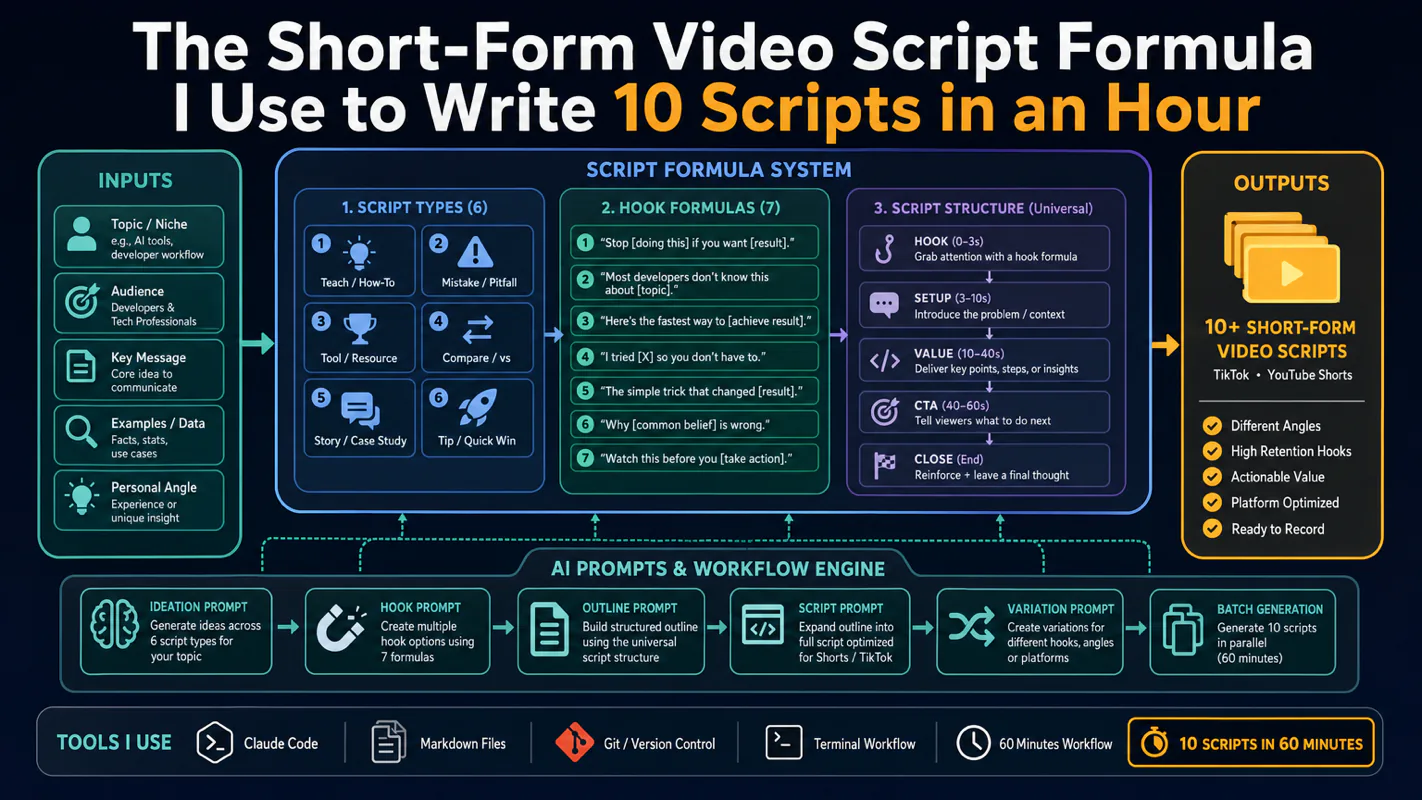
Thursday afternoon, fourteen product ideas, a Monday filming slot, no scripts. Six script shapes and seven hook formulas turn that hour into finished drafts — and the business rule stays: rewrite at least 30% before anything ships.
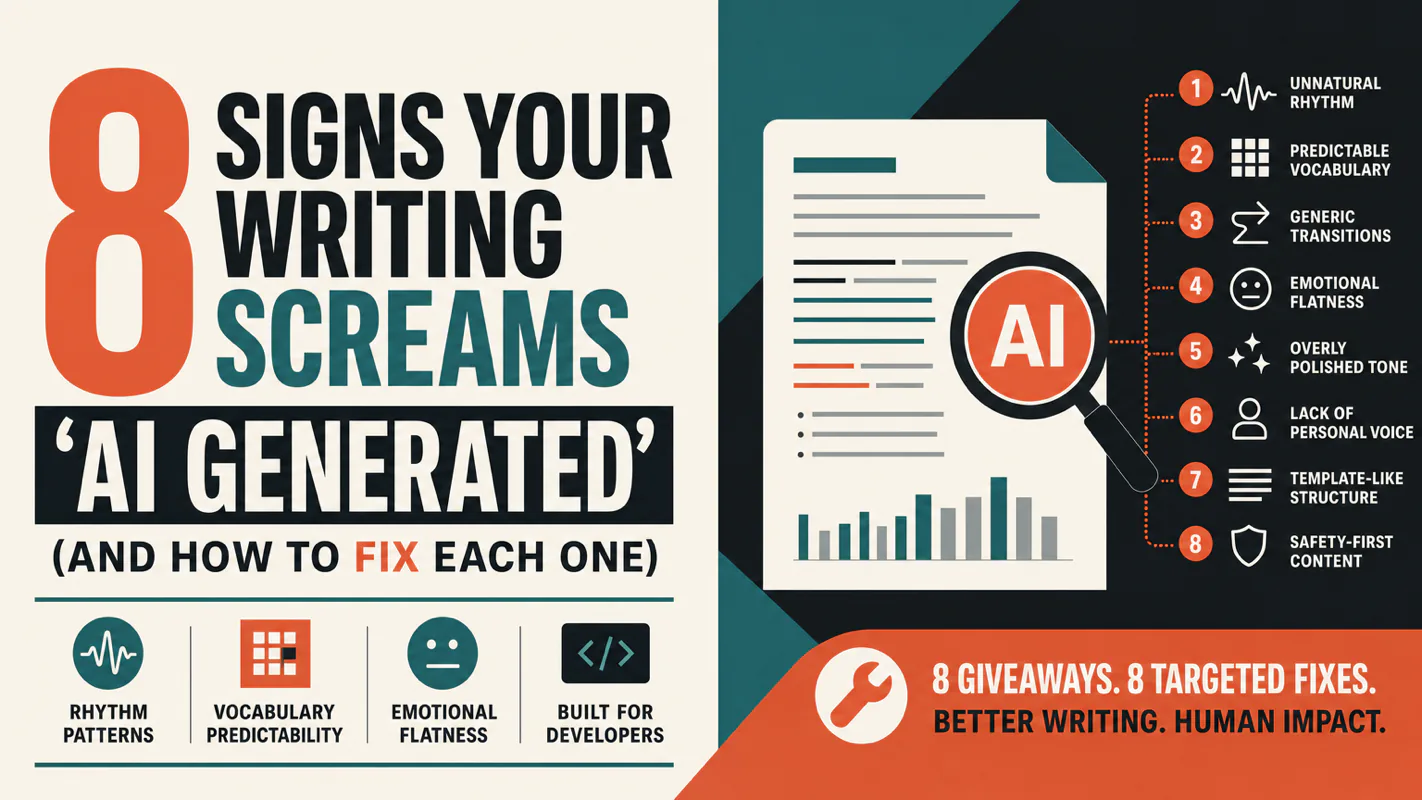
A detector score cannot survive a conversation with the freelancer it just cost three weeks of payment. What holds up is the specific thing on the page: rhythm, vocabulary, missing detail. Eight of them here, and the reason review stays human when you automate business processes.