A 30-minute video is too long for one conversation. This guide walks the 8-step Skill that locks the narration and one look, then gives each 3-minute segment to a fresh sub-agent, five at a time, and polishes the cut in an empty-context session.
The folder structure behind my AI agent team, the Herdr setup where Grok Build, Claude Code and Kimi Code work side by side, and the two live tasks from the video: an article published by voice and a three-model front-end test.
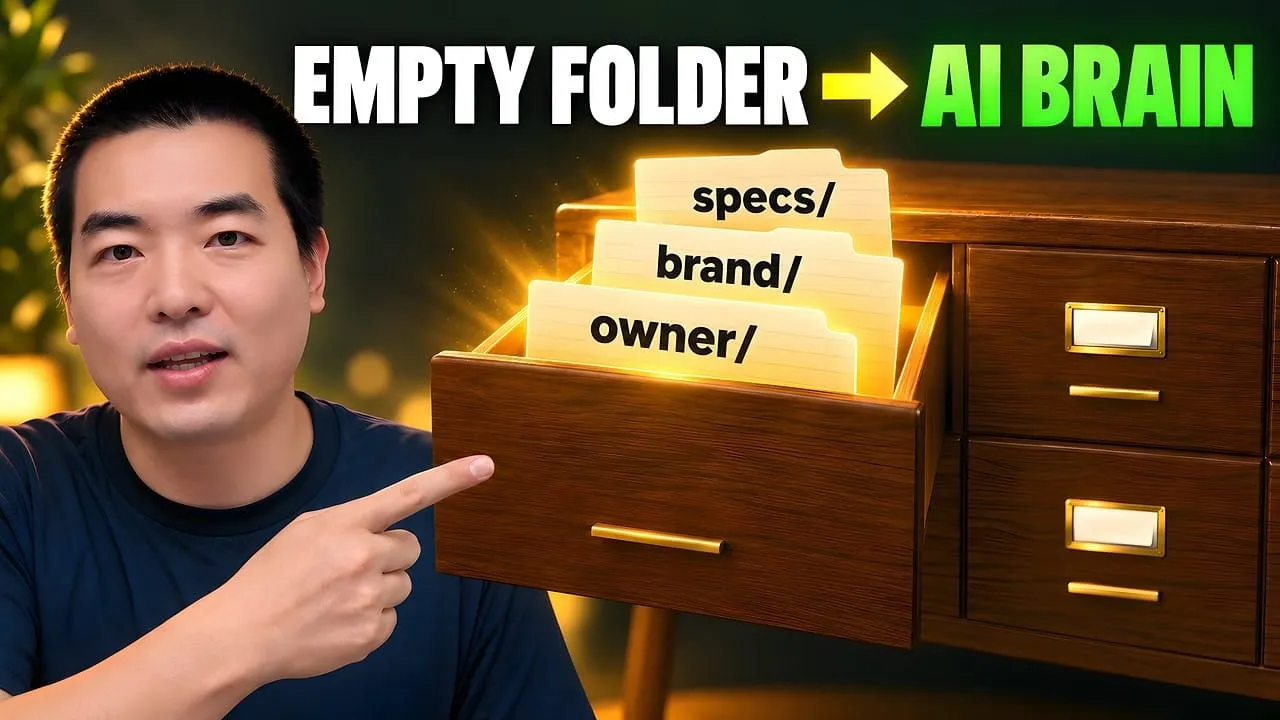
Eight folders of plain Markdown, a CLAUDE.md index in each, and seven prompts that make your agent interview you. Every prompt, template and command from the video, in order.
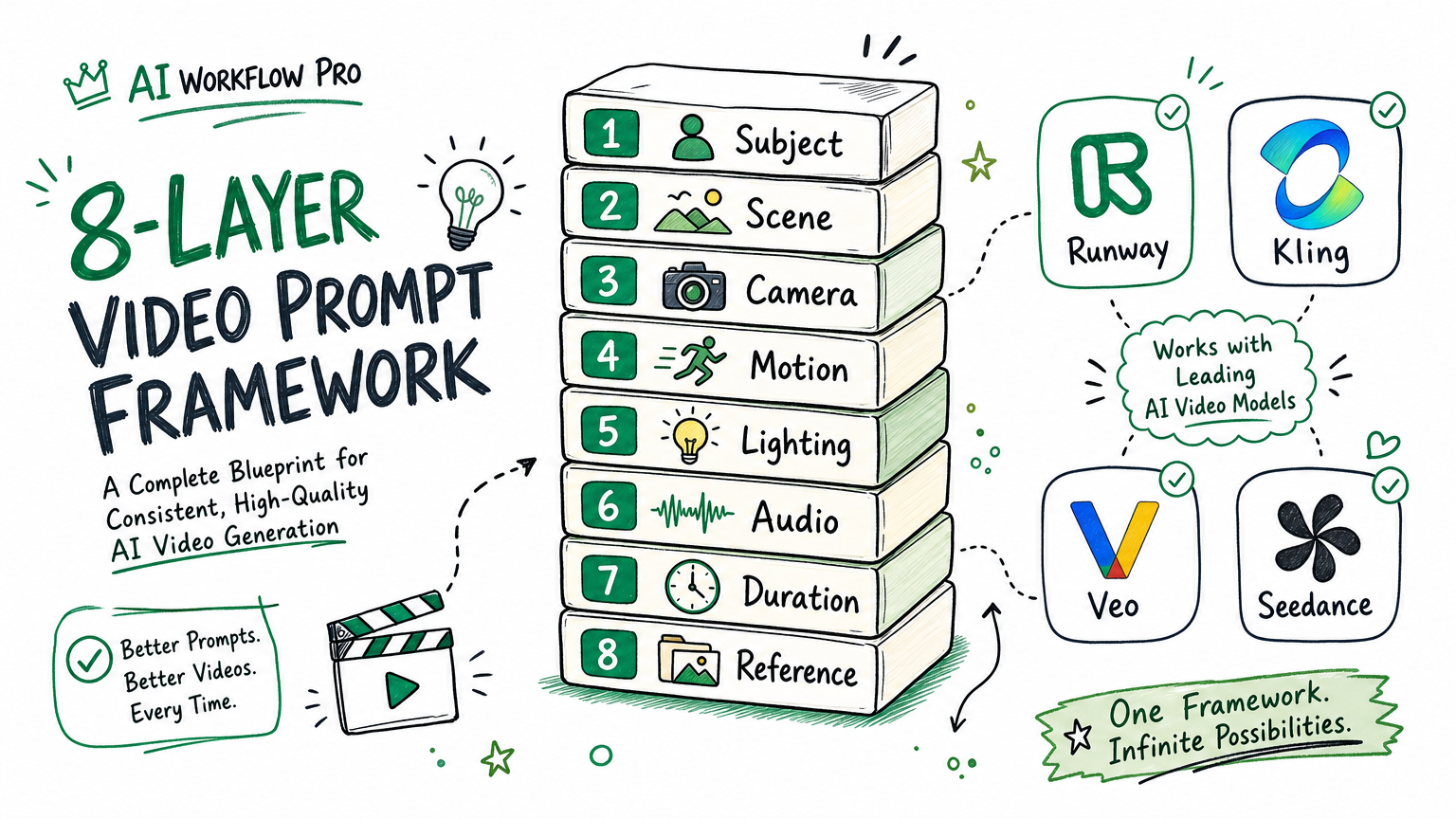
AI Video Prompt Framework: The 8-Layer Template for Runway, Kling, Veo, and Seedance
Tool-specific notes have the lifespan of the tool, and here that runs about eighteen months. A brief written one layer up survives the swap, porting across Runway, Kling, Veo and Seedance. Vendor independence is the unglamorous half of any attempt to automate business processes.
Every AI video model can produce attractive frames from vague text. The difference between a usable clip and a beautiful accident is prompt structure. The safest way to write an AI video prompt is to treat it like a miniature production brief: what the viewer sees, what changes over time, how the camera moves, what the sound layer does, and which constraints must stay fixed.
This guide gives you one eight-layer prompt framework that works across Runway Gen-4.5, Kling 3.0, Veo 3.1, and Seedance 2.0. It then shows you how to adapt that framework to the unique control surface of each model. It is not a list of magic words. It is a debugging system. When a clip fails, you can identify which layer failed instead of rewriting the whole prompt from scratch.
Your team learns one video tool, writes down what works, and then the model is deprecated or something cheaper appears. The notes were about buttons, so they die with the tool. The eight-layer framework below outlives that: one brief — subject, action, camera, lighting, reference, audio, timing, constraints — filled in once, then adapted to Runway's physics bias, Kling's identity control, Veo's synced audio or Seedance's reference handling. Keeping a process independent of its vendor is unglamorous discipline, and it is why some companies automate business processes once while others rebuild the same workflow every eighteen months.
Why prompt structure matters more than prompt length
Video prompts are harder than image prompts because every instruction has a time dimension. A subject is not only present; it moves. A camera is not only framed; it travels. Lighting is not only a look; it changes. Sound is not atmosphere; it tells the model what should happen when.
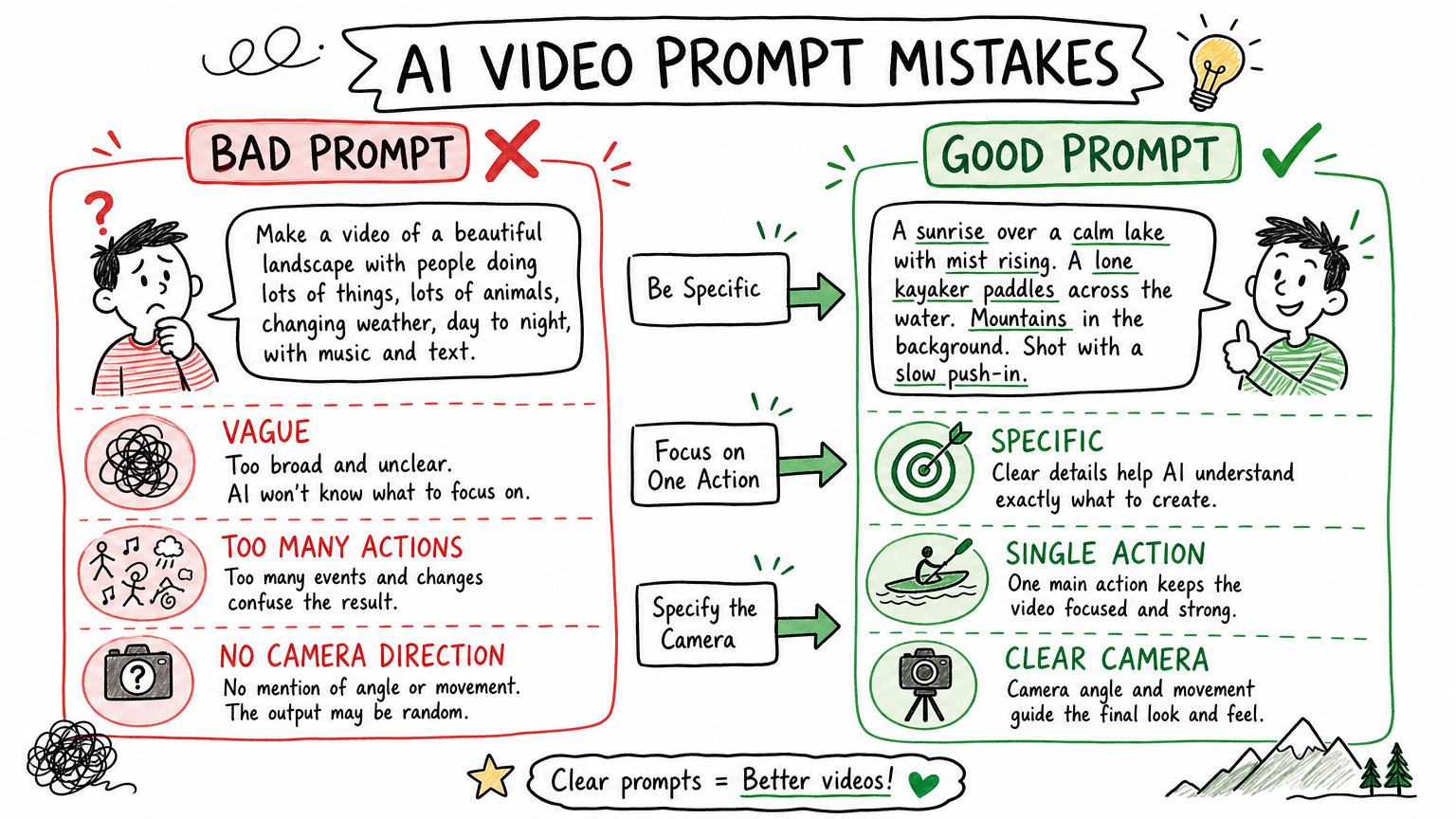
A weak prompt usually fails in one of five ways:
The subject is underdefined, so the model invents identity.
The action is too abstract, so the clip becomes static.
The camera move conflicts with the subject action.
The style words are stronger than the scene logic.
The negative constraints are vague, so unwanted text, subtitles, or artifacts appear.
The fix is not to make the prompt longer. The fix is to make each instruction do one job. Instead of writing one long paragraph, build the prompt in layers. Each layer answers one question.
The eight-layer prompt framework
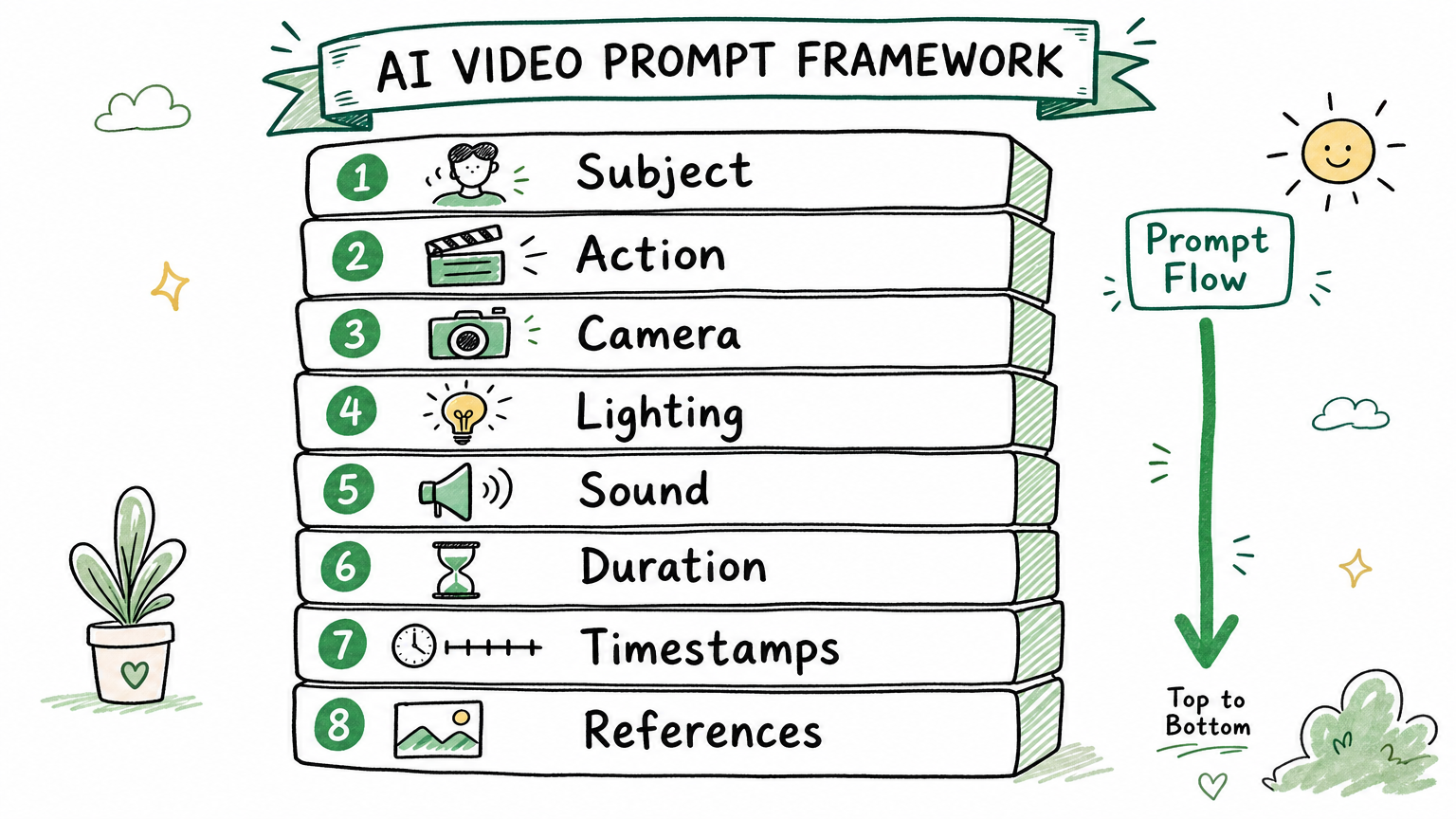
Use this as the default structure for any AI video model:
Layer
Job
What to write
1
Reference assets
Which image, product, character, or frame controls identity
2
Shot label
Single shot, timestamp segment, or scene number
3
Subject
Who or what appears, with two or three stable visual details
4
Action
Body-level or object-level motion with speed and direction
5
Camera
One camera move, one lens/framing choice, one point of view
6
Scene and lighting
Environment, light direction, color temperature, atmosphere
7
Audio or timing
Dialogue, sound effects, ambient sound, beat, or silence
Do not treat this table as bureaucracy. It prevents conflict. If the action layer says the subject walks toward camera and the camera layer says a fast pull-back, that can work. If the same sentence says macro close-up, wide establishing shot, handheld drone movement, and slow dolly, the model has to average incompatible ideas.
A clean single-shot skeleton:
Reference assets: [only if used]
Shot 1:
Subject: [main subject + stable details]
Action: [visible motion + pace + direction]
Camera: [framing + one camera move]
Scene and lighting: [environment + light + atmosphere]
Audio/timing: [dialogue, SFX, ambient sound, or silence]
Constraints: [style anchor + no unwanted text/subtitles/artifacts]
For multi-shot clips, repeat layers 2 through 7 per timestamp and keep layer 8 global. The goal is not to write a screenplay. The goal is to make each short segment unambiguous.
Writing subject, action, camera, and lighting
These four layers carry most of the visual weight. Getting them right matters more than choosing the right model.
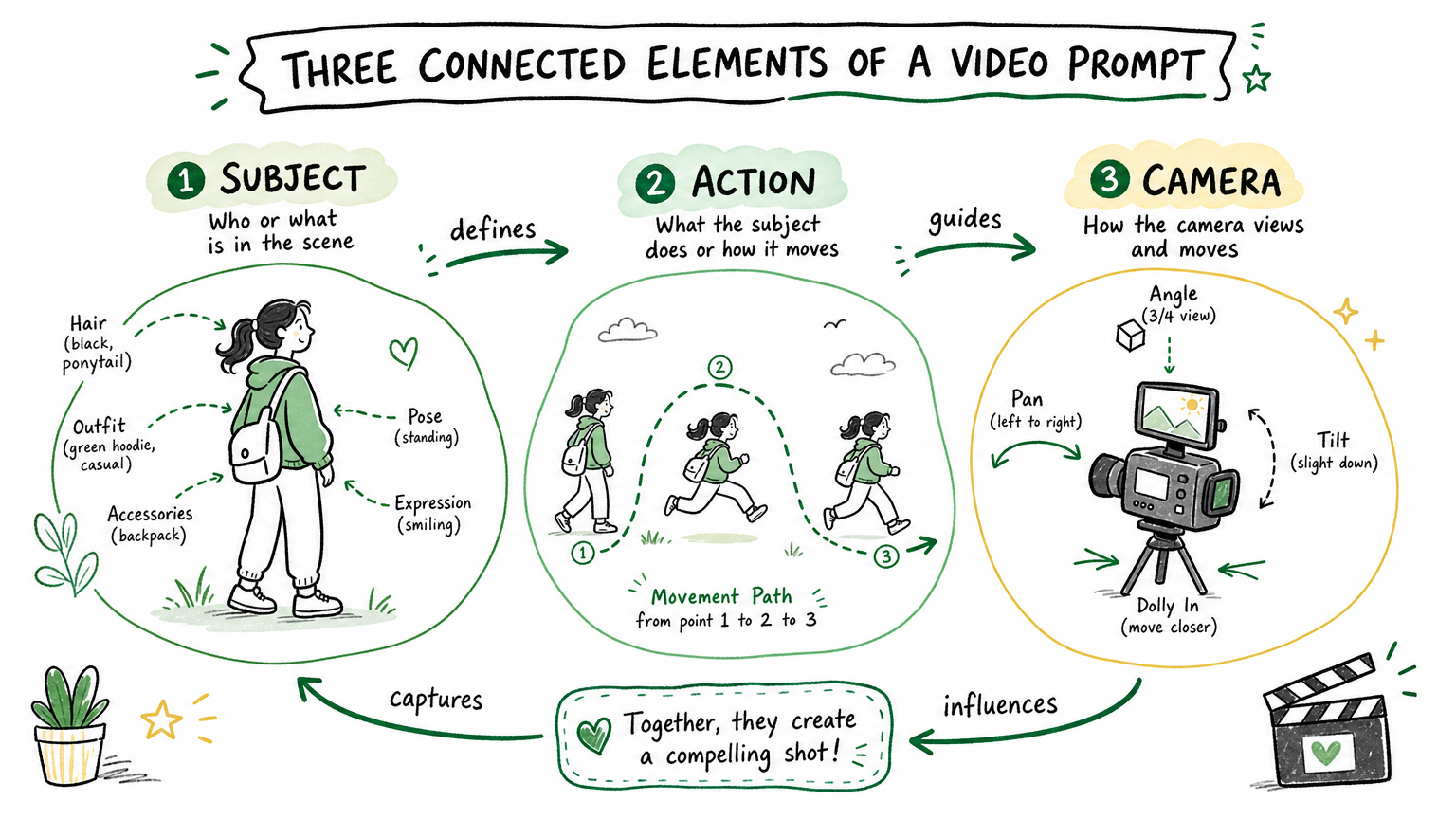
Subject. Write it as a production constraint, not a vibe. Give the model two or three stable features that should not change: age range, clothing, object material, product color, or environment anchor. Avoid overloading the subject with twenty traits. The model will not respect all of them, and conflicts create drift.
Action. Write at the level of visible body parts or object behavior. "A founder feels inspired" is not visible. "A founder pauses, looks at the terminal, exhales, and starts typing again" is visible. "A product looks premium" is not visible. "The black metal device rotates slowly while a thin rim light slides across the edge" is visible.
Camera. Pick one primary move per shot:
slow push-in
locked-off tripod shot
handheld follow shot
top-down product shot
macro close-up
orbit around the subject
low-angle tracking shot
Lighting. Use direction and temperature: soft window light from camera left, cold blue monitor glow, warm sunset backlight, hard overhead warehouse light, or diffused studio key light. Generic words like "cinematic" help less than concrete light behavior.
How timestamps and references change the prompt
References should reduce uncertainty, not become another vague style request. If you include a reference image, say what it controls: the person, the product, the first frame, the final frame, the room, the color palette, or only the mood.
Timestamp prompts are useful when the clip needs a sequence. Keep each segment short and distinct:
[00:00-00:02] Close-up of the product on a matte black table. A narrow strip of light moves across the edge.
[00:02-00:05] The camera slowly pushes in as a hand enters frame and rotates the product 30 degrees.
[00:05-00:08] The product locks into a centered hero shot. Background falls slightly out of focus.
Each segment should answer one question: what changes in this moment? If nothing changes, you probably do not need a timestamp. If too many things change, split the shot.
Copy-paste starter templates
Replace the bracketed parts. These work across all four models as a baseline; the tool-specific sections below show how to enhance them for each model's strengths.
Product ad template
Shot 1:
Subject: [product] with [two stable details] on [surface].
Action: The product slowly rotates while [specific detail] catches the light.
Camera: Macro close-up, slow push-in, shallow depth of field.
Scene and lighting: [studio/environment], [light direction], [color temperature].
Audio/timing: SFX: subtle mechanical click and soft room tone.
Constraints: premium, realistic, no text overlays, no subtitles, no warped logo.
Founder story template
Shot 1:
Subject: A solo builder at a desk, [clothing/detail], laptop open.
Action: The builder reads an error, pauses, rewrites a command, and smiles when the process succeeds.
Camera: Medium shot from behind the laptop, slow handheld push-in.
Scene and lighting: Small workspace, warm desk lamp, cool monitor glow.
Audio/timing: Ambient: quiet keyboard clicks and room tone.
Constraints: realistic, grounded, no futuristic holograms, no captions.
Explainer visual template
Shot 1:
Subject: [abstract concept] represented as [concrete visual metaphor].
Action: The system separates into three labeled-looking zones without readable text.
Camera: Top-down controlled move, slow pan from left to right.
Scene and lighting: Clean neutral background, soft studio light, subtle shadows.
Audio/timing: Ambient: quiet digital pulse, no voiceover.
Constraints: no readable text, no UI clutter, no random symbols.
Use templates as starting points, not final prompts. The first edit should clarify the action. The second should remove unnecessary style words. The third should add the exact constraint that failed in the last generation.
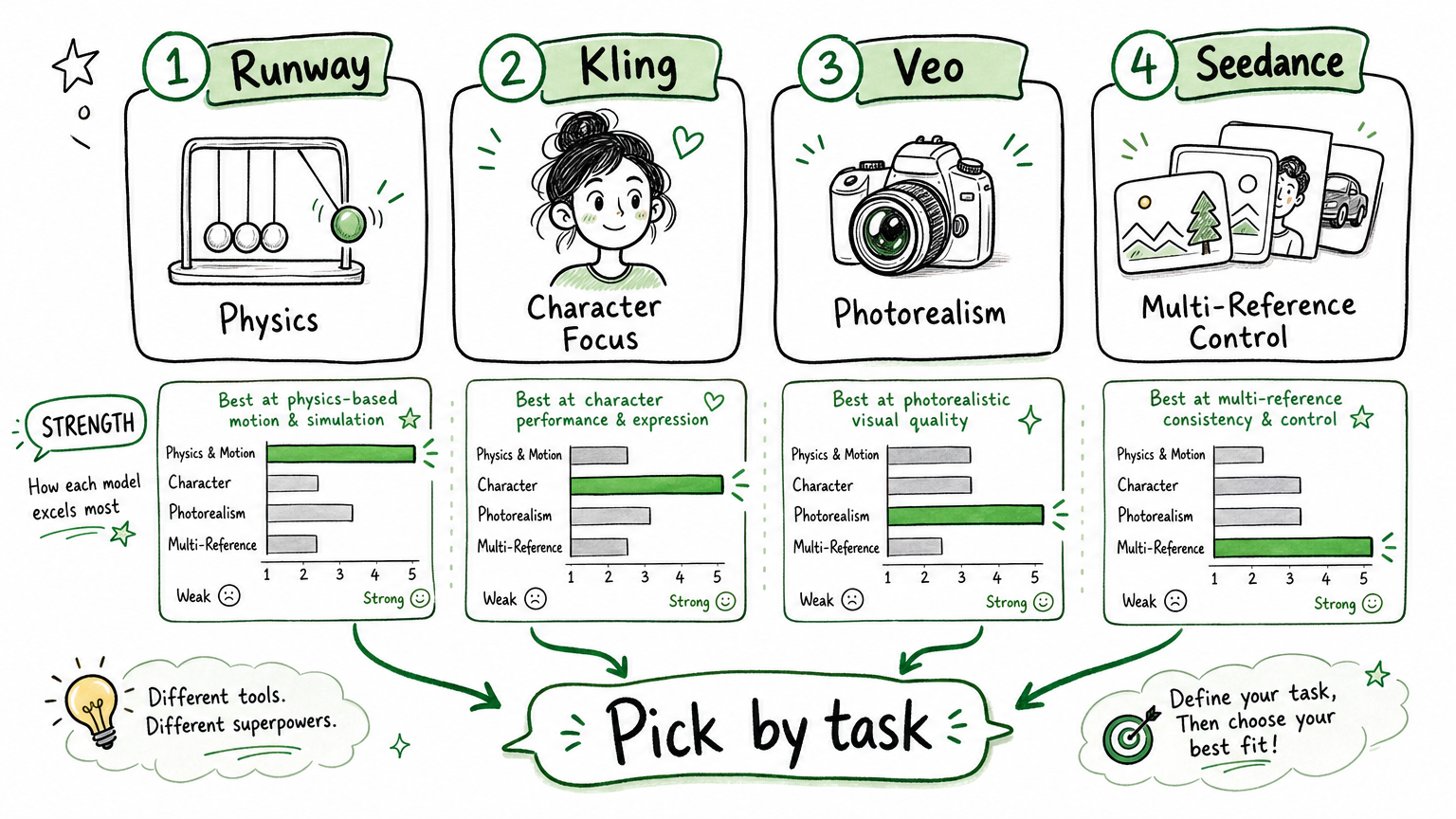
Runway Gen-4.5: physics-first prompting
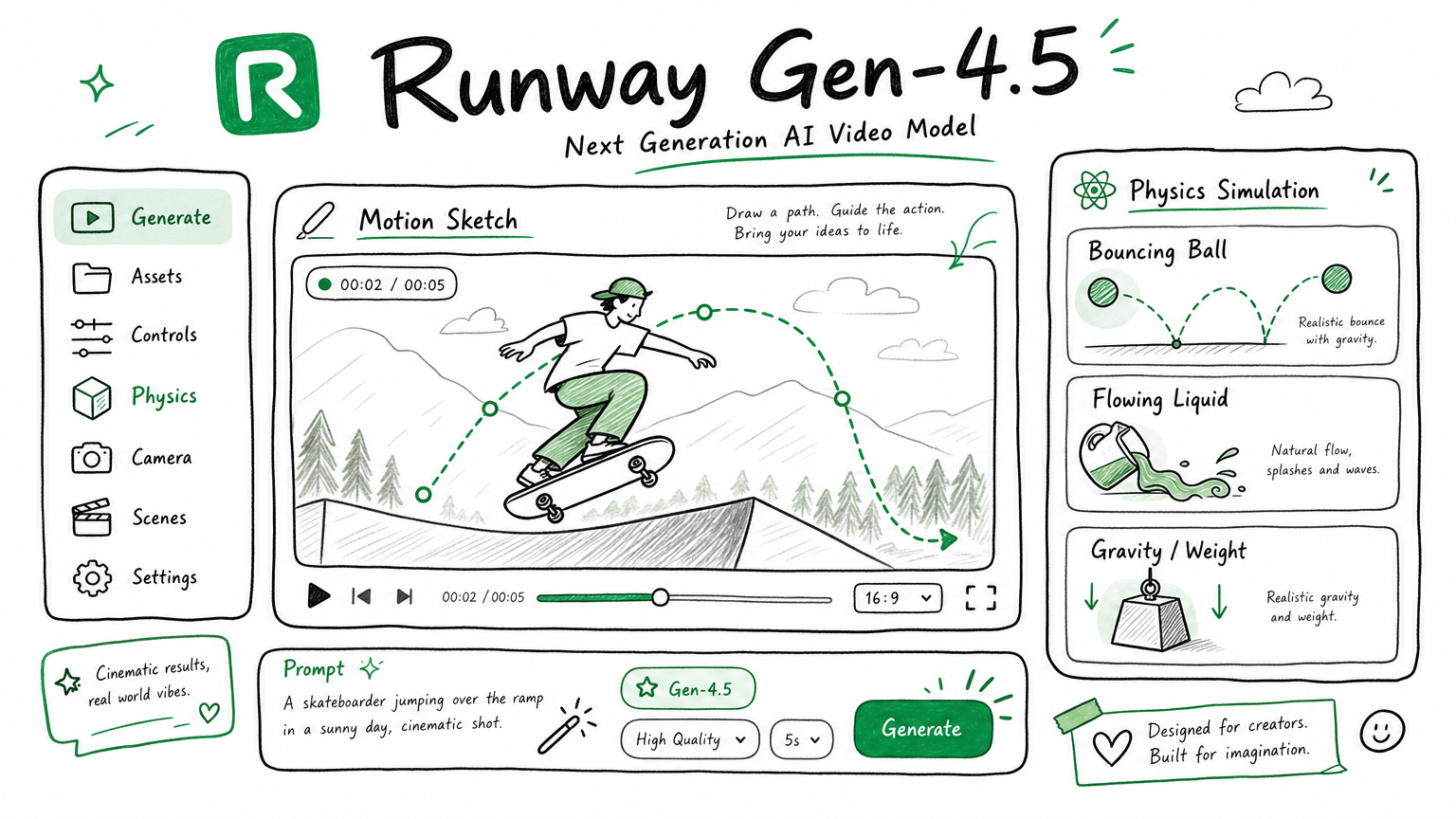
Runway Gen-4.5 is the strongest model for physical motion, kinetic product shots, and image-to-video conversion. It ranks at the top of the Artificial Analysis Video Arena specifically for physics accuracy and prompt adherence. When the hard part of your shot is making objects feel like they have weight, momentum, or material resistance, Runway is the first tool to reach for.
Force-reaction grammar
The unique discipline for Runway prompts is force-reaction grammar: what pushes, what resists, what deforms, what moves next, and how the camera records the change. Most video models treat motion as an animation instruction. Runway responds better when you describe a chain of physical cause and effect.
Weak: "The ball bounces on the table."
Strong: "The rubber ball drops from 30cm, compresses on the oak table surface, rebounds to half height, and settles with two smaller bounces. The table vibrates slightly."
This matters because Runway's architecture was trained to infer physics from motion descriptions. The more you give it a causal chain, the less it invents floating or weightless behavior.
Unique controls and parameters
Motion Sketch. Runway lets you draw motion paths directly on a reference image before generation. You sketch the trajectory of the camera, the subject, or an object, and the model follows that path. This is not available in any other model and eliminates ambiguous camera move descriptions.
Act-Two (performance mode). Upload a webcam video of your own facial expressions and body movement as input. The model uses your performance to drive character acting in the generated video. This bypasses the entire problem of describing subtle expressions in text.
Explore Mode. Generates infinite variations without per-clip cost, letting you iterate on prompt wording without burning credits on each attempt.
Output specs. 5, 8, or 10 second clips at 720p/24fps. Six aspect ratios: 16:9, 9:16, 1:1, 4:3, 3:4, and 21:9. The 21:9 ultrawide is unique to Runway and useful for cinematic letterbox formats.
Camera terms library. Runway publishes an official list of camera terms the model was trained on: dolly, push-in, orbit, pan, truck, boom, and others. Using these exact terms produces more reliable results than freeform descriptions like "the camera swings around dramatically."
Runway-specific prompt template
Reference: [product hero image, uploaded]
Motion Sketch: [draw slow orbit path around product center]
Shot 1:
Subject: Matte black wireless speaker, brushed aluminum base, on polished concrete.
Action: A hand pushes the speaker 5cm. The speaker slides, decelerates, stops.
  The base compresses the felt pad underneath. The felt slowly rebounds.
Camera: Macro close-up, slow orbit (follow Motion Sketch path), f/2.8 depth.
Scene and lighting: Industrial studio, hard top light with soft fill from camera left.
Audio/timing: SFX: the scrape of metal on concrete, felt compression thud.
Constraints: 10s, 16:9, realistic physics, no text, no floating objects.
Limitations and workarounds
Runway clips max out at 10 seconds per generation. For longer sequences, generate overlapping segments and use the last frame of clip N as the first-frame reference for clip N+1. The model sometimes softens textures on fast motion. Adding "sharp texture, no motion blur on product surface" to constraints helps. Character faces can drift on longer clips because Runway prioritizes motion fidelity over identity lock; for face-critical shots, consider Kling instead.
Kling 3.0: character and dialogue control
Kling 3.0 is the model to use when the hard part of your shot is keeping a character's face, clothing, and voice consistent across multiple cuts, or when your scene involves dialogue between two or more people. No other model in this set offers the same depth of identity persistence and multi-character audio control.
Elements 3.0 and subject binding
Kling's "Elements" system is a persistent asset library. You upload four reference images of a character, and the model builds a 3D "Visual DNA" profile that locks facial structure, hair, clothing textures, and body proportions. This profile persists across generations, so you can make ten different shots of the same character without drift.
Enable "Bind Subject to Enhance Consistency" to hard-lock identity across shots. This toggle is the single most important control in Kling that other models lack. Without it, character identity drifts by the third or fourth generation even with the same reference image.
Multi-shot storyboard
Kling supports up to six camera cuts in a single generation with per-shot duration and prompt control. This means you can script an entire short sequence (wide establishing shot, medium two-shot, close-up reaction, reverse angle) without leaving the interface or stitching clips manually.
Each shot within the storyboard accepts its own duration (3-15 seconds, flexible, not fixed tiers), camera angle, and action description. The identity binding from Elements carries across all six cuts automatically.
Dialogue and lip-sync
Kling generates native lip-synced dialogue in at least five languages (Chinese, English, Japanese, Korean, Spanish) with multi-character audio tracks. You can assign separate dialogue lines to separate characters, control overlapping speech timing, and direct facial expressions during dialogue.
The prompt syntax for dialogue is explicit:
Character A says: "The prototype is ready."
  Face: slight smile, raised eyebrows, nods once.
  Camera: Medium close-up, eye level.

Character B says: "Ship it tonight."
  Face: serious, jaw tightens, looks down at laptop.
  Camera: Over-the-shoulder from A's perspective.
Writing who speaks, what the face does during the line, and what the camera sees during the line is not optional. If you write only the dialogue text, Kling will generate speech but the facial expressions and camera framing will be random.
Unique controls and parameters
Native 4K/60fps. Kling is the only model in this set that outputs 3840x2160 at 60fps. For content destined for large screens or high-refresh displays, this eliminates an upscaling step.
Video extension. Continue a generated clip with additional prompt segments for longer narratives. The identity binding from Elements persists into extensions.
@ input syntax. In Multi Shot mode, use @element_name to bind specific Elements to specific shots, similar to tagging actors in a screenplay.
Kling-specific prompt template
Elements: @founder (Visual DNA from 4 reference photos), @laptop (product reference)
Storyboard mode: 3 shots

Shot 1 [4s]:
Subject: @founder, navy henley, standing at whiteboard.
Action: @founder writes a diagram, steps back, crosses arms.
Camera: Medium wide, locked-off tripod, eye level.
Scene and lighting: Open-plan office, large windows, daylight key from camera right.
Audio: Ambient: marker on whiteboard squeak, quiet office hum.

Shot 2 [3s]:
Subject: @founder at desk, @laptop open.
Action: @founder reads screen, smiles, picks up phone.
@founder says: "It actually works."
  Face: eyebrows rise, genuine surprise, slight laugh.
Camera: Close-up, shallow DOF, slight handheld drift.

Shot 3 [4s]:
Subject: @laptop screen showing a green success message (no readable text).
Action: Cursor clicks a button. A progress bar completes.
Camera: Insert shot, macro, locked-off.
Scene and lighting: Monitor glow dominant, warm desk lamp fill.

Constraints: Bind Subject on, 4K, realistic, no text overlays, consistent identity across all shots.
Limitations and workarounds
Kling's physics engine is weaker than Runway's. Objects that need to feel heavy, bounce realistically, or interact with fluids will look more convincing in Runway. The workaround is to use Kling for the character-driven shots and Runway for the product physics shots, then edit them together. Elements creation requires four good reference images; blurry or inconsistent refs produce a weak Visual DNA that drifts. Use well-lit, front-facing, varied-angle photos for best results.
Veo 3.1: photorealism with native audio
Veo 3.1 is Google DeepMind's model and the strongest option for photorealistic clips with synchronized audio generated directly from the visual scene. Unlike other models where audio is bolted on after generation, Veo synthesizes voices, sound effects, and ambient sound from the scene itself during generation. When your shot needs to sound real without a separate audio production step, Veo is the tool.
Audio-first prompting
The unique discipline for Veo prompts is treating audio as a first-class layer, not an afterthought. Veo uses three audio tag patterns that the model is trained to follow:
says: for dialogue. Character says: "The shipment is confirmed."
SFX: for discrete sound events. SFX: glass breaks, ceramic shards scatter on tile floor.
Ambient: for continuous sound beds. Ambient: rain on metal roof, distant thunder, interior echo.
These are not optional labels. They are the control surface. If you write dialogue without the says: pattern, Veo may generate the speech but place it at the wrong moment or assign it to the wrong character. If you write sound effects inline with the action description, the model may interpret them as visual instructions rather than audio cues.
Ingredients to Video
Veo 3.1 lets you upload up to three reference images to lock character appearance, object identity, and visual style. The model synthesizes audio that matches the visual references: if your reference shows a wooden room, the ambient sound will have the acoustic profile of a wooden interior. This cross-modal reference understanding is unique to Veo.
Frame control
Frames to Video lets you specify a first-frame image and a last-frame image. The model generates the transition between them with synchronized audio. This is the most precise way to control a specific visual transition (product unboxing start-to-finish, sunrise-to-sunset, before-and-after) while also getting matching sound design for free.
Extend continues a generated clip with additional duration while maintaining audio coherence. The ambient sound bed, dialogue rhythm, and visual motion all carry forward into the extension.
Unique controls and parameters
Native audio generation. Audio is not a separate model or post-process. The sound is synthesized from visual data, meaning footstep sounds match the floor material the model rendered, and voice reverb matches the room geometry. This eliminates the foley step for rough cuts and social video.
Photorealism benchmark. Veo consistently scores at or near the top on realism-focused video benchmarks. For clips where the viewer should not be able to tell whether the footage is real, Veo is the safest choice.
Google prompt design guidelines. Google publishes official prompt engineering guidelines for Veo that specify optimal prompt patterns. Following their documented structure produces measurably better adherence.
Veo-specific prompt template
Reference images: [talent headshot], [office environment photo], [product close-up]
Shot 1:
Subject: Woman, early 30s, dark blazer, seated at oak desk.
Action: She opens a laptop, reads the screen, looks up at camera.
  She says: "We just passed ten thousand users."
  Face: controlled smile, professional, slight exhale of relief.
Camera: Medium close-up, shallow DOF, slow push-in over 4 seconds.
Scene and lighting: Corner office, floor-to-ceiling window camera left,
  warm afternoon light, soft shadows on desk.
SFX: laptop hinge opening, fingernails on keyboard.
Ambient: quiet HVAC hum, city traffic through glass, distant phone ring.
Constraints: photorealistic, 16:9, no text overlays, no background music,
  audio must match room acoustics.
Limitations and workarounds
Veo clips tend to be shorter than Kling's maximum. Audio sync can drift on rapid cuts or when more than two characters speak in overlapping timing. The workaround is to keep dialogue turns sequential, not overlapping, and limit each shot to one primary speaking character. Veo's physics engine is less precise than Runway's for material interactions; objects that need to bounce, splash, or deform should be done in Runway and the Veo output used for dialogue and ambient scenes. Access is currently through Google AI Studio and the Gemini API, which means you need a Google account and may face availability constraints depending on region.
Seedance 2.0: reference-driven workflows
Seedance 2.0 is built for workflows where you already have visual assets (character art, product photos, storyboard frames, environment references) and need the model to understand those assets before generating motion. The unique value is its reference labeling system that acts like a cast list for your generation.
Reference labels as the control surface
Seedance uses @ labels to bind references to specific roles in the prompt:
@character is the actor. The model locks face, body, clothing from this reference.
@product is the hero object. Material, color, shape, proportions are anchored.
@scene is the environment. Room geometry, color palette, lighting setup come from this.
@style is the visual treatment. Color grading, grain, contrast curves transfer from this.
These are not decorative tags. They are the primary control mechanism. A Seedance prompt without explicit labels will generate video, but the model has to guess which reference controls what. That guessing produces exactly the kind of identity drift and environment mutation that references are supposed to prevent.
Multimodal input pipeline
Where most models accept one or two reference images alongside text, Seedance is designed for multimodal stacking: text prompt plus character reference plus product reference plus environment reference plus style reference, all in one generation call. The model resolves conflicts between references using the label hierarchy, so @character face identity wins over @scene lighting if they conflict on skin tone.
This makes Seedance the strongest option for creator workflows where you already have brand assets (logo, product shots, brand color palette, talent headshots) and need every generation to stay on-brand without per-shot manual correction.
Unique controls and parameters
Asset understanding before motion. Seedance pre-processes reference images to build an internal representation before generating frames. This means the model "knows" the 3D structure of your product or character before deciding how to move it. Other models process references and motion simultaneously, which can cause early frames to look correct but late frames to drift.
Creator-speed iteration. Seedance's generation pipeline is optimized for fast turnaround on reference-heavy prompts. In workflows where you need to test ten variations of the same branded scene, the per-generation time is competitive even with multiple references loaded.
Cross-reference consistency. If you use the same @character label across multiple generation calls, Seedance maintains identity consistency without requiring you to re-upload references. The label acts as a persistent key within a session.
Seedance-specific prompt template
@character: [founder headshot, front-facing, well-lit]
@product: [SaaS dashboard screenshot, clean UI]
@scene: [modern co-working space photo, natural light]
@style: [brand mood board, warm tones, minimal grain]

Shot 1:
Subject: @character at a standing desk in @scene.
Action: @character looks at a monitor showing @product.
  @character taps the trackpad. The @product dashboard updates.
  @character nods, picks up a coffee mug, takes a sip.
Camera: Medium shot, slight handheld drift, eye level.
Scene and lighting: Inherits from @scene. Key light from window camera left.
  Monitor glow fills shadow side of face.
Audio/timing: Ambient: co-working space murmur, keyboard clicks nearby.
  SFX: trackpad tap, ceramic mug on wood.
Constraints: Match @style color grading, no text on screen, no logo drift,
  @character face must match reference exactly, realistic.
Limitations and workarounds
Seedance's physics simulation is the weakest of the four models. Objects that need to splash, shatter, or demonstrate material flex should be generated in Runway. Dialogue and lip-sync are less polished than Kling; for speaking characters, use Seedance for the establishing shots and environment scenes, then cut to Kling for close-up dialogue. Reference image quality matters more in Seedance than any other model because the entire generation anchors to those images. A blurry @character reference produces a blurry character in every frame. Invest time in preparing clean, high-resolution, well-lit reference images before starting a Seedance workflow.
Which model should you pick?
Do not pick by leaderboard mood. Pick by the hardest part of your shot.
Your hardest problem
Best model
Why
Object needs to feel heavy, bounce, or interact physically
Runway Gen-4.5
Force-reaction grammar, top physics accuracy, Motion Sketch path control
Character face must stay identical across 3+ shots
Kling 3.0
Elements Visual DNA, Subject Binding toggle, up to 6-cut storyboard
Character speaks on camera and audio must match lip movement
First-frame to last-frame transition with matched audio
Veo 3.1
Frames to Video with native audio sync
In production, the answer is often "use two models." Generate the physics-heavy product shot in Runway, the character dialogue in Kling, and the ambient scene with natural audio in Veo. The eight-layer framework is the same; only the model-specific control layer changes.
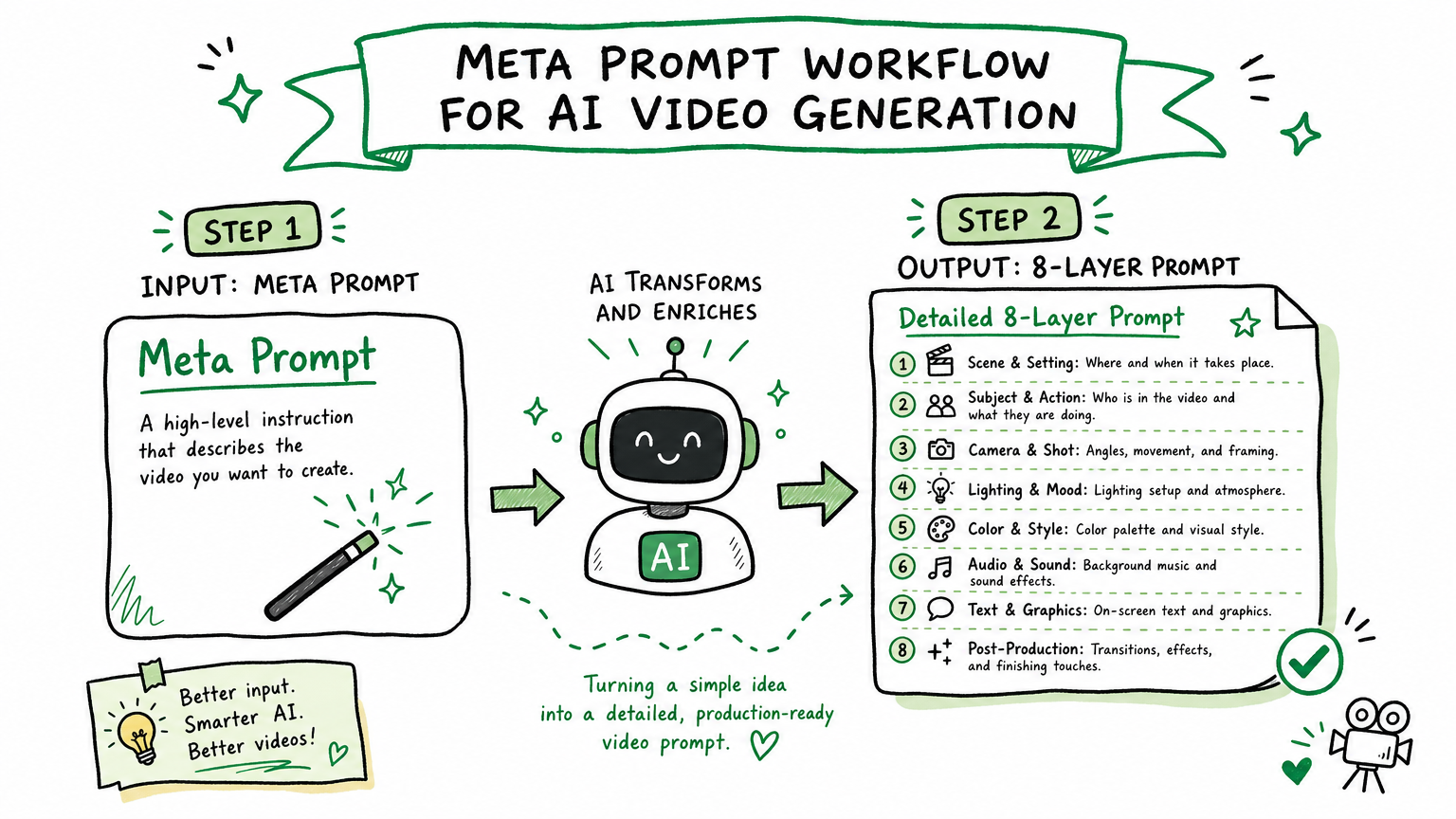
How to use a meta prompt to generate better prompts
Use this meta prompt with Claude, ChatGPT, or another writing assistant to draft your video prompt:
You are a video prompt director. You know four models:
- Runway Gen-4.5 (physics, motion, force-reaction grammar)
- Kling 3.0 (character identity, dialogue, Elements binding)
- Veo 3.1 (photorealism, native audio with says:/SFX:/Ambient:)
- Seedance 2.0 (reference labels @character/@product/@scene/@style)

Ask me for any missing details before writing the final prompt.

Goal: [what the clip must achieve]
Model: [Runway / Kling / Veo / Seedance]
Duration: [seconds]
Aspect ratio: [16:9, 9:16, 1:1, etc.]
Inputs: [text only / reference images / start frame / end frame]
Must keep: [identity, product, setting, style]
Must avoid: [text, subtitles, logo drift, extra fingers, jitter]

Write the final prompt using the eight-layer structure.
Add the model-specific control layer for the chosen model.
The important instruction is "ask me for missing details." Without it, the assistant will fill gaps with generic cinematic language. That looks useful but weakens control. A good meta prompt should return questions before it returns the final prompt.
What mistakes ruin AI video prompts fastest?
Writing style before action. The model spends its budget on decoration instead of motion.
Asking for multiple camera moves in one short shot. Pick one move per 3-5 second segment.
Describing feelings instead of visible behavior. "Excited" is not visible. "Pumps fist, leans forward, grins" is visible.
Using references without saying what each reference controls. Label every reference.
Adding negative prompts that are too broad. "No bad quality" does nothing. "No text overlays, no subtitle bar, no watermark" is specific.
Keeping a failed prompt and changing five variables at once. Change one layer, regenerate, compare.
Asking the model to create readable text inside the video. No current model reliably renders readable text.
Treating audio as a final add-on instead of a timed layer. Especially for Veo, audio is structural.
Copying the same prompt across models without adapting the control surface. Each model has a different strong layer. Using Runway syntax in Kling wastes Kling's identity binding.
Ignoring model-specific parameters. Motion Sketch in Runway, Elements in Kling, audio tags in Veo, and reference labels in Seedance are not optional extras. They are the primary differentiation each model offers.
The fix is boring: change one layer at a time. If the subject drifts, tighten the subject or reference layer. If motion feels weak, rewrite the action layer. If the clip feels cheap, improve lighting before adding more adjectives. If unwanted text appears, add a precise no-text constraint. Each model also has a signature failure: Runway drifts on weightless motion, Kling drifts on unlocked identity, Veo drops audio sync on fast cuts, Seedance ignores unlabeled references. Knowing your model's weak layer tells you where to debug first.
Frequently asked questions
What is the best AI video prompt structure for all models?
The eight-layer production brief works across all four: reference assets, shot label, subject, action, camera, scene and lighting, audio or timing, and constraints. After writing the base prompt, add the model-specific control layer. For Runway, add force-reaction grammar (cause-effect physics chains). For Kling, add Elements bindings and explicit dialogue-face-camera blocks. For Veo, add says:/SFX:/Ambient: audio tags. For Seedance, add @character/@product/@scene/@style reference labels. The structure is universal; the control surface is not.
Which AI video model should I pick for my project?
Pick by the hardest part of your shot, not the most exciting demo reel. If the hard part is physics (objects with weight, momentum, material interaction), use Runway. If the hard part is keeping a character's face consistent across multiple shots or generating dialogue, use Kling. If the hard part is making the clip look indistinguishable from real footage with natural-sounding audio, use Veo. If the hard part is making every generation match your existing brand assets, use Seedance. Most production workflows use two or three models for different shot types in the same project.
Can I use the same prompt across different AI video models?
The eight-layer structure transfers, but you must adapt the control surface. A Runway prompt needs force-reaction verbs. A Kling prompt needs Elements references and dialogue blocking. A Veo prompt needs explicit audio tags. A Seedance prompt needs labeled references. Copying a prompt verbatim across models is like using the same recipe in four different ovens without adjusting temperature. You will get output, but you will waste each model's strongest capability.
How do I debug a failed AI video generation?
Change one layer at a time and know your model's signature failure. Runway fails on weightless-looking motion: tighten the force-reaction chain and add material interaction verbs. Kling fails on face drift after multiple shots: check that Elements binding is enabled and references are high-quality front-facing photos. Veo fails on audio-visual desync during fast cuts: slow down the shot transitions and keep dialogue turns sequential. Seedance fails on reference ignorance: check that every reference has an explicit @label and that the label is used in the prompt body. Never rewrite the entire prompt after one failed clip. That destroys the evidence you need for debugging.
The practical lesson: stop writing AI video prompts as wishes. Write them as small production briefs. Use the eight-layer framework as your debugging checklist. Then adapt the control layer to whichever model gives you the best shot at solving the hardest part of your scene.
Ready-to-Use Prompt: Build a Debuggable 8-Layer AI Video Prompt
What this does: Expands a vague clip idea into an eight-layer production brief, runs it through the five failure modes, scores every layer, and adapts it to Runway, Kling, Veo, or Seedance — so when a clip fails you patch one layer, not rewrite everything. Based on: AI Video Prompt Framework: The 8-Layer Template for Runway, Kling, Veo, and Seedance — https://aiworkflowpro.com/ai-video-prompt-framework/ Time to run: ~4 minutes
Copy this prompt into Claude Code, ChatGPT, or any AI assistant:
ROLE: You are an AI Video Prompt Architect. Your job: turn a vague clip idea into an eight-layer production brief you can debug layer-by-layer, then adapt it to the model's control surface.

CONTEXT — 8-LAYER VIDEO PROMPT FRAMEWORK:
Every AI video model can make attractive frames from vague text; the difference between a usable clip and a beautiful accident is prompt structure, not length. Treat the prompt as a miniature production brief across eight layers: (1) Subject — defined identity so the model does not invent it; (2) Action — concrete motion over time, not abstract verbs; (3) Setting — where; (4) Camera — framing and movement; (5) Lighting — look and shifts; (6) Style/medium — aesthetic that must not overpower the scene; (7) Sound — what the audio signals and when; (8) Constraints & timestamps — what stays fixed and when changes occur. This is a debugging system, not a word list: when a clip fails, find the failing layer instead of rewriting everything. Adapt to the model's surface — Runway Gen-4.5 is physics-first, Kling 3.0 controls character and dialogue, Veo 3.1 adds photorealism with native audio, Seedance 2.0 is reference-driven.

INPUTS (fill in before running):
- CLIP_BRIEF: [What the clip should show — vague is fine]
- MODEL: [Runway Gen-4.5 / Kling 3.0 / Veo 3.1 / Seedance 2.0]
- HAVE_REFERENCE: [yes / no — reference image or clip available]
- SOUND_NEEDED: [yes / no — native audio required]

METHOD — 4 STEPS:

Step 1 — Fill the 8 Layers as a Production Brief
Expand CLIP_BRIEF into all eight layers. The Subject must be concrete enough that identity cannot be invented; the Action must be a specific motion, not an abstraction (no "looks happy" — say "turns and lifts the cup").

Step 2 — Conflict-Check Against the Five Failure Modes
Scan for: (1) underdefined subject, (2) abstract action that freezes the clip, (3) camera move conflicting with the action, (4) style words stronger than the scene, (5) missing constraints breaking continuity. Rewrite any layer that triggers a failure.

Step 3 — Score Each Layer 0–2 and Fix the Zeros
Score every layer: 0 = missing or underdefined, 1 = present but weak, 2 = concrete and time-aware. Regenerate any layer scoring 0 before proceeding.

Step 4 — Adapt to the Model and Add Timing
Apply MODEL's control surface: Runway Gen-4.5 — keep physics plausible; Kling 3.0 — use its character and dialogue controls; Veo 3.1 — lean into photorealism and write the native-audio layer if SOUND_NEEDED; Seedance 2.0 — wire HAVE_REFERENCE into the reference-driven flow. Add timestamps marking when each change happens.

RULES:
- Never let style words overpower the scene — style is a layer, not the subject.
- Never write an abstract action — every action is a visible motion.
- Never rewrite the whole prompt to fix one flaw — patch only the failing layer.

OUTPUT FORMAT:
Output a markdown report with:
1. 8-Layer Brief — markdown table, columns: Layer | Content | Score (0–2)
2. Failure-Mode Check — which of the five modes triggered + the fix applied
3. Model Adaptation — the control-surface moves used for MODEL
4. Final Paste-Ready Prompt — the assembled prompt inside a fenced text block
Save as @templates/ai-video-prompt-framework.md and run when drafting or debugging an AI video prompt for Runway, Kling, Veo, or Seedance.
A 30-minute video is too long for one conversation. This guide walks the 8-step Skill that locks the narration and one look, then gives each 3-minute segment to a fresh sub-agent, five at a time, and polishes the cut in an empty-context session.
Eight folders of plain Markdown, a CLAUDE.md index in each, and seven prompts that make your agent interview you. Every prompt, template and command from the video, in order.
Stop briefing your AI from scratch. One free folder holds your background, your rules and your voice. Eight prompts build it, no code, and any AI can read it.
Monitoring a competitor who publishes no feed is the case every RSS guide skips. Twenty-one platforms sorted by which of three jobs they do, and the finished setup is business process automation you own outright, with no seat licence to renew.